How to Check Router for Malware: A Practical Guide
Learn a practical, step-by-step method to check your router for malware, identify signs of infection, and secure your home network with firmware updates, strong credentials, and best practices.


With malware on a router, your entire home network is at risk. This quick answer shows you how to check for malware, verify unusual traffic, and reset settings safely. You’ll need your router’s admin access, a browser, and a moment to review logs and firmware status. Follow the steps below for a thorough check and safer browsing.
Why Malware on Routers Matters
According to WiFi Router Help, router security begins at the gateway—the router. The malware community targets home networks because routers sit between devices and the internet, and many users forget to change default credentials or apply firmware updates. A compromised router can redirect traffic, harvest login details, and slow performance across every connected device. Understanding these risks helps homeowners take early, effective action to protect privacy and speed. This foundation supports safer browsing and fewer surprises when devices behave oddly for no obvious reason.
This section outlines why a secure router is foundational to a healthy home network and how a malware infection can manifest in everyday use. By recognizing common symptoms early, you can intervene before the issue spreads to laptops, phones, and smart home devices.
How Malware Enters Your Network
Malware on routers typically enters through weak credentials, outdated firmware, or compromised remote access settings. Attackers exploit default admin accounts, misconfigured DNS, and exposed management interfaces to install rogue firmware or alter traffic routes. In many cases, malware propagates from infected connected devices that rely on the router as a control point. The practical takeaway is simple: disable unnecessary remote access, enforce strong passwords, and keep firmware updated. Regularly reviewing the devices connected to your network helps catch unusual behavior before it escalates.
A proactive posture—changing defaults and limiting exposure—greatly reduces risk. If you routinely audit your router’s settings, you’ll catch suspicious changes early and avoid longer remediation cycles later.
Signs Your Router Might Be Infected
Look for indicators such as changed DNS settings, redirects to unfamiliar sites, or consistently slow performance that doesn’t match your plan. Unrecognized devices appearing in the connected devices list, unexpected reboots, or a login page that looks altered are red flags. Some infections manifest as persistent popups or heightened ad delivery across devices. If you notice any of these signs, approach the issue with a structured checklist rather than ad-hoc tweaks that may worsen the situation.
Early detection improves outcomes because it limits the attacker’s window of opportunity and reduces data exposure. In these moments, patience and careful logging become your best tools.
Step-by-Step Overview for a Thorough Check
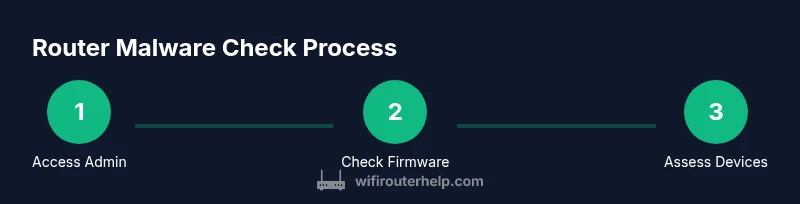
A structured review of router health involves credential verification, firmware status checks, and traffic pattern observations. Start at the admin interface, then work through DNS, DHCP, and the list of connected devices. The aim is to verify legitimate configurations, identify anomalies, and prepare a remediation plan if needed. Use official manufacturer resources to guide firmware decisions and avoid unverified sources.
This overview helps set expectations for a deeper hands-on check. You’ll combine inspection of settings with practical tests to confirm normal operation and isolate any irregularities.
Cleaning Infected Routers and Replacing Firmware
If you confirm an infection, begin with a factory reset to wipe misconfigurations and restore a clean slate. Reflash official firmware from the manufacturer, then reconfigure network names, passwords, and security settings from scratch. Immediately change all admin credentials and disable features you don’t use (such as UPnP or remote management). After reconfiguration, verify that DNS and DHCP are returning expected values and that no unknown devices reappear. This process reduces the chance of reinfection and simplifies ongoing monitoring.
Note that a reset is not a cure-all if you reuse weak passwords or fail to update firmware. Always apply a clean baseline and test network behavior before restoring device backups. If your router supports automatic updates, enable them to keep protection current.
Ongoing Protections and Best Practices
Security is an ongoing effort. Establish a routine to check for firmware updates and apply them promptly when released by the manufacturer. Use strong, unique admin passwords and enable WPA3 on your Wi‑Fi network. Create a separate guest network for IoT devices to minimize cross-device risk and monitor devices regularly for unfamiliar activity. Keep a simple change log and consider enabling firewall features on the router to filter traffic on the edge of your network. Regular reboots and a proactive security posture go a long way toward preventing future infections.
Quick Reference Checklist
- Access the router admin interface using the gateway IP address (e.g., 192.168.1.1).
- Verify the current firmware version and compare it to the latest release on the manufacturer’s site.
- Change default admin credentials and disable insecure features like remote management unless needed.
- Review DNS and DHCP settings for any unfamiliar addresses or leases.
- Inspect the list of connected devices and remove unknown entries.
- Run device malware scans and ensure security software is up to date.
- Perform a factory reset if tampering is suspected, then re‑configure from scratch.
- Enable firewall and WPA3, and set up a guest network for IoT devices.
Following this checklist helps maintain a cleaner perimeter and a safer home network.
Tools & Materials
- Computer or smartphone with a web browser(Used to access the router admin panel and review settings.)
- Router admin credentials (username/password)(Needed to log in and verify/change sensitive settings.)
- Active internet connection(Required to load router pages and verify online functions.)
- Official firmware from the manufacturer(Use only the official source when reflashing.)
- Ethernet cable (optional but recommended)(Wired connection provides stability during changes.)
Steps
Estimated time: 45-60 minutes
- 1
Open the router’s admin interface
Connect a device to the router, then enter the gateway IP address (commonly 192.168.1.1 or 192.168.0.1) into a web browser. Log in with your admin credentials. If you don’t know them, consult the label on the router or its manual. This page is where you review current settings and logs.
Tip: Use a wired connection if possible to prevent connection drops during changes. - 2
Check current firmware version
Navigate to the firmware/status page to see the version and release date. Compare with the latest official release on the manufacturer’s site. Do not download firmware from third-party sources. If an update is needed, plan it during a window with stable power.
Tip: Back up current settings before updating in case you need to revert. - 3
Verify admin credentials and remote access
Change the default admin username and password to a strong, unique combination. Disable remote management unless you require it, and enable HTTPS if available. Note whether the router supports two-factor authentication for the admin panel.
Tip: Use a password manager to store complex credentials securely. - 4
Review DNS settings and DHCP leases
Check for any unfamiliar DNS server addresses and review DHCP lease listings for unknown devices. Unusual DNS entries can indicate tampering or redirection. If you spot anomalies, document them and prepare remediation steps.
Tip: If you see odd entries, cross-check with the router’s official guidance before making changes. - 5
Inspect connected devices and network map
Review the list of devices currently connected to the network. Look for unfamiliar names or MAC addresses. Remove or block any devices you don’t recognize and change the network password if needed.
Tip: Create a short device inventory to simplify future checks. - 6
Run malware checks on end devices
Perform malware scans on laptops, smartphones, and any other connected devices. Ensure antivirus/anti-malware software is up to date and run full scans where applicable. If infections are found, remediate on the device and reassess network hygiene.
Tip: Don’t rely on device scans alone; the router can be the source of traffic anomalies. - 7
Factory reset and reconfigure if needed
If you confirm a compromise, perform a factory reset to wipe misconfigurations. Reflash official firmware, then reconfigure security basics from scratch (new admin password, Wi‑Fi name, and strong passphrase).
Tip: Back up a clean configuration if your device allows it, so you can restore quickly after a reset. - 8
Enable ongoing protections
Turn on firewall features, use WPA3, disable WPS if available, and enable automatic firmware updates when possible. Consider creating a separate guest network for IoT devices and routinely review settings.
Tip: Document changes and set a monthly reminder to review your security posture.
People Also Ask
Why should I check my router for malware?
Router malware can intercept traffic, redirect to malicious sites, and monitor or exfiltrate data from all connected devices. Regular checks reduce risk and limit exposure.
Router malware can quietly watch or alter your traffic. Regular checks help protect your devices and data across the network.
What are common signs of a router infection?
Changed DNS settings, unfamiliar devices in the network list, redirects to unknown sites, and unusually slow or unstable connectivity are common indicators.
If you see strange redirects or unknown devices, investigate the router first.
Is a factory reset enough to remove malware?
A factory reset often removes misconfigurations, but you should reflash official firmware and reconfigure securely to ensure a clean baseline.
A reset helps, but you should reconfigure from scratch to be safe.
How often should I check for router malware?
Treat it as part of routine maintenance—check after firmware updates or if you notice odd network behavior. Regular checks help catch issues early.
Make it part of your routine—check after updates or when something feels off.
What passwords should I use for router admin?
Use strong, unique passwords and avoid default credentials. Consider a password manager to store and generate secure options.
Use a strong, unique admin password and store it securely.
Can antivirus on devices protect the router?
Device antivirus helps protect the endpoints, but router-level protections (firmware, firewall, and proper configuration) are essential for the network edge.
Antivirus on devices helps, but you need router security as well to protect the whole network.
Watch Video
What to Remember
- Change default admin credentials and passwords.
- Keep router firmware up to date with official releases.
- Review connected devices and DNS/DHCP settings regularly.
- Use a separate guest network for IoT devices.
- Enable firewall and WPA3 for ongoing protection.