Can You Get a Second Router from Spectrum? A Step-by-Step Guide
Explore whether Spectrum allows a second router, how to set it up safely, and the best configurations (bridge vs AP mode) for a reliable home network.


The quick answer: can you get a second router from spectrum? Yes, in some cases, but it depends on your plan and configuration. This guide explains how to use a second router in bridge or AP mode, how to avoid double NAT, and when to involve Spectrum.
can you get a second router from spectrum
The question can you get a second router from spectrum is not a simple yes or no. Spectrum typically provides a gateway device that handles both modem and router functions, and policies vary by plan and region. In many setups, a second router is possible if you configure the network to minimize conflicts and double NAT. This guide helps homeowners understand the practical paths, the risks, and the best practices for adding a second router to a Spectrum-based home network. By the end, you’ll know when it’s worth pursuing a second device, how to set it up safely, and how to test performance to ensure coverage meets your needs.
Spectrum's official options for a second router
Spectrum’s official stance on a second router centers on how you configure your gateway. In some cases, customers use their own router behind the Spectrum gateway by enabling bridge or IP passthrough modes, which effectively turn the ISP device into a modem only. Other plans may require using Spectrum’s own equipment or opting into a service tier that includes additional devices. The key takeaway is that the term second router usually means an additional AP or router behind the primary gateway, rather than a standalone replacement. Always check your current plan details and speak with Spectrum support to confirm what is allowed in your area.
Network topologies: bridge mode vs AP mode vs double NAT
Choosing between bridge mode and AP (access point) mode shapes your whole network. In bridge mode, the Spectrum gateway stops routing and passes traffic to your secondary router, eliminating double NAT. In AP mode, the gateway handles routing, while the second router provides wireless coverage and sits behind the main device. Double NAT can cause VPN issues, port forwarding complications, and gaming latency spikes. For most home networks, bridge mode combined with a strong second router yields the most predictable performance. However, bridge mode can disable some Spectrum features you rely on, so weigh the trade-offs carefully.
Prerequisites and planning
Before you buy or connect a second router, map your space and identify coverage gaps. Note where you need faster Wi‑Fi in dead zones like bedrooms or home offices, and decide if you want wired backhaul for stability. Write down a simple plan: which device will handle DHCP, what IP range you’ll use, and whether you’ll enable guest networks. Having these details ready helps you configure quickly and minimizes the risk of accidental misconfigurations. Also, ensure you have the correct cabling (ethernet is essential for a wired backhaul) and a computer or phone to access admin interfaces.
Step-by-step high-level plan
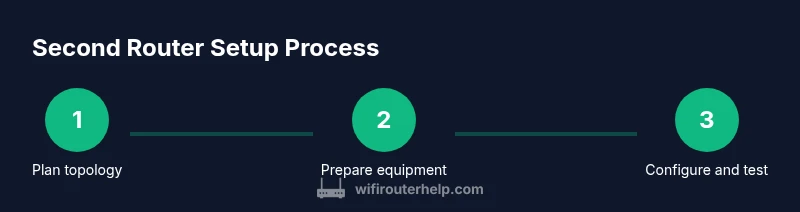
- Decide your topology (bridge vs AP) and confirm Spectrum policy for your plan. 2) Gather your equipment and verify firmware compatibility. 3) Disable the gateway’s Wi‑Fi to reduce interference (if using bridge mode). 4) Connect the second router via Ethernet to the Spectrum gateway’s LAN port. 5) Configure the second router for your chosen topology (AP/bridge). 6) Set up DHCP, NAT, and IP addressing to prevent conflicts. 7) Test connectivity in multiple rooms and run speed tests. 8) Secure your network with strong admin credentials and updated firmware. 9) Document changes and keep a maintenance routine for firmware updates.
Configuring the second router: practical settings
Access the second router’s admin page and set a distinct LAN IP (for example, 192.168.2.1) so it doesn’t clash with the gateway. Disable DHCP on the gateway if you’re using bridge mode; otherwise, keep DHCP on the secondary device and reserve IPs as needed. Enable WPA3 (or at least WPA2) with a strong passphrase. If you’re using AP mode, keep the gateway's DHCP off and let the second router assign IPs to clients. Label guest networks clearly and use different SSIDs for the 2.4 GHz and 5 GHz bands to maximize compatibility and performance.
Verification and troubleshooting
After setup, verify that devices obtain IP addresses from the correct device and test two or more devices on both bands. Check for double NAT indicators by running traceroute to popular public endpoints; if you see multiple NAT layers, revisit the topology. If devices can’t reach the internet, recheck Ethernet cables, ensure the bridge mode setting is active, and confirm DHCP is not conflicted. If VPNs or certain ports fail, forward only the required ports or consider moving to AP mode if bridge mode introduces issues.
Security considerations and best practices
Keep firmware updated on both devices to close vulnerabilities. Use separate networks for guests and IoT devices to limit exposure. Disable WPS, enable firewall features, and consider enabling a basic QoS profile to prevent bandwidth hogging. Regularly review connected clients and remove unfamiliar devices. If you introduce a mesh system, keep the Spectrum gateway isolated to ensure you control your main network first. Maintain physical security to prevent tampering with cables and routers.
Alternatives and when to skip a second router
A second router is not always the best solution. For many homes, upgrading to a modern mesh system or a high-performance single-router setup can provide more reliable coverage with simpler management. If your space is small or walls are not a major barrier, a single powerful router with a few wired access points may suffice. In rental situations or where Spectrum policies restrict alternate configurations, using their gateway as-is or opting for a mesh setup through Spectrum-approved devices may offer the simplest, most reliable experience.
Tools & Materials
- Second router (standalone or mesh system)(Choose a router with at least dual-band Wi-Fi (2.4 GHz + 5 GHz) and wired Ethernet ports for backhaul)
- Ethernet cable (Cat6 or better)(Required for wired backhaul between Spectrum gateway and second router)
- Power adapters for both devices(Keep a spare power adapter on hand in case of misplacement)
- Computer or smartphone(Needed to access admin interfaces for both devices)
- Documentation (plan details and login credentials)(Helpful to have Spectrum account details and router login info ready)
Steps
Estimated time: 60-90 minutes
- 1
Decide topology
Choose bridge mode or AP mode for the second router. Bridge mode minimizes double NAT by making the gateway a modem-like device. AP mode preserves more of the gateway’s features while expanding wireless coverage.
Tip: Document your chosen topology before starting to avoid mid-setup changes that create conflicts. - 2
Prepare equipment
Power off both devices and gather the Ethernet cable. Have a computer or phone ready to access admin interfaces. Verify firmware updates are available for both devices.
Tip: Update firmware to the latest version prior to configuration to avoid compatibility issues. - 3
Disable gateway Wi‑Fi (if bridging)
Log into the Spectrum gateway and disable its Wi‑Fi radios. This reduces interference and helps ensure your second router handles wireless duties.
Tip: If you rely on Spectrum features like Xfinity-style features, consider temporarily testing with Wi‑Fi on to compare performance. - 4
Connect devices physically
Connect the Ethernet cable from a LAN port on the Spectrum gateway to the WAN/Internet port of the second router. Use the LAN-to-LAN approach if advised by your topology choice.
Tip: Avoid using the gateway’s WAN port unless your plan requires it; LAN-to-LAN is common for AP mode. - 5
Configure the second router
Set a distinct IP range for the second router's LAN (for example 192.168.2.x) and enable the appropriate mode (AP or bridge).
Tip: Turn off DHCP on the gateway if using bridge mode; otherwise assign a fixed IP to the second router to prevent IP conflicts. - 6
Set security settings
Configure WPA3 (or WPA2 if not available), strong passwords, and disable WPS. Create separate guest networks if needed.
Tip: Use unique SSIDs for 2.4 GHz and 5 GHz bands or a single unified SSID with band steering enabled if supported. - 7
Test connectivity
Run speed tests from multiple rooms, check connectivity across devices, and verify access to local resources (printers, NAS, etc.).
Tip: Test both uplink and downlink speeds to ensure the second router isn’t bottlenecking traffic. - 8
Document and monitor
Record the final settings, firmware versions, and any network quirks. Schedule periodic checks for updates and re-test after changes.
Tip: Create a simple diagram of your topology for future troubleshooting.
People Also Ask
Can I connect my own router to Spectrum’s gateway?
Yes, you can connect your own router behind Spectrum’s gateway, often using bridge or IP passthrough modes. This requires adjusting settings on the gateway and the second router to avoid conflicts.
Yes, you can connect your own router to Spectrum’s gateway by configuring bridge or passthrough modes on the gateway and proper settings on your router.
Will using a second router cause double NAT problems?
Double NAT can occur when both devices perform routing functions. To avoid issues, enable bridge mode on the gateway or set up the second router as an access point.
Double NAT can happen if both devices route. Use bridge mode or make the second router an access point to prevent issues.
Do Spectrum policies allow a second router in all plans?
Policy varies by plan and region. Some plans permit using a separate router with limitations, while others require Spectrum equipment exclusively. Always confirm with Spectrum support.
Policies vary by plan and area. Check with Spectrum support to confirm what’s allowed for your account.
What’s the best topology for a large home?
For large homes, a bridge mode with a capable second router or a mesh system generally provides the most consistent coverage without introducing excessive NAT issues.
In big homes, bridge mode with a solid second router or a mesh system usually gives the best coverage.
Should I disable Spectrum Wi‑Fi entirely?
If you need strict control of your network, disabling Spectrum Wi‑Fi and using only your second router is common. If you still rely on Spectrum features, consider a hybrid approach.
If you want full control, disable Spectrum Wi‑Fi and use your router. If you need Spectrum features, plan carefully.
Watch Video
What to Remember
- Understand Spectrum policy before buying a second router
- Bridge mode minimizes double NAT, but may limit features
- AP mode offers simplicity with added coverage
- Test thoroughly and document your configuration