What Router Does Spectrum Use? A Practical Guide for Home Networks
Learn what router Spectrum uses, how to use Spectrum gateways, and options for upgrading with bridge mode and third-party routers. Expert guidance from WiFi Router Help.


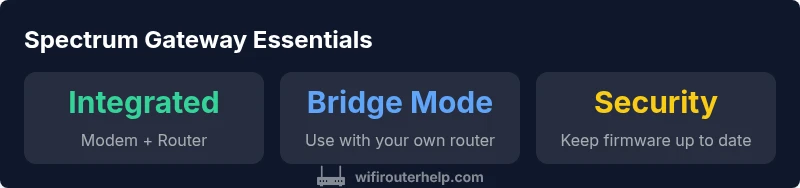
Spectrum typically provides a rental gateway device that combines a DOCSIS modem with a wireless router. The exact model varies by region and time, with common brands including Arris and Motorola. If you use Spectrum’s gateway, you’re usually operating a combined modem-router; you can also pair your own router behind the gateway by enabling bridge mode to avoid double NAT.
What Spectrum Uses Now: Gateway Devices and the Spectrum Brand
When homeowners and renters ask, what router does spectrum use, the quick answer is that Spectrum often provides a rental gateway device. This device combines a DOCSIS modem with a built-in wireless router, designed to simplify setup for most households. The model and exact features change by region and over time, but you’ll typically see brands such as Arris or Motorola in the rental lineup. The WiFi Router Help team notes that this configuration minimizes compatibility headaches for customers who want a single device for both modem and WiFi. If you’re content with a plug-and-play solution, Spectrum’s gateway is usually enough. However, advanced users who crave more control frequently ask whether they can swap in a separate router and still keep Spectrum internet. The answer depends on your goals and the current service arrangement in your area.
In practical terms, many households operate with Spectrum’s gateway in router mode, which provides basic coverage and features like parental controls and NAT. When you want better performance, you can place the gateway in bridge mode and use a separate, more capable router. This approach avoids double NAT issues and can deliver improved WiFi performance for devices across larger homes. Not all gateways support all third-party routers equally, so it’s important to verify bridge-mode compatibility with your specific model. As a general rule, Spectrum’s gateway devices are designed to be user-friendly first, with flexibility for power users who want more customization.
According to WiFi Router Help analysis, the trend toward gateway-plus-router configurations remains common as of 2026. This reflects a balance between easy setup for most households and the demand for higher performance or more features from a dedicated router. The takeaway for most homeowners is to start with Spectrum’s gateway and assess your coverage and speed before deciding whether a separate router is worth the added complexity.
How Spectrum Gateway Devices Are Configured
Configuring Spectrum’s gateway devices is typically straightforward but varies by model. Start by identifying your device’s admin URL and login credentials, usually found on a label on the gateway or in Spectrum’s support docs. Most gateways offer a web interface accessed via a browser at a local IP address such as 192.168.0.1 or 192.168.1.1, with a default username and password printed on the device. From there, you can review the Network (WiFi) settings, firewall options, and device connected/disconnected status. If you decide to enable bridge mode to use a separate router, you’ll typically disable wireless radios on the gateway or set it to bridge to ensure your main router handles DHCP and NAT. The setup experience can be even simpler if you let Spectrum assist with bridging, which reduces the risk of misconfiguration. Always save changes and reboot the gateway to ensure settings take effect.
A practical tip is to label your networks clearly, especially if you’re running a primary and guest network. If you are using a third-party router behind the gateway, configure the gateway in bridge mode and connect your router’s WAN port to the gateway’s LAN. This typically places the gateway in a transparent role and allows your router to manage IP addressing and QoS for your devices. Remember that the exact steps and interface wording vary by model, so refer to the manual for your device or Spectrum’s support pages for model-specific instructions.
Renting vs Owning: Pros and Cons
The decision to rent Spectrum’s gateway or own your own router is common among users who want either simplicity or full control. Renting a gateway is convenient because Spectrum handles the hardware lifecycle, firmware updates, and support. This minimizes repair costs and compatibility concerns. The trade-off is ongoing monthly rental costs and less flexibility when it comes to advanced features or custom firmware. Owning a router gives you full control over network settings, including advanced QoS rules, open ports, and firmware updates on your own timetable. However, standalone routers require careful configuration to avoid conflicts with Spectrum’s gateway, and you’ll need to maintain firmware updates yourself. For users who want speed and reliability in a smaller footprint, renting can be an effective option; for power users, investing in a capable third-party router can deliver longer-term performance gains. The WiFi Router Help team suggests starting with Spectrum’s gateway and evaluating performance before purchasing a separate router.
In most cases, a hybrid approach works best: keep the gateway for basic connectivity and use a higher-end router for performance in high-demand areas or for specific use cases like gaming or streaming. Always check your plan’s terms to confirm whether bridging is supported and whether there are any limitations on bridging or using third-party hardware. In some scenarios, Spectrum support may disable certain features when you use a third-party router, so a quick check with customer service can prevent surprises later.
Using Your Own Router Behind Spectrum's Gateway
If you decide to use your own router, follow these practical steps to minimize friction and maximize performance. Step 1: confirm you’re allowed to bridge or disable the gateway’s WiFi; Step 2: enable bridge mode on the gateway to avoid double NAT; Step 3: connect your router’s WAN port to the gateway’s LAN and configure the router as the primary DHCP server; Step 4: replicate essential features such as guest networks, parental controls, and port forwarding on your own router. After enabling bridge mode, monitor your network for stability and ensure devices connect smoothly to your new router. This setup often yields better WiFi coverage in larger homes and gives you richer customization options. If bridging isn’t available on your model, you can still connect a third-party router, but you may encounter double NAT issues that affect certain online games or applications.
A key tip is to keep the gateway’s router radios disabled when using a separate router to avoid interference. Also, document any port-forwarding rules or firewall exceptions you configure on your own router so you can reproduce them if you upgrade hardware again. With careful setup, your network performance can markedly improve without sacrificing Spectrum’s reliable internet service.
Finally, consider monitoring your network’s performance with a simple speed test in different rooms. If you notice dead zones, upgrading the new router’s placement and adding a mesh node can dramatically improve coverage without additional changes to the Spectrum gateway.
Common Misconceptions About Spectrum Equipment
One common misconception is that Spectrum’s gateway devices are locked down and cannot be customized. In reality, most models offer a range of configurability, including guest networks, firewall rules, and basic QoS settings. Another frequent misunderstanding is that using a third-party router always improves performance. While a modern, high-quality router can boost performance in large homes or with many devices, the actual gains depend on your home layout, interference, and the efficiency of your chosen router. A third myth is that bridge mode is universally supported across all Spectrum markets. Availability can vary by region and device generation, so it’s essential to verify bridge-mode support for your specific gateway model before buying a new router.
A final point: if you rely on Spectrum’s voice services or certain integrated features, ensure that bridging won’t disrupt those services. Always consult Spectrum’s support resources for the latest guidance on compatibility and best practices.
In sum, having practical expectations and testing can prevent frustration. The WiFi Router Help team emphasizes starting with Spectrum’s gateway, assessing your coverage, and only then adding a dedicated router if needed for your home network.
Spectrum Router vs Third-Party Solutions: When to Upgrade
Choosing between Spectrum’s gateway and a third-party router depends on your priorities. If your primary need is easy setup, seamless customer support, and stable performance for a typical smart home, Spectrum’s gateway is often sufficient. For gamers or households with many streaming devices, a high-end third-party router behind the gateway can deliver targeted improvements in speed and reliability. Consider the size and layout of your home, sources of interference (neighbors’ networks, microwaves), and your device density when deciding. If you opt for a third-party router, plan for a bridge-mode configuration and check that your plan and model support it. Also evaluate features like QoS, beamforming, MIMO capabilities, and parental controls. The goal is to balance convenience, performance, and cost while preserving Spectrum service.
Throughout the decision process, remember to monitor your network performance and be prepared to revert to Spectrum’s gateway if you encounter persistent compatibility issues. The WiFi Router Help team advises approaching this choice with a clear goal: reliable coverage and predictable speeds at an acceptable price, with room to grow as your home network evolves.
Practical Setup Checklist for New Spectrum Customers
- Confirm your service plan and gateway options with Spectrum support.
- Check whether bridge mode is available on your gateway model.
- If bridging, disable gateway WiFi and connect your own router.
- Configure your router with a strong password, updated firmware, and appropriate security settings.
- Create a guest network and separate IoT network for smart devices.
- Place routers strategically: central location, elevated position, away from metal desks and dense walls.
- Run periodic speed tests and adjust channel selection to minimize interference.
- Keep your gateway and router firmware up to date and review settings after any Spectrum updates.
Following this checklist will help you build a reliable home network that balances ease of use with performance—and ensures you’re prepared whether Spectrum supplies the gateway or you supply a better-performing router.
Additional Notes on Privacy and Security with Spectrum Gear
When using Spectrum equipment, consider how firmware updates and default settings affect your privacy. Always change default administrative passwords and enable two-factor authentication where possible. If you adopt a bridge-mode setup, ensure your third-party router’s firewall and security features are properly configured, and disable any unnecessary services that could expose your network. Regularly review connected devices and monitor unusual activity. By taking these steps, you can protect your home network while enjoying the convenience of Spectrum’s gateway or a custom router setup.
Comparison: Spectrum gateway vs third-party router
| Aspect | Spectrum Gateway | Third-Party Router | Notes |
|---|---|---|---|
| Modem/Router | Integrated (All-in-One) | Separate device from a different brand | Choose based on preference |
| Bridge Mode | Often supported (model-dependent) | Supported on many models | Confirm compatibility first |
| WiFi Standards | Typically dual-band | Depends on your router | Higher-end routers may support newer standards |
| Configuration | Admin via gateway interface | Admin via router interface | Bridge mode changes network topology |
People Also Ask
Does Spectrum provide a router with internet service?
Spectrum typically provides a rental gateway that combines a modem and router. This is designed for easy setup, but you can bring your own router and use bridging to improve performance if needed.
Spectrum usually includes a gateway that handles both modem and router functions. If you want more control, you can bridge it and add your own router.
Can I use my own router with Spectrum?
Yes. You can use your own router behind Spectrum’s gateway by enabling bridge mode. This reduces double NAT and enables full control over your network settings.
You can use your own router behind Spectrum's gateway by enabling bridge mode.
What is bridge mode and why use it?
Bridge mode disables the gateway’s router functions, turning the gateway into a pure modem. This lets your own router handle DHCP and NAT for a cleaner, potentially faster network.
Bridge mode turns the gateway into a modem, letting your own router handle the network.
How do I access the gateway admin page?
Access is commonly via a local IP address like 192.168.0.1 or 192.168.1.1. Use the credentials on the device label or Spectrum support docs. If you’re bridging, you may not need most gateway settings.
Open your browser to 192.168.0.1 or 192.168.1.1 and log in with the device label credentials.
Will using a third-party router improve performance?
In many homes, a capable third-party router behind the gateway can boost WiFi performance, coverage, and features. Real gains depend on home size, interference, and device needs.
A good third-party router can improve range and speed, especially in larger homes.
Are there privacy considerations with Spectrum equipment?
Keep firmware updated, use strong passwords, and review router settings. If bridging, ensure your third-party router’s security features are enabled and monitor connected devices regularly.
Keep firmware up to date and secure your router with strong settings.
“The Spectrum gateway makes home networking simple for most users, but power users gain control and performance by integrating a second router behind the gateway in bridge mode.”
What to Remember
- Spectrum commonly provides an all-in-one gateway device.
- Bridge mode lets you add a higher-performance router behind the gateway.
- Bridging reduces double NAT and can improve gaming/streaming.
- Verify model-specific bridge support before purchasing equipment.
- Start with Spectrum’s gateway and evaluate needs before upgrading.