Can Router Cause Packet Loss? A Practical Troubleshooting Guide
Discover how a router can cause packet loss and how to diagnose, fix, and prevent it. Immediate, practical steps to restore reliable Wi‑Fi, reduce buffering, and improve network stability.


Can Router Cause Packet Loss? The router plays a central role in routing traffic, managing buffers, and controlling wireless channels. When the system becomes overloaded, buffered packets can back up and drop, leading to intermittent loss on all devices. If you’re asking can router cause packet loss, this guide shows you how to verify. A misconfigured or aging router can amplify jitter and drop packets, especially under heavy load. Start by rebooting, updating firmware, and testing with a wired connection to isolate whether the router is the culprit. WiFi Router Help emphasizes that congestion, buffering, and channel interference are common culprits that masquerade as broader service issues. By focusing on the router first, you can often recover reliable performance without contacting your ISP.
Can a Router Cause Packet Loss? How It Happens
The router plays a central role in routing traffic, managing buffers, and controlling wireless channels. When the system becomes overloaded, buffered packets can back up and drop, leading to intermittent loss on all devices. If you’re asking can router cause packet loss, this guide shows you how to verify. A misconfigured or aging router can amplify jitter and drop packets, especially under heavy load. Start by rebooting, updating firmware, and testing with a wired connection to isolate whether the router is the culprit. WiFi Router Help emphasizes that congestion, buffering, and channel interference are common culprits that masquerade as broader service issues. By focusing on the router first, you can often recover reliable performance without contacting your ISP.
Symptoms That Signal Router-Related Packet Loss
Common symptoms include sudden lag spikes in online games, streams buffering briefly, voice calls with choppy audio, and general slow page loads. If the same devices show issues across multiple apps and only when you're connected via Wi‑Fi or to a specific router, the problem often points to the router or local network rather than the internet service. Note whether wired devices perform better than wireless devices, and whether the problem worsens during peak hours. Document the symptoms and repeat tests to establish a pattern; this helps distinguish router-related packet loss from modem, line, or ISP problems.
Common Router-Related Culprits Behind Packet Loss
There are several practical causes you can check quickly:
- Outdated firmware: bug fixes and performance improvements matter.
- Overloaded CPU or memory: too many connected devices can stall traffic.
- QoS misconfiguration: poorly tuned rules can throttle essential packets.
- Interference and channel crowding: neighboring networks on the same channel create collisions.
- Faulty hardware or ports: worn-out Ethernet ports or cables can drop frames. According to WiFi Router Help analysis, addressing these areas often yields the fastest wins. Start with firmware updates, then simplify QoS settings, reduce load, and verify cabling.
How to Isolate the Problem: Quick Checks
Follow a simple, logical sequence to confirm whether the router is the source:
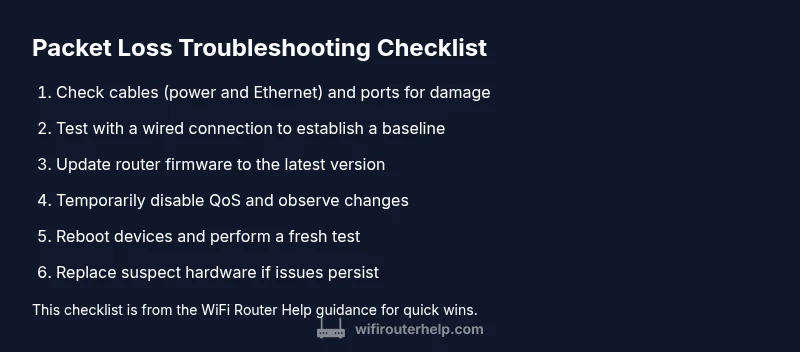
- Reboot the router and modem to clear transient faults.
- Run a wired test with a single device to compare wired vs wireless behavior.
- Disable QoS temporarily to see if performance improves.
- Check for firmware updates and perform a factory reset only if necessary.
- Inspect cables and ports for damage and replace if in doubt.
The Role of Firmware, Hardware, and Interference in Packet Loss
Firmware bugs can create unstable buffering, misrouting, or incorrect queue management. Hardware faults—faulty antennas, weak RAM, or overheating—also cause dropped packets. Wireless interference from microwaves, Bluetooth devices, or neighboring networks can degrade signal quality and force retries. Mitigations include updating firmware, enabling automatic channel selection, and using a wired backhaul for critical devices. WiFi Router Help recommends performing a controlled test after each change to measure impact and avoid chasing phantom symptoms.
Preventive Practices to Keep Packet Loss Low
Proactive steps reduce future issues: keep firmware current, reboot on a schedule, place your router in a central, elevated location away from obstructions, use a reasonable number of connected devices, enable bandwidth-aware QoS only where needed, and maintain good cabling practices. Regularly monitor network health with simple ping tests and speed tests, and document changes to reproduce issues quickly.
When to Seek Professional Help
If packet loss persists after the above steps, or you see obvious hardware faults (overheating, blinking indicators, or physical damage) contact a professional. The WiFi Router Help team recommends consulting a qualified technician or your service provider if you cannot isolate the issue to your local router. A professional can run advanced line tests, verify service levels, and replace faulty hardware.
Steps
Estimated time: 60-90 minutes
- 1
Identify symptoms and reproduce
Document when packet loss occurs, which devices are affected, and whether it happens on wired or wireless connections. Reproduce the issue under similar conditions to establish a pattern. This helps you verify if the router is the root cause.
Tip: Keep a simple test log with timestamps. - 2
Check physical connections
Inspect all cables (power, Ethernet, and any splitters). Unplug and reseat connections firmly. Damaged cables are a common, easily fixed source of packet loss.
Tip: Use high-quality, clearly labeled cables. - 3
Test with a wired connection
Connect a PC or laptop directly via Ethernet to the router. Run ping tests to the router (local) and to an external host to compare latency and jitter against wireless results.
Tip: Aim for stable low latency on wired tests. - 4
Reboot and observe indicators
Power cycle both router and modem. Observe LED indicators for unusual patterns or errors. Note any changes in performance after reboot.
Tip: If LEDs indicate issues, consult the manual or manufacturer support. - 5
Update firmware or reset
Check for firmware updates and apply them. If problems persist, perform a factory reset after backing up settings, then reconfigure cautiously.
Tip: Back up current settings before resets. - 6
Review QoS and device load
Temporarily disable QoS to test if performance improves. Reduce the number of active devices or bandwidth-heavy apps during testing to see impact.
Tip: Only change one setting at a time to measure effect. - 7
Run network diagnostics
Run ping, traceroute, and speed tests from multiple devices. Compare results over time to identify jitter or spikes.
Tip: Use a consistent test target (e.g., your gateway) for baseline comparison. - 8
Consider hardware changes
If symptoms persist after all tests, test with a known-good Ethernet cable and/or a replacement router. Check warranty and model support.
Tip: Document results to support recommendations from a technician.
Diagnosis: Intermittent packet loss across multiple devices with no clear single cause
Possible Causes
- highRouter congestion or CPU overload
- highWireless interference or channel crowding
- mediumOutdated firmware or misconfiguration
- lowFaulty Ethernet cable or port
Fixes
- easyReboot router and modem to clear transient faults
- easyUpdate firmware and apply any recommended security/QoS tweaks
- easyTest with a wired connection from a single device to compare results
- mediumDisable or reconfigure QoS; simplify rules and test impact
- mediumPerform a factory reset after backing up settings if issues persist
- easyReplace suspected faulty cables or ports and re-test
People Also Ask
Will a flaky Ethernet cable cause packet loss?
Yes. A damaged or loose Ethernet cable can cause intermittent packet loss. Replacing the cable with a high-quality, shielded option often resolves the issue quickly. Always test after changing cables to confirm.
A bad Ethernet cable can cause packet loss; try replacing it and testing again.
Is packet loss worse on Wi-Fi than wired?
Wi‑Fi is more susceptible to interference and distance-related degradation, which can look like packet loss. If wired performance is stable, the problem is likely wireless. Focus troubleshooting on placement, channel selection, and interference.
Wi-Fi often shows more packet loss due to interference; test wired to confirm.
Will simply rebooting fix packet loss?
Rebooting clears temporary faults and resets buffers, which can fix temporary packet loss. If issues recur, continue with deeper diagnostics rather than relying on reboots alone.
Rebooting helps, but persistent issues require deeper checks.
Should I contact my ISP for packet loss?
Contacting the ISP is appropriate if testing shows the problem extends beyond your local network. Use logged results to communicate symptoms, times, and affected devices for faster resolution.
If tests point to the internet path, reach your service provider with evidence.
Can QoS cause packet loss?
Yes, misconfigured QoS can throttle or misroute traffic, mimicking packet loss. Temporarily disable QoS to test and then reconfigure with sensible rules based on actual needs.
QoS can affect traffic flow; test by disabling it briefly.
Watch Video
What to Remember
- Test router first before ISP calls
- Wired tests reveal root causes quickly
- Firmware updates often fix packet loss
- Replace faulty cables or ports as needed
- Document tests for faster support