Can Router Cause Buffering? A Practical Troubleshooting Guide
Discover how a router can cause buffering and learn a step-by-step plan to diagnose, test, and fix home network slowdowns quickly and safely.


Can Router Cause Buffering: How It Happens
When you ask can router cause buffering, the answer is usually a mix of hardware limits, software settings, and network load. An older router may struggle to sustain modern speeds, especially with multiple devices streaming, gaming, or video conferencing. Firmware that hasn’t been updated can introduce inefficiencies or security issues that negatively impact performance. Signal quality matters too: a weak wireless signal due to distance, walls, or interference from neighbors can make the router work harder to deliver data, increasing buffering risk. Misconfigured settings—such as an overly aggressive QoS rule, mismatched channel bandwidth, or a poorly tuned MTU—can throttle throughput even on a fast internet plan. Finally, if your ISP connection is fine but your router is overloaded with connected sessions, the CPU can become a bottleneck. In many cases, the root cause is a combination of old hardware, suboptimal configuration, and heavy local traffic working together to create buffering.
Quick Home Tests to Isolate the Issue
The quickest way to answer the question of can router cause buffering is to run controlled, repeatable tests that separate internet, device, and router variables. Start with a wired speed test from a computer connected directly to the modem or router via Ethernet. If wired speeds match your plan, but wireless performance lags, the issue is almost certainly Wi‑Fi related rather than your ISP. Move around the home to sample different signal strengths and note which rooms or floors experience slowdowns. Testing multiple devices helps you see if buffering is device-specific or universal. If several devices buffer at the same time, you may be hitting bandwidth ceilings from streaming, gaming, or backups. Try toggling between 2.4 GHz and 5 GHz to see which band remains more stable in your environment. Finally, temporarily pause background tasks like cloud backups or large downloads to determine if local traffic is the root cause.
Common Router-Related Causes of Buffering
Router-related buffering is often driven by a few repeatable culprits. An older device may not handle modern throughput, encryption standards, or concurrent streams, leading to stalls under load. Misconfigured QoS rules can misallocate bandwidth, prioritizing nonessential activities and throttling critical traffic. Channel congestion—especially on 2.4 GHz—can dramatically reduce wireless speed, while a crowded 5 GHz band can likewise degrade performance if nearby networks are using the same channel. Firmware bugs are another frequent source of trouble; keeping firmware up to date helps avoid known issues that degrade stability. Hardware bottlenecks—limited CPU/RAM, tiny buffers, or lack of hardware acceleration—limit how many devices can stream smoothly at once. Finally, ensure router-side NAT and DHCP services are operating correctly, as misbehavior here can reduce effective throughput even when the line rate looks fine. These router-centric causes often intersect with modem, switch, or extender faults, so a methodical approach matters.
Interference, Channels, and Wi‑Fi Spectrum
Interference is a silent driver of buffering. Household devices like cordless phones, microwaves, and baby monitors can jam Wi‑Fi signals and force the router to retransmit data, which users perceive as buffering. The number of connected devices also matters: each active stream consumes bandwidth across the network, so a busy home can overwhelm even a modern router. Selecting the wrong channel or channel width compounds the problem; for example, a crowded 2.4 GHz channel can reduce range and speed, while a misconfigured 80 MHz 5 GHz channel can create instability. Easy fixes include selecting a cleaner channel, enabling 5 GHz where appropriate, and using a Wi‑Fi analyzer app to map interference sources. In larger homes, seating devices farther from the router increases dropouts; upgrading to a mesh system can provide more uniform coverage and reduce buffering hotspots.
When to Rule In Your Router vs Your Internet Plan
A common mistake is assuming buffering is always a service provider issue. If you observe fast speeds via wired tests but still see stalls over wireless, the router or Wi‑Fi setup is the primary suspect. If wired speeds are slow, or you cannot achieve your subscribed plan even with direct connections, the bottleneck may be the ISP or the modem. Always compare multiple data points: baseline speeds from the ISP app or your account, peak-hour speeds, and in‑home performance across devices. If the router appears to handle load but Wi‑Fi drops out across rooms, strategy shifts toward channel management or hardware upgrades. If the modem’s stats show consistent saturation, contact the ISP, as the issue might lie beyond your home network. The key is to isolate variables systematically rather than guessing, which is why a structured troubleshooting approach matters.
How to Improve Performance Without Upgrading
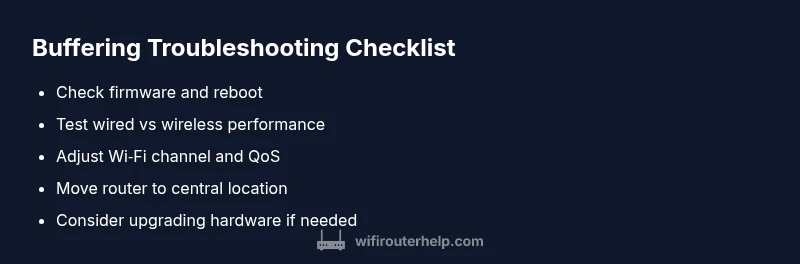
Before committing to new hardware, explore optimization options that often yield noticeable gains. Start with a full reboot of all devices and a firmware update on the router. Experiment with different wireless channels and enable 5 GHz for devices close to the router, while leaving 2.4 GHz for farther devices. Activate QoS to prioritize essential traffic like video calls and streaming, but test performance with QoS both on and off to measure impact. Reposition the router to a central, elevated location with minimal obstruction, and reduce interference by keeping electronics away from the router. If household growth or coverage gaps persist, consider adding a mesh node or upgrading to a router with stronger hardware acceleration and newer Wi‑Fi standards. Finally, ensure all network devices use fixed IP addresses or DHCP reservations to stabilize connections over time.
Long-Term Habits to Prevent Buffering
Adopting a few preventive habits can dramatically reduce buffering over the long term. Schedule regular firmware updates for your router and any network extenders, and keep a log of changes so you can reverse them if needed. Place the router centrally and away from reflective surfaces or metal cabinets to maintain stable coverage. Use QoS thoughtfully, prioritizing critical applications while avoiding over‑restrictive rules that might starve essential traffic. Periodically audit the number of connected devices and the bandwidth they consume; if your household grows, plan for an upgrade before the current gear becomes a bottleneck. Finally, consider a future-proof option like a mesh system if you anticipate coverage gaps or expanding smart-home devices. Proactive maintenance reduces the chances of buffering becoming a recurring issue.
Conclusion: A Structured Path Forward
Buffering is rarely caused by a single factor, so a structured approach is essential. By testing, updating, and optimizing in a disciplined way, you can determine whether the router is the bottleneck or if another element in the network is at fault. The goal is consistent, reliable performance across rooms and devices without constant troubleshooting. Keep in mind that even well‑configured routers can struggle in high‑demand situations; upgrading to gear that supports current standards and higher throughput might be the right move if tests indicate persistent bottlenecks.