Can Your Router Cause High Ping? A Practical Troubleshooting Guide
Discover how can router cause high ping and follow a practical, step-by-step guide from WiFi Router Help to diagnose and fix latency spikes in your home network.


Can a router cause high ping? Yes. In many homes, latency spikes come from the router or its settings. Quick fixes: reboot the router, test wired vs wifi, update firmware, reduce interference, and limit active devices. According to WiFi Router Help, starting with a reset and firmware check solves most cases before blaming the ISP.
Understanding Ping and Why It Matters
Ping measures round-trip latency between your device and a host on the Internet. Measured in milliseconds (ms), it reflects responsiveness for gaming, video calls, and general browsing. A stable ping under 20-40 ms is ideal on a fast home connection; higher numbers indicate lag that degrades real-time experiences. And yes, can router cause high ping? Often yes, because routing delays, queueing, or misconfigurations can add latency before the signal even leaves your home. WiFi Router Help notes that small changes at the router level can yield noticeable improvements in latency and stability for most households. This article explores how to identify whether the router is the culprit and what to do about it.
Can Your Router Really Cause High Ping? Signs to Look For
If you’re experiencing periodic spikes in latency, look for patterns. Do you notice higher ping on Wi‑Fi than on a wired connection? Are spikes worse during peak hours or after adding new devices? Common router related signs include a congested device handling multiple streams, outdated firmware, or misconfigured Quality of Service (QoS) settings that deprioritize latency sensitive traffic like gaming. WiFi Router Help notes that even a few devices streaming or syncing in the background can raise ping. If you see the same latency when connected with Ethernet, the issue may lie with the ISP path or the modem rather than the router itself.
Quick Checks You Can Do Right Now
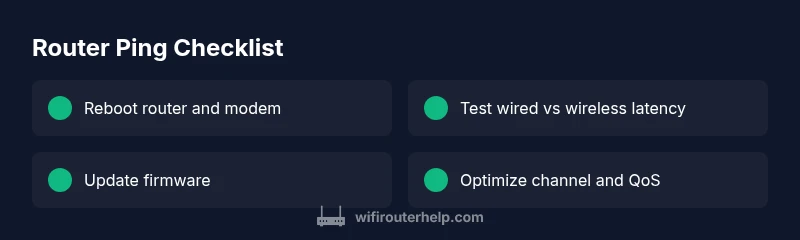
- Run a speed test using a wired connection and compare it to wireless results against your plan. - Ping a local address (your router IP) and a public host to see where latency is added. - Reboot both router and modem to clear caches and reset queues. - Optimize placement: place the router in a central, elevated spot away from thick walls, metal objects, and cordless phones. If your device supports it, switch to the 5 GHz band for less congestion. - Update firmware and reboot again. These steps address the most common, non technical issues that cause latency spikes.
Diagnostic Flow: Symptom → Diagnosis → Solutions
Start with the symptom: unusually high ping during online gaming or video calls. Then assess probable causes: home congestion, wireless interference, outdated firmware, misconfigured QoS, or ISP routing problems. Finally apply targeted solutions: move devices closer to the router, enable appropriate QoS policies, perform firmware updates, test with a wired connection, and coordinate with your ISP if hops look long or abnormal. Keeping a log of ping values over time helps show clear improvement after fixes.
Quick Fixes for the Most Common Cause
The most frequent culprit is congestion from multiple devices or background activity. Quick fixes include limiting nonessential traffic, prioritizing gaming or voice traffic with QoS, and moving busy devices away from the router. Other common fixes involve firmware updates, a reboot, and replacing aging hardware if necessary. Practically, these actions usually yield noticeable reductions in latency within the first hour of testing.
Safety, Warnings, and Common Mistakes
- Do not force firmware updates from untrusted sources; use the manufacturer’s official site. - Avoid aggressive QoS rules that starve background apps; balance is key. - Never unplug equipment while the modem is in the middle of a firmware update. - If you are unsure about wiring, contact a professional to avoid damage or injury.
Prevention: Keeping Ping Low Long-Term
Regular maintenance matters: keep firmware up to date, monitor connected devices, use strong channels (prefer 5 GHz when possible), and place the router for optimal coverage. Scheduling periodic reboots and checking for ISP outages can prevent latency spikes. Documentation of your measurements helps identify trends and justify upgrades when needed.
Steps
Estimated time: 60-75 minutes
- 1
Prepare and inspect hardware
Power cycle the router and modem. Check cables for wear and ensure all connections are snug. This clears minor faults and queues that can inflate latency.
Tip: Do this before altering settings to avoid misdiagnosis. - 2
Test wired vs wireless latency
Connect a device directly to the router with an Ethernet cable and run a ping test to a known host. Compare results to wireless latency to gauge the impact of Wi‑Fi.
Tip: Wired tests are the gold standard for latency baseline. - 3
Update firmware and reset if needed
Check the router’s admin panel for firmware updates. If issues persist, perform a factory reset and reconfigure from scratch using a known good backup.
Tip: Back up settings before a reset if possible. - 4
Optimize Wi‑Fi channels
Scan for interference and switch to the least congested channel. For 2.4 GHz, pick the clearest channel; for 5 GHz, ensure coverage remains strong in the room where you game or video chat.
Tip: Avoid crowded channels to reduce collisions. - 5
Enable QoS purposefully
If your router supports QoS, set rules to prioritize gaming or VoIP traffic while limiting nonessential downloads. Avoid over‑restricting all traffic, which can increase perceived latency for other tasks.
Tip: Test with and without QoS to measure impact. - 6
Prioritize wired devices
Move latency‑sensitive devices away from wireless chokepoints. Use a wired connection for gaming PCs or consoles to eliminate wireless hop latency.
Tip: Wired connections are often the fastest path to low ping. - 7
Check for background activity
Pause large updates, cloud backups, or streaming on other devices during gaming or calls. These can spike latency unexpectedly.
Tip: Schedule heavy tasks during non‑peak times. - 8
Escalate if needed
If latency remains high after these steps, document measurements and contact your ISP or a networking professional for a deeper trace and potential hardware replacement.
Tip: Provide a detailed log to help the tech diagnose faster.
Diagnosis: High ping during gaming/video calls on home network
Possible Causes
- highNetwork congestion from multiple devices or background activity
- highWiFi interference from crowded 2.4 GHz spectrum or neighboring networks
- mediumOutdated or buggy router firmware
- mediumMisconfigured QoS or aggressive bandwidth shaping
- lowISP routing issues or modem problems
Fixes
- easyReboot router and modem to clear caches and reset queues
- easyUpdate router firmware and perform a factory reset if needed
- easyMove router to a central, elevated location and switch to 5 GHz where supported
- mediumEnable QoS with measured priorities and limit bandwidth for non‑gaming devices
- easyUse a wired Ethernet connection for latency‑sensitive tasks
- mediumContact ISP if traceroutes show long hops or persistent latency outside your control
People Also Ask
Can a router be the sole cause of high ping, or is it always the ISP?
Both can contribute. Start by testing wired vs wireless latency and comparing to your plan. If wired latency is still high, the issue is often outside the router, such as ISP routing or modem problems. If wired latency is fine but wireless is poor, focus on the router and Wi‑Fi environment.
Often the router affects Wi‑Fi latency, but if wired latency is high too, the ISP path is likely at fault.
Does enabling QoS automatically reduce ping?
QoS can help by prioritizing latency-sensitive traffic, but misconfiguring QoS can worsen overall latency. Start with a basic profile for gaming or voice and test before expanding rules.
QoS can help, but wrong settings can hurt. Test with and without QoS.
Why is my ping fine on Ethernet but not on Wi‑Fi?
Wi‑Fi is prone to interference, distance, and congestion. Use 5 GHz if supported, reduce obstacles, and ensure your device isn’t far from the router.
Wi‑Fi can be affected by interference and distance; Ethernet is usually more reliable.
Will a router upgrade fix persistent latency spikes?
If the current router can’t handle your network load or lacks newer protocol support, upgrading can improve latency. Consider a model with better CPU, RAM, and QoS features.
Upgrading can help if your router is a bottleneck.
How can I tell if the latency issue is in the ISP path?
Run traceroute to a stable external host during a spike. If hops near the ISP show high latency, the issue is with the ISP path rather than your router.
Traceroute helps identify where latency occurs in the network path.
Is 5 GHz always better for ping than 2.4 GHz?
In general, 5 GHz has less interference and can provide lower latency at closer distances, but coverage is shorter; 2.4 GHz travels farther but is more congested.
5 GHz usually offers lower latency if you’re close to the router.
Watch Video
What to Remember
- Prioritize wired connections for latency-sensitive tasks
- Keep firmware updated and reset when needed
- Use QoS judiciously to balance latency and throughput
- Improve router placement to reduce interference
- If issues persist, test ISP path and seek professional help when necessary