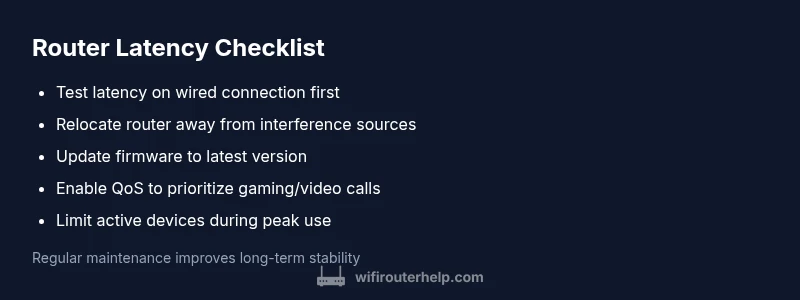
What causes router latency: Quick diagnosis and fixes
Learn the common causes of router latency and follow a practical, step-by-step troubleshooting guide to diagnose, fix, and prevent lag in your home network.


If you’re asking what causes router latency, the likely culprits are wireless interference, network congestion, and a flaky modem-to-router link. Start with a quick reboot, reposition the router, and test via a wired connection to establish a baseline. Then update firmware, adjust QoS, and reduce competing devices. If problems persist, check for ISP issues or hardware upgrades.
What causes router latency and why it matters
Latency, or the delay between a command and a device’s response, directly affects your experience in gaming, video calls, and streaming. When you ask what causes router latency, you’re really diagnosing a mix of wireless physics, hardware limits, and service conditions. The WiFi Router Help team found that in most homes the lag stems from a few repeatable patterns: signal interference, overloaded networks, outdated firmware, and imperfect modem-router coordination. Understanding these factors helps you apply targeted fixes rather than guessing.
Common culprits to check first
Latency often crops up from simple, fixable problems. Wireless interference from nearby networks, cordless phones, microwaves, and even metal object placement can degrade signal quality. Distance matters: as you move away from the router, latency and jitter typically rise. Device load is another big factor: more active devices mean more contention for the same wireless channel. Finally, ensure your modem-router link is healthy; a loose cable or a failing port can silently spike latency. Start by testing a wired connection to establish a baseline and observe whether latency persists on Ethernet versus Wi-Fi.
Baseline testing and measurement techniques
A reliable latency test looks at ping, jitter, and packet loss. Use a wired device to ping your gateway and then a trusted external server. Compare results across times of day to identify peak congestion. If wired latency is reasonable but wireless latency is poor, focus on radio frequency issues. Keep notes of each test so you can track improvement after each change. Remember: latency is a symptom—bandwidth speed isn’t the sole culprit, so don’t equate faster downloads with lower latency automatically.
Diagnostic flow: turning symptoms into solutions
The diagnostic flow helps you move from symptom to diagnosis to fixes in a structured way. Start with simple checks (reboot, cable integrity, baseline tests) and progressively tackle likely causes in order of impact. If you identify a specific cause, apply the corresponding fix and re-test. If the test passes, you’re done; if not, proceed to the next step. This method minimizes guesswork and keeps you focused on what actually helps.
Step-by-step fixes for the top latency causes
Begin with a quick reboot and physical checks. Then address wireless interference by changing channels and repositioning the router. Update firmware to close known bugs, and enable QoS to prioritize gaming or video calls. Finally, test with a wired connection to isolate wireless issues and consider upgrading to a router with stronger MU-MIMO or Wi-Fi 6/6E if persistent congestion remains. Each fix should be followed by another latency test to verify impact.
Pro tips for real-world homes
- Place the router in a central, elevated location away from walls and metal objects. A high shelf in the living area often yields the best coverage.
- Use 5 GHz for close-range devices and 2.4 GHz for farther ones; enable a wider channel width only if interference is low.
- Schedule heavy network tasks (downloads, cloud backups) for off-peak hours when latency matters least.
- Regularly check for firmware updates and consider a periodic hardware refresh if the device is several years old.
When to escalate and call in professional help
If you’ve exhausted quick wins and your latency remains high across wired and wireless connections, it’s time to involve your ISP or a network professional. Persistent latency can indicate a faulty modem, a degraded line, or a misconfigured network plan. A technician can test line quality, verify plan speeds, and assess whether a modern router or mesh system is warranted for your home size.
Prevention: keeping latency low long-term
Create a simple maintenance routine: run a monthly check for firmware updates, review connected devices, and reassess channel choices as neighbors change. Consider a mesh system for large homes or dense apartment buildings to distribute load evenly. Finally, document your fixes and results so you have a reference when latency creeps back.
Quick-reference troubleshooting checklist
- Reboot and check cables
- Test wired latency baseline
- Move router to central location
- Change wireless channel and test
- Update firmware and enable QoS
- Consider hardware upgrade if needed
- Contact ISP if line tests fail touchpoints
Steps
Estimated time: 60-90 minutes
- 1
Identify symptoms and baseline
Document when latency occurs, test on wired vs wireless, and note the devices involved. A clear baseline helps you measure improvement.
Tip: Use a single, stable test device for accurate comparisons. - 2
Test a wired connection
Connect a PC or laptop directly to the router with a Ethernet cable. Run latency tests to determine if the issue is wireless or network-wide.
Tip: If wired latency is fine, focus on wireless factors. - 3
Improve wireless conditions
Move the router to a central location, away from walls and metal objects. Try changing the 2.4 GHz/5 GHz bands and adjust channel width.
Tip: Avoid placing the router near microwaves or cordless phones. - 4
Update firmware and reset if needed
Check the router’s admin page for firmware updates. If performance remains poor, back up settings and perform a factory reset, then reconfigure.
Tip: Back up your configuration to speed up future resets. - 5
Tweak QoS and device load
Enable QoS to prioritize latency-sensitive traffic. Reduce the number of active devices during critical tasks.
Tip: QoS should focus on gaming or video conferencing apps. - 6
Evaluate hardware and ISP factors
If latency persists across devices and after updates, check line quality with your ISP and consider hardware upgrades if the router is old.
Tip: Ask your ISP for a line test or consider a newer router with better performance.
Diagnosis: High latency on wireless devices with occasional spikes during streaming or gaming
Possible Causes
- highWireless interference from neighboring networks or household electronics
- highToo many devices competing for bandwidth on the same channel
- mediumOutdated firmware or misconfigured QoS settings
- mediumWeak signal due to distance or obstacles
- lowFlaky modem-to-router link or poor cables/ports
Fixes
- easyRelocate the router to a central, elevated location away from entry points and cordless devices
- easyChange the Wi‑Fi channel and enable automatic channel selection if supported
- mediumUpdate firmware, perform a factory reset if necessary, and reconfigure with defaults as a clean baseline
- easyRun a wired test to isolate wireless vs wired latency and reduce nonessential wireless clients during testing
- mediumTest with QoS enabled to prioritize latency-sensitive traffic like gaming or video calls
People Also Ask
What is the main indicator that latency is caused by wireless interference?
Look for latency spikes that coincide with devices or networks in your area using the same channel. If wired latency remains low while wireless latency spikes, interference is the likely cause.
If you notice spikes when nearby networks are active, wireless interference is likely the culprit; test with a wired connection to confirm.
How can I test whether latency is caused by my ISP?
Run a speed test wired to your router and check latency to multiple servers. If multiple tests show consistent high latency or frequent outages, contact your ISP for a line check or service issue.
Run wired tests and ask your provider if there are known outages or congestion in your area.
Does enabling QoS always reduce latency?
QoS can help prioritize latency-sensitive traffic, reducing perceived lag for gaming or video calls. It may not improve all traffic equally, and misconfigurations can sometimes worsen performance.
QoS helps prioritize important traffic, but misconfigurations can hurt performance, so set it carefully.
When should I consider replacing my router?
If the router is several years old, cannot support your network speeds, or lacks modern features like Wi‑Fi 6/6E and robust QoS, upgrading often yields the best latency gains.
If your router is old and can’t handle current speeds, upgrading is usually the fastest path to lower latency.
Are mesh systems better for latency in large homes?
Mesh systems can reduce dead zones and improve latency by distributing load across multiple access points, especially in large or multi-story homes.
For big homes, a mesh setup often lowers latency by spreading traffic across more points.
What safety steps should I take before making changes?
Unplug power, avoid opening the device, and follow the manufacturer’s reset procedures. Back up settings before factory resets to avoid losing configurations.
Always follow the manual and safely power cycle devices before changes.
Watch Video
What to Remember
- Test wired latency to establish baseline
- Relocate router for better coverage and less interference
- Update firmware and enable QoS to mitigate latency
- Differentiate wireless vs wired latency to target fixes
- Escalate to ISP or upgrade hardware if issues persist