Router Speed Test: Measure and Optimize Your Home Network
Learn how to run a router speed test to verify plan speeds, identify bottlenecks, and optimize Wi‑Fi performance across wired and wireless connections.


In this guide you will learn how to run a router speed test to measure throughput, latency, and consistency across wired and wireless connections. You’ll compare results to your internet plan and identify bottlenecks. You’ll also learn practical tweaks to boost performance and verify improvements after changes. By following these steps, homeowners can diagnose slow Wi‑Fi and verify improvements confidently.
Why test router speed matters
Measuring your router's speed is essential to ensure you actually receive the internet plan you pay for and to diagnose everyday Wi‑Fi headaches. If streaming stalls, video calls lag, or online gaming feels choppy, a structured speed test can reveal whether bottlenecks live in the modem, the router, or the home layout. According to WiFi Router Help, running a reliable router speed test helps verify performance claims and spot bottlenecks before they disrupt daily life. The WiFi Router Help team emphasizes that last-mile speed is only one piece of the puzzle; real-world results depend on distance, interference, and how your devices connect. By testing under controlled conditions and across multiple devices, you gain a clear picture of what your network actually delivers, not what it could deliver under ideal lab conditions. This clarity lets you prioritize fixes, whether you need a firmware upgrade, a better placement, or a hardware upgrade to meet your household needs.
Understanding key metrics: throughput, latency, jitter, and packet loss
A robust router speed test looks beyond a single number. Throughput measures the actual data you transfer per second, usually in Mbps, and is influenced by the test server and device capabilities. Latency is the round-trip time for a packet, typically shown in milliseconds; lower latency improves real-time tasks like gaming and video calls. Jitter is the variability in latency from test to test, which can affect streaming stability even when average latency is reasonable. Packet loss indicates how many packets fail to reach their destination and can signal interference or congestion. When you interpret results, consider all four metrics together: great throughput with tolerable latency and minimal jitter usually indicates a healthy network, while high latency or jitter often points to wireless interference or device limitations. WiFi Router Help recommends standardizing your test conditions—same server, same device type, and similar network load—to produce meaningful comparisons over time.
Planning your test: map your network and set baselines
Before you test, create a simple map of where people use Wi‑Fi most. Identify primary devices (laptops, phones, streaming boxes) and determine where the router sits in your home. Establish a baseline by testing with a wired connection to represent the true line speed, then test wireless across common areas and distances. Use the same test server and time of day to minimize external variance. The goal is to capture real-world performance so you can compare future results against a credible baseline. For best results, test at least three times for each scenario and average the outcomes to reduce outliers. This planning step helps you distinguish a temporary fluctuation from a persistent issue.
Tools and materials you’ll need
Gathering the right tools makes tests reliable and repeatable. You’ll want an Ethernet cable (CAT6 or better), a laptop or smartphone with a reputable speed test app, and access to your router’s admin interface. If you plan to test multiple devices, have at least one additional testing device. A notebook or digital log keeps track of test conditions, times, and results. Optional but helpful: a second router or access point for mesh tuning, a temporary power outlet extension if placement changes require experimentation, and a trusted server location selected for consistent results. Keeping your testing environment consistent across sessions is the key to dependable comparisons.
Testing methods: wired vs wireless, device variety
Effective router speed testing uses a mix of wired and wireless methods. Start with a wired baseline to anchor your expectations, as this minimizes interference and shows the pure line rate. Then test over 2.4 GHz and 5 GHz bands wirelessly, ideally with multiple devices representing typical household gear. If you notice a wide gap between devices, note potential hardware or placement issues. For a complete view, test from different rooms and distances, and account for obstacles like walls and metal fixtures. Finally, consider testing with and without VPNs or security software active to understand their impact on real-world performance.
Step-by-step approach to run tests
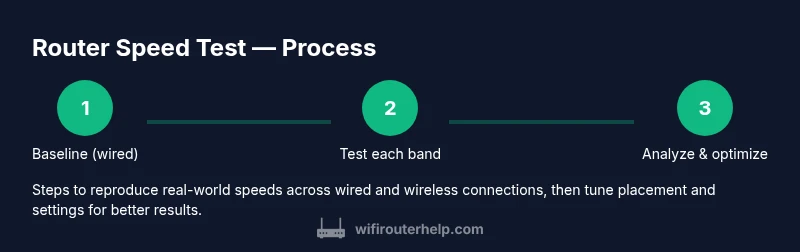
A thorough router speed test follows a repeatable sequence that you can execute in about an hour. Start with a baseline wired test, then test both wireless bands on multiple devices. Next, compare results to your ISP plan speeds and note disparities by device and location. Apply any recommended optimizations (firmware updates, channel adjustments, placement changes, QoS rules) and re-run the tests to quantify improvements. Finally, document all results and establish a routine for periodic checks to catch performance drift over time.
Analyzing results and deciding on actions
Interpreting test results involves aligning numbers with real-world usage. If wired results approach plan speeds but wireless results lag, focus on proximity, obstacles, and interference. If both wired and wireless underperform, investigate firmware updates, hardware limitations, or ISP issues. A consistent pattern of subpar performance near the router may indicate channel congestion or a need for a more capable router or a mesh system. If results vary widely by device, consider hardware limitations or driver issues. Use the data to prioritize changes that yield the largest, stable gains for your household activities.
Common bottlenecks and practical fixes
Common bottlenecks include old firmware, crowded channels, and router placement that blocks signal propagation. Practical fixes involve updating firmware, changing the 2.4 GHz/5 GHz channel to a less congested one, enabling QoS for priority devices, and moving the router to a central, elevated location away from walls and metal appliances. If your home is large or has challenging geometry, a mesh system or additional access points can dramatically improve coverage. Remember to test after each change to confirm it delivered the desired improvement.
Advanced testing scenarios and when to test with VPNs or mesh
Advanced scenarios help you simulate real-life loads. Test with streaming services active to observe throughput under typical usage, and try VPNs if you need secure remote access—though expect some speed reduction. If wifi coverage remains spotty, consider a mesh network to provide consistent coverage across floors. For power users, running local network tests with tools like iperf can offer deeper insight into internal throughput, though these steps require more technical setup. Use these tests judiciously to validate improvements without introducing unnecessary complexity.
Safety, cautions, and maintenance after tests
Speed testing is generally safe, but avoid making risky changes during peak usage hours. Back up configuration settings before firmware updates, and note any changes you make so you can revert if needed. Regular maintenance—firmware updates, clean placement, and periodic re-testing—helps ensure sustained performance. If you ever suspect hardware damage, consult your device manual or vendor support. Following a disciplined testing routine reduces guesswork and helps you maintain a reliable home network.
Tools & Materials
- Ethernet cable (CAT6 or better)(Use at least 6 ft; shielded is preferable for longer runs)
- Laptop or smartphone with speed test app(Examples: Ookla Speedtest, fast.com, or similar)
- Router admin access(Needed for firmware checks and QoS adjustments)
- Multiple testing devices(Phone, tablet, and laptop help evaluate device variability)
- Notebook or digital log(Record test conditions and results for comparison)
Steps
Estimated time: 60-90 minutes
- 1
Prepare baseline with wired test
Connect a laptop to the router via Ethernet and run a baseline wired speed test to establish your reference throughput.
Tip: Use a wired connection to eliminate wireless interference during baseline. - 2
Test 2.4 GHz wireless
Test from a device on the 2.4 GHz band at moderate distance from the router.
Tip: Keep the testing environment consistent (same server) and avoid near walls. - 3
Test 5 GHz wireless
Run a test on the 5 GHz band with the same device but closer to the router for best throughput.
Tip: If you see low 5 GHz speeds, assess channel interference. - 4
Expand device set and repeat
Repeat tests on additional devices to capture variability across hardware.
Tip: Different devices may have different wireless capabilities. - 5
Compare against plan speeds
Compare measured results with your ISP plan speeds and typical wireless performance.
Tip: Remember that wireless performance can be lower at long distances. - 6
Apply optimizations and re-test
Make changes (firmware update, channel selection, QoS, placement) and re-run tests to validate impact.
Tip: Document changes and test after each change. - 7
Document and plan ongoing tests
Record results in a simple log and schedule periodic tests.
Tip: Set a quarterly reminder to re-test. - 8
Consider hardware upgrades if needed
If speeds consistently fall short of plan after optimizations, evaluate router or access point upgrades.
Tip: Check for compatibility with your internet service and home size.
People Also Ask
What is a good router speed test result?
A good result shows your measured throughput near your plan's advertised speeds on wired connections, with reasonable wireless speeds considering distance and interference.
Aim for speeds close to your plan on wired, and practical wireless speeds depending on placement and interference.
How often should you run router speed tests?
Run tests after setting up, after firmware updates, and periodically to detect performance changes that affect daily use.
Test after changes and on a periodic schedule to catch slowdowns early.
Should you test 2.4 GHz or 5 GHz first?
Start with 5 GHz for high-speed, near-router tests, then check 2.4 GHz for broader coverage and penetration.
Test both bands; start with 5 GHz for speed, then test 2.4 GHz for range.
Can VPNs affect router speed test results?
Yes. VPNs and heavy streaming can reduce throughput; disable VPN when establishing a baseline test for accuracy.
VPNs can slow tests, so disable them for baseline measurements.
What should I do if results vary by device?
Check device hardware, ensure tests use the same server, and minimize physical obstacles between device and router.
Device differences can cause variation; align test conditions.
Do I need a new router to improve speeds?
Only if your hardware limits prevent you from reaching plan speeds; weigh features, coverage, and future needs.
An upgrade may help if current hardware bottlenecks your plan.
Watch Video
What to Remember
- Establish baselines before changes
- Test both wired and wireless for a complete view
- Interpret results to guide optimizations
- Retest after changes and monitor over time