How to Achieve a Fast Wifi Router: Setup, Optimization, and Troubleshooting
Learn step-by-step how to choose, install, and optimize a fast wifi router for reliable home coverage, with practical tips, tests, and troubleshooting.


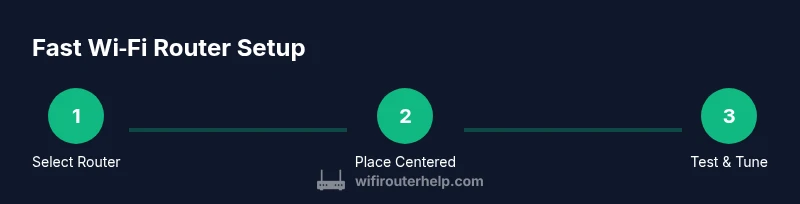
Goal: Achieve a fast wifi router setup that delivers stable, high-throughput home coverage. Start with a modern router that supports Wi‑Fi 6/6E, enable Quality of Service (QoS) for latency-sensitive devices, place the router centrally off the floor, use a fast wired backhaul if possible, and keep firmware updated. Also consider upgrading older devices and optimizing channel settings for less interference.
Why speed matters for a modern home network
In today’s connected homes, speed is not just about raw bandwidth. It’s about how reliably that bandwidth translates into smooth video calls, lag-free gaming, quick file transfers, and responsive smart-home devices across every room. A fast wifi router lays the foundation for all online activities, especially when multiple devices are active at once. According to WiFi Router Help, modern households benefit significantly from upgrading to a router that supports contemporary standards like Wi‑Fi 6/6E, which improves efficiency, capacity, and overall user experience in dense environments. Real-world performance depends on coverage, interference, and how you allocate bandwidth to devices and services. This guide focuses on practical, repeatable steps to maximize speed in typical homes without resorting to exotic gear or complex configurations.
Top features to consider for speed and reliability include support for latest wireless standards (Wi‑Fi 6/6E), multi-band operation (2.4 GHz and 5 GHz), MU‑MIMO, and beamforming. Understanding these features helps you pick a router that scales as your home network grows. You’ll also want to pair your router with quality cables and consider a wired backhaul in multi-story homes or rooms far from the router. WiFi Router Help’s analysis shows that choosing the right hardware and optimizing placement yields noticeable improvements in everyday speeds and latency.
Why you should care about modern hardware: A fast router reduces buffering, lowers latency, and improves the responsiveness of smart devices, which contributes to a better overall experience for streaming, gaming, videoconferencing, and general browsing. The goal is not only higher numbers but a more stable connection across your home.
Tools & Materials
- Wi‑Fi 6/6E router(Select a model with dual-band or tri-band capability and good firmware support.)
- Ethernet cable (Cat 5e or better)(Used for a reliable wired backhaul or wired client connections when possible.)
- Smartphone or computer for admin access(Needed to configure settings and run speed tests.)
- Ethernet switch (optional)(Useful if you’re wiring multiple rooms or devices from a single jack.)
- Speed test app or device(Plan to test in multiple rooms to map coverage and verify improvements.)
Steps
Estimated time: 2-4 hours
- 1
Choose a modern router (Wi‑Fi 6/6E)
Select a router that supports Wi‑Fi 6 or 6E, with multiple bands and modern security features. Look for robust firmware update support, MU‑MIMO, and beamforming. This is the foundation for faster, more reliable wireless performance across your home. Pro tip: pick a model with a strong community and good long-term sustainment from the manufacturer.
Tip: Verify firmware update history and support timelines before purchasing. - 2
Plan optimal placement for maximum coverage
Place the router in a central, elevated location away from walls and metal objects. Avoid placing it inside cabinets or behind large appliances, which can block signals. If you have a multi-floor home, consider a stand or shelf at roughly chest height to improve line-of-sight to most rooms. Pro tip: run a quick room-by-room speed map to identify dead zones.
Tip: Elevated placement drastically reduces occlusion and improves overall reach. - 3
Enable essential wireless settings
Configure 2.4 GHz and 5 GHz bands with sensible names and enable band steering if available. Use WPA3 security, disable WPS, and turn on basic protections like firewall features. Pro tip: enable guest network isolation if guests are frequent in your home to keep main devices safer.
Tip: Avoid legacy WEP and WPA settings that compromise security. - 4
Set up a wired backhaul where possible
If you have Ethernet in your walls or crawl space, connect your router to a nearby switch or secondary access point with a wired backhaul. This offloads wireless traffic from the main router and improves reliability, especially in large homes. Pro tip: test speeds between the main router and any access points to confirm you’ve achieved a stable backbone.
Tip: Wired backhaul dramatically reduces wireless interference and latency. - 5
Enable Quality of Service (QoS) and network management
Configure QoS rules to prioritize latency-sensitive traffic (video calls, gaming) and critical work apps. Use features like app-aware QoS or device-based prioritization if your router supports them. Pro tip: start with two priority categories (work/education and entertainment) and adjust as needed after testing.
Tip: QoS can dramatically improve perceived speed for important apps. - 6
Keep firmware up to date and secure
Regularly check for firmware updates and apply them. Updates fix security vulnerabilities and may optimize performance for new devices and traffic patterns. Pro tip: enable automatic updates if your router supports it, and review security settings after each update.
Tip: Firmware updates often include performance and stability improvements. - 7
Test, tune, and extend as needed
Run speed tests in multiple rooms and under different times of day to gauge true performance. If speeds drop in certain areas, consider repositioning, adding a mesh node, or upgrading to a mesh system for uniform coverage. Pro tip: periodically re-check after changes to confirm improvements.
Tip: Regular testing helps you catch interference and performance degradation early.
People Also Ask
What defines a 'fast' wifi router for a typical home?
A fast router is one that delivers stable, high-throughput performance across your home, supports latest standards (Wi‑Fi 6/6E), and maintains low latency for gaming, video calls, and streaming. It also handles multiple devices simultaneously without excessive congestion.
A fast router gives your whole home reliable speed with low lag, even when several devices are online.
Do I need Wi‑Fi 6/6E to get faster speeds?
Wi‑Fi 6/6E improves efficiency, capacity, and performance in crowded environments, especially in homes with many devices. If you have many smart devices or share bandwidth among several users, upgrading helps; if your devices are older, you may still benefit from a newer router.
Upgrading to Wi‑Fi 6/6E helps when lots of devices compete for the network.
Can a mesh system be faster than a single router?
A mesh system provides uniform coverage and can improve performance in large homes with far-flung rooms. However, a single high-quality router with wired backhaul can outperform some mesh setups in terms of latency and throughput, depending on layout and backhaul quality.
A mesh system is great for big homes, but a solid wired backhaul router can be faster for tight latency.
How can I test if my speeds match what I should get?
Use a reputable speed test app or website from multiple devices in different rooms, ideally at different times of day. Compare results to your internet plan and ensure tests are done with devices close to your router for baseline measurements.
Test in several rooms and times to see if you’re hitting your plan.
Why might my new router still feel slow?
Possible causes include interference from neighbors, old devices using the network, poor placement, or a bottleneck from the internet connection itself. Update firmware, adjust channels, and verify that QoS settings don’t throttle essential traffic.
If it feels slow, check placement, interference, and firmware, and optimize QoS.
Is 2.4 GHz still useful in fast wifi setups?
2.4 GHz offers longer range but slower speeds and more interference. Use it for devices far from the router or legacy gadgets that don’t support 5 GHz, while prioritizing 5 GHz for high-bandwidth devices.
2.4 GHz helps reach far devices, but use 5 GHz for the quickest speeds where possible.
Watch Video
What to Remember
- Choose Wi‑Fi 6/6E for efficiency and capacity
- Central, elevated router placement boosts coverage
- Enable QoS to prioritize critical apps
- Use wired backhaul when possible for stability
- Keep firmware current for security and performance