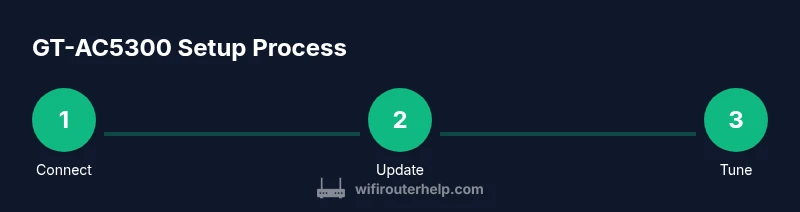
How to Set Up and Optimize the Asus ROG Rapture GT-AC5300 Router
A step-by-step guide to install, update firmware, optimize Wi-Fi, apply QoS and AiProtection, and troubleshoot the Asus ROG Rapture GT-AC5300 for fast, stable home networks.


This guide shows how to install, update firmware, optimize wireless settings, implement QoS, and troubleshoot the Asus ROG Rapture GT-AC5300 for fast, stable home Wi‑Fi. It covers practical steps, security basics, and typical pitfalls to avoid.
Understanding the GT-AC5300 hardware and features
According to WiFi Router Help, the Asus ROG Rapture GT-AC5300 is designed for high-throughput home networks with gaming-focused features. It employs a tri-band wireless design to separate traffic and reduce interference, while its robust hardware supports multiple devices without choking on latency. Core capabilities include AiProtection security, ASUSWRT firmware with flexible QoS, and a dedicated gaming mode to prioritize latency-sensitive traffic. The device also offers USB storage connectivity and a range of wired ports for a flexible home network. Understanding these capabilities helps you tailor the setup for gaming consoles, streaming devices, and work-from-home rigs. This article builds on those capabilities as you follow the steps.
Before you begin: prerequisites and safety
Before you touch the router, gather a few essentials and observe basic safety. Have a stable power outlet, a computer or mobile device with a web browser, and the admin login details for the GT-AC5300. Ensure your ISP modem or gateway is reachable and, if desired, in bridge mode to let the GT-AC5300 handle routing. Avoid opening the device or changing power during storms. This prep saves time and helps prevent misconfigurations.
Step 1 — Connect to the router (physical setup)
Place the GT-AC5300 in a central spot with easy access to power and a modem. Connect the modem’s Ethernet cable to the router’s WAN port. Use a computer or smartphone with a browser to join the router’s default Wi‑Fi or connect via Ethernet to a LAN port for initial access. This ensures a stable connection for the first login. Pro tip: during setup, prefer a wired link to avoid wireless interference and drift.
Step 2 — Update firmware to latest version
Log in to the ASUSWRT admin interface and check for firmware updates. Install any available updates and reboot the router. Firmware updates improve security, compatibility, and performance, especially for tri-band routing. If the auto-update fails, download the latest file from ASUS and flash manually following the on-screen prompts. Pro tip: back up current settings before updating to simplify rollback if needed.
Step 3 — Basic network setup and WAN/LAN configuration
Configure your Internet connection by selecting Dynamic IP or PPPoE as required by your ISP. Set LAN settings to match your home network scheme and enable the DHCP server so devices can obtain addresses automatically. If you plan separate networks for guests or IoT devices, consider VLANs or subnetting to keep traffic segmented. Test WAN reachability by pinging an external address from a connected device. Pro tip: document your IP ranges and DHCP pool to simplify future changes.
Step 4 — Optimize wireless settings for 2.4 GHz and 5 GHz
Create separate SSIDs for 2.4 GHz and 5 GHz bands with strong unique passwords. Choose channels with the least congestion using a network scanner, and balance channel width to optimize speed vs. range. Enable features like beamforming and airtime fairness if available, and consider enabling band steering if supported to encourage devices to use the best band. Pro tip: schedule periodic channel scans to adapt to neighbor changes.
Step 5 — Implement QoS and bandwidth management
QoS rules help protect gaming and video calls by prioritizing latency-sensitive traffic. Create a simple rule that prioritizes your primary gaming device or service, while ensuring other devices still get usable bandwidth. Start with a conservative policy and adjust based on observed performance. Pro tip: monitor real-time usage after applying QoS to refine rules without starving background apps.
Step 6 — AiProtection and core security settings
Enable AiProtection and ensure automatic firmware updates are on. Review firewall settings and change the default admin password to a strong one. Use Parental Controls to manage content or access times for family devices. If you use VPN clients, enable VPN passthrough as needed. Pro tip: run security checks periodically and keep firmware up to date for best protection.
Step 7 — Guest networks and security basics
Set up a separate guest network with its own SSID and password, isolating guest devices from your main LAN resources. This protects your primary devices while allowing visitors to connect. Limit access to network printers or NAS devices from the guest network to reduce risk. Pro tip: periodically rotate guest passwords and disable unused guest features when not in use.
Step 8 — Troubleshooting common issues
If performance dips, test wired devices to identify wireless vs. wired problems. Check for interference by scanning channels and switching to a less crowded one. Reboot the router and verify firmware is current. Ensure QoS rules aren’t overly aggressive and that the modem link remains stable. Pro tip: enable LED status indicators to quickly spot issues and keep a simple log of changes when troubleshooting.
Step 9 — Maintenance and ongoing monitoring
Regularly review connected devices, QoS rules, and security settings. Schedule periodic reboots to refresh memory and apply updates. Use built-in analytics or logs to spot patterns and adjust configurations accordingly. If supported, enable periodic performance tests to verify sustained speeds. Pro tip: keep a small changelog and re-test after each adjustment.
Tools & Materials
- Ethernet cable (Cat6 or better)(For a stable wired connection during setup and testing)
- Laptop or smartphone with a web browser(To access the GT-AC5300 admin interface)
- GT-AC5300 power adapter and outlet(Have a reliable power source nearby)
- ISP modem/gateway credentials(Needed for initial Internet access and PPPoE if required)
- Notepad or digital note app(To record credentials and custom QoS rules)
Steps
Estimated time: 60-120 minutes
- 1
Connect to the router
Place the GT-AC5300 centrally and connect your modem to the WAN port. Use a wired laptop or phone to open the admin page to begin configuration.
Tip: Label the default SSIDs and passwords for quick recovery if you forget them. - 2
Update firmware
Open the ASUSWRT interface, go to Firmware Update, and install any available updates. Reboot after completion.
Tip: Back up current settings before updating; this makes rollback easy if something goes wrong. - 3
Configure Internet and LAN
Choose Dynamic IP or PPPoE as required, enable DHCP on the LAN side, and set up any VLANs if needed for guest/IoT networks.
Tip: Note your IP ranges to simplify future changes and device assignments. - 4
Tune wireless settings
Create separate 2.4 GHz and 5 GHz networks, pick less congested channels, and enable beamforming/band steering if available.
Tip: Test with common devices (phone, laptop, smart TV) to verify coverage and speed per band. - 5
Set up QoS
Add rules that prioritize gaming or video calls while maintaining usable bandwidth for others.
Tip: Start simple and monitor performance; overly aggressive rules can cause stalls for background apps. - 6
Enable AiProtection
Turn on AiProtection and verify auto-updates. Review firewall settings and change the default admin password.
Tip: Schedule periodic security checks and keep the firmware up to date. - 7
Create guest network
Enable a separate guest network with its own password and isolate it from your main LAN resources.
Tip: Disable access to printer/NAS from guest networks to reduce exposure. - 8
Troubleshoot and validate
If issues persist, test via wired connections, scan for interference, and verify QoS rules and modem stability.
Tip: Maintain a small change log and re-run tests after each adjustment. - 9
Maintain and monitor
Periodically review connected devices, QoS settings, and security features; reboot on a schedule and re-run speed tests.
Tip: Document changes to simplify future maintenance.
People Also Ask
What are the key advantages of the Asus ROG Rapture GT-AC5300?
The GT-AC5300 emphasizes gaming latency reduction, robust security with AiProtection, and flexible QoS for prioritizing critical apps across tri-band Wi-Fi. Its hardware design supports reliable multi-device use and broad feature support.
It focuses on gaming latency, security, and flexible QoS for multiple devices.
How do I update the firmware on this router?
Log in to the ASUSWRT interface, navigate to Firmware Update, and install any available updates. Reboot after installation. If needed, you can flash the latest version manually from the ASUS support site.
Update via the admin page or manually from ASUS.
How can I enable a guest network?
In the admin panel, enable the guest network feature, set an independent SSID and password, and ensure isolation from your main LAN.
Turn on a separate guest network with its own password and isolation.
What should I do if performance is still slow after setup?
Test with wired connections to identify bottlenecks, adjust QoS rules, and check for interference. Verify the modem link and firmware are current.
Check wired performance, adjust QoS, and verify modem and firmware.
Is this router compatible with mesh systems?
The GT-AC5300 can operate in non-mesh setups, but ASUS AiMesh-compatible devices provide true mesh networking for wider coverage.
It can work with mesh devices that support AiMesh.
How do I reset the GT-AC5300 to factory settings?
Hold the reset button for 10-15 seconds until LEDs flash. Then reconfigure from scratch.
Use the reset button to restore factory settings, then set up again.
Watch Video
What to Remember
- Update firmware before major changes
- Prioritize QoS for gaming and essential apps
- Enable AiProtection and secure passwords
- Test speeds after each adjustment and refine