WPA3 Router Guide: Setup, Security, and Compatibility
Learn how to choose, configure, and verify a WPA3 router for a safer home network. This step-by-step guide covers SAE, compatibility, and best practices for 2026.


Ready to secure your home network with WPA3? This guide will show you how to enable WPA3 on your router, verify device compatibility, and optimize security without sacrificing performance. You’ll learn SAE-Personal basics, mixed-mode considerations, and practical checks to confirm your network is protected. You’ll need access to the router’s admin interface and at least one WPA3-capable client to begin.
What a WPA3 Router is and why it matters
A wpa3 router is the centerpiece of a modern, more secure wireless home network. It implements the latest WPA3 security improvements—including stronger password-based authentication and improved protection for open networks—reducing the risk of offline attacks. For homeowners, a wpa3 router delivers stronger authentication and easier key management, helping devices connect securely even if users reuse weak passwords on other services. According to WiFi Router Help, upgrading to WPA3 can significantly reduce exposure to common Wi-Fi threats when all devices support SAE-Personal. The transition from WPA2 isn't automatic; devices and firmware must be compatible, and mixed-mode operation is common during a gradual upgrade. The payoff is clear: better resilience against password-guessing, safer handshakes on the air, and simplified management for networks with multiple clients. In practice, think of WPA3 as a stronger lock on your digital front door, rather than a minor cosmetic improvement.
Key security features of WPA3
WPA3 strengthens wireless protection through SAE (Simultaneous Authentication of Equals) for personal networks, stronger password-based authentication, and enhanced protection for open networks via OWE (Opportunistic Wireless Encryption). SAE provides forward secrecy, meaning past communications stay protected even if a password is later compromised. Open networks gain protection without passwords, while enterprise deployments use additional authentication with RADIUS servers. The combination reduces the risk of password guessing and eavesdropping on public networks, making both home and small-business networks more resilient. WiFi Router Help emphasizes that these features work best when devices across the network support WPA3, and firmware is up to date to avoid compatibility gaps.
WPA3 modes: SAE-Personal, SAE-Enterprise, and transition
There are distinct modes to fit different network needs. SAE-Personal (often called WPA3-Personal) is ideal for typical home networks with a shared passphrase. SAE-Enterprise uses a central server for authentication, common in business environments but applicable to enterprise-owned home networks. Many routers also offer a Transitional mode that blends WPA2 and WPA3 to accommodate older devices. When planning a transition, start with SAE-Personal for all new devices, enable Transitional mode for legacy devices, and gradually retire unsupported gear. This approach preserves security while avoiding widespread connection issues. The WiFi Router Help team notes that phased upgrades can minimize disruption while expanding protection across all household devices.
How to enable WPA3 on your router
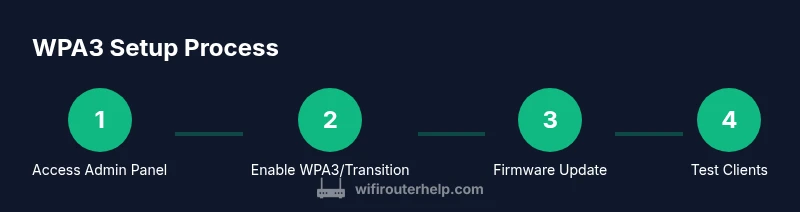
Access your router’s admin interface using a browser and your admin credentials. Navigate to the Wireless or Security settings, and locate the option to enable WPA3-Personal (SAE) or Transition mode. If the option is not visible, your firmware may be too old—update first. After enabling, save changes and reboot the router if prompted. If you must support older devices immediately, enable Transitional mode and plan a future upgrade path. WiFi Router Help recommends taking screenshots of the new settings and keeping a backup of current configurations before making changes for a quick rollback if needed.
Verifying WPA3 is active on your network
Once enabled, test with at least one WPA3-capable device by connecting it and inspecting the security details in the device settings or router status page. Check that the device negotiates SAE during the handshake, not just WPA2. Use a smartphone or laptop to run a quick network check: confirm encryption type shows SAE, and verify you are not in pure WPA2 mode. If you cannot verify SAE, try updating device firmware or moving the device closer to the router to ensure proper negotiation. The goal is to confirm a WPA3-enabled session on at least one client while keeping other devices connected via Transitional mode where necessary.
Compatibility considerations for devices
Not all devices support WPA3 yet, especially older IoT devices. Before a full switch, inventory your devices and confirm their specifications. Newer smartphones, laptops, and smart home hubs often support WPA3-Personal or SAE, while some IoT devices rely on legacy security. In mixed environments, enable Transitional mode to keep legacy devices connected while you gradually upgrade. When devices do upgrade, you should re-test performance and reliability. The WiFi Router Help analysis shows that compatibility varies by vendor and model, so plan a staged rollout rather than a single wholesale change.
Best practices for WPA3 network security
To maximize protection, combine WPA3 with other security measures. Use a strong, unique passphrase for the network, disable WPS, and enable a guest network with its own password. Keep router firmware current and set up automatic updates if available. Regularly audit connected devices and remove unknown access points. Consider enabling firewall features, restricting admin access to wired connections, and changing default login credentials. By maintaining disciplined device management and firmware hygiene, your wpa3 router network remains robust against evolving threats.
Troubleshooting common WPA3 issues
If devices fail to connect, verify device compatibility, check for firmware updates, and confirm that Transitional mode is correctly configured for older gear. Some clients may require a password reset or rejoin after a security mode change. If you notice slow performance, review channel settings and consider adjusting bandwidth controls or enabling MU-MIMO if supported. For guest networks, ensure isolation is correctly configured to protect the main network while keeping guests functional. When in doubt, revert to a known-good configuration and reapply changes incrementally.
Performance and reliability with WPA3
WPA3 typically offers comparable performance to WPA2 with the advantage of stronger encryption, but the handshake can incur modest overhead on some devices. In practice, modern routers handle SAE efficiently, and the impact is negligible on typical home Internet speeds. If you observe latency spikes, ensure your firmware is current, disable unnecessary features like SPI Firewall rules that might complicate handshakes, and test wired vs. wireless performance. A well-tuned network often benefits most from WPA3 by reducing the risk of credential-based attacks while maintaining solid throughput.
Planning a future-proof home network with WPA3
Future-proofing involves adopting WPA3 across devices, staying current with firmware, and considering a hybrid network strategy that includes mesh or satellite systems. When evaluating new gear, prioritize devices that explicitly advertise WPA3 support and compatibility with existing routers. A staged upgrade minimizes disruption while expanding security coverage. For homeowners, pairing WPA3 with a well-planned guest network strategy and routine firmware checks helps sustain protection over the long term, ensuring your network remains resilient as devices evolve in 2026.
Authority sources
- CISA: https://www.cisa.gov
- NIST: https://www.nist.gov/topics/wifi
- IEEE Spectrum: https://spectrum.ieee.org
- Wi-Fi Alliance: https://www.wi-fi.org/discover-wi-fi/security/wpa3
Tools & Materials
- Computer or smartphone(For admin access and testing)
- Ethernet cable (Cat6 or better)(For reliable initial configuration or recovery)
- Router manual/user guide(To locate admin URL and default credentials)
- Current router firmware and login credentials(Have them on hand to enable updates)
- Strong password and a list of devices to test(To test WPA3 compatibility)
- Optional network map or diagram(Helps plan guest network)
Steps
Estimated time: 45-75 minutes
- 1
Access the router admin panel
Connect a computer to the router via Ethernet or Wi-Fi, then open a browser to the router's IP address (commonly 192.168.1.1). Log in with the admin credentials.
Tip: If you don't know the IP, check the label on the router or manual. - 2
Check current security setting and firmware
Navigate to Wireless/Security settings; confirm the security mode is WPA3 or Transition mode. If only WPA2 is shown, update firmware first.
Tip: Have a backup of existing settings before changing security modes. - 3
Enable WPA3 Personal (SAE)
If available, set to WPA3-Personal. If not, enable Transition mode to support older devices while you upgrade.
Tip: Take a screenshot of the new settings for easy rollback. - 4
Enable Transitional mode for legacy devices
If some devices do not support SAE, enable Transitional mode that allows WPA2 and WPA3 devices to connect concurrently.
Tip: Test legacy devices after enabling Transitional mode to ensure continued connectivity. - 5
Apply changes and reboot
Save the configuration and reboot the router if prompted to apply changes fully.
Tip: If connectivity is lost, connect via Ethernet to regain access. - 6
Update router firmware
Check for the latest firmware and install it from the vendor's site or admin panel.
Tip: Firmware updates often include security patches for WPA3 compatibility. - 7
Test client compatibility
Connect at least one WPA3-capable device and verify SAE negotiation in the status page.
Tip: Document device support and note any that require updates. - 8
Secure guest network and password management
Set up a separate guest network with its own password; disable WPS; enforce password changes periodically.
Tip: Use a strong, unique guest password to minimize cross-network risk.
People Also Ask
What is WPA3?
WPA3 is the latest Wi‑Fi security protocol offering stronger encryption and safer password handling.
WPA3 is the latest Wi‑Fi security standard with stronger encryption and safer password handling.
Will WPA3 slow down my network?
In most cases, WPA3 does not noticeably slow down a typical home network; some older devices may handshake a bit slower.
Most networks won't slow down; older devices might take longer to handshake.
Can WPA3 work with WPA2 devices?
Yes, in mixed or transitional mode, you can run WPA3 on capable devices while allowing WPA2 devices to connect.
Yes, you can use mixed mode during the transition.
Do all devices support WPA3?
Many newer devices do, but some older IoT devices may not. Check device specs or update firmware when possible.
Many newer devices support it, but some older ones don’t.
How often should I update router firmware?
Check for updates monthly or after major security advisories; firmware updates keep WPA3 protections current.
Update firmware regularly to stay protected.
What should I do if a device won't connect under WPA3?
Verify device supports SAE, check for Transitional mode, update firmware, and consider a fallback to mixed mode until compatibility improves.
Check device support and try mixed mode as a fallback.
Watch Video
What to Remember
- Enable WPA3 to harden home Wi‑Fi security
- Check device compatibility before switching
- Use WPA3-Personal where possible
- Keep firmware updated
- Test devices after changes