Router Before or After Firewall: A Practical Home Network Guide
Learn whether to place the router before or after the firewall in a home network, why topology matters for security and performance, and a step-by-step setup plan for common household setups.


The right order depends on your hardware and threat model. For a dedicated firewall, use modem → firewall → router to inspect all traffic; if you rely on a router’s built-in firewall, edge placement (modem → router → devices) is typical. According to WiFi Router Help, most homes benefit from a strong default configuration and targeted tweaks after testing.
Why the router vs firewall order matters
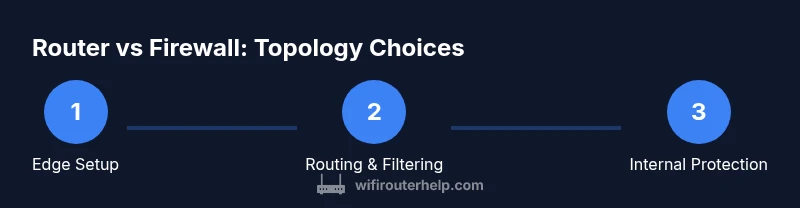
In a home network, the order of devices that inspect and manage traffic can influence security and performance. The phrase router before or after firewall encapsulates two common topologies: edge routing with a built‑in firewall, and edge firewall with a separate router behind it. Understanding who filters what, and when, helps tailor protections to your threat model. According to WiFi Router Help, most households rely on a capable consumer router with solid default rules, then adjust for devices like smart home hubs and guest networks.
Key ideas: the firewall is the security checkpoint; the router establishes connectivity and often provides NAT, QoS, and parental controls. If you place the router first, some traffic may bypass deeper inspection depending on how your devices route packets. If you place a dedicated firewall first, all traffic is directed through a single enforcement point, which can simplify rule management and improve visibility. The choice depends on hardware capabilities and your security priorities.
The role of NAT, DPI, and inspection
NAT translates private IP addresses inside your home to a public address on the internet, which helps conserve IPv4 addresses and adds a layer of obscurity. Firewall features decide which inbound or outbound packets are allowed, blocked, or redirected. When topology changes, NAT placement affects which device handles address translation before or after traffic inspection. In router-first topologies, NAT typically happens at the edge router, and firewall rules are applied there or on the router. In firewall-first layouts, the firewall often handles both inspection and NAT for internal networks, with the router managing connectivity behind it. Understanding these interactions helps you configure port forwarding, VPN passthrough, and guest network rules consistently. WiFi Router Help recommends validating how traffic flows before applying complex firewall rules, to avoid surprises during remote access or gaming.
Home topology patterns and their trade-offs
Home networks fall into a few common patterns with distinct trade-offs:
- Pattern A: modem → router (with integrated firewall) → devices. Pros: simple, easy to manage, good for most households. Cons: fewer granular controls and visibility into traffic between internal devices.
- Pattern B: modem → dedicated firewall → router → devices. Pros: strongest centralized protection, clear traffic inspection point. Cons: more complexity, potential double NAT, and additional configuration for VPNs and gaming.
- Pattern C: all-in-one devices with built‑in firewall at the edge. Pros: compact, user-friendly; Cons: limited customization and segmentation. For homes with IoT devices or guests, adding a separate guest network or VLAN can dramatically reduce risk, but only if your hardware supports it. The WiFi Router Help team recommends starting with a baseline pattern and then incrementally adding segmentation as needed.
Step-by-step: Evaluate your current hardware and goals
Before changing anything, inventory your equipment and define clear goals: What needs protection? Do you have a dedicated firewall or only a consumer router with a firewall? What services matter most (remote access, gaming, video conferencing)? Write down your ideal security posture and any constraints (hardware, budget, ISP compatibility). This assessment informs the topology you implement and helps you avoid rework. A clear plan also guides updates and reduces downtime during changes. WiFi Router Help suggests maintaining a simple change log and keeping a backup of current configurations so you can revert quickly if something goes wrong.
Tools & Materials
- Laptop or smartphone with web browser(To access admin interfaces and documentation)
- Ethernet cables (Cat6 or better)(Wired connections between devices)
- Modem and any separate firewall hardware(If you have a dedicated firewall)
- Current network diagram or notebook(Helps plan topology)
- Backup power for devices(Reduces risk during updates)
Steps
Estimated time: 45-60 minutes
- 1
Assess hardware and threat model
Take stock of any dedicated firewall, router, and modem. Define what you want to protect (devices, data, uptime) and how strict you want filtering to be. This informs whether you place the firewall first or let the router handle initial filtering.
Tip: Write down your threat scenarios and required services (VPN, gaming, streaming). - 2
Map traffic flow and network zones
Create a simple diagram of your network showing the WAN path, LAN segments, and where devices connect. Decide on zones like 'trusted LAN', 'guest', and 'IoT' to guide firewall rules.
Tip: Label interfaces and ports you plan to use for segmentation. - 3
Choose topology and document it
Select whether you’ll place a dedicated firewall first or rely on the router’s firewall at the edge. Document IP ranges, DHCP scope, and any VLANs you’ll enable if supported.
Tip: Keep a copy of the topology in a changelog for future reference. - 4
Physically wire devices according to plan
Power down components before reconfiguring. Connect the devices in the order you chose (e.g., modem → firewall → router). Confirm link lights indicate good connections.
Tip: Use labeled cables to prevent confusion during troubleshooting. - 5
Configure firewall and router settings
Set up NAT, firewall rules, DPI, and VPN passthrough as needed. Ensure the router’s DHCP is enabled on the correct interface and that management interfaces are secured.
Tip: Disable UPnP and use strong device passwords. - 6
Test security and performance
Run basic port scans, verify that the intended traffic is blocked/allowed, and check VPN and remote access functionality. Compare speeds against baseline to ensure no unnecessary drops.
Tip: Test with both wired and wireless clients.
People Also Ask
Is it better to place the firewall before or after the router in a home network?
In most homes, a router with built-in firewall is sufficient and simpler to manage. If you have a dedicated firewall, placing it before the router ensures all traffic is inspected first. Choose based on your threat model and hardware.
For most homes, use a router with built-in firewall. If you have a dedicated firewall, place it before the router for maximum inspection.
What are the risks of using only a consumer router's firewall?
A consumer router’s firewall provides basic protection but may lack deep customization and visibility. Relying on it alone can miss advanced threats and IoT device behaviors. Consider segmentation and regular updates.
Consumer router firewalls offer basic protection; for advanced threats, add segmentation and updates.
How do NAT and firewall work together in typical home networks?
NAT translates private IP addresses to a public address. Firewalls filter traffic based on rules before or after NAT depending on topology. Understanding flow helps set correct port forwarding and VPN rules.
NAT translates addresses; firewall rules enforce access. Know where your traffic is inspected.
Do I need a separate firewall if I have a smart home hub?
Smart hubs may integrate basic protections, but a dedicated firewall offers deeper inspection and threat visibility. Evaluate your devices and required controls before upgrading.
A smart hub helps, but a dedicated firewall gives stronger protection.
How can I test if my topology is secure after changes?
Use simple port scans from a trusted device and verify that only intended traffic passes. Check remote access paths and VPN tunnels for leaks or misconfigurations.
Run basic port scans and verify only intended traffic passes.
Can a mesh network fit with a firewall-first topology?
Yes, but plan segmentation and routing carefully. Ensure your firewall supports VLANs or guest networks and that mesh nodes don’t bypass protections.
Yes, with proper segmentation and firewall rules.
Watch Video
What to Remember
- Know which device inspects which traffic; topology shapes security.
- Isolate networks (guest/IoT) to reduce compromise risk.
- Test after changes; document all configurations for future maintenance.