How to Reset Router Password Xfinity
Learn how to reset your Xfinity router password safely. This guide covers web admin and Xfinity app paths, distinguishes wifi vs admin passwords, and shares security best practices for a stronger home network.


You can reset your Xfinity router password by accessing the router’s admin interface or the Xfinity app and creating a new Wi‑Fi password. This requires the current admin login (or a device connected to your network) and your device might prompt you to confirm changes. Follow the step-by-step guide for accuracy.
Why resetting your Xfinity router password matters
In a connected home, your router password is the gatekeeper for both network access and router settings. Resetting the Xfinity router password helps prevent unauthorized changes and keeps your Wi‑Fi credentials from being exploited if another device has temporary access. There are two passwords to consider: the Wi-Fi password that devices use to join your network, and the admin password that controls settings like parental controls, guest networks, and firmware updates. For homeowners and tech enthusiasts, regularly updating both credentials is a core security practice. The WiFi Router Help team emphasizes that unique, strong passwords reduce the risk of password reuse across sites and actors. When you prepare to reset, choose passwords that are long, random, and unique; avoid predictable phrases; and consider using a password manager to store them securely. It’s also important to know that Xfinity devices may offer multiple login paths (web admin, mobile app), and the interface may differ slightly by model. The steps below walk you through the safest, most reliable paths.
According to WiFi Router Help, maintaining distinct credentials for admin access and Wi‑Fi access dramatically reduces exposure to common home-network threats.
What you’re protecting: Wi‑Fi password vs admin password
There are two sets of credentials to consider when you reset a Xfinity router password. The Wi‑Fi password is what guests and devices use to connect to your network. The admin password is used to manage the router’s settings, such as security options, port forwarding, and firmware updates. Keeping both passwords strong and unique minimizes risk from credential reuse and potential breaches. The best practice is to use a long, randomly generated password for both, and store them in a reputable password manager. If you’ve recently shared access with visitors, consider reissuing a fresh Wi‑Fi password and reviewing connected devices to prevent unauthorized users from lingering on your network.
Accessing the router admin page or Xfinity app
You have two primary avenues to reset passwords: the web-based admin page and the Xfinity mobile app. The web route is often preferred for precise control over settings, while the app provides a quick, guided experience. To start, ensure your device is connected to the Xfinity network, then locate the router’s login portal or open the Xfinity app. From there, navigate to the Wireless/Security sections to access password controls. Brand guidance from WiFi Router Help emphasizes enabling strong, unique passwords and avoiding the temptation to reuse credentials across services.
Resetting the password via the web admin page
To reset via the web admin page, connect a browser-enabled device to your network, sign in with the router’s admin credentials, then go to the Wireless or Security settings. Choose the option to change the Wi‑Fi password, enter a new 12+ character password with a mix of letters, numbers, and symbols, and save your changes. If you also want to update the admin password, locate the Admin or Login settings and create a new admin password. Finally, reconnect your devices using the new Wi‑Fi password. The WiFi Router Help team recommends testing multiple devices to confirm all connections are stable after the change.
Resetting the password via the Xfinity app
Open the Xfinity app and sign in with your Xfinity account. Navigate to the Network or Wi‑Fi section, then select your network. Use the option to change the Wi‑Fi password; choose a strong, unique password and save. If the app offers a separate Admin option, update the login credentials there as well. After saving, reconnect all devices with the new credentials. The app path is convenient for on‑the‑go changes and remote management.
Post-reset security practices
After changing passwords, review other security settings. Enable network encryption (WPA3 if available), turn on guest networks for visitors, and disable WPS if your router supports it. Update firmware when prompted to close known security gaps. Consider enabling automatic firmware updates and setting up device-level security features like firewalls and parental controls if you need them. Document your new credentials securely and limit who knows them to reduce future risk.
Handling forgotten credentials and recovery options
If you forget the admin password or cannot access the interface, use the app’s recovery process or perform a factory reset as a last resort. A factory reset restores default settings but erases custom configurations (network name, parental controls, port forwards). After a reset, re‑establish your network credentials from scratch and reconfigure essential protections. Always back up settings where possible so you can restore quickly after a reset.
Common mistakes and quick fixes
Avoid reusing old passwords or simple phrases like names or dates. Don’t skip the verification step after saving changes. If devices fail to reconnect after a password change, reboot the router and reboot affected devices, then re‑enter the new password carefully. Keeping a record of your changes in a secure location helps prevent lockouts in the future.
Real-world scenario: multiple devices and guests
In homes with many devices, change passwords on a quiet day when you can test each device’s connection. Create a separate guest network for devices that don’t require full access to your main network. After the change, reauthorize trusted devices only, review connected clients, and monitor for unusual activity. This approach minimizes disruption while maintaining strong security.
Authority sources
- FCC: https://www.fcc.gov
- CISA: https://www.cisa.gov
- NIST Cybersecurity: https://www.nist.gov/topics/cybersecurity
Tools & Materials
- Stable internet connection(Ensure you are connected to the Xfinity network (Wi-Fi or Ethernet) before starting.)
- Admin login credentials(The username and password that grant access to the router’s admin panel.)
- Device with a web browser or Xfinity app(Use a computer, tablet, or smartphone connected to your network.)
- Password manager (optional but recommended)(Helps store and generate strong credentials securely.)
- Backup of current settings (optional)(Capture a screenshot or export settings if your router supports it.)
Steps
Estimated time: 25-40 minutes
- 1
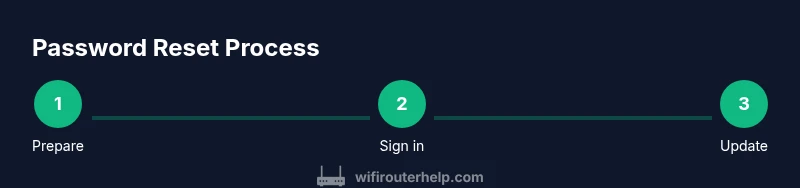
Prepare and connect
Verify you’re connected to the Xfinity network with a device. Open a browser or the Xfinity app to begin. This ensures you access the correct login page and preserves current connections during changes.
Tip: Use a device you control; avoid guest networks to prevent session timeouts. - 2
Sign in to the admin panel
Enter the router’s admin URL or sign in through the Xfinity app. If you don’t know the login address, check your router label or manual for the default gateway.
Tip: If you can’t remember the admin password, use the account recovery options or app-based sign-in if available. - 3
Navigate to security or wireless settings
Find the section labeled Wireless, Wi‑Fi, or Security. This area contains the password fields for both Wi‑Fi and admin access.
Tip: If you don’t see the expected sections, use the search function in the UI or consult the model’s guide. - 4
Change the Wi‑Fi password
Enter a new, strong Wi‑Fi password (12+ characters, mix of letters, numbers, symbols). Save changes.
Tip: Update the password in all devices immediately after saving. - 5
Change the admin password
If you can, create a new admin login. If not, at least update the existing admin password. Save your changes.
Tip: Choose a password different from the Wi‑Fi password and other accounts. - 6
Reconnect devices
Reconnect each device using the new Wi‑Fi password. Confirm that internet access is stable.
Tip: Test streaming, gaming, and video calls to ensure a solid connection. - 7
Check for firmware updates
Look for a firmware/driver update in the admin panel. Apply updates if available to close security gaps.
Tip: Enable automatic updates if your router offers this option. - 8
Review security features
Enable WPA3 (or at least WPA2) encryption, disable WPS if possible, and configure guest networks if needed.
Tip: Guest networks keep IoT devices separate from your main network. - 9
Document credentials
Store the new Wi‑Fi and admin passwords securely. Maintain a simple mapping of device names to credentials.
Tip: Use a reputable password manager and avoid paper copies in obvious places. - 10
If you’re locked out, reset
If login fails, use the recovery options or perform a factory reset as a last resort. Be aware you’ll lose personalized settings.
Tip: Only reset if you cannot regain access through account recovery paths.
People Also Ask
How do I reset my Xfinity router password?
To reset, sign into the router’s admin panel or the Xfinity app, then navigate to the Wireless or Security settings to change both the Wi‑Fi and admin passwords. Save changes and reconnect devices with the new credentials.
Open the admin page or app, go to the passwords section, and set new credentials. Then reconnect your devices.
What’s the difference between the admin password and the Wi‑Fi password?
The Wi‑Fi password is used by devices to join your network, while the admin password controls router settings. Keep both strong and unique for best security.
Wi‑Fi password is for network access; admin password is for changing settings. Use different, strong passwords for each.
I forgot my admin password. What can I do?
Use the router’s recovery path via the web UI or Xfinity app. If those fail, a factory reset is the last resort, which will erase personalized settings.
Try account recovery in the app or web UI. If necessary, reset to factory settings, knowing you’ll lose custom configurations.
Will resetting the password affect my internet connection?
Resetting passwords updates how devices connect; you may need to reconnect to the network with the new Wi‑Fi password. Internet service itself remains unaffected.
Your internet service stays, but you’ll reconnect devices with the new password.
How often should I change router passwords?
As a best practice, change passwords when you suspect a compromise or after giving access to guests. Regular updates enhance security without needing a fixed schedule.
Change passwords when you suspect a breach or after giving someone access; it helps keep your network secure.
What if the Xfinity app won’t load for changes?
Try the web admin page from a browser on a connected device. If issues persist, reboot the router or reinstall the app and attempt again.
If the app won’t load, use the router’s web interface on a computer or mobile browser.
Watch Video
What to Remember
- Change both Wi‑Fi and admin passwords regularly.
- Use strong, unique credentials and store them securely.
- Test all devices after updating passwords to confirm connectivity.
- Keep firmware up to date and enable essential security features.