How to prevent your router from being hacked
Learn how to prevent your router from being hacked with a practical, step-by-step plan: update firmware, change credentials, enable firewall, disable remote management, secure Wi-Fi, and segment networks for safer home connectivity.


You will learn a practical, step-by-step plan to prevent your router from being hacked. Start with updating firmware and changing default admin credentials, then enable the firewall, disable remote management, and use WPA3 where available. Create a separate guest network, apply strong Wi‑Fi passwords, monitor connected devices, and keep firmware updated. Follow these concrete steps for common home setups.
Understanding the risk and why routers get hacked
Your home router is the gatekeeper for every smart device in your house. Hackers rarely break in by exploiting flashy firmware bugs; they exploit predictable weaknesses that users leave in place. According to WiFi Router Help, the most common routes into home networks begin with weak admin credentials, outdated firmware, and devices that expose administrative interfaces to the internet. For many households, the default username and password still work because users never change them. Attackers also look for features like remote management or UPnP that open ports without user consent. Even devices on the same Wi‑Fi network can be used as stepping stones to bigger breaches if security practices are lax. The good news is that risk reduces dramatically when you practice a layered defense. By keeping firmware current, locking down credentials, and limiting exposed services, you make it far harder for intruders to gain a foothold. If you’re here for how to prevent router from being hacked, you’re in the right place—these steps fit most home setups.
Core security fundamentals for home networks
Security is not a single checkbox; it is a layered strategy. The most effective defenses combine strong authentication, regular updates, network segmentation, and careful feature selection. WiFi Router Help analysis shows that the most impactful practices include disabling remote management by default, turning off WPS, enabling WPA3 (or WPA2 with a long passphrase if necessary), and using a separate guest network for visitors. Each layer reduces the attack surface: firmware updates close known exploits, strong admin credentials prevent easy login, firewall rules block unsolicited traffic, and guest networks prevent visitors’ devices from freely accessing your main devices. Keep an up-to-date inventory of compatible devices so you can revoke access if a device becomes compromised. Make a habit of enabling automatic updates where possible and periodically reviewing connections. This layered approach creates a resilient baseline you can rely on as new threats emerge.
Practical steps you can take today
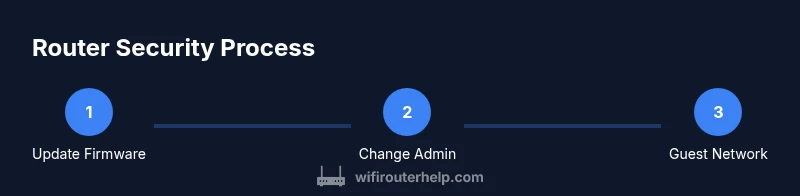
Begin with the basics, then tighten gradually. First, log into your router’s admin interface and change the default credentials to a unique, strong password. Next, update the firmware to the latest official version via the vendor site or app; don’t install dubious updates from third-party sources. Then, enable the firewall, and disable remote management unless you truly need remote access; if you must enable it, lock it to trusted IP addresses or a VPN. Turn off UPnP unless your devices rely on it, and consider disabling WPS to reduce offline guessing attacks. Switch your Wi‑Fi to WPA3 if all devices support it; if not, use WPA2 with a long, complex passphrase. Create a guest network for visitors and enable client isolation to keep guest devices from talking to your main pool of devices. Finally, activate automatic updates if available, and regularly review the devices connected to your network for unfamiliar entries. Following these steps creates a robust, practical defense that aligns with how to prevent router from being hacked.
Choosing features wisely for long-term protection
As you plan for ongoing security, prioritize hardware and settings that support continuous protection. Look for routers with automatic security updates, a built‑in firewall, and clear options to disable unnecessary services. Favor devices that allow you to segment networks easily and provide dashboard visibility into connected devices. When selecting features, consider future compatibility: as your smart home grows, you’ll want encryption standards that keep pace with new devices. In addition, Sixty‑second checks—like confirming the admin interface isn’t exposed to the internet and ensuring DNS settings point to reputable servers—help maintain a strong posture over time. The WiFi Router Help team emphasizes choosing equipment and configurations that stay current with evolving threats, rather than relying on a one-off fix.
Tools & Materials
- Router manual or official online admin guide(Know the login URL and default credentials)
- Computer or smartphone with network access(Used to access the router admin page securely)
- Ethernet cable (optional for initial setup)(Wired access avoids dropouts during changes)
- Strong passwords or a password manager(For admin account and Wi‑Fi passwords)
- Official firmware update file or access to vendor site/app(Ensure updates come from the vendor)
Steps
Estimated time: 45-60 minutes
- 1
Check current firmware and update
Log into the router’s admin page and verify the current firmware version. If an update is available, follow the vendor’s official instructions to install it. Do not interrupt the process. A failed update can leave the device unavailable and unprotected.
Tip: Back up current settings before updating to restore configurations if needed. - 2
Change default admin credentials
Replace the factory username and password with unique, strong credentials. Avoid common phrases and consider a passphrase that combines words and numbers. If your router supports two-factor authentication for the admin interface, enable it.
Tip: Use a password manager to store and generate strong credentials. - 3
Disable remote management (unless needed)
Turn off remote administration to prevent access from outside your home network. If you must enable it, restrict access to a fixed, trusted IP or require a VPN connection first.
Tip: Remote mgmt is a common attack vector; disable it by default. - 4
Enable the firewall and review services
Activate the built‑in firewall and review which services are exposed. Close any ports you don’t need and disable UPnP if you don’t rely on it for devices or apps.
Tip: Only keep services that are essential to reduce exposure. - 5
Upgrade to the strongest supported Wi‑Fi encryption
Set your wireless security to WPA3 if possible. If devices don’t support WPA3, use WPA2 with a long, complex passphrase and disable legacy insecure modes.
Tip: WPS should be turned off to prevent easy brute-force access. - 6
Create a guest network and isolate clients
Set up a separate guest network and enable client isolation so guests cannot access your main devices. This limits the spread of any potential compromise.
Tip: Use a distinct password for the guest network. - 7
Plan for automatic updates and device monitoring
Enable automatic firmware updates if available and periodically review connected devices for unfamiliar entries. Maintain a habit of re-checking device lists every 1–2 months.
Tip: Set up alerts if your router supports login or connection notifications. - 8
Evaluate remote-access options with VPN
If you require remote access, use a secure VPN instead of exposing the router’s admin interface directly to the internet. This adds a critical extra layer of protection.
Tip: A VPN encrypts traffic and keeps admin activity private.
People Also Ask
What is the most important step to prevent router hacking?
There isn’t a single magic fix. Start with updating firmware and changing default admin credentials, then enable the firewall and use strong encryption. Layered defenses protect against a wide range of common attacks.
The most important steps are updating firmware and changing default credentials, then enabling the firewall and strong encryption.
Should I disable remote management on my router?
Yes. Disable remote management unless you have a clear, necessary use case. If you must enable it, restrict access to trusted IPs or require a VPN.
Disable remote management unless you need it, and use trusted IPs or a VPN if you enable it.
Is WPA3 essential for home networks?
If possible, use WPA3. If devices don’t support it, WPA2 with a long passphrase is acceptable. Avoid mixed modes that downgrade security.
Aim for WPA3; if not possible, use WPA2 with a strong passphrase.
What about guest networks?
Guest networks provide isolation from your main network. Enable client isolation so guests’ devices can’t access your personal devices.
Guest networks help keep your main devices safer by isolating visitors.
How often should I check for updates and monitor devices?
Set automatic updates if available and review the device list every few months to spot unfamiliar devices. Regular checks catch issues early.
Check updates automatically if you can, and review devices every few months.
What if I can’t update the firmware?
If updates aren’t available, tighten other controls: disable remote mgmt, use strong passwords, and keep a guest network. Contact the vendor for alternatives.
If you can’t update, focus on password strength and limiting remote access.
Watch Video
What to Remember
- Update firmware regularly and change admin credentials
- Enable firewall, disable remote management, and use strong encryption
- Segment networks with a guest network and monitor connected devices
- The WiFi Router Help team recommends layered defenses for best protection