ExpressVPN on Router: A Complete How-To
Learn how to configure ExpressVPN on your router to protect every device. This educational guide covers compatibility, prerequisites, step-by-step setup, troubleshooting, and best privacy practices.


You will configure ExpressVPN on a compatible router to protect every device on your home network. Essential steps include a current ExpressVPN subscription, a router that supports VPN client mode, and access to the router's admin interface. This approach encrypts all traffic without needing individual VPN apps. According to WiFi Router Help, router-based VPN simplifies management and improves consistency across devices.
What ExpressVPN on Router Does for Your Home Network
ExpressVPN on a router creates a single protection layer that covers every device in your home—from laptops to smart TVs and IoT gadgets. When you route traffic through the VPN at the router level, all outbound traffic from connected devices is encrypted, and you don’t have to install VPN apps on each device. This approach adds a layer of privacy beyond individual apps, reduces the risk of DNS leaks on devices that lack robust VPN clients, and simplifies management for households with multiple users. It also ensures that guests connected to your network enjoy the same level of protection without requiring them to configure anything themselves. For homeowners, this can translate to a safer streaming, gaming, and browsing experience across all devices in one place.
Why router-based VPN matters for households
A router-based VPN aligns with practical home networking goals: protect all traffic, minimize configuration steps, and centralize control. It’s particularly valuable for smart home ecosystems where devices may not offer straightforward VPN support. While individual apps on devices remain useful for certain tasks, a router VPN provides broad coverage and reduces the chance that a device will bypass protection due to misconfiguration. In addition, centralized VPN settings can make monitoring easier, especially when you manage a network with children or multiple adults who use shared devices. As you proceed, remember that the effectiveness of a router VPN depends on compatible hardware, correct firmware, and a reliable VPN provider.
How this guide aligns with real-world usage
In practice, many homes see better overall privacy with a router VPN because it treats all connected devices uniformly. This reduces the burden of maintaining separate configurations and can improve consistency across devices by ensuring consistent DNS handling, kill switch behavior, and leak protection. According to WiFi Router Help analysis, router-level VPN configurations can yield clearer privacy outcomes for a broad range of households, especially where devices have limited VPN support.
What you’ll gain by finishing this guide
- A solid understanding of router compatibility requirements and common firmware options
- A clear, step-by-step installation workflow tailored to router VPN setup
- Practical tips for maintaining performance, privacy, and stability after activation
- A troubleshooting checklist to minimize downtime if things don’t go as planned
Tools & Materials
- ExpressVPN subscription(Active account with access to router setup guidance)
- A compatible router(Router must support VPN client mode or be able to run VPN-enabled firmware)
- PC or smartphone for configuration(Used to log in to the router admin panel and ExpressVPN account)
- Ethernet cable(Wired connection during setup for stability)
- OpenVPN configuration files or credentials from ExpressVPN(Needed to configure the router’s VPN client settings)
- Backup power source for router(UPS or battery backup recommended to avoid outages during setup)
Steps
Estimated time: 45-60 minutes
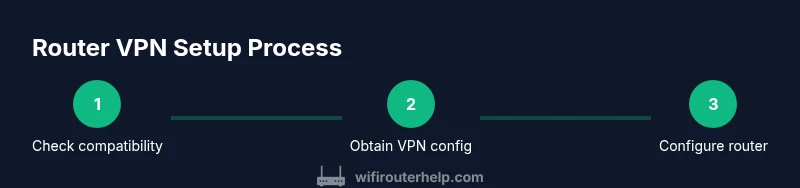
- 1
Verify router compatibility
Check your router’s model number and firmware capabilities to ensure it can run a VPN client or be flashed to VPN-capable firmware. This step prevents wasted effort on unsupported devices.
Tip: If in doubt, consult the router’s official documentation or the VPN provider’s compatibility list. - 2
Sign in to ExpressVPN and obtain VPN credentials
Log in to your ExpressVPN account and download the OpenVPN configuration files or note the required server credentials for router setup. You’ll need these to configure the router’s VPN client.
Tip: Use a wired connection to your PC during this step to avoid interruptions. - 3
Prepare router firmware or enable VPN mode
Update the router to a firmware version that supports VPN clients, or enable a VPN-enabled build (if your router supports it). This creates the software environment for ExpressVPN configuration.
Tip: Back up current settings before flashing or changing firmware. - 4
Configure the router’s VPN client with ExpressVPN details
Enter the VPN server address, your ExpressVPN credentials, and the OpenVPN configuration details into the router’s VPN client page. Apply the settings and save a backup of the working configuration.
Tip: Double-check authentication methods and certificate details to avoid connection failures. - 5
Test the VPN connection and enable protection for all devices
Connect a device to the router and verify that its traffic routes through the VPN. Confirm that DNS requests are resolved by the VPN tunnel and that the router’s kill switch (if available) is active.
Tip: Test from multiple devices to ensure consistent coverage. - 6
Fine-tune DNS, firewall, and kill switch settings
Adjust DNS settings to avoid leaks, review firewall rules to block unwanted traffic, and ensure the kill switch device-wide behavior matches your privacy goals.
Tip: Document changes and keep a recovery plan in case you need to revert.
People Also Ask
Do I need to flash my router to use ExpressVPN?
In many cases, yes. Many routers require VPN-capable firmware or a built-in VPN client to route traffic through ExpressVPN. If your router doesn’t support VPN client mode, you may need a compatible model or a VPN-enabled firmware alternative.
Most routers need VPN-capable firmware to run ExpressVPN. If yours doesn’t, consider a firmware upgrade or a dedicated VPN router.
Will ExpressVPN protect all devices on my network?
Configuring ExpressVPN on the router protects every device that connects through that router. Some devices may still require individual VPN apps if they support split tunneling or unique network paths.
Yes, router-level VPN protects most devices, though some may need app-based VPN as an exception.
What performance changes should I expect?
Using a VPN typically adds some latency and can reduce peak throughput depending on server distance and router hardware. To minimize impact, choose nearby servers, use wired connections for setup, and ensure your router has enough processing power.
Expect a small speed hit with VPN on router; use nearby servers and a capable router to keep speeds up.
Can I still access local resources (printers, NAS) when VPN is on?
Yes, but you may need to adjust routing rules or enable split tunneling if your router supports it. Otherwise ensure local network access remains available on the LAN side.
Local access may need routing tweaks; check whether your router supports split tunneling.
What if I can’t connect after setup?
Double-check server address, credentials, and certificate data in the VPN client. Reapply configurations, reboot the router, and verify that the VPN service is active. If problems persist, contact ExpressVPN support.
If it won’t connect, recheck config data and reboot; contact support if needed.
Watch Video
What to Remember
- Protect every device with a single router-level VPN setup
- Confirm router compatibility before flashing or enabling VPN mode
- Test VPN function across multiple devices for reliability
- Keep firmware updated to maintain security and performance