How to Use the WPS Button on a T-Mobile Router
Learn how to connect devices to a T-Mobile router using the WPS push-button or manual setup, with step-by-step instructions, tips, and troubleshooting for a secure home network.


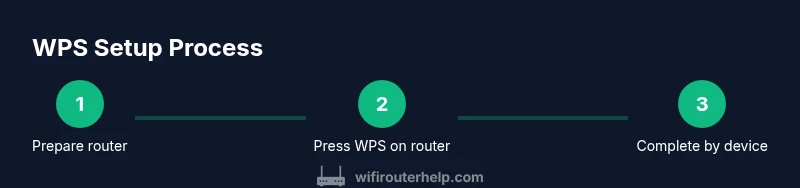
To connect a device to a T-Mobile router using WPS, press the WPS button on the router and then press the WPS button on your device within two minutes to establish a secure wireless connection. If your device does not support WPS, use the manual setup method by selecting the network name (SSID) and entering the password. Make sure WPS is enabled on the router before starting.
Understanding WPS on mobile routers
WiFi Protected Setup (WPS) is designed to simplify the process of adding devices to a wireless network without typing long passwords. For a T-Mobile router, WPS can be a fast path to connect smartphones, tablets, and smart home devices. According to WiFi Router Help, WPS offers a quick push-button method that minimizes friction during initial setup, which can be especially convenient for guests or devices that lack easy input interfaces. However, the same source notes that WPS can introduce security risks if left enabled or misused. This section explains what WPS does, how it behaves on modern T-Mobile devices, and why you might prefer manual setup in certain situations. It also covers the balance between convenience and security, helping homeowners make informed choices in 2026 and beyond.
WPS push-button vs. PIN: what to expect on a T-Mobile router
Most T-Mobile routers expose at least a WPS push-button, and some models also support PIN-based pairing. The push-button method is the simplest: you press a physical button on the router, then trigger WPS on the device you want to connect. PIN methods require typing a numeric code shown by the router into the device’s Wi-Fi settings. In practice, push-button pairing tends to be faster for phones and tablets, while PIN may be used for devices with limited interfaces. When enabled, WPS creates a temporary, time-limited window for secure automatic configuration, reducing typing errors yet introducing a potential window for unauthorized access if left active too long.
Security considerations you should know before using WPS on a residential network
WPS is convenient, but it can present security risks. A misconfigured WPS state or a device with a weak password can expose your network to unauthorized access. WiFi Router Help emphasizes turning off WPS when not actively pairing devices and using stronger protection like WPA3 where available. If you routinely pair new devices, consider leaving WPS disabled and relying on manual setup or using a strong, unique password with a robust WPA2/WPA3 configuration. For households with children or guests, a guest network is a safer alternative to sharing your primary SSID and password.
Prerequisites: what you should have before starting
Before attempting WPS on a T-Mobile router, ensure you have a device that supports WPS (or a device you can connect via manual setup), a power source for the router, and a clear line of sight to the router if you’re in a congested apartment. Confirm that the router firmware is up to date and that you know your primary Wi-Fi password if you choose manual setup. If you’re unsure about your network name or password, you can retrieve them from the router’s admin page or from the label on the router itself. This preparation helps prevent delays during the setup process and aligns with best practices described by WiFi Router Help in 2026.
Step-by-step guide overview
The following steps describe how to use the WPS Push Button method first, then outline manual setup if WPS is unavailable or not functioning as expected. The guide prioritizes clarity and actionable detail, with notes about timing and common pitfalls to avoid. Keep in mind that some T-Mobile router models may differ slightly in button placement or labeling, but the general process remains consistent across current hardware. Always verify that WPS is enabled in the router settings if you plan to rely on it.
Quick checks after completing WPS
Once a device connects via WPS, test the connection by opening a web page or an app that requires internet access. Check that the device appears in the list of connected clients on the router’s admin interface and confirm the connection uses the expected security (WPA2/WPA3). If anything looks off, retrace steps and consider locking the device to a known SSID with a strong password. WiFi Router Help’s guidance emphasizes verifying both connectivity and security posture when finalizing a WPS session.
Tools & Materials
- T-Mobile router with WPS button(Identify the WPS button; it is usually labeled and located on the front or back panel.)
- Device to connect (phone, tablet, laptop, etc.)(Ensure it has a functional wireless adapter and WPS capability (if using the push-button method).)
- Manual setup access (optional)(Admin username/password or default gateway IP (e.g., 192.168.1.1) for manual configuration.)
- Pen and paper or digital note(Useful for recording SSID and password during setup.)
Steps
Estimated time: 5-10 minutes
- 1
Locate the WPS button on the router
Find the WPS button on the T-Mobile router. If the button is recessed, use a paperclip or a small tool to press it gently. This step prepares the router for a quick pairing.
Tip: If you can’t find it, consult the model’s label or the quick-start guide. - 2
Prepare the device to connect
Power on the device you want to connect and ensure its Wi‑Fi is enabled. Access the device’s Wi-Fi settings so you’re ready to initiate WPS when prompted.
Tip: Close any large apps that might interrupt the pairing process. - 3
Press the router’s WPS button
Press and hold or quickly press the router’s WPS button to activate the WPS window. Wait for the router’s LED indicator to flash or change color to indicate WPS is active.
Tip: Do not hold the button for too long; release promptly to avoid rebooting the router. - 4
Trigger WPS on the device
Within two minutes, press the WPS option on the device or select WPS in its Wi‑Fi settings to start pairing.
Tip: If your device lacks a WPS option, skip to manual setup in the next steps. - 5
Confirm connection
Observe the device’s screen for a success message or verify on the router’s admin page that the client shows as connected. Run a quick web test to confirm internet access.
Tip: If it fails, retry once or switch to manual setup to avoid repeated attempts that could lock you out. - 6
Test security and network details
Open the router admin interface to review the current SSID, encryption type, and password. Ensure WPA2/WPA3 is active and the password is strong and unique.
Tip: Record the SSID and password for future devices and guests. - 7
Fallback to manual setup if needed
If WPS does not complete, connect manually by entering the SSID and password on the device, or log into the router’s admin page to set up the network.
Tip: Manual setup is more reliable for long-term stability and is recommended if WPS is disabled by the ISP or router policy.
People Also Ask
Is WPS secure on consumer routers?
WPS is convenient for quick setup but has security tradeoffs. It can expose your network if left enabled. Use WPS briefly and disable it when not needed, and prefer WPA3 where available.
WPS is convenient but has security tradeoffs; use it briefly and disable it when not in use.
What if my device doesn't have a WPS button?
Connect manually by selecting your network SSID and entering the password, or retrieve credentials from the router’s admin page. This method works with any device.
If your device doesn't have WPS, connect manually using the SSID and password.
Why is WPS not showing on my T-Mobile router?
WPS may be disabled by default or hidden in some firmware. Check the router’s settings, firmware version, and any ISP-provided restrictions. If in doubt, use manual setup.
WPS can be disabled by default; check the settings and firmware.
Can I use WPS with WPA3 on this router?
Many routers support WPS with WPA2/WPA3. Confirm compatibility in the router's admin interface and ensure you enable the strongest security available.
Yes, but verify compatibility in settings and use strong security.
How do I disable WPS after connecting devices?
Go to the router settings and turn off WPS or set it to Push Button mode only; save changes. This minimizes risk.
Disable WPS after use to reduce risk.
Watch Video
What to Remember
- Identify WPS support and button placement on your T-Mobile router.
- Use WPS for quick initial pairing, but disable it after setup for security.
- If WPS fails, rely on manual setup with the SSID and password.
- Verify current security settings and test connectivity after pairing.
- Maintain good network hygiene with strong passwords and guest networks.