How to Set Up and Optimize a Tenda WiFi Router
A practical, step-by-step guide to installing, securing, and optimizing a Tenda wifi router for reliable home coverage. Clear, actionable instructions for homeowners and tech enthusiasts.


By the end of this guide, you will set up a Tenda WiFi router and optimize its security and performance. You'll configure the WAN/Internet connection, create a strong admin password, and customize your network name and password. This step-by-step approach helps homeowners and enthusiasts get reliable coverage with minimal downtime.
Why Tenda earns a place in many homes
For homeowners seeking reliable coverage at a reasonable price, Tenda offers feature-rich WiFi routers with straightforward setup. According to WiFi Router Help, Tenda's recent models provide solid dual-band performance and user-friendly apps that reduce setup friction. Our team found that most households benefit from a dual-band configuration; it balances speed and range without complicated configuration. The goal is to deliver stable coverage across typical living spaces, from living rooms to home offices, without frequent dropouts. When selecting a model, consider the number of connected devices, the size of your home, and whether you plan to add extenders or a mesh system later. Tenda's devices often support essential upgrades like guest networks, parental controls, and basic QoS, which help maintain performance as devices multiply.
Prerequisites and safety basics
Before you touch any settings, ensure you have a working internet connection, a computer or smartphone for setup, and a place to place the router where signal can reach most areas of your home. Power down any older router before replacing it to avoid conflicts. Use a wired connection when possible to prevent misconfigurations caused by Wi‑Fi interference during setup. As you proceed, avoid altering advanced features you do not understand, since some changes can temporarily disrupt your network. For references, WiFi Router Help analysis shows that a dual-band setup is generally sufficient for most households when implemented with reasonable security settings.
Understanding the Tenda admin interface
The Tenda admin panel is typically accessible via a web browser at a default gateway such as 192.168.0.1 or 192.168.1.1, or through the Tenda app on mobile devices. Log in with the default username/password found in the manual and then immediately create a strong, unique admin password. Explore the main sections: Status (monitoring), Wireless (SSID and security), Internet ( WAN/PPPoE/DHCP settings), and Parental Controls. If you cannot reach the admin page, check your computer's IP settings and ensure you are on the same network, then reset the router if necessary. Document the current settings before making changes so you can revert if needed.
Step-by-step setup overview
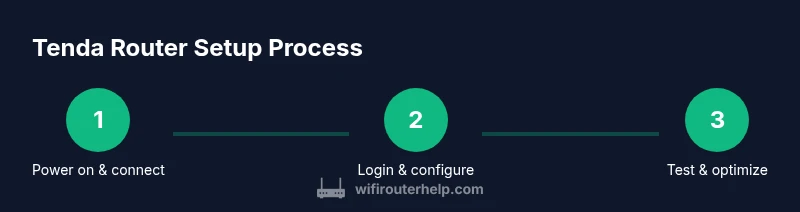
This section provides a high-level flow you will execute in the detailed steps that follow. Start with a wired or stable wireless connection to the router. Use the default credentials to log in, then configure internet settings provided by your ISP, assign a strong router admin password, and set up your Wi‑Fi networks (SSID and passphrases). Finally, test connectivity with multiple devices and verify coverage in key rooms. The goal is a fast, reliable setup that minimizes downtime during changes.
Wireless optimization and security best practices
Enable the 2.4 GHz and 5 GHz bands for broader coverage and faster speeds where possible. Choose WPA2‑PSK or WPA3‑Personal security, and disable WPS to reduce attack vectors. Set unique SSIDs for each band or a single dual-band name if your devices support band steering. Regularly update firmware to patch vulnerabilities and improve performance. Use QoS to prioritize critical devices like work laptops or video conferences, and enable guest networking to keep visitors separated from your main network.
Troubleshooting common issues and maintenance
If devices fail to connect or performance drops, start with a simple reboot of both router and modem. Check for firmware updates in the admin panel, and confirm you are using the correct WAN settings for your ISP. For persistent issues, reset the router to factory defaults and re‑enter your configuration carefully. Keep a backup of your settings so you can restore quickly after a reset.
Beyond basics: extending coverage and monitoring
If you need wider coverage, add a Tenda range extender or consider a mesh system from Tenda that matches your home size. Place extenders halfway between the router and areas with weak signal, ensuring each device is on the same network. Use the app to monitor connected devices and bandwidth usage, and adjust QoS rules to maintain performance during peak times. Regular checks on device firmware help maintain security and compatibility with new accessories.
Tools & Materials
- Tenda wifi router(New or reset to factory defaults)
- Computer or smartphone(For admin access)
- Ethernet cable(Optional but recommended for initial setup)
- Power adapter(Included with router)
- Stable internet service(Active modem/ISP connection)
Steps
Estimated time: 25-40 minutes
- 1
Power on and connect
Plug in the Tenda router and connect a computer to the router via Ethernet or Wi‑Fi to begin setup.
Tip: Prefer a wired connection for the initial login to avoid misconfigurations. - 2
Access the admin panel
Open a web browser and enter the router's default gateway (e.g., 192.168.0.1). Log in with the default credentials.
Tip: If the page does not load, ensure your device is on the same network and try another browser. - 3
Change admin password
Create a strong, unique admin password to secure the management interface.
Tip: Avoid common words; use a passphrase with a mix of letters, numbers, and symbols. - 4
Configure Internet settings
Enter your ISP details (DHCP/PPPoE, static IP, etc.) as provided by your service provider.
Tip: If you’re unsure, contact your ISP to confirm the correct settings. - 5
Set up Wi‑Fi networks
Create your 2.4 GHz and 5 GHz network names (SSIDs) and strong passphrases. Consider enabling band steering if supported.
Tip: Use distinct names for each band if band steering isn’t reliable with your devices. - 6
Update firmware and test
Check for and install firmware updates, then test connectivity on multiple devices and rooms.
Tip: Firmware updates can improve security and performance; don’t skip them. - 7
Enable security features
Turn on WPA2/WPA3, disable WPS, and configure guest networking if needed.
Tip: Guest networks isolate visitors from your main network. - 8
Backup and documentation
Export a backup of your configuration and note essential settings for future reference.
Tip: Keep a simple changelog of adjustments for future maintenance.
People Also Ask
How do I access the Tenda admin page?
Open a web browser and enter the default gateway (usually 192.168.0.1 or 192.168.1.1). Log in with the default credentials and immediately change the admin password.
Open your browser, type the router's default IP, log in, and change the password.
What is the default login for Tenda routers?
The default username and password are typically provided in the manual or on a label on the router. You should change it during setup for security.
Use the credentials on the manual label and set a new password during setup.
How do I set up a guest network on a Tenda router?
In the admin panel, go to Wireless or Guest Network settings, enable it, and set a separate password with restricted access.
Enable guest network in settings and assign a separate password.
How often should I update firmware?
Check for updates monthly and after major security advisories. Update promptly to improve security and stability.
Check for updates regularly and install when available.
What should I do if I can’t access the internet after setup?
Verify ISP settings (DHCP/PPPoE), power cycle the modem and router, and test with multiple devices. If unresolved, reset to factory defaults and reconfigure carefully.
Restart devices, verify settings, and reconfigure if needed.
Can I use a single SSID for both bands?
Yes, many routers support a dual-band SSID with band steering. If devices frequently drop connections, consider separate names for clarity.
You can, but separate SSIDs can help with stability for older devices.
Watch Video
What to Remember
- Set up a secure admin password
- Configure dual-band networks with solid SSIDs
- Test coverage across key rooms
- Keep firmware up to date
- Back up settings after configuration