Locate and Optimize Your WiFi Router Nearby for Better Coverage
Learn how to locate a wifi router nearby and optimize its placement for stronger signals, fewer dead zones, and reliable home networking. Practical steps, tools, and tips for homeowners and tech enthusiasts.


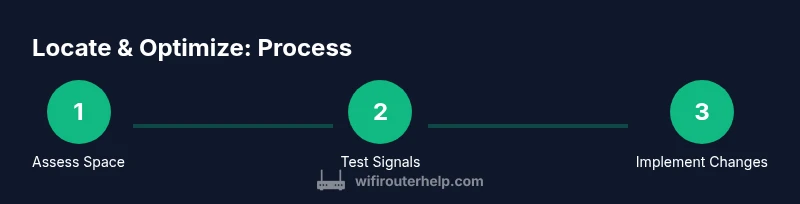
This quick guide shows you how to locate your wifi router nearby and optimize its placement for stronger signal, fewer dead zones, and steadier speeds. You’ll learn how to assess room layout, measure signal strength, and adjust placement and settings for reliable home networking. This involves checking critical rooms, testing in real-world usage, and applying simple tweaks that do not require professional hardware.
Why locating your wifi router nearby matters
In most homes, the router is the central hub of every connected device. The wifi router nearby placement influences signal strength, bandwidth, and reliability. When a router sits in a corner or behind furniture, signals bounce off walls and are absorbed by obstacles, creating dead zones in living rooms, bedrooms, and home offices. By choosing a central, elevated location you reduce path loss and improve coverage for devices across rooms. The goal is to minimize interference from metal appliances, large glass panels, and dense drywall while keeping the router accessible for maintenance. According to WiFi Router Help analysis, practical placement can noticeably boost speeds without upgrading hardware. For a typical 1,500-square-foot home, careful placement can transform streaming and online gaming performance. Use this guide to evaluate your space and identify the best spot for a wifi router nearby.
Key factors that affect signal in your home
Signal quality depends on distance, obstacles, and electronics. Thick walls, metal studs, concrete, and even mirrors can weaken 2.4 GHz more than 5 GHz bands. The router’s height, orientation, and antenna direction play a big role; aim for a beam that covers common living areas rather than corners of the house. Interference from neighboring networks can cause congestion—choose the least congested channel if your router supports auto channel selection or manual changes. Keep devices away from microwaves and cordless phones that radiate at 2.4 GHz. Finally, consider your home's layout: open floor plans generally benefit from central placement, while multi-story homes require strategic positioning on stairs or hallways to maximize line-of-sight coverage.
How to find the router location with a signal checker
Start by downloading a reputable wifi analyzer app or using built-in network utilities on your phone or computer. Walk through each room and note the reported signal strength in dBm; aim for strong, stable coverage in key living areas. If you see pockets of weak signal (-70 dBm or worse) in places where you work or stream, that’s a potential dead zone. Record the best and worst areas and sketch a simple floor plan to visualize coverage. Use this information to guide a relocation plan that keeps the router accessible yet elevated and free of dense obstacles. If possible, test in real-world usage scenarios: video calls, gaming, and buffer-prone streaming.
Step-by-step analysis of current layout
Create a quick map of your home showing major rooms, walls, and furniture that could block signals. Mark where you routinely use the internet most (living room, home office, bedroom). Use a wifi analyzer to collect base measurements in each zone: note your current channel, signal strength, and connection stability. Look for patterns: does streaming fail on the far side of a thick wall? Do neighboring networks crowd common channels? This analysis informs decisions about relocation, channel changes, or a potential upgrade.
Common placement mistakes and fixes
Common mistakes include placing the router inside a cabinet, near metal appliances, or directly on the floor. Each of these reduces signal reach and creates dead zones. A frequent fix is moving the router to a central, elevated spot—ideally not tucked behind doors or furniture. If you must place the router in a closet or shelf, clear an open area and avoid enclosing the device completely. Another pitfall is using one router for large homes; consider a mesh system or range extenders to fill coverage gaps without sacrificing performance.
Hardware and settings tweaks to improve wifi nearby
Basic tweaks can yield meaningful improvements without new hardware. Update firmware regularly to ensure optimal performance and security. Enable a fixed channel on the 2.4 GHz band if interference is high, and let the 5 GHz band handle high-bandwidth tasks in closer rooms. Position antennas (or endpoint antennas if flexible) to maximize coverage into living spaces. Finally, consider enabling QoS for latency-sensitive applications (like gaming or video conferencing) to prioritize critical traffic. A few minutes of configuration can translate into consistent speeds across the home.
Authority sources and ongoing maintenance
For deeper guidance on wireless security and best practices, consult established authorities. The WiFi Router Help team recommends reviewing official resources from reputable institutions for ongoing maintenance and best practices. Regularly check for firmware updates, audit connected devices, and reassess placement as your home layout or device needs evolve. In addition to practical steps, keeping security in mind ensures a safer home network for all household members. The latest best practices continue to evolve, so periodic review is time well spent.
Tools & Materials
- Smartphone with Wi-Fi analyzer app(Install a reputable analyzer app and test in multiple rooms)
- Laptop or tablet(Optional for running speed tests and site surveys)
- Measuring tape or ruler(Useful for estimating distances to walls or furniture)
- Pen and notebook(For recording signal strengths and room notes)
- Floor plan or room layout(A simple sketch helps visualize coverage)
Steps
Estimated time: 30-45 minutes
- 1
Prepare testing space
Gather devices (phone, tablet, laptop), a floor plan of your home, and a wifi analyzer app. Define which rooms matter most (living room, home office, bedrooms) and set a baseline by noting current signal in those zones.
Tip: Test during typical usage times (evening or streaming hours) to capture realistic conditions. - 2
Map current coverage
Walk through each room with your device and record signal strength (in dBm) and stability. Mark dead zones and note any obstacles like metal furniture or thick walls.
Tip: Use a simple grid on your floor plan to visualize signal drop-offs. - 3
Centralize and elevate the router
Move the router to a central, elevated location away from walls and metal appliances. Avoid confined spaces like cabinets and closets where airflow and signal are restricted.
Tip: Keep it on a shelf or table at roughly chest height for better visibility and airflow. - 4
Adjust antennas and channels
If your router has external antennas, aim them to maximize coverage toward busy areas. On congested 2.4 GHz environments, switch to the least crowded channel or enable auto-channel selection.
Tip: Test both 2.4 GHz and 5 GHz performance in key rooms to balance range and speed. - 5
Update firmware and check security
Install the latest firmware, enable a strong admin password, and consider enabling WPA3 if supported. Disable WAN or UPnP features you don’t need for extra safety.
Tip: Schedule a monthly reminder to check for updates. - 6
Re-test and document improvements
Repeat the signal tests after changes, compare to the baseline, and note any remaining weak spots. If gaps persist, plan further tweaks or consider hardware upgrades.
Tip: Keep your findings handy for future home changes or moves.
People Also Ask
What is the best place to put a wifi router nearby for most homes?
Aim for a central, elevated location away from thick walls and metal appliances. This reduces path loss and improves coverage in living spaces where you use the internet most.
Place the router in a central, elevated spot away from metal objects to minimize dead zones and get even coverage.
Can walls affect signal strength?
Yes. Concrete, metal, and dense materials absorb signals, especially on the 2.4 GHz band. Use the 5 GHz band for nearby devices and keep the router away from thick barriers where possible.
Yes, walls can weaken signals. Try to place the router where lines of sight are clearer and rely on 5 GHz for nearby rooms.
Mesh networking or a range extender: which is better for large homes?
Mesh networks provide seamless coverage across large spaces, while extenders can be a quick fix for small gaps. For multi-story homes, consider a mesh system for consistent performance.
For big homes, mesh networks usually offer better consistency and easier management.
How do I know if my router needs replacement?
If you consistently see speeds below what you pay for or frequent disconnects after optimizing placement and firmware updates, it may be time to upgrade to a newer model with better range.
If speeds stay slow after placement tweaks and updates, upgrading could help.
Is UPnP safe to enable on a home router?
UPnP eases device discovery but can expose devices to risk if misconfigured. Disable UPnP if you don’t need it for specific devices.
UPnP can be convenient but may present security risks; disable it if not required.
How often should I check for firmware updates?
Check for updates monthly and after major vulnerabilities are disclosed. Keeping firmware current helps security and performance.
Check for updates monthly to keep security and performance up to date.
Watch Video
What to Remember
- Identify the rooms that require strongest coverage and target a central router location.
- Test signal strength in realistic usage scenarios to guide placement decisions.
- Elevate the router and minimize interference from walls, metal, and electronics.
- Regularly update firmware and review security settings to maintain performance and safety.