WiFi Gaming Router Guide: Setup, Optimization, and Troubleshooting
Learn how to choose, configure, and optimize a wifi gaming router for stable, low-latency online play. Step-by-step setup, practical tips, and common troubleshooting to keep your games running smoothly.


By following this guide, you will learn to pick, set up, and optimize a wifi gaming router for stable, low-latency online play. You’ll configure QoS, create dedicated gaming networks, and fine-tune channel and firmware settings. The result is smoother gameplay, fewer lag spikes, and a more reliable connection across wired and wireless devices.
What a wifi gaming router does
A wifi gaming router sits between your modem and your devices, shaping how data travels through your home network. Its job goes beyond simply providing wireless access: it prioritizes gaming traffic, reduces interference, and helps pages, streams, and downloads coexist without stealing bandwidth from your competitive games. In practical terms, a good gaming router gives you lower latency, more consistent ping, and a larger window for smooth gameplay even when several devices are streaming, conferencing, or downloading in the background.
According to WiFi Router Help, the foundation of stable gaming performance starts with a solid router and a clear placement strategy. The team found that the right hardware and network layout can cut jitter and packet loss dramatically compared with a basic consumer router. Understanding these basics will save you time and frustration, especially in busy homes with multiple gaming consoles, PCs, and smart devices. This section sets the stage for the rest of the guide by outlining the core ideas you will apply in your own setup.
Core features that affect gaming performance
Modern gaming routers come with features designed to keep gaming packets prioritized and safe from congestion. The most impactful for online play are Quality of Service (QoS) controls, which let you earmark bandwidth for a game or for a console while other devices use the rest. Dual-band and tri-band configurations let you separate gaming devices onto 5 GHz or a dedicated gaming band to reduce interference. Beamforming and MU-MIMO help multiple devices receive steady signals without one device starving another. A robust firewall, UPnP controls, and secure default settings protect you without slowing you down. Some routers offer built-in gaming modes, device prioritization presets, and easy port forwarding or NAT firmware options. When shopping, look for hardware with a capable CPU and enough RAM to sustain real-time routing decisions during peak usage. Budget models can still support solid gaming with careful configuration, but you should expect broader options from midrange devices. WiFi Router Help analysis shows that QoS and smart channel selection significantly improve gaming consistency in typical home setups.
How to pick the right router for your home
Choosing a wifi gaming router starts with your home size and the number of competitive devices. For small apartments with a few phones and a single console, a midrange router with strong 5 GHz performance is usually enough. For larger homes with many devices, you may want a router with more processing power, a second 5 GHz band, or the option to upgrade to a mesh system. Consider how you connect to the modem, the number of Ethernet ports you need for wired gaming consoles or PCs, and whether you want features like guest networks, parental controls, or USB sharing. Evaluate security support such as WPA3, firmware update cadence, and the user interface's clarity. Finally, verify that the router supports firmware updates and has a reliable community or vendor support. Remember that a good gaming experience depends on both hardware and correct software settings; you will get better results with a device that can sustain real-time decisions when gaming traffic spikes.
Positioning and interference: physical setup tips
Placement matters as much as the hardware inside the router. Put the router in a central, elevated location away from metal cabinets, microwaves, and large vertical surfaces that can reflect signals. Avoid pointing the antenna toward a wall corner, which can cause dead zones in active gaming areas. If possible, position gaming devices closer to the router, keep obstacles to a minimum, and use a short Ethernet run to verify the wired baseline before testing wireless performance. A thoughtful layout reduces the effects of wall materials, floors, and other electronics that can degrade the signal. In busy households, a simple rule of thumb is to treat the router as the hub that serves all rooms rather than a corner device.
Wired vs wireless connections: when to use each
Wired Ethernet remains the gold standard for competitive gaming when possible. A direct connection minimizes jitter, packet loss, and latency fluctuations that wireless can experience from distance and interference. Use wired for your primary gaming PC or console, and reserve wireless for mobile devices, laptops, and secondary gaming gear. If you must rely on wireless, favor the 5 GHz band for gaming devices within reasonable proximity to the router and enable channel selection to avoid crowded frequencies. Mesh or range extender solutions can help extend coverage without losing packet integrity, but they add complexity and potential latency if not configured correctly. Balanced use of wired and wireless access often yields the best overall performance for gaming in homes with multiple users.
Optimizing wireless settings for gaming
After you have a router that supports gaming oriented features, focus on configuration. Enable QoS and assign the highest priority to your primary gaming device or to your game application. Create a dedicated gaming network or at least a separate 5 GHz SSID for gaming devices to minimize cross traffic. Disable features that can cause overhead, such as redundant beamforming if it conflicts with your devices, and keep firmware up to date. Choose a relatively clear channel for your 5 GHz network by checking the least congested option in your area, and set a fixed channel to avoid automatic switching during play. If your router supports beamforming, test with and without it to see which yields a steadier connection in your home environment.
Security, privacy, and guest access for gaming networks
Security should never be an afterthought, even in a home gaming setup. Change the default admin password, enable WPA2 or WPA3 security, and disable WPS if possible to reduce unauthorized access. Use strong, unique passwords for the guest network and limit guest access to internet only. Consider enabling a separate guest network for visitors so your gaming devices stay isolated from other devices on the network. Regularly check for firmware updates and review connected devices to catch unfamiliar clients. A well secured network keeps your gaming experience stable while reducing risk.
Troubleshooting common gaming latency issues
When latency spikes, start with the simplest checks first. Verify you are using the best possible band for your devices and that your Ethernet cables are in good condition. Reboot the router and check service status from your ISP if random slowdowns occur. Inspect for software updates on the game console or PC and ensure that background updates or cloud sync are not consuming excessive bandwidth. Review QoS settings to confirm the highest priority is still assigned to gaming traffic and that other devices aren t competing. If problems persist, test with a wired connection to isolate wireless from wired paths. Finally, consider a firmware update or factory reset as a last resort, documenting the changes you make to avoid repeating misconfigurations.
Performance verification: testing and refining
Validation of changes is essential. Measure latency, jitter, and bandwidth using a mix of real games and standard network tools. Compare wireless results against a wired baseline to understand the actual improvement. Repeat the testing after moving devices, changing channels, or updating firmware to confirm the gains persist. Keep a simple log of settings you changed and the observed performance so you can revert if needed. A disciplined approach and consistent testing are the best ways to ensure your wifi gaming router continues to deliver a competitive edge.
Tools & Materials
- Ethernet cable (Cat5e or better)(Use at least a 1 Gbps capable cable for wired testing)
- Smartphone or laptop for testing(Test both 2.4 GHz and 5 GHz bands)
- Access to router admin interface(Know default IP and login credentials)
- Pen and paper or notes app(For recording changes)
- Firmware update capability(Ensure internet connectivity for firmware updates)
Steps
Estimated time: 45-60 minutes
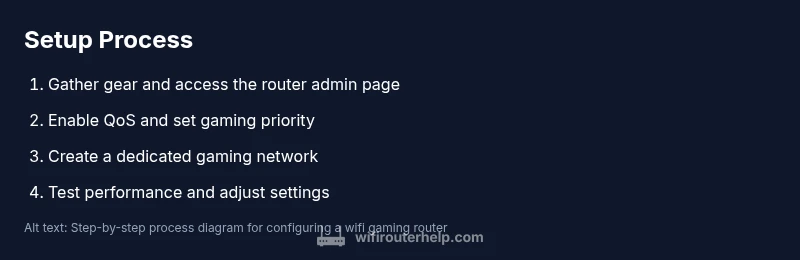
- 1
Gather required gear
Collect your router, modem, test devices, Ethernet cable, and power supplies. Have access to the admin interface and a place to record changes. This step ensures you can perform all following actions without interruption.
Tip: Prepare a clean workspace and label cables to avoid confusion later. - 2
Log in to the router admin panel
Connect a device to the router via WiFi or Ethernet and open the admin URL. Enter your username and password. If you have never changed these, use the default credentials from the manufacturer documentation.
Tip: Change the default password immediately and enable two-factor authentication if available. - 3
Enable QoS and set gaming priority
Navigate to the QoS or traffic management section and create a rule that assigns the highest priority to your gaming device or game service. Save the settings and apply changes.
Tip: Test with a couple of different games to confirm priority works across titles. - 4
Create a dedicated gaming network (optional but recommended)
Set up a separate SSID or a dedicated 5 GHz network for gaming devices to minimize interference from other household traffic. Keep the guest network separate from gaming devices.
Tip: Label the network clearly as Gaming and keep security strong with WPA3 if available. - 5
Update firmware and security features
Check for and install the latest firmware. Review security options such as WPA3, firewall settings, and UPnP status to balance convenience with protection.
Tip: Enable automatic firmware updates if your router supports it. - 6
Test performance and refine
Run latency, jitter, and throughput tests on wired and wireless devices. Compare results to your baseline and adjust QoS, channel, or placement as needed.
Tip: Document the changes and results to help reproduce improvements or undo misconfigurations.
People Also Ask
What is a wifi gaming router?
A wifi gaming router is a router with features that prioritize gaming traffic, minimize interference, and provide stable connections for online games. It typically includes QoS controls, better band management, and options for dedicated gaming networks.
A gaming router prioritizes gaming traffic to reduce lag and provide stable performance for online play.
Do I need a gaming router to play online?
No, a standard router can handle online gaming, but a gaming router offers features like QoS and dedicated gaming networks that can improve latency and consistency, especially in busy homes.
You don't need a gaming router, but it helps with latency and stability in crowded networks.
Can QoS cause issues?
If misconfigured, QoS can starve other devices or misprioritize traffic. Start with a single high priority rule for gaming, test, and adjust thresholds as needed.
QoS can help, but misconfigurations can hurt performance; test and tune carefully.
Is UPnP necessary for games?
UPnP is convenient for automatic port mapping in some games, but it can introduce security risks. Consider enabling only if you trust the devices on your network and monitor active services.
UPnP can ease port mapping but has security trade-offs; use with caution.
Why use a 5 GHz band for gaming?
5 GHz provides higher throughput and less interference than 2.4 GHz, making it ideal for nearby gaming devices. Its shorter range is a trade-off you manage with placement or a dedicated gaming network.
5 GHz is faster and cleaner for nearby gaming devices; place it well to reduce range issues.
Where should I place my router for best gaming performance?
Place the router in a central, elevated spot away from walls and metal objects. Avoid outlets and appliances that can cause interference, and test in the main gaming area.
Center your router high and clear of obstacles for best gaming performance.
Watch Video
What to Remember
- Prioritize gaming traffic with QoS for stable play
- Prefer wired connections for primary gaming devices
- Use a separate 5 GHz network for gaming devices near the router
- Keep firmware updated and security settings strict
- Test and document changes to maintain a consistent edge