Router for Gaming: Setup, Optimization, and Troubleshooting
Learn how to select, configure, and optimize a router for gaming to minimize latency, maximize stability, and improve online play. Step-by-step guidance from WiFi Router Help.


You will learn how to pick a router for gaming, set up a gaming-optimized network, and tune settings to minimize latency. This guide covers essential features, placement, firmware, and QoS strategies to ensure stable, low-latency gameplay across devices. You'll also identify common pitfalls and how to test performance. It assumes a typical home with a cable or fiber modem and multiple devices.
Why a Gaming-Optimized Router Matters
According to WiFi Router Help, a router designed with gaming in mind can dramatically reduce latency, improve stability, and keep competing traffic from crowding out your game data. A gaming router focuses on features that smooth the upper layers of your connection—jitter control, fast routing, and reliable device prioritization. The WiFi Router Help team found that households using QoS-enabled routers with properly configured settings experience noticeably fewer in-game lags and disconnects during peak hours. This section explains why your router choice matters, what failure modes to avoid, and how a dedicated gaming setup aligns with modern home networks.
- Latency reduction comes from smarter packet handling and shorter routes to your game servers.
- Stability improves when you separate gaming traffic from web browsing and streaming with reliable QoS rules.
- Consistency matters more than raw speed in many popular competitive titles.
If you’re setting up a new gaming network, start with a router that supports modern wireless standards, robust CPU/memory, and an intuitive admin UI. Since the game experience is sensitive to jitter and packet loss, a focused approach to QoS, network segmentation, and firmware updates pays off over time.
Key Features to Look For in a Gaming Router
When evaluating routers for gaming, prioritize features that directly affect latency, stability, and predictability of traffic. A good gaming router should offer: QoS with per-device or per-application prioritization, hardware NAT, at least dual-band support (2.4 GHz and 5 GHz), and support for 160 MHz channel bonding on 5 GHz where available. Look for MU-MIMO, a fast CPU (for buffering and routing), and ample RAM to handle concurrent gaming sessions without dropping packets. The modem compatibility and WAN port speed matter too—go for at least 1 Gbps WAN/LAN ports if you have gigabit service. A strong security posture (WPA3, automatic updates) helps protect active gaming sessions from intrusions.
- QoS rules that are easy to configure and diagnose.
- Adequate hardware to handle multiple devices during peak hours.
- Clear, accessible firmware update paths and documented features.
- Stable wireless performance with good signal processing.
WiFi Router Help analysis shows that routers with user-friendly QoS dashboards and explicit gaming profiles reduce setup time and misconfigurations, which translates into fewer latency spikes. In other words, a well-implemented gaming profile is often more valuable than a marginal speed enhancement. For most homes, dual-band routers with active 802.11ax support provide a solid balance of speed and reliability.
Optimal Home Network Setup for Gaming
A well-structured home network is the foundation of a smooth gaming experience. Start by validating your modem connection and ensuring the router sits within a central, open area away from thick walls and metal appliances. Prefer wired backhaul to your primary gaming devices whenever possible; Ethernet connections dramatically reduce jitter compared to wireless links. Create a dedicated guest network for non-gaming devices to prevent bandwidth contention, and consider enabling a separate SSID for gaming devices if your router supports multiple networks. Ensure you have a stable IP addressing scheme (static or reserved DHCP) for PCs and consoles that you want consistently prioritized. Regularly test your Internet speed and compare it against the plan to identify bottlenecks external to the router.
- Central placement reduces coverage gaps and minimizes dead zones.
- Wired connections to gaming devices are the most reliable option for latency-sensitive traffic.
- Separate networks help prevent bandwidth saturation by IoT devices and guests.
- Periodic speed tests reveal if the bottleneck is the ISP or your internal network.
Based on WiFi Router Help research, a clean, organized network with clearly defined device roles simplifies troubleshooting and allows you to apply QoS with confidence. A well-documented network also makes firmware updates and feature testing easier over time.
Placement, Interference, and Channel Selection
Placement is a deceptively simple but critical factor. Position the router at roughly chest height on a central shelf, away from metal objects, microwaves, and large textbooks that can block signals. Elevation and line-of-sight to the main gaming area help. For 2.4 GHz, interference from neighbors is common; consider manually selecting a less congested channel using a Wi‑Fi analyzer. In dense apartment buildings, prioritizing 5 GHz can dramatically reduce interference, though range will be shorter. If your devices support 6 GHz (Wi‑Fi 6E), assess whether the added spectrum improves your gaming latency in your environment. Regularly review channel usage during peak hours and rotate channels as needed.
- Central positioning reduces coverage gaps.
- 5 GHz offers less interference but shorter range; 2.4 GHz travels farther but collects more noise.
- A Wi‑Fi analyzer helps pick the best channel dynamically.
- 6 GHz may help in higher-end setups but check device compatibility.
In practice, many homes see a 10–25% latency improvement by fine-tuning channels and moving devices away from interference sources. WiFi Router Help emphasizes repeating these checks during evenings when congestion peaks.
QoS, Traffic Shaping, and Prioritization
Quality of Service (QoS) is the cornerstone of gaming performance on shared home networks. Activate QoS and create a dedicated gaming profile for your consoles and PCs with the highest priority. If possible, assign static IPs or DHCP reservations to gaming devices so QoS rules apply consistently. Consider enabling “Gaming” or “High Priority” presets if your router offers them, and define the minimum bandwidth guarantees for the gaming devices without starving other essential services. For titles with known ports, you can also configure port-forwarding or UPnP cautiously to ensure game services stay reachable, while maintaining security.
- Use per-device or per-application priority rules for predictable game latency.
- Static IP reservations prevent DHCP churn from breaking QoS rules.
- Be mindful of over-allocating bandwidth, which can starve background tasks.
- Balance QoS with security features to avoid opening new attack surfaces.
WiFi Router Help analysis shows that when QoS is paired with clean device grouping and regular firmware updates, gaming traffic experiences fewer spikes and more consistent throughput. A thoughtful QoS setup is often more impactful than chasing raw speed alone.
Security Considerations for Gaming Traffic
Gaming sessions are persistent connections that can be disrupted by malware, botnets, or misconfigured devices. Enable WPA3 security where possible and disable remote management unless you absolutely need it. Use a strong admin password, change default credentials, and keep firmware up to date to close vulnerabilities. Segment your network with a guest SSID for visitors and IoT devices to isolate gaming traffic from less-trusted devices. Periodically review connected devices to detect unknown clients and consider enabling firewall features and UPnP cautiously to avoid port exposure.
- Strong passwords and current firmware protect gaming sessions.
- Network segmentation reduces risk from IoT devices sharing your gaming bandwidth.
- Regular device audits help you spot unauthorized access quickly.
- Disable unnecessary remote access to minimize exposure.
The WiFi Router Help team recommends routine firmware updates and security audits as part of a proactive gaming setup. Regular maintenance reduces the chance that a minor vulnerability becomes a disruption during a crucial match.
Testing and Troubleshooting for Gaming Performance
Testing is essential to confirm your settings actually improve gaming latency and stability. Run controlled tests using wired and wireless devices to measure round-trip time (ping), jitter, and throughput to a known game server. Use built-in router diagnostics where available, or third-party tools to simulate real-world gaming traffic. If you notice spikes, revisit QoS rules, verify firmware versions, and re-check channel selection and interference. Document the results and adjust step-by-step to isolate the root cause, whether it’s ISP-related, a misconfigured QoS rule, or a device with aggressive background tasks.
- Compare wired vs. wireless results to identify the best path for each device.
- Document latency, jitter, and packet loss to track improvements.
- Incrementally adjust QoS and channel settings to observe effect changes.
- ISP-level issues might require contacting your provider for investigation.
Testing and Troubleshooting Summary
With careful placement, smart channel selection, robust QoS, and solid security, you can create a gaming-focused home network that minimizes latency and maximizes stability. Ongoing testing and routine maintenance—such as firmware updates and device audits—keep the setup resilient against evolving networks and new devices. WiFi Router Help recommends keeping a rolling checklist for firmware, QoS tuning, and security to ensure you sustain optimal gaming performance over time.
Tools & Materials
- Modem(Ensure it is functioning and supports your internet plan.)
- Router with QoS and gaming features(Look for 1Gbps+ WAN, MU-MIMO, and 160MHz support if available.)
- Ethernet cable(For a reliable wired backhaul to gaming devices.)
- Device for admin access (laptop/phone)(Used to log into the router admin page.)
- Wi‑Fi analyzer app(Helpful for identifying least congested channels.)
- Paper or digital notepad(Record settings and test results for reference.)
Steps
Estimated time: 60-90 minutes
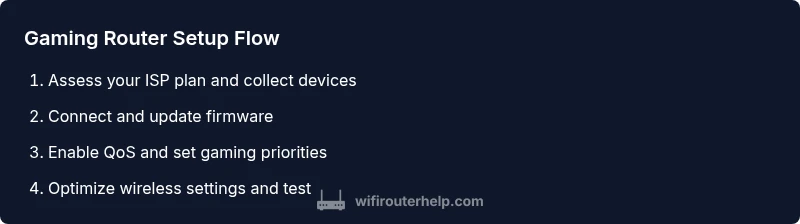
- 1
Collect prerequisites
Collect prerequisites and verify you have a modem, router, Ethernet cable, and access to the admin page. Gather device names and confirm you can reach the router’s login interface. This preparation saves time during setup.
Tip: Create a quick list of your gaming devices and note their MAC addresses for future QoS rules. - 2
Connect the router to the modem
Power off the modem and router, connect the router’s WAN port to the modem, then power both back on in sequence. After boot, confirm the router’s status LED indicates a healthy connection.
Tip: Use a stable Ethernet connection to perform the initial setup for reliability. - 3
Access the router admin page and update firmware
Open a web browser and log into the router’s admin panel using the default IP (often 192.168.1.1). Check for firmware updates and install any available upgrades. Reboot if prompted.
Tip: Back up current settings before updating to prevent loss if you need to revert. - 4
Enable QoS and set gaming priorities
Navigate to the QoS section and create a Gaming profile. Assign your primary gaming devices to High Priority and consider limiting non-essential devices to a lower tier.
Tip: Use static IPs for gaming devices to ensure QoS rules stay consistent. - 5
Tune wireless settings for optimal gaming
Set the 5 GHz band to the highest usable channel and enable 160 MHz if supported. Consider turning off the 2.4 GHz band for gaming devices to reduce interference when 5 GHz coverage is sufficient.
Tip: Disable any extra features like beamforming if you notice instability in certain setups. - 6
Create wired backhaul for main gaming devices
Run Ethernet to the primary gaming console/PC where possible. A wired backhaul dramatically reduces latency and jitter compared to wireless paths.
Tip: Label cables and ports to simplify maintenance during future upgrades. - 7
Enable security features and guest network
Enable WPA3, set a strong admin password, and create a separate guest network for visitors. Disable remote management unless you need it and review connected devices for unknown clients.
Tip: Rotate your admin credentials every 6-12 months to maintain security. - 8
Test performance and adjust
Run latency and throughput tests from gaming devices, adjust QoS if needed, and fine-tune channels based on results. Document changes and repeat tests during peak hours.
Tip: Aim for consistent 1-5 ms jitter and stable ping to your preferred servers.
People Also Ask
What is the best router for gaming?
The best router for gaming balances fast hardware, robust QoS, and stable firmware updates. Look for a device with a strong CPU, MU-MIMO, and a clear QoS interface to prioritize game traffic. Individual needs vary by home layout and internet plan.
For gaming, choose a router with strong hardware, good QoS controls, and reliable firmware updates. It should let you easily prioritize game traffic and maintain stable connections.
Do I need a wired connection for gaming?
Wired connections provide the lowest latency and most consistent performance, especially on consoles and PCs used for competitive gaming. Use Ethernet where possible and reserve wireless for mobile devices or where a cable is impractical.
Yes—wired connections are typically the most reliable for gaming, especially for consoles and desktops.
What is QoS and how do I enable it?
QoS stands for Quality of Service. It prioritizes traffic so critical gaming data gets precedence over less important tasks. Enable QoS in the router settings and create a High Priority rule for gaming devices.
QoS prioritizes your game data so it gets the bandwidth it needs.
How often should I update firmware?
Check for firmware updates quarterly or when major performance issues arise. Updates often include security patches and performance improvements that benefit gaming traffic.
Update firmware whenever a new version is available, to keep performance and security current.
Should I use 2.4 GHz or 5 GHz for gaming?
5 GHz offers lower interference and better performance at short to medium range, while 2.4 GHz travels farther but can be noisier. For gaming, start with 5 GHz for nearby devices and consider a separate 2.4 GHz network for slow-speed devices.
For gaming, use 5 GHz if you’re close to the router; 2.4 GHz can work if you’re farther away or blocked by walls.
How can I test gaming latency at home?
Use built-in ping/traceroute tests or third‑party tools to measure latency, jitter, and packet loss to game servers. Compare results before and after QoS changes to quantify improvements.
Test latency with ping and traceroute to gauge improvements after tuning QoS and channel settings.
Watch Video
What to Remember
- Prioritize gaming with QoS and wired connections
- Place the router centrally and minimize interference
- Keep firmware up to date and monitor security
- Test latency and adjust settings for consistent performance