Which Router Does Airtel Fiber Provide? A Practical Guide
Explore which router Airtel Fiber provides, how the gateway works, and how to use your own router. Learn bridge mode, setup steps, and essential security tips for a reliable home network.


Which router does Airtel Fiber provide? Airtel Fiber typically supplies a gateway device that combines an optical modem (ONT) and router in one box. The exact model varies by region and plan, but most customers receive a single-device gateway with built‑in Wi‑Fi and multiple Ethernet ports. If you prefer your own router, you can enable bridge mode or disable the gateway’s Wi‑Fi.
How Airtel Fiber gateway devices work
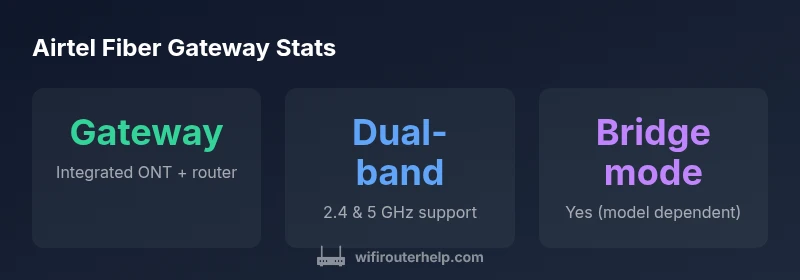
Airtel Fiber typically delivers a gateway device that combines an optical modem (ONT) with a router in a single box. According to WiFi Router Help, this integrated solution simplifies installation and keeps the setup compact for most homes. The exact model varies by country, plan, and installer, but the core idea remains the same: the gateway handles the fiber termination and the Wi‑Fi distribution in one device. When you power up, you’ll usually see a set of LEDs indicating power, sync, and LAN activity, and your home network will be ready to connect. If you need to manage your LAN, you’ll access the device’s admin interface via a browser or a companion app, where you can view connected devices, tweak SSID names, and adjust security settings. For many households, this single gateway provides reliable coverage for typical streaming, gaming, and video calls. In 2026, providers continue to optimize firmware for stability, but the exact experience depends on the specific gateway model installed at your address.
Regional variations and plan differences
Regional variations exist because AirtelFiber deployments differ by market. Some regions ship newer gateway models that support Wi‑Fi 6, while others rely on older dual‑band devices. Plan type also drives the feature set: some higher‑tier bundles include advanced QoS and guest networks, while basic bundles keep things simple. Regardless of the model, the gateway typically provides both 2.4 GHz and 5 GHz bands to support legacy devices and modern phones, plus multiple Ethernet ports for wired devices. The key takeaway is: know your region, verify your plan, and consult the installation letter or customer portal to confirm the exact gateway capabilities before you decide to reuse or replace it.
How to verify your current gateway model
Steps: 1) Look at the label on the back of the box or within the admin interface to identify the model name or firmware version. 2) Log into the gateway’s admin page (common addresses include 192.168.1.1 or 192.168.0.1) and locate a model or device information screen. 3) Check the Airtel app or your service portal for the gateway model and capabilities. 4) If you’re unsure, contact Airtel support to confirm whether the device is an entry gateway or an advanced model. 5) Take notes of the LED indicators (power, online, Wi‑Fi) to monitor the health of the connection. This process helps you understand whether you have a basic gateway or a more capable unit that can pair with a third‑party router. Remember: the goal is to know whether the device supports bridge mode and how to configure it.
Using your own router with Airtel Fiber
Many homes want to harness the performance of a personal router, or to extend coverage with a mesh system. In most cases, you can use your own router by enabling bridge mode on the Airtel gateway or by placing the gateway in a DMZ. Bridge mode disables the gateway’s routing features and passes public IPs to your own router, letting it handle Wi‑Fi and LAN services. Before you switch, check whether your Airtel plan and location allow bridging, because some VoIP or fibre voice services rely on the gateway’s settings. If bridging is not possible, you can still connect your router to a LAN port and use the gateway as a pure modem, but you may miss features like full QoS or centralized management. Always make sure to update firmware on both devices and maintain separate admin credentials for each device to reduce security risks.
Practical setup tips to optimize performance and security
To maximize performance, place the gateway or your own router in a central, elevated location away from walls and metal objects. Use a single SSID per band (or separate SSIDs for 2.4 and 5 GHz) to ensure devices connect to the best band. Update firmware regularly and enable WPA3 if available; use strong, unique admin passwords. Create a guest network for visitors and IoT devices to keep your main network secure. If you’re using your own router, configure it for optimal speed with proper QoS rules, enable NAT and firewall protections, and consider enabling uplink/port forwarding only for required services. Keep monitoring devices connected to the network to identify dead spots and adjust channel settings during off-peak hours to minimize interference.
Troubleshooting common gateway issues
Start with a simple power cycle: unplug the device for 30 seconds, then plug back in. Check the fiber connection and verify the cables are firmly connected to the ONT and router. If you’re seeing intermittent Wi‑Fi, try changing channels or enabling DFS channels if supported. When using bridging, ensure the secondary router is getting an IP address from the Airtel gateway; if not, re-check bridge settings or reach out to support. For wired devices, test with multiple Ethernet cables and ports to identify port faults. If issues persist, gather logs or screenshots of the admin interface and contact Airtel support for assistive troubleshooting. This approach helps identify whether the problem is with the gateway, provider line, or home wiring.
Practical installation checklist
Create a step‑by‑step checklist to ensure a smooth installation: 1) Confirm plan details and gateway availability; 2) Locate the gateway in a central location; 3) Secure the device with a strong admin password; 4) Configure Wi‑Fi name and password; 5) Decide on bridging or use of your own router; 6) Update firmware; 7) Run speed tests across devices; 8) Set up guest network; 9) Document your settings and keep a backup of configuration. This checklist helps homeowners avoid common misconfigurations and ensures a stable, secure home network across 2026.
Airtel Fiber gateway capabilities
| Feature | Typical Airtel Gateway Range | Notes |
|---|---|---|
| Wi‑Fi Bands | Dual-band (2.4/5 GHz) | Model dependent |
| Ethernet Ports | 2-4 | Model dependent |
| Bridge Mode | Supported on many gateways | Check with provider |
| Security | WPA3 firewall | Model dependent |
People Also Ask
What router does Airtel Fiber provide?
Airtel Fiber generally provides a gateway device that combines an ONT and a router in one box; the exact model varies by region and plan. You can usually access the gateway’s admin interface to configure Wi‑Fi or connect a third‑party router via bridge mode if supported.
Airtel Fiber usually provides a gateway with built‑in Wi‑Fi; you can often bridge to use your own router.
Can I use my own router with Airtel Fiber?
Yes, in many cases you can use your own router by enabling bridge mode on the Airtel gateway or by using the gateway as a pure modem; check region and plan for exact options.
Yes—usually you can use your own router with bridge mode, but it depends on your plan.
How do I enable bridge mode on Airtel gateway?
Bridge mode is often found in the gateway’s admin interface under Network or Advanced settings; enable it, save, and reboot. If you can’t find the option, contact Airtel support; some plans require you to use their gateway.
Bridge mode is usually in the gateway’s settings; if you don’t see it, contact support.
Does Airtel support mesh networking with third‑party routers?
Mesh networking with third‑party routers may be possible when bridging is enabled, though Airtel’s support might recommend using their gateway for compatibility. Verify with your plan and model before investing.
Mesh with third‑party devices depends on bridging; confirm with Airtel.
What security settings should I enable on the Airtel gateway?
Enable WPA3 or the strongest available encryption, change default admin passwords, keep firmware up to date, and disable remote management unless you need it. If you use your own router, mirror the recommended security settings there as well.
Turn on WPA3, change passwords, and keep firmware up to date.
“Airtel Fiber deployments typically rely on a gateway that combines ONT and routing, but households can optimize performance by using a personal router in bridge mode where allowed.”
What to Remember
- Check your region and plan to know the gateway model.
- Bridge mode lets you reuse your own router when supported.
- Keep firmware updated and secure admin credentials.
- Follow a clear setup checklist for a stable network.
- Use guest networks for visitors and IoT devices.