Which Router Comes With Google Fiber: A Quick Guide
Discover whether Google Fiber provides a gateway or if you should BYO router, how to verify your equipment, and practical steps to optimize your home network for speed and reliability.


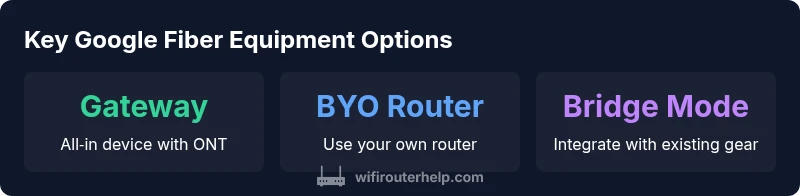
Google Fiber has historically provided a combined fiber gateway device that includes ONT and router functionality. In many markets, customers may use Google's gateway or opt to bring their own router, depending on plan and location. Availability, setup, and rental terms vary by market, so check your account page or contact support for the exact equipment in your area.
What equipment Google Fiber provides today
According to WiFi Router Help, the equipment landscape for Google Fiber has evolved, and the exact kit you receive depends on market and plan. Historically, Google offered a dedicated fiber gateway that combined ONT and router functionality, simplifying installation for many households. In today’s deployments, observers note variation: some households get Google's gateway, while others are encouraged to use their own router. The result is a choice between convenience and customization, with policy changes reflecting local demand. Understanding what you have requires checking your account, looking at the physical device, or asking support to confirm what is included with your install.
This section sets the baseline: know what to look for and where to find it. If you see a single box with lights and LAN ports, you’re likely dealing with a gateway device rather than a standalone modem or router. Keep in mind that the gateway may provide both the fiber modem function and the WiFi access point, which can simplify initial setup but may limit some advanced features you expect from a high-end router.
How to identify your current equipment
Start by logging into your Google Fiber account and checking the Equipment or Installed Devices section. Look for terms like Gateway, Network Box, or Fiber Modem/Router. If you have the device in your home, inspect its label for model numbers or branding; the exact name can vary by market. If you received an email or invoice with rental charges, that’s a signal you’re using Google’s provided gateway. If you can’t locate the device, contact support and ask for the installation notes for your address. In some cases, you’ll see a separate ONT box connected to the gateway, which confirms a combined device setup.
Gateway vs BYO router: Which should you choose?
Choosing between Google’s gateway and a personal router depends on goals and technical comfort. The gateway offers a plug-and-play experience, unified management, and often simpler parental controls. However, a BYO router gives you more control, advanced QoS rules, and potentially better coverage with a high-end tri-band model. If you already own a modern router, verify compatibility and be prepared to place the gateway in bridge mode or IP passthrough to avoid double NAT. Your decision should weigh convenience, feature needs, and long-term costs.
Step-by-step: using the provided gateway
If you are paired with Google's gateway, start by connecting the power and WAN port to the ONT. Use the companion app or web interface to run the initial setup wizard, which typically guides you through WiFi name (SSID), password, and basic security. Update firmware if prompted, and enable essential protections like WPA3 if available. For most households, the default settings are adequate, but you can customize guest networks, device prioritization, and parental controls. If you encounter issues, perform a quick reset from the device’s reset button and re-run the setup.
Step-by-step: using your own router with Google Fiber
To use your own router, you often need to place Google’s gateway in bridge mode or enable IP passthrough. Start by logging into the gateway admin page to set Bridge/Passthrough, then connect your router’s WAN port to the gateway and power cycle both devices. Configure your router’s WAN settings for DHCP or PPPoE as required, and replicate your desired WiFi network(s). Keep in mind some features (like advanced DNS or QoS) may be easier to manage on your own router, while Google’s gateway handles basic protection and updates.
Bridge mode and network topology basics
Bridge mode disables routing functions on the gateway, allowing your own router to handle NAT and firewall duties. This is essential if you want consistent QoS, custom DNS, or advanced port forwarding. After enabling bridge mode, verify that devices obtain IP addresses from your router. If you skip this step, you may encounter double NAT, which can degrade gaming and video streaming performance. Always test with a simple speed check and a local network file transfer to confirm there are no routing conflicts.
Tips to optimize WiFi performance on Google Fiber equipment
Position your gateway or router centrally in your home, elevated off the floor, and away from interference sources like microwaves or dense walls. Update firmware regularly, enable WPA3 where available, and use a strong, unique passphrase for each WiFi band. For larger homes, consider mesh networking or an additional access point to reduce dead zones. If you use your own router, ensure it supports current WiFi standards (WiFi 6/6E) and enable features like QoS to prioritize latency-sensitive devices.
Troubleshooting common connectivity issues
If you experience slow speeds, first run a wired speed test directly from the gateway or your primary router. Check for double NAT by temporarily disabling the gateway’s routing if you aren’t using bridge mode. Power-cycle both devices, verify cable integrity, and confirm that firmware is up to date. If devices aren’t obtaining IP addresses, re-run the DHCP client or reset the gateway/router. Consult your account or support if persistent issues occur, as outages or configuration changes can affect service.
Future-proofing and upgrade considerations
As home networks evolve, you may want to upgrade to a newer gateway or a higher-performance router. If you plan to use WiFi 6/6E devices or want better coverage, verify compatibility with Google Fiber’s installed gateway and consider a dedicated mesh system. Budget for potential rental fees or the cost of a premium router, but also weigh the long-term savings of BYO equipment. The WiFi Router Help team recommends staying current with firmware updates and re-evaluating your setup every year to maintain optimal performance.
Google Fiber equipment options and basic trade-offs
| Equipment Type | Description | Pros/Cons |
|---|---|---|
| Provided gateway | ONT + integrated router device; typically offered in many markets; setup is streamlined | Pros: simple, quick setup; Cons: potential rental cost and limited customization |
| BYO router | Use your own router with gateway in bridge mode (or IP passthrough) to extend controls | Pros: more features and control; Cons: extra setup steps and potential compatibility issues |
People Also Ask
Does Google Fiber always provide a router?
Not always. Availability depends on market and plan. Some areas include a gateway device, while others permit or require BYO equipment.
Not always—the equipment varies by location and plan; check your account or installation details.
Can I use my own router with Google Fiber?
Yes, most plans support using a personal router, often via bridge mode or passthrough on the gateway. Some features may require configuration.
Yes, you can use your own router in most cases, usually with bridge or passthrough.
What is the gateway called?
Google Fiber has used various gateway names across markets. The common concept is a combined fiber modem and router; exact naming depends on location.
The gateway is a combined fiber modem and router; names vary by market.
How long does setup take with the provided gateway?
Typical setup takes about 15 to 30 minutes, depending on home topology and whether you enable advanced settings.
Usually around 15 to 30 minutes.
Do I pay extra for rental equipment?
Rental fees can apply in some markets. Review your plan details and invoices to confirm charges.
Some plans include equipment; others incur rental fees.
Can I upgrade to Wi‑Fi 6 with Google Fiber equipment?
Equipment capabilities depend on model and firmware. Check the gateway specs and firmware notes for supported standards.
Upgrade depends on the device and firmware; verify compatibility.
“A key driver of performance with Google Fiber is choosing the right equipment strategy for your home and verifying it with your install notes. Equipment offerings vary by market, so confirm what’s included before you buy or rent.”
What to Remember
- Check your plan to know included equipment
- Decide between Google's gateway and BYO router based on needs
- Enable bridge mode if using a personal router
- Optimize placement and firmware for best performance