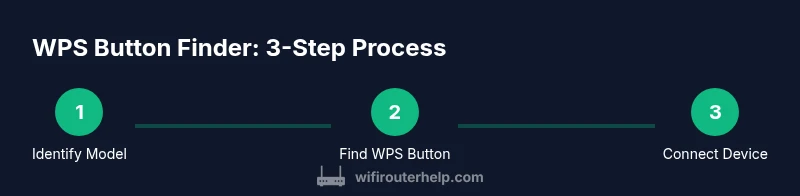
Where Is the WPS Button on Your Router? A Practical Guide
Learn where to find the WPS button on most routers, how to use it safely, and practical alternatives for quick, secure wireless setup. This guide covers common label locations, recessed buttons, and how to enable WPS without exposing your network to risks.


You will locate the WPS button on your router, verify its label and placement, and understand safe usage and alternatives for quick wireless setup. According to WiFi Router Help, you can use push-button or PIN methods depending on the model, but disable WPS after pairing to keep your network safer.
Why the WPS Button Still Matters
In an age where devices range from printers to smart speakers, the WPS button provides a fast, password-free path to connect new gear. The convenience is undeniable, but it comes with security considerations that homeowners should understand. According to WiFi Router Help, knowing where the WPS button lives on your router, and how it behaves across models, helps you avoid accidental exposure, misconfigurations, and prolonged risk. This section explains the purpose of WPS, how it operates during pairing, and when it makes sense to use it versus safer alternatives. You’ll see practical scenarios—such as adding a network printer or a guest device—where WPS saves time, and situations where stepping back to a password-based setup is wiser. By grasping these nuances, you’ll prepare yourself to balance ease of use with sound security practices and keep your home network safer while remaining user-friendly for your household’s diverse devices.
Common Places to Find the WPS Button
Most routers place the WPS button on the front edge, the back panel, or sometimes under a recessed hole. In some models, the button is labeled clearly with 'WPS' or a wireless symbol; in others, the label is small or hidden behind a protective cover. If you locate an unlabelled circular button near the power or reset controls, test it carefully—some devices differentiate between a quick press and a long press. If your router supports a software-based pairing method, you may see an option in the admin interface or the companion app instead of a pressed button on the device itself. Some newer units rely on app-based pairing rather than a physical button, so always check the manual for your specific firmware version. If you see a pinhole instead of a button, you’ll need a paperclip to press and release the recessed WPS switch. Regardless of location, the label or icon should indicate WPS availability, and the router’s underside or label may reveal the precise button location for your model.
How to Identify the Correct Button
Even within the same brand, multiple buttons can exist for power, reset, WPS, and Bluetooth pairing. The right one is typically the WPS button or a symbol that combines a padlock and wifi icon. If your device uses a WPS PIN instead of a physical button, the PIN is usually printed on the router label or within the admin interface. Before proceeding, verify you’re targeting the WPS control, not a reset or power toggle, to avoid losing existing settings. If LED indicators blink in a specific pattern when you press the WPS button, note that pattern so you can confirm a successful pairing on your client device. This helps prevent confusion during the next setup and reduces the risk of inadvertently changing other router settings.
WPS vs Alternatives: Security and Setup
Push Button WPS is designed for ease, but it introduces potential vulnerabilities if left enabled. Some routers allow a quick pairing window that, if left open, may be exploited by nearby devices. If security is a priority, consider connecting devices with your standard Wi‑Fi password or via WPA3, which remains the most robust protection when paired with a strong passphrase. The WPS PIN method is another option, but it’s widely considered less secure because the PIN can be observed or guessed during pairing. For homes with guests, enabling guest networks with isolated access and strong per-network passwords reduces risk even further. If you must use WPS, enable it briefly and disable once your device is connected. The WiFi Router Help team emphasizes balancing convenience with proactive security hygiene, including timely firmware updates and routine device auditing.
What to Do If You Can't Find the Button
If your router lacks a visible WPS button, don’t panic. Not all models support WPS due to firmware or hardware changes. Start by checking the admin interface where you can enable a WPS option or generate a one-time PIN. If no WPS is available, use the standard method: connect to the network using the SSID and password from the sticker or manual, then update settings. Some manufacturers offer a manufacturer app that guides you through one-tap setup, which can be safer than relying on a physical button. Keep a written log of connected devices and note when you performed the setup to help future troubleshooting. Regularly review firmware updates to maintain compatibility and security.
Authority sources
To further your understanding, consider reviewing official guidance from trusted sources:
- https://www.fcc.gov
- https://www.nist.gov
- https://www.pcmag.com/
Tools & Materials
- Smartphone or computer with Wi‑Fi access(Needed to access the router admin panel or connect a device during WPS pairing.)
- Router manual or label with model number(Identify exact WPS options for your model; some models vary by firmware version.)
- Paperclip or pin (if button is recessed)(Only if you encounter a recessed WPS button requiring a pinhole press.)
- Pen and paper(Jot down model, PIN, or settings for future reference.)
Steps
Estimated time: 15-25 minutes
- 1
Identify router model
Check the label on the router chassis or the quick-start guide to identify the exact brand and model. This ensures you follow the correct WPS steps for your device and firmware. Why: Different models place WPS differently and some models may not support WPS at all.
Tip: Take a photo of the label for quick reference during setup. - 2
Find the WPS button area
Inspect the front, back, and sides for a button labeled WPS or with a wireless symbol. If it’s recessed, you may need a paperclip to press it without triggering a reset. Why: Accurately identifying the WPS control prevents accidental changes to other settings.
Tip: Use a flashlight to inspect small labels or recessed holes. - 3
Check for WPS PIN or app option
If you don’t see a physical WPS button, look for a WPS option or PIN in the router’s admin interface or manufacturer app. Some devices support WPS via a PIN that’s printed on the label or shown in the UI. Why: Some models replace the physical button with software-based pairing for security or firmware reasons.
Tip: Record the PIN and keep it private; don’t share it publicly. - 4
Initiate WPS pairing
Press the WPS button on the router or enter the PIN on the connecting device within the pairing window (often about two minutes). On the client device, select the WPS option to start pairing. Why: A timely window prevents unauthorized connections and ensures a clean pairing session.
Tip: Watch the router lights for a blinking pattern that confirms pairing. - 5
Connect the device and verify
Complete the connection on the device by selecting the WPS option or entering the PIN, then confirm the device appears in the router’s connected devices list. Why: Verification ensures the device joined correctly and reduces later troubleshooting time.
Tip: If the device doesn’t show up, move closer to the router and retry. - 6
Secure after pairing
If you don’t plan to use WPS long-term, disable it in the admin UI after the initial pairing. Check for firmware updates and review guest network settings to maintain security hygiene.
Tip: Document which devices were paired and when to streamline future setups.
People Also Ask
Where is the WPS button located on common router brands?
Most routers place the WPS button on the front or back panel, often labeled with WPS or a wireless icon. If your model uses a recessed button, a paperclip press may be required. Always check the model-specific manual for accuracy.
The WPS button is usually on the front or back of the router, sometimes recessed; check the manual for your exact model.
Is WPS secure?
WPS can present security vulnerabilities, especially if left enabled. It’s safest to use WPS only for initial setup and disable it afterward, preferring WPA2 or WPA3 with a strong password for ongoing connections.
WPS has some security risks, so use it briefly and then disable it; otherwise rely on WPA2/WPA3 with a strong password.
What if my router has no WPS button?
If there’s no WPS button, many routers offer a WPS PIN or an app-based setup. Use these alternatives or connect via the standard WPA/WPA2 password and update firmware as needed.
If there’s no WPS button, you may use a PIN or the manufacturer app for setup, or connect with the regular password.
Can WPS be used for guest networks?
WPS is not specifically designed for guest network access. For guest devices, enable a separate guest network with its own password and isolation from your main network for security.
WPS isn’t meant for guest networks; use a separate guest network with its own password.
How do I disable WPS after use?
Log in to the router’s admin interface, locate the WPS setting, and toggle it off. Then save changes and reboot if required to apply the new configuration.
Log in to your router, turn off WPS, save, and reboot if needed.
What steps if the WPS pairing fails?
Move closer to the router to improve signal, verify you’re using the correct method, and retry. If it still fails, connect the device using the regular password and consult the router manual.
If pairing fails, try again closer to the router and use the standard password if needed.
Watch Video
What to Remember
- Find the WPS button location on your router.
- Know the difference between Push Button and PIN methods.
- Connect devices briefly with WPS, then disable it for security.
- Keep firmware updated to maintain security and compatibility.