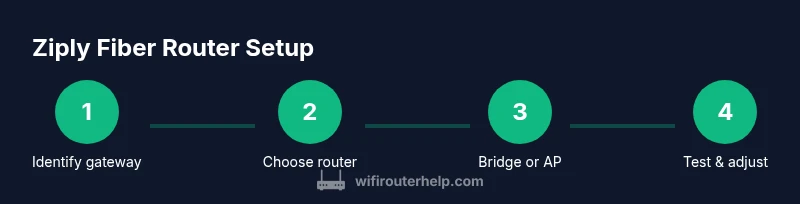
What Router for Ziply Fiber: A Practical Guide
Discover the best router for Ziply Fiber, optimize home Wi‑Fi, avoid double NAT, and get fast, reliable coverage with a clear, step‑by‑step approach.


Choosing the right router for Ziply Fiber is essential for fast, reliable home Wi‑Fi. Look for a gigabit‑capable WAN port, Wi‑Fi 6/6E support, and robust QoS. If your Ziply gateway remains in use, enable bridge mode to avoid double NAT and use your own router for features like guest networks and advanced parental controls. WiFi Router Help provides practical guidance for these setups.
Understanding Ziply Fiber and Your Gateway
Ziply Fiber delivers fiber‑to‑the‑home service and typically relies on a customer premises equipment (CPE) gateway supplied by the provider. That gateway can act as both modem and router, handling IP addressing, NAT, and wireless coverage. When you start thinking about the question, “what router for Ziply Fiber,” the first decision is whether you want to keep the provider gateway or replace it with your own router while leaving the gateway in place for compatibility. According to WiFi Router Help, mapping out your topology before buying gear saves time and reduces surprises. If your home has many devices, a modern router with Wi‑Fi 6/6E and a true gigabit WAN port is a solid foundation. Consider your home size, wall materials, and interference from neighbors—the right router can significantly improve speed and reliability across rooms.
In Ziply setups, speed and stability depend on both the gateway's capabilities and the performance of your chosen router. A carefully chosen router improves streaming, gaming, and video calls, while also enabling more advanced features like guest networks and parental controls. A thoughtful plan also helps you avoid overspending on gear that won’t deliver the incremental gains you expect.
Brand nuance matters here: the WiFi Router Help team has found that customers who plan network topology first tend to migrate to a router that balances hard‑wired reliability with strong wireless coverage. If you’re signing up for Ziply Fiber, it’s worth acknowledging that your district or home layout can influence whether you should bridge or simply pair a router behind the gateway to achieve stable, scalable performance.
Core Router Features for Ziply Fiber
Selecting a router for Ziply Fiber means prioritizing features that directly address fiber speeds and real‑world home layouts. Look for a router with a Gigabit Ethernet WAN port (or 2.5Gbps if you anticipate future ISP upgrades) and Wi‑Fi 6 or Wi‑Fi 6E to maximize throughput. A robust processor and ample RAM help the router handle multiple devices, 4K streams, and online gaming without congestion. Quality of Service (QoS) helps allocate bandwidth to latency‑sensitive tasks like gaming and video calls. MU‑MIMO and beamforming improve capacity and range, especially in multi‑story homes. Consider a model with tri‑band support if you have a large home with many devices.
Security features matter too. Look for automatic firmware updates, a built‑in firewall, and support for secure management options (guest network isolation, parental controls). On Ziply Fiber, you may want to disable NAT on the gateway by enabling bridge mode, then use your own router to keep full control over security settings and updates. WiFi Router Help analysis shows that a modern Wi‑Fi 6/6E router combined with a reliable gateway configuration tends to deliver the best balance of speed and reliability for Ziply customers.
Finally, ensure the router’s antenna design and band steering align with your home layout. If you have thick walls or multi‑story rooms, a router with flexible antenna placement or an optional mesh extension can reduce dead zones and maintain strong signal where you need it most.
Bridge Mode vs. Double NAT: Why It Matters
A common pitfall when setting up Ziply Fiber is double NAT, which occurs when both the ISP gateway and your own router perform network address translation. This can degrade VPN performance, complicate port forwarding, and cause gaming latency spikes. Bridge mode on the gateway hands off routing duties to your own router, eliminating double NAT and giving you cleaner control over DHCP, NAT, and firewall rules. If your goal is maximum control and you’ve bought a capable router, bridging is often the preferred approach.
That said, bridge mode also disables the gateway’s Wi‑Fi radio. If you rely on the ISP device for wireless coverage in a small apartment, you might choose to leave the gateway as the router and place your own router behind it in access point mode or with a carefully managed NAT setup. WiFi Router Help notes that in many homes, a hybrid approach—gateway in modem mode while using your own router for most devices—strikes a good balance between coverage and performance. Before switching, verify ZIPLY’s guidance and consider testing latency and throughput with and without bridge mode to determine what works best in your space.
How to Choose a Router for Ziply Fiber
When shopping for a Ziply Fiber compatible router, prioritize hardware that can keep up with gigabit speeds and high device counts. A strong CPU and at least 512 MB of RAM help maintain responsive performance as you add devices. Wi‑Fi 6/6E support is a practical choice for most homes today, delivering higher throughput and better efficiency in crowded networks. Look for a router with a stable 2.4 GHz and 5 GHz band experience, including smart channel selection to avoid interference. Ethernet backhaul capabilities are valuable if you plan to connect gaming consoles, NAS devices, or desktops with wired stability. Consider routers that provide robust QoS for prioritizing video conferencing or gaming traffic.
Think about network features beyond speed. A good router should offer guest networking, parental controls, VPN passthrough, and a straightforward app‑based setup. Firmware updates should be frequent and easy to apply. Because Ziply Fiber speeds can reach 1 Gbps or higher, your router should have a solid warranty and a good track record for reliability. The WiFi Router Help team recommends selecting a model with long‑term software support and a clear upgrade path for future Wi‑Fi standards.
Setup Best Practices for Ziply Fiber
A clean setup begins with a written plan and a tidy cabling layout. Start by mapping devices to a wired or wireless path that minimizes hops and maximizes stability. Place the router in a central location away from walls and metal obstacles for the best signal distribution. Use a wired Ethernet connection for the gateway to the router’s WAN port whenever possible to reduce wireless interference and latency from the gateway’s own wireless radios. If you’re using bridge mode, disable the gateway’s wireless and ensure your new router’s DHCP server is active.
Post‑install, run a quick speed test to confirm you’re getting close to your ISP’s advertised speeds. If speeds lag, check channel settings, ensure you aren’t in a crowded channel, and consider enabling a 5 GHz network with proper band steering. Regular firmware updates for both the gateway (if not bridged) and the router are essential for long‑term stability and security. In many Ziply Fiber homes, the simplest, most reliable networks come from a well‑placed router paired with a managed gateway configuration and consistent maintenance.
Common Pitfalls and Troubleshooting
Even skilled setupters run into hiccups when configuring Ziply Fiber networks. A frequent issue is double NAT, which manifests as limited VPN functionality and inconsistent port forwarding. If you notice streaming buffering or gaming jitter, verify that bridge mode is configured correctly and that the router is handling routing duties. Incorrect WAN settings can also cause connectivity problems; PPPoE authentication, DHCP, or static IP requirements depend on your Ziply plan, so confirm these details before applying changes. A misconfigured DNS server can slow down domain resolution; use a reliable DNS (for example, a public DNS service) to improve responsiveness via your router’s settings.
Another common snag is weak Wi‑Fi coverage due to placement or interference. Elevate the router above furniture, away from microwaves, and adjust antennas to optimize signal paths. If you’re still facing issues, a factory reset followed by a careful re‑setup can resolve many stubborn problems. Finally, remember that firmware updates bring security and performance improvements—enable automatic updates where possible.
WiFi Router Help emphasizes validating changes with quick speed tests after each step and keeping documentation of your network topology for future upgrades.
Optimizing Wireless Performance on Ziply Fiber
To maximize wireless performance on Ziply Fiber, prioritize high‑quality nodes and proper channel management. Start with enabling WPA3 security and a strong password to protect your network against unauthorized access. Use the 5 GHz band for high‑bandwidth devices and designate the 2.4 GHz band for coverage in farther rooms, ensuring robust signal at the edges of your home. Consider enabling beamforming if your router supports it to better target devices, and enable smart connect or band steering so devices switch to the least congested band automatically.
Setting up a guest network is a practical way to isolate visitor devices from your main network, increasing security. Regularly review connected devices and bandwidth usage, and adjust QoS rules to protect essential services like video calls and online gaming. If you have smart home devices, ensure they have stable connectivity by prioritizing their traffic in the router’s QoS settings. Regular firmware updates and a clean cabling plan feed into long‑term reliability and a smoother Ziply Fiber experience.
Tools & Materials
- Ziply Fiber gateway (ISP‑provided modem/router)(If you plan to bridge, ensure you understand ZIPLY's guidance and requirements.)
- Router with gigabit WAN port(Prefer Wi‑Fi 6/6E and at least one 2.5 GbE or multi‑gig WAN option.)
- Ethernet cable (Cat6 or better)(Use for the wired link from gateway to router.)
- Laptop or smartphone for configuration(Use for initial setup and ongoing management.)
- Surge protector/power strip(Helpful for protecting equipment and organizing cables.)
Steps
Estimated time: Estimated total time: 60-90 minutes
- 1
Identify your Ziply gateway setup
Power on the gateway and check whether you have a separate modem. Confirm how ZIPLY assigns IPs (PPPoE/DHCP) and whether the gateway handles Wi‑Fi. Document your plan for bridging or using the gateway as a pass‑through to a dedicated router.
Tip: Have your ZIPLY account details handy and note any current bridge mode settings. - 2
Choose a router with gigabit WAN and Wi‑Fi 6/6E
Select a router that supports a true gigabit WAN port and the latest wireless standard. Ensure it offers strong processing power, adequate RAM, and features like QoS, guest networks, and robust security. Verify compatibility with ZIPLY’s service expectations.
Tip: Check for a vendor that provides regular firmware updates and reputable customer support. - 3
Connect the router to the gateway via Ethernet
Run an Ethernet cable from the gateway’s LAN or WAN port to your new router’s WAN port. Use a clean cable path and avoid crossing other power cords to minimize interference. Power on both devices and wait for their indicators to stabilize.
Tip: Use Cat6 or better for futureproofing and speed consistency. - 4
Decide on bridge mode vs. router‑behind‑gateway
If you want full control on routing and firewall, enable bridge mode on the gateway so your router handles NAT. If you rely on the gateway for wireless coverage in a small space, keep it as the primary router and use AP mode for the second device. Test both configurations if unsure.
Tip: Bridge mode disables the gateway’s Wi‑Fi; plan your wireless coverage accordingly. - 5
Configure WAN and LAN settings on the new router
Enter your router’s admin interface and set the WAN connection to PPPoE or DHCP as required by ZIPLY. Enable DHCP on the LAN to assign IPs to your devices. Set DNS to reliable providers and adjust MTU if needed for optimal performance.
Tip: Document your WAN credentials and the exact settings used for easy reconfiguration. - 6
Test, tune, and secure your network
Run speed tests over wired and wireless connections, then tune channel selection and QoS rules. Check for firmware updates on both devices and enable automatic updates. Add a guest network and review connected devices for security.
Tip: Schedule periodic maintenance: firmware updates, password changes, and device audits.
People Also Ask
What is Ziply Fiber?
Ziply Fiber is a fiber internet service that delivers high‑speed connectivity to homes. It uses a gateway device to manage the connection, and customers can choose to use their own router for additional coverage and features.
Ziply Fiber is a fiber internet service that provides fast speeds to homes. You can use the gateway or pair it with your own router for better control and coverage.
Do I need a separate router for Ziply Fiber?
Not always, but many users opt for a separate router to gain better coverage, QoS controls, and advanced features. If you bridge the gateway, your own router handles routing and may improve performance.
You may not need a separate router, but using one often improves coverage and control, especially with bridging.
Can I use any router with Ziply Fiber?
Most modern routers work with Ziply Fiber as long as you can configure the WAN type (PPPoE or DHCP) and the device supports Gigabit Ethernet. Always confirm that your router is compatible with your ZIPLY plan.
Most modern routers work, but verify WAN type and Gigabit support for best results.
What is the best router for Ziply Fiber in 2026?
The best router combines Wi‑Fi 6/6E, strong processing power, and reliable firmware support. Look for a model with a robust QoS system and easy management, plus a fast WAN interface to handle gigabit speeds.
A modern Wi‑Fi 6/6E router with solid firmware support and QoS is typically the best pick.
Should I use bridge mode with Ziply?
Bridge mode is often recommended to avoid double NAT when you want full control of routing via your own device. If you rely on the gateway’s wireless, you may skip bridge mode and use AP mode instead.
Bridge mode avoids double NAT, but if you need wireless on the gateway, use AP mode instead.
How do I know my router is compatible with Ziply?
Ensure the router supports a gigabit WAN port, is Wi‑Fi 6/6E capable, and offers current security features. Check ZIPLY’s official guidance for any specific requirements or limitations.
Make sure it has gigabit WAN, Wi‑Fi 6/6E, and up‑to‑date security.
What should I do if my speeds drop after setup?
Run a quick wired speed test first to rule out Wi‑Fi issues. Then review channel collisions, QoS rules, and firmware updates. If problems persist, consider a reset and reconfiguration.
Test wired first, adjust channels and QoS, update firmware, then reset if needed.
Watch Video
What to Remember
- Plan topology before purchasing gear.
- Choose a Wi‑Fi 6/6E router with a gigabit WAN port.
- Bridge mode reduces double NAT and simplifies control.
- Keep firmware up to date for security and stability.