What Router Does Frontier Use? A Practical Guide for Home Networks
Explore what router Frontier uses, how to identify your gateway, and practical steps to optimize your home network with or without Frontier's device. Learn setup, bridge mode options, and when to bring your own router.


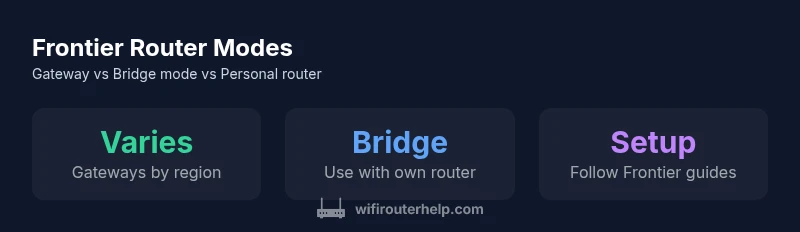
Frontier's service typically includes a gateway device (router/modem) rather than a single universal model, and the exact hardware varies by region and plan. If you bring your own router, Frontier generally supports using it in bridge or gateway mode, with setup steps and compatibility guidance provided by Frontier and your account portal. In short, there isn't one fixed Frontier router model for all customers.
Frontier Router Ecosystem and What It Means for Your Home Network
In practice, what router does frontier use is not a one-size-fits-all answer. Frontier’s hardware varies by region, service tier, and whether you receive a gateway device as part of your plan. According to WiFi Router Help, Frontier typically provides a gateway to handle both modem and routing tasks for fiber services, but the exact model can differ from city to city. For homeowners, the key takeaway is that you may be on a Frontier-supplied gateway, or you may be using your own equipment in combination with Frontier’s gateway. This distinction matters because it affects features like QoS, guest networks, and the ability to run dual-WAN setups. Remember: the core goal is a reliable, fast, and consistently secure home network.
How Frontier Delivers Routers: Gateway vs Modem
Frontier’s provisioning usually includes a gateway device that combines a modem and router in a single unit. The precise hardware is influenced by regional availability and service type (e.g., fiber vs. copper). Customers who need simplicity often accept Frontier’s gateway as a plug-and-play solution. Tech-savvy users, however, may prefer to run a separate router behind the gateway or in bridge mode to retain full control over features like advanced QoS, firewall settings, and port forwarding. The takeaway: your router decision should align with your performance goals and comfort with configuration.
Bridge Mode vs. Using Your Own Router
Bridge mode turns Frontier’s gateway into a pass-through device, letting your own router handle all networking duties. This can improve control over your home network, enable advanced features, and ensure compatibility with newer Wi-Fi standards. If you need more robust parental controls, gaming QoS, or better coverage through a mesh system, using a third-party router in bridge mode is often the best path. Conversely, sticking with Frontier’s gateway is simpler and reduces troubleshooting overhead, especially for basic households.
How to Check Which Router You Have
To identify the router Frontier provides in your area, log into the device’s admin page (often 192.168.0.1 or 192.168.1.1) and review the model number printed on the device. If you can’t access the device, check your welcome email from Frontier or the account portal where equipment details are listed. For those unsure, contact Frontier support or consult the installer notes, which typically include the gateway model and recommended configuration (gateway-only or bridge-mode instructions). Pay attention to the firmware version as well, since updates can change features and stability.
Step-by-Step: Using a Third-Party Router with Frontier
If you decide to use a third-party router, follow these steps:
- Confirm you can use bridge mode or DMZ/port-forwarding as needed.
- Connect your own router to the Frontier gateway via the WAN/Internet port.
- Access your router’s admin interface and configure the WAN as an equivalent of a public IP if bridging is enabled.
- Disable router features on the Frontier gateway (enable bridge mode or DMZ as advised by Frontier support).
- Test Wi‑Fi coverage, speed, and stability across devices. Keep firmware up to date on both devices.
- If you encounter issues, revert to Frontier’s gateway temporarily to determine whether the problem is network-wide or device-specific.
Common Pitfalls and How to Avoid Them
Common issues include double NAT, incompatible QoS rules, and limited support when using third-party equipment. To avoid these problems, enable bridge mode correctly, verify that your devices obtain IP addresses from the correct DHCP server, and use a dedicated DNS server if you want more control over name resolution. Document changes so you can revert settings if necessary.
Performance Tips for Frontier Setups
To maximize performance, ensure your gateway is in a well-ventilated location, update firmware regularly, and optimize channel selection based on local interference. If you’re using a separate router, consider enabling 802.11ax (Wi‑Fi 6) features, enabling QoS for gaming or streaming, and ensuring your mesh nodes are placed strategically to minimize dead zones. Regular speed tests (wired and wireless) help you track improvements after changes.
Quick Start Checklist for Frontier Users
- Identify your current router setup (gateway vs. personal router)
- Decide between gateway mode or bridge mode with your own router
- Update firmware on all devices involved
- Test wired and wireless performance in key areas of your home
- Adjust QoS and firewall settings to align with your usage (gaming, streaming, work-from-home)
- Save a rollback plan in case you need to revert changes
- Keep Frontier support contacts handy for guidance
- Consider a mesh system if you have a large home or multiple floors
Frontier gateway modes: default provider gateway vs. using your own router with bridge mode
| Mode | What it is | Pros | Cons |
|---|---|---|---|
| Frontier Gateway (default) | Provider-issued gateway device | Easy setup, official support | Less control, updates may be automatic |
| Bridge Mode + Own Router | Third-party router behind gateway | More features, better QoS | Requires manual configuration, potential support limits |
People Also Ask
Does Frontier always use the same router model?
No. Frontier uses different gateway devices by region and plan. The hardware can vary, so don’t assume a single model will always be in use.
Frontier uses different gateways depending on location and plan, so the exact model varies.
Can I replace Frontier's router with my own?
Yes, you can use your own router, usually in bridge mode or with a compatible setup as directed by Frontier support.
Yes, you can use your own router, often in bridge mode.
What is bridge mode when using Frontier?
Bridge mode disables routing on Frontier's gateway so your own router handles networking tasks.
Bridge mode passes the network control to your own router.
Will using my own router void Frontier support?
Frontier generally supports third-party routers, but some features or services may be limited and troubleshooting may require reverting to the provider’s gateway.
You can use your own router, but some features may be limited and support may differ.
How do I verify my router's compatibility?
Check your router’s documentation, consult Frontier’s setup guides, and confirm whether bridge mode or DMZ is supported for your model.
Look up compatibility with Frontier’s setup guides and support.
“Frontier typically provides a gateway by default, but customers can use their own router in bridge mode for greater control and performance.”
What to Remember
- Identify your current gateway and mode before changing anything.
- Bridge mode with a personal router offers more control and features.
- Sticking with Frontier's gateway is simplest for basic needs.
- Prepare for potential troubleshooting if using third-party gear.
- Test performance after each change and adjust settings accordingly.