Frontier Internet Router Setup: A Step-by-Step Guide
This guide walks homeowners through setting up a Frontier internet router, securing the network, and optimizing Wi‑Fi performance for reliable home connectivity.


With a frontier internet router, you will set up and secure your home network. This guide provides a step-by-step path to connect the modem, enable security, and optimize coverage. Gather a router, power adapter, Ethernet cable, and a computer or phone to access the admin interface; According to WiFi Router Help, following these steps yields reliable results.
Why Frontier Internet Router Matters
Frontier internet routers serve as the central hub for your home network. A reliable router improves speed, stability, and security by distributing bandwidth efficiently and creating a stable Wi-Fi footprint across every room. A capable Frontier router helps you manage devices, prioritize bandwidth for gaming or video calls, and protect your family with built-in firewall features. Understanding these basics helps users maximize performance and reliability in a modern home network.
What You Need Before You Start
Before you begin, gather essential hardware and access to the admin interface. You will need: a Frontier internet router, its power adapter, an Ethernet cable, and a device to reach the router's admin page (computer or smartphone). Have a stable internet connection from the modem, plus a quiet, well-ventilated workspace to minimize heat and interference. If you plan to use a mesh system later, keep space for satellite nodes and a central location for future expansion.
Unboxing and Initial Setup: Connecting to Modem
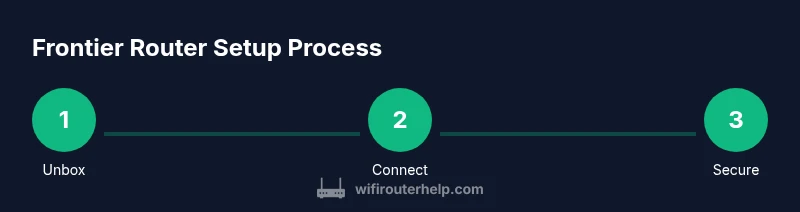
Unbox the router and inspect for any shipping damage. Connect the router to the modem using an Ethernet WAN/Internet port; power on the router and wait 60-120 seconds until the status lights indicate a stable connection. If your Frontier modem is a gateway (combo device), you may place the router behind the gateway or enable bridge mode if supported by your service plan. Keep the original packaging until you confirm everything works.
Accessing the Admin Console and Basic Configuration
Using a computer or mobile device, connect to the router's default Wi‑Fi or its admin URL (often http://192.168.1.1 or http://192.168.0.1). Log in with the default credentials, then change the admin password immediately. Set the WAN connection type to automatic (DHCP) unless your Frontier service requires PPPoE; apply a secure admin password and consider enabling two-factor authentication if available. Save changes and reboot if prompted to ensure settings take effect.
Wireless Settings: SSID, Password, and Channel Optimization
Create a unique network name (SSID) and a strong password using WPA2 or WPA3. Change the default SSID to avoid exposing vendor information. Choose a channel that minimizes interference—use a 2.4 GHz channel 1,6, or 11 or enable auto-channel if supported. For mixed devices, enable 2.4 GHz + 5 GHz dual-band operation to maximize compatibility and performance.
Advanced Security and Access Controls
Enable firewall features, enable UPnP only if needed, and disable remote management from the internet unless you require it. Create separate guest networks for visitors and apply parental controls if desired. Update the router's firmware to ensure you have security patches and new features. Regular security reviews and device auditing are recommended to protect your home network.
Performance Tuning: Range, Interference, and QoS
Position the router centrally, elevated, and away from metal objects and dense walls. If signals are weak in certain areas, place a repeater or upgrade to a mesh system. Use Quality of Service (QoS) rules to prioritize latency-sensitive devices like gaming consoles and work laptops. Consider adjusting transmit power if supported by your model to balance coverage and interference.
Troubleshooting Common Frontier Router Issues
Common issues include no internet after power cycling, weak Wi‑Fi in far rooms, or devices failing to obtain IP addresses. Steps: verify modem is online, reboot the router, check cable connections, verify DHCP is enabled, and ensure firmware is current. If problems persist, perform a factory reset or switch to bridge mode if supported, then reconfigure from scratch. For persistent outages, contact Frontier support with your router's admin IP and serial.
Maintenance, Firmware Updates, and Smart Home Compatibility
Keep firmware up to date by checking the admin page or enabling automatic updates. Regularly review connected devices and update passwords. If you use smart home devices, verify compatibility with your router's security features and enable firewall rules or port filtering. The WiFi Router Help team recommends staying current with firmware updates and regularly testing your network with real-world devices to ensure reliability.
Tools & Materials
- Frontier internet router(Primary device to configure)
- Power adapter(Ensure a stable power supply)
- Ethernet cable (Cat5e or better)(Connect modem to router)
- Computer, tablet, or smartphone(Access the admin interface)
- Modem or gateway from Frontier (if applicable)(Provide internet signal to router; may be integrated)
- Notepad and pen(Record settings and observations)
Steps
Estimated time: 30-45 minutes
- 1
Unbox and Inspect Hardware
Open the box and confirm all parts are present. Check for any shipping damage and ensure the power adapter is included. This reduces the chance of mid-setup interruptions.
Tip: Keep the box for returns or warranty if needed. - 2
Connect Router to Modem
Plug the modem into the router’s WAN/Internet port using an Ethernet cable. Ensure the modem is online before proceeding. A stable link at this stage is critical for reliable setup.
Tip: Use a fresh Ethernet cable to avoid flaky connections. - 3
Power On and Wait for Status
Plug in the router and wait 60-90 seconds for the lights to stabilize. Look for solid power and internet indicators before continuing.
Tip: If lights blink, wait a few more minutes and retry. - 4
Access Admin Console
Connect to the router’s default Wi‑Fi or wired LAN and open the admin URL (e.g., 192.168.1.1). Log in with the default credentials.
Tip: Change the default login immediately to prevent unauthorized access. - 5
Change Admin Password
Set a strong, unique password for the admin interface. Enable two-factor authentication if available and disable remote admin unless required.
Tip: Use a password manager to generate and store credentials. - 6
Configure Internet Connection
Set WAN/Internet to automatic (DHCP) unless your Frontier plan requires PPPoE. Apply changes and reboot if prompted to ensure new settings take effect.
Tip: Double-check your service's connection type in the Frontier account. - 7
Set Up Wireless Network
Create a distinct SSID, set a strong WPA2/WPA3 password, and enable both 2.4 GHz and 5 GHz bands if supported.
Tip: Avoid using vendor-specific default names for security. - 8
Enable Security Features
Enable the firewall, consider guest networks, and review UPnP and remote management settings. Apply a basic firewall rule set.
Tip: Keep guest networks isolated from your main network. - 9
Test and Fine-Tune
Run speed tests, check device connectivity, and adjust channels or transmit power for best coverage. Record changes for future reference.
Tip: Test from multiple rooms and devices for real-world performance.
People Also Ask
Do I need a Frontier-supplied modem or gateway if I have my own router?
Frontier often provides a gateway, but you can use your own router behind it or in bridge mode if your plan supports it. Check your service agreement and local equipment policies before proceeding.
Frontier often supplies a gateway. You can use your own router behind it if the service supports bridge mode, but verify with your provider.
How do I access the router’s admin page safely?
Connect to the router's LAN, enter the default IP (commonly 192.168.1.1 or 192.168.0.1), and log in with the default credentials. Change the password immediately and enable two-factor authentication if available.
Use the router's IP address to log in, then change the default password and enable extra security if possible.
What’s the best way to improve Wi‑Fi coverage in a two-story home?
Center the router on the main floor, elevate it, and use the 5 GHz band for nearby devices while enabling a 2.4 GHz band for distant rooms. If needed, add a mesh extender to fill gaps.
Center the router, use 5 GHz nearby and 2.4 for far rooms, and consider a mesh extender for coverage gaps.
When should I update firmware vs. changing passwords?
Prioritize firmware updates for security patches, then review and strengthen passwords. Automatic updates are ideal when available.
Update firmware to patch security issues, then update passwords for stronger security.
What are common signs my router may be failing?
Intermittent disconnections, slow speeds, or frequent reboot loops are signs. If problems persist after resets and updates, consider replacement.
Look for drops in speed, disconnections, or repeated reboots; replace if issues persist after troubleshooting.
Is bridge mode necessary for all setups?
Bridge mode is useful when you want a third-party router to control your network. Not required for basic setups and depends on your ISP plan.
Bridge mode is only needed if you use a separate router behind a gateway.
Watch Video
What to Remember
- Secure the admin interface before changing settings.
- Position the router centrally for best coverage.
- Keep firmware up to date to stay protected.
- Test network performance after changes to verify improvements.