Frontier Router Setup & Optimization: A 2026 Guide for Home
Learn how to set up, optimize, and troubleshoot a frontier router for reliable home WiFi. This step-by-step guide covers placement, configuration, firmware updates, security, and common issues.


Learn how to set up and optimize your Frontier router for reliable home WiFi. This guide covers optimal placement, basic configuration, firmware updates, security hardening, and troubleshooting tips to maximize coverage and stability. By following the steps, you’ll improve speeds, reduce dropouts, and maintain a safer network. You’ll also understand how to troubleshoot common issues without sacrificing performance.
What is a frontier router and why it matters
According to WiFi Router Help, a frontier router is a consumer-grade networking device provided by Frontier Communications that combines a modem and router into a single unit for home internet access. It manages local networks, assigns IP addresses, and routes traffic between your devices and the internet. The effectiveness of this device hinges on placement, firmware health, and security settings. In this section we’ll align definitions with practical setup to ensure you’re starting from solid fundamentals, especially if you’re migrating from a different brand or a standalone modem.
Tools & Materials
- Smartphone or computer(Needed to access the router admin page or app)
- Ethernet cable (CAT5e or better)(For a reliable wired setup during configuration)
- Stable power outlet(Ensure uninterrupted setup and operation)
- Frontier router manual or quick-start guide(Reference for model-specific steps)
- Uninterruptible Power Supply (UPS) or backup power option(Minimize downtime during updates)
Steps
Estimated time: 60-120 minutes
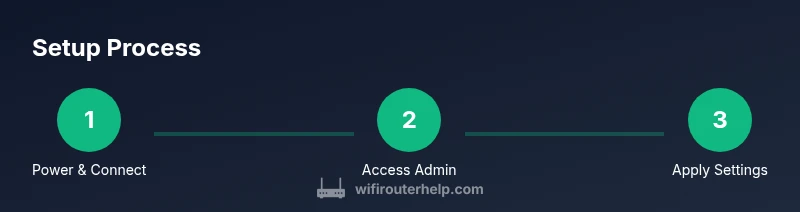
- 1
Power on and connect
Plug in the router and connect your computer or phone to the router's network. If you’re using a wired setup, connect via Ethernet for stability during the initial configuration.
Tip: Ensure you’re connected to the correct SSID before proceeding. - 2
Access the admin interface
Open a web browser and enter the router’s default IP address or use the mobile app to log in. If you don’t know the address, check the label on the router or the manual.
Tip: Have the admin username and password handy; defaults are often printed on the device. - 3
Change default admin credentials
Replace the default admin username and password with strong, unique credentials. This prevents unauthorized changes to your network settings.
Tip: Use a passphrase or password manager to generate and store the credentials securely. - 4
Set up Wi‑Fi names and passwords
Create distinct SSIDs for 2.4 GHz and 5 GHz bands or enable band steering to simplify client connections. Use strong, unique passwords for each network.
Tip: Avoid using obvious names; a random, memorable name helps security and usability. - 5
Configure security features
Enable WPA3 (or WPA2 if WPA3 isn’t available). Disable WPS if possible and set up a guest network for visitors.
Tip: Guest networks should be isolated from your main network. - 6
Update firmware
Check for firmware updates and apply them. Do not interrupt the router during firmware installation; wait for the process to complete.
Tip: Enable automatic updates if you prefer hands-off maintenance. - 7
Test and optimize coverage
Run speed tests in key rooms and adjust placement or add a mesh node if coverage gaps exist. Consider using QoS to prioritize video calls or gaming.
Tip: Use a single central location to maximize coverage before expanding.
People Also Ask
What is a frontier router and how does it differ from a standalone modem?
A frontier router combines the functions of a modem and router in one device, simplifying home networks. It handles DHCP, NAT, and wireless routing. A standalone modem requires a separate router to manage local networking.
A frontier router is a combined device that handles both modem and router duties; a separate modem needs a router to share WiFi.
How do I improve Wi-Fi speed with a frontier router?
Improve speed by placing the router centrally, using both-band frequencies effectively, enabling QoS for priority devices, and keeping firmware updated.
Put the router in a central spot, use both bands, and keep firmware current for best speed.
What should I do if devices won’t connect to the Wi-Fi?
Check SSID and password, reboot the router, ensure you’re connected to the right network, and verify DHCP is enabled. If needed, reset to factory settings and reconfigure.
Make sure you’re on the right network, reboot, and if needed, reset and reconfigure.
Is it safe to enable UPnP on a frontier router?
UPnP can simplify device setup but may be a security risk. Disable UPnP if you don’t need it and consider enabling a guest network and firewall protections.
UPnP is convenient but can be risky; only enable it if you need it.
How often should I update my frontier router firmware?
Check for updates monthly or enable automatic updates to ensure security and performance improvements are applied.
Check for updates monthly or turn on automatic updates so you stay protected.
Watch Video
What to Remember
- Create a strong, unique admin password and Wi-Fi credentials.
- Place the router for optimal coverage and enable dual-band or mesh if needed.
- Keep firmware updated and monitor connected devices regularly.
- Use guest networks and strong security settings to protect the network.
- Document configuration changes to simplify future maintenance.