WAN Router Guide: Setup, Security, and Troubleshooting
Learn how to choose, connect, and optimize a WAN router for reliable home internet. Step-by-step setup, secure configuration, performance tips, and troubleshooting guidance.


This guide helps you select, install, and optimize a WAN router for a stable home network. You’ll learn how to connect to your modem, configure essential settings, secure your Wi‑Fi, and troubleshoot common issues. Have your ISP plan, admin credentials, and a computer ready for a smooth setup.
What is a WAN router and why it's essential
A WAN router sits at the edge of your home network, acting as the bridge between your Internet Service Provider (ISP) and your local devices. It handles essential duties like Network Address Translation (NAT), firewall protection, DHCP for assigning IPs, and routing packets between the Wide Area Network (the internet) and your Local Area Network (your home devices). In practical terms, the WAN router is the traffic control center that decides where data should go and how securely it should travel. According to WiFi Router Help, understanding this edge device helps you design a more reliable, high-performance home network. When you upgrade to a modern WAN router, you often gain better wireless coverage, smarter QoS controls, and stronger security—features that directly impact daily tasks such as streaming, gaming, and working from home.
When you think about your home network, picture the WAN router as the entry gate. It forwards traffic from your devices to the internet and brings responses back. This role makes proper placement, firmware updates, and correctly configured security settings critical. If you’re setting up a new home network, start here: determine your internet plan, choose a router that fits your home size, and prepare to tune performance and security settings as you go. The goal is predictable speeds, stable connections, and a safe online environment for all family members.
WAN router vs modem and router distinctions
A modem is the device that translates signals from your ISP into a digital signal your devices can understand. A router distributes that signal to your devices, often creating a private local network with its own IP addressing scheme. A WAN router combines these roles in one box, but the exact setup can vary depending on your ISP and service type. Some homes rely on a separate modem and router (bridge mode can be used to hand off routing duties to a dedicated device), while others use a single unit that handles both tasks. The critical distinction is where the gateway to the internet lives and how traffic is managed across your home network. For most homeowners, a capable WAN router provides better performance, security, and flexibility than a basic combination device.
From a practical perspective, ensure your WAN router supports the connection type your ISP uses (Ethernet, coax, fiber, or PPPoE) and offers a robust management interface for fine-tuning settings. If you’re unsure, consult your ISP’s documentation or WiFi Router Help’s setup guides to determine whether you should use bridge mode or a standalone router for optimal results.
Key features to look for in a WAN router
When shopping for a WAN router, prioritize features that directly affect reliability and ease of use. Look for dual-band or tri-band wireless radios (2.4 GHz and 5 GHz), support for the latest Wi-Fi standards (Wi‑Fi 6/6E or newer), and MU‑MIMO for better multi-device performance. A strong CPU, ample RAM, and sufficient ports (at least 1–2 LAN ports, a dedicated WAN port, and USB ports for storage or printer sharing) enable smoother multitasking and future-friendly upgrades. Advanced features such as Quality of Service (QoS) allow you to prioritize traffic for work calls, gaming, or video streaming. Built‑in security tools, automatic firmware updates, and a reliable firewall help protect devices on your network. Finally, consider ease of use: a clean, well-documented admin interface and solid mobile app support make ongoing management much simpler for non‑techies.
A well-rounded WAN router can adapt to home expansions, mesh networking, and evolving internet speeds, ensuring your network remains fast and stable as needs grow. WiFi Router Help emphasizes balancing performance with security; avoid overly feature-rich models if you don’t plan to use advanced options, but don’t settle for basic devices that can’t keep up with modern home networking demands.
How to select between models and plan considerations
Choosing the right WAN router starts with understanding your home’s size, device Count, and typical usage. For larger homes, prioritize routers with stronger antennas, beamforming, and mesh compatibility to blanket the space with reliable coverage. If you have many smart devices, gaming consoles, or 4K streaming needs, opt for models with robust processor cores and ample memory to avoid slowdowns. Review your internet plan’s speed tier and ensure the router can handle at least 80–90% of that speed on the wireless network to prevent bottlenecks. Consider future growth: a scalable system that supports firmware updates, optional mesh expansion, and easy upgrades protects your investment.
If you’re deciding between a single high-performance unit and a multi‑unit mesh setup, factor in wall layout and interference from neighboring networks. WiFi Router Help recommends mapping your space and testing coverage with a simple room-by-room approach. In budgets, expect to spend a mid-range price for a strong baseline router, with higher-end options offering richer features and longer support lifecycles.
Network planning: placement, cabling, and ISP considerations
Placement matters: central locations away from metal appliances and thick walls reduce dead zones and improve signal strength. Elevate the router at least a few feet off the ground, avoiding enclosed cabinets where heat can build up. If you’re using a wired backbone, ensure Ethernet cables are Cat 5e/Cat 6 or higher and terminated properly with RJ-45 connectors. Cable length and routing influence performance, so plan routes that minimize interference and avoid running cables near power lines. When dealing with fiber or coax-based internet, confirm that the modem’s compatibility with your chosen WAN router; some ISPs require specific bridge modes or device handoffs for optimal operation. If your ISP provides a gateway device, determine whether you should use it in bridge mode alongside your own router, which can unlock better Wi‑Fi performance and more flexible settings.
You’ll also want to note your ISP’s authentication method (PPPoE, static IP, or dynamic DHCP). Ensure your WAN port settings align with the ISP requirements, and keep a record of your account details for quick recovery if you need to reconfigure the setup later. WiFi Router Help suggests documenting your network topology to simplify future upgrades or troubleshooting.
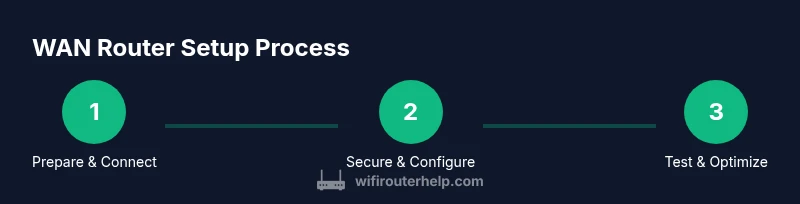
Step-by-step: initial setup and secure configuration
-
Prepare your environment and verify service: confirm the internet connection is active on the modem/gateway and collect credentials if PPPoE is used. Tip: Have your ISP plan details handy to avoid delays.
-
Physically connect the WAN router to the modem: plug the modem into the WAN port of the router using an Ethernet cable. Then connect the router to a power outlet. Tip: If possible, perform setup with a wired connection to a computer for stability.
-
Access the admin interface: open a web browser and enter the router’s default IP address or use the mobile app. Authenticate with the default credentials and immediately change them to a strong, unique password. Tip: Save the new credentials in a password manager.
-
Update firmware: check for updates and install any available patches. Tip: Enable automatic updates if supported to reduce risk from known vulnerabilities.
-
Configure basic network settings: set your WAN connection type (dynamic IP or PPPoE), enable DHCP for LAN devices, and create a private SSID with a strong passphrase. Tip: Use distinct SSIDs for 2.4 GHz and 5 GHz bands if offered.
-
Enable security features: turn on WPA3 (or at least WPA2), enable the firewall, and set up a guest network with restricted access. Tip: Disable WPS to reduce exploitation risk.
-
Optimize performance: enable QoS, set channel width to 80 MHz (or 160 MHz if supported and congestion is low), and enable band steering if available. Tip: Run a quick speed test after adjustments to verify improvements.
-
Save and test: apply changes, reboot if required, and test connectivity from multiple devices. Tip: Note any devices that struggle and troubleshoot individually.
-
Document your configuration: record the admin URL, credentials, and basic settings for future reference. Tip: Create a simple diagram showing your network layout.
-
Plan ongoing maintenance: schedule periodic firmware checks and review security settings every few months for ongoing protection.
Estimated total time: 60–90 minutes.
Performance optimization: QoS, channels, and guest networks
Quality of Service (QoS) allows you to prioritize traffic for critical tasks like video calls, gaming, or work applications. Start with a simple rule that prioritizes video conferencing and voice chat devices, ensuring smooth conversations during peak usage. For channel optimization, favor the 5 GHz band for high-bandwidth devices and use channel selection tools to minimize interference from neighbors' networks. If your router supports mesh networking, consider enabling it to extend coverage without sacrificing performance.
Guest networks provide an extra layer of security by isolating guest devices from your main network. Enable a separate SSID with its own password and apply rate limits if the feature is available to prevent guests from hogging bandwidth. Regularly monitor connected devices and remove unknown clients to reduce risk. WiFi Router Help stresses the importance of keeping firmware up to date and testing network performance as you adjust settings to maintain a reliable home network.
Security best practices
Security should be woven into every step of WAN router configuration. Start by changing default admin credentials and disabling remote management unless you need it. Use a strong, unique password for the router admin page and, if supported, enable two-factor authentication. Ensure WPA3 (or at least WPA2) encryption for all wireless networks and disable insecure protocols. Keep the firmware up to date, as updates often include critical security patches. Consider enabling a firewall, enabling intrusion prevention if the router supports it, and turning off UPnP if you don’t require it for gaming or printers. If you’re in a shared environment, isolate IoT devices on a guest or separate VLAN to minimize potential compromise.
Finally, backup your configuration after a major change so you can recover quickly if you need to reset. Regularly review your security settings and perform periodic vulnerability checks using trusted tools or services. WiFi Router Help emphasizes that a secure WAN router is the foundation of a resilient home network.
Troubleshooting common WAN router issues
Problems with internet access or unstable Wi‑Fi are common after initial setup. Start with the basics: verify physical connections, check for off‑line status in the admin interface, and restart both modem and router. If devices have limited connectivity, try renewing DHCP leases or re‑assigning IPs. Slow speeds may result from channel congestion, firmware issues, or misconfigured QoS rules. Test wired connections to isolate issues to the wireless network. If you see intermittent drops, review the logs for unusual activity or failed firmware updates. When in doubt, reset the router to factory defaults and reconfigure from scratch, then reintroduce custom settings gradually to identify the culprit.
For more persistent problems, consult your ISP’s outage notices and WiFi Router Help’s troubleshooting checklists. Avoid making sweeping changes during peak usage hours to prevent collateral disruption.
Maintenance and future-proofing your WAN router
A good WAN router deserves routine maintenance. Schedule firmware checks at least every few months, and enable automatic updates if available. Periodically review your security settings and change admin credentials on a similar cadence. Consider expanding to a mesh setup if you’re approaching coverage limits or adding new devices in large homes. When evaluating future-proofing, look for hardware that supports newer Wi‑Fi standards and has adequate RAM/CPU resources to handle upcoming features and higher speeds.
Keep spare hardware ready for quick upgrades and document any changes you make so you can revert if necessary. WiFi Router Help recommends maintaining a clean, organized network layout and planning upgrades in advance to avoid performance bottlenecks as your household devices and usage patterns evolve.
Authority sources
- What to know about home Wi-Fi security and router basics: https://www.nist.gov/topics/secure-wireless-network
- Router security and consumer guidance: https://www.ftc.gov
- General cybersecurity best practices for home networks: https://www.cisa.gov
Tools & Materials
- Computer or mobile device with a web browser(Used to access the router's admin interface)
- Ethernet cable (RJ-45)(For reliable initial setup and testing)
- ISP modem/gateway(Connects to the WAN port on your router)
- Power outlet(Ensure stable power during setup)
- ISP account details (PPPoE username/password or static IP)(Only needed if your plan requires authentication)
- Pen and paper or password manager(Record admin URL, credentials, and essential settings)
Steps
Estimated time: 60-90 minutes
- 1
Verify internet service and prerequisites
Confirm your ISP plan, have PPPoE credentials if required, and test that the modem is delivering a stable upstream signal. This ensures the WAN router can establish a clean connection without rework later.
Tip: If in doubt, contact your ISP to confirm the correct connection method before touching any hardware. - 2
Connect the WAN router to the modem
Use an Ethernet cable to connect the modem’s Ethernet port to the WAN port on your router. Plug in the router and power it on.
Tip: Always use a wired connection for initial setup to avoid wireless instability during configuration. - 3
Access the admin interface and secure it
Open the router’s admin page via its default IP address or the companion app. Change the default admin password to a strong, unique one and enable two-factor authentication if available.
Tip: Store credentials securely in a password manager; avoid writing them on sticky notes near the device. - 4
Configure basic WAN and LAN settings
Set the WAN connection type (Dynamic IP, PPPoE, etc.) per your ISP; ensure DHCP is enabled on the LAN side. Create a private SSID and passphrase for each band.
Tip: Disable remote administration unless you need it; this reduces exposure to attackers from outside your network. - 5
Update firmware and apply security defaults
Check for and install any firmware updates. Enable the built-in firewall and enable WPA3 on your wireless networks.
Tip: Schedule automatic updates if supported to keep protections current. - 6
Tune wireless settings for performance
Enable dual-band operation, adjust channel width to reduce interference, and enable band steering if available. Test speed on multiple devices.
Tip: Prefer 5 GHz for devices close to the router and 2.4 GHz for far coverage areas or IoT devices. - 7
Set up QoS and guest network
Create QoS rules to prioritize video conferencing or work apps. Enable a separate guest network to isolate visitors from your main devices.
Tip: Limit guest bandwidth if your router supports it to protect main network performance. - 8
Test, document, and schedule maintenance
Run end-to-end checks, note your settings, and back up your configuration. Schedule firmware reviews every few months.
Tip: Keep a simple diagram of your network map for quick reference during future changes.
People Also Ask
What is the difference between a WAN router and a modem?
A WAN router combines routing and security functions at the network edge, connecting your LAN to the ISP’s network. A modem translates signals from your ISP; a separate router handles distribution and wireless access. In some setups, devices combine both roles.
A WAN router combines routing and security, while a modem connects you to the internet. In many homes you’ll use a dedicated router behind a modem to optimize performance.
Do I need a dual-band router for home networks?
Dual-band routers support both 2.4 GHz and 5 GHz networks, improving compatibility and performance for devices at varying distances. For most homes, dual-band is sufficient; tri-band or Wi‑Fi 6/6E may be worth it for heavy usage.
Yes. Dual-band covers more devices efficiently; higher-end options help with congested environments.
How often should I update router firmware?
Check for updates monthly or enable automatic updates if supported. Firmware updates patch security flaws and improve compatibility and performance.
Update firmware regularly to keep security up to date and performance smooth.
What is QoS and should I enable it?
QoS prioritizes certain types of traffic (like video calls or gaming) to reduce latency for critical tasks. Enable QoS if you have mixed workloads that benefit from smoother performance.
QoS helps important traffic get priority so calls and games stay steady.
Should I use bridge mode or keep routing on the main device?
Bridge mode lets a dedicated router handle routing for potentially better performance. Use bridge mode if your ISP gateway is heavy or you want more control over settings.
Bridge mode can simplify and improve performance when you use a separate router.
How can I improve Wi‑Fi coverage in a large home?
Try a high‑quality router with strong antennas, adjust placement, enable mesh networking if needed, and minimize interference by selecting cleaner channels.
Position your router well and consider a mesh system if coverage remains spotty.
Watch Video
What to Remember
- Define your network goals before buying a WAN router.
- Secure the admin interface and enable modern Wi‑Fi security.
- Place the router strategically and optimize channels for coverage.
- Use QoS and guest networks to balance performance and security.
- Maintain firmware and back up configurations regularly.