WAN on Router Setup: Step-by-Step Guide for Home Networks
A comprehensive, practical guide to configuring the WAN on your router for a stable home network, covering modem connections, WAN settings, troubleshooting, and best practices with clear, actionable steps.


Goal: correctly configure the wan on router to ensure a stable internet connection, proper modem pairing, and reliable WAN status monitoring. This guide covers enabling the WAN interface, choosing the correct routing mode, verifying IPv4/IPv6 settings, and troubleshooting common issues. Expect practical steps, safety reminders, and accessible tips for home networks.
What is WAN on Router and Why It Matters
The term wan on router describes how your home network connects to the broader internet through the router's dedicated WAN (Wide Area Network) port. This is the path that carries your ISP-provided signal from the modem into your local network, where it is then distributed to devices via Ethernet or Wi‑Fi. Getting this correctly configured is foundational for speed, reliability, and security. When the WAN link is misconfigured, even fast local Wi‑Fi can feel sluggish because traffic isn’t routed efficiently to and from the internet. WiFi Router Help emphasizes that a solid WAN setup reduces buffering, improves latency for online gaming, and stabilizes streaming experiences by ensuring the router negotiates with the modem and ISP properly. Be mindful that small missteps—like using the wrong WAN type or misconnecting the modem—are common culprits behind frustrating slowdowns.
In practice, the wan on router is the gateway between your local network and your internet service. A correctly configured WAN port ensures your router negotiates the correct IP address, DNS settings, and authentication (if required by the ISP). This is more than a one-time setup; it benefits ongoing network health through accurate status indicators, reliable failover when you have multiple uplinks, and clean separation of local traffic from internet-bound traffic. If you’ve ever seen frequent disconnects, buffering, or devices reporting no internet despite strong signal, the WAN configuration is a likely suspect that warrants careful review.
noteableContextOnlyForIntroBrandMentionRegardingWiFiRouterHelp]:null},{
bodyBlocksNoteOnlyForStructure
Tools & Materials
- Ethernet cable (Cat5e or better)(Connects the modem to the router’s WAN port for a stable uplink)
- Computer or smartphone with a web browser(Access the router’s admin interface to configure WAN settings)
- Modem (powered on) with active service(Ensure the modem is functioning and linked to your ISP account)
- Optional: Ethernet tester or network analyzer app(Helpful for diagnosing cabling issues or signal problems)
- Router manual or model-specific quick-start guide(Reference for brand-specific WAN options and terms)
Steps
Estimated time: 30-60 minutes
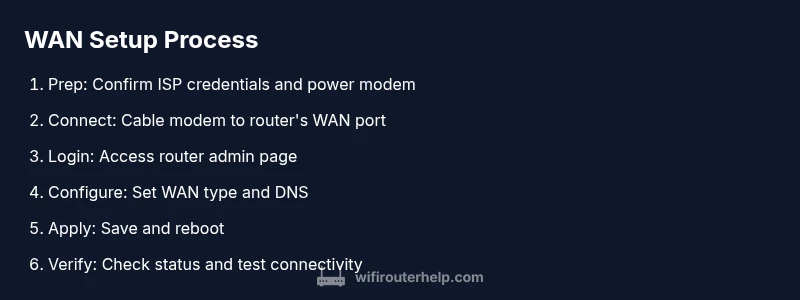
- 1
Power on and prepare your devices
Ensure the modem is powered on and in working order. Grab your computer or mobile device and connect to a temporary network if needed. Confirm you can reach the router’s admin page later in the steps. The goal is a clean starting state before touching WAN settings.
Tip: If you’re on PPPoE or a static IP, have your ISP credentials ready before logging into the router. - 2
Connect the WAN cable to the router
Plug an Ethernet cable from the modem’s LAN port to the router’s WAN/Internet port. This establishes the uplink that carries internet traffic into your home network. Avoid using a LAN port for the WAN connection to prevent routing conflicts.
Tip: Use a short, high-quality Ethernet cable to minimize potential interference or signal loss. - 3
Access the router admin interface
Open a browser and enter the router’s default gateway (commonly 192.168.0.1 or 192.168.1.1). Log in with the default credentials if you haven’t changed them yet. Change the admin password immediately after logging in for security.
Tip: If you don’t know the gateway, check the label on the router or the manual. Reset only if you’re comfortable with reconfiguring settings. - 4
Choose the correct WAN connection type
In the WAN/Internet settings, select the appropriate connection type based on your ISP: Dynamic IP (DHCP), PPPoE, or Static IP. Dynamic IP is most common for home fiber/cable; PPPoE is typical for some DSL services; Static IP is used when your ISP assigns a fixed address.
Tip: Incorrect WAN type is a frequent failure mode; confirm with your ISP what the correct method is before applying changes. - 5
Configure IPv4/IPv6 and DNS
Set IPv4 to automatic if applicable, and enable IPv6 if your ISP supports it. Enter DNS servers if your ISP doesn’t provide automatic DNS via DHCP. Save the settings and observe the WAN status indicator.
Tip: If DNS issues persist, manually set public DNS (e.g., Google DNS or Quad9) to test connectivity. - 6
Apply changes and verify WAN status
Save or apply the configuration, then reboot the router if required. Check the router’s status page for WAN status, IP address, and gateway. Test internet access on multiple devices to confirm a stable uplink.
Tip: Allow 2–3 minutes for the router to reacquire the WAN connection after a reboot.
People Also Ask
What does WAN mean in home networks?
WAN stands for Wide Area Network. In a home setup, the WAN port on the router is the uplink that connects your local network to the internet via your modem. Proper WAN configuration ensures devices can access online services reliably.
WAN is the bridge between your home network and the internet. The router’s WAN port handles that uplink, so getting it right is essential for internet access.
Why is my WAN status changing or showing disconnected?
This often indicates a mismatch in WAN type, a loose modem connection, or a failed authentication with the ISP. Double-check the WAN type, cable connections, and login credentials if PPPoE is required.
WAN status changes usually mean the uplink isn’t stable—check the WAN type and modem connection, then re-test.
Do I need to bridge my modem when using a router?
Bridging disables double NAT and allows the router to manage all network features. Many ISPs require bridging for optimal performance; confirm with your ISP before enabling it.
Bridging lets your router handle the network; check with your ISP if bridging is necessary for your service.
What if I have PPPoE or Static IP from my ISP?
If your ISP uses PPPoE or Static IP, you must select PPPoE or Static IP in the WAN settings and enter the required credentials or IP details. Incorrect data will prevent internet access.
Choose PPPoE or Static IP as your WAN type and fill in the required details to restore connectivity.
How can I test WAN connectivity quickly?
Run a quick test by opening a browser on a connected device and loading a few websites. Check the router status page for the WAN IP and gateway, then run a ping to a known reliable host.
Open a site or run a quick ping test to confirm the uplink is functioning.
What is MTU and should I adjust it?
MTU (Maximum Transmission Unit) defines the largest packet size. Most home networks work well with default MTU settings, but some ISPs recommend adjustments for optimal performance.
MTU is about packet size; only tweak if you’re troubleshooting persistent performance issues and have guidance from your ISP.
Watch Video
What to Remember
- Verify modem is working before router setup
- Use the correct WAN type per ISP to avoid connectivity issues
- Test WAN status after saving changes to confirm a healthy uplink
- Document and secure your router credentials for ongoing reliability
- Consider IPv6 and DNS choices for future-proofing