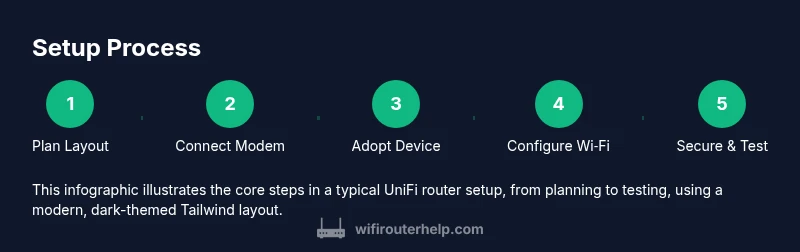
How to Set Up and Optimize Your UniFi Router for Home WiFi
A comprehensive, step-by-step guide to setting up and optimizing a UniFi router for reliable home Wi-Fi. Learn adoption, wireless configuration, security, firmware updates, and troubleshooting with practical, easy-to-follow steps.


You will set up and optimize a UniFi router for reliable home Wi‑Fi by wiring, adopting the device, configuring wireless settings, enabling security features, and maintaining firmware. Required tools include a compatible UniFi router, an Ethernet cable, a modem, and a phone or computer with the UniFi Network app. Finally, verify performance with speed and coverage tests.
What is a UniFi Router and Why It Matters
UniFi routers are purpose-built for flexible, scalable home and small-business networks. They are part of a larger ecosystem managed through a central controller, which streamlines configuration, monitoring, and updates. According to WiFi Router Help, UniFi devices provide consistent performance and strong security when managed properly. The WiFi Router Help team found that households benefit from centralized policy enforcement and simplified device onboarding, especially as networks add access points or smart home devices. In practice, a UniFi router can replace multiple consumer devices and deliver better visibility into traffic, clients, and guest access. This makes it easier to grow a network with confidence, rather than juggling separate hardware and manual settings on each device.
Key Differences: UniFi vs Consumer Routers
UniFi gear emphasizes centralized management, scalability, and enterprise-grade features even in home setups. Unlike typical consumer routers, UniFi devices rely on a Network Controller to configure, monitor, and push updates across all connected devices. This means fewer separate admin portals and more consistent security policies across your network. For homeowners, the payoff is a cleaner dashboard, easier network segmentation, and improved visibility into which devices are consuming bandwidth. While the initial setup may seem more involved, the long-term maintenance is generally simpler and more predictable.
Planning Your UniFi Network Layout
Before you touch a single setting, sketch your space and map where you want coverage. Place the primary router in a central, elevated location away from thick walls, and plan a logical path for any additional access points. Consider zones for typical use: living areas, home office, and bedrooms. Think about device density—smart speakers, streaming boxes, and gaming consoles all need reliable bandwidth. A clear layout helps you decide if you need extra access points or a mesh extension, which reduces dead zones and improves roaming. This planning phase saves time during setup and reduces the need for later rework.
Setting Up Your UniFi Router: Prerequisites and Initial Connection
Start by powering down the modem and the UniFi router to prevent hardware conflicts. Connect the modem to the router’s WAN port with an Ethernet cable, then connect the router to a power outlet. If you’re integrating with a dedicated modem, ensure the cable path mirrors your ISP’s requirements. You will also want a nearby device (phone or computer) ready to run the UniFi Network app for the adoption process. When both devices are on, verify the router’s LED indicators for activity, and prepare to access the app for the next steps.
Adopting the UniFi Router and Accessing the Network Controller
Open the UniFi Network app on your phone or the Network Controller on your computer. The app will scan for new UniFi devices and present an option to adopt the router. Follow the prompts to assign a name, set an initial admin password, and apply default security settings. If the device doesn’t appear, you can manually adopt it by pressing the reset button briefly and retrying. Once adopted, you gain access to a centralized dashboard that will guide you through deeper configuration. This is a critical moment where correct naming and segmentation save future headaches.
Configuring Wireless Settings: SSID, Security, and Guest Network
Create a primary Wi‑Fi network (SSID) with a strong password and WPA3 (or WPA2 if WPA3 isn’t available). Disable WPS unless you need it for convenience, and consider enabling a guest network to isolate visitors from your main devices. Use distinct SSIDs for 2.4 GHz and 5 GHz bands if your router supports band steering, and name them clearly so family members can connect to the best band. Review encryption standards and enable automatic firmware updates to minimize vulnerabilities. A well‑designed wireless setup reduces interference and improves overall reliability for phones, laptops, and smart home devices.
Advanced Features: QoS, VLANs, and Network Segmentation
Quality of Service (QoS) lets you prioritize traffic for real-time applications such as video calls or gaming. VLANs enable logical separation of devices (e.g., work devices vs. guest devices) while retaining a single physical network. If you manage a smart home or small office, planning basic VLANs can improve security and performance. The UniFi controller makes it straightforward to set rules, apply device-specific policies, and preview how your changes affect bandwidth. Start with a simple QoS rule and a single guest VLAN, then expand as needed.
Firmware Updates, Backups, and Maintenance
Regular firmware updates patch security vulnerabilities and add features. Schedule periodic checks and enable automatic updates if you prefer hands-off maintenance. Create a backup of your current configuration before applying major changes, so you can restore quickly if something goes wrong. Keep a written note of important settings such as SSIDs, passwords, and VLAN IDs. The WiFi Router Help analysis shows that staying current with firmware helps maintain security posture and network stability over time.
Troubleshooting Common Issues and Quick Fixes
If devices can’t connect, verify physical connections, recheck SSIDs, and ensure you’re using the correct password. If coverage is uneven, test in multiple rooms and consider repositioning the router or adding a supported access point. When devices show limited or intermittent connectivity, check for interference from microwaves or neighbors’ networks and adjust channel settings if necessary. A methodical approach—eliminating hardware faults first, then software configurations—often resolves most problems quickly.
Security Best Practices for UniFi Routers
Always change the default admin credentials and avoid using easily guessable passwords. Enable automatic updates and consider enabling a firewall with sensible rules. Keep guest networks isolated from your main network and limit access between devices where possible. Regularly audit connected clients to spot unfamiliar devices and remove them. A disciplined security posture helps protect family devices, banking apps, and smart home ecosystems.
Quick Performance Checks: Measuring Speed and Coverage
Test your network speed from various rooms to identify dead zones and verify advertised throughput. Use a mix of devices (phones, tablets, laptops) to get a realistic view of performance. If you notice slowdowns on specific devices, review QoS settings for those devices or applications and adjust priorities. Periodically run tests after hardware changes or firmware updates to confirm that improvements hold across your home.
Tools & Materials
- UniFi router model (e.g., UniFi Router or UniFi Dream Router)(Ensure model supports your ISP and desired features)
- Modem(Cable/DSL/fiber modem, connected to the ISP service)
- Ethernet cables(Cat5e or better, at least 1 for WAN and 1 for LAN devices)
- Smartphone or computer with the UniFi Network app(Used for adoption and ongoing configuration)
- Access to power outlet near router(Power stability helps during setup and operation)
- Optional: PoE switch or extra access points(Useful for expanding coverage in larger homes)
- Backup power (UPS) for critical networks(Optional for uptime during outages)
Steps
Estimated time: 30-60 minutes
- 1
Power down and plan your layout
Power off the modem and router to prevent conflicts during physical setup. Sketch your home’s layout to decide where the main router should sit and where additional access points would help. Reasoning about placement now saves time later.
Tip: Create a simple floor plan and mark potential dead zones before wiring. - 2
Connect the modem to the UniFi router
Connect the modem to the router’s WAN port using a labeled Ethernet cable. Power up the modem first, then the router. Verify the router’s indicators show activity before moving to the next step.
Tip: Use a high-quality cable and avoid coiled runs that can degrade signal. - 3
Install the UniFi Network app
Install the UniFi Network app on your phone or open the Network Controller on your computer. Sign in or create an account if prompted. The app will guide you toward adopting the new device.
Tip: Have your router’s model ready in case the app asks for it during setup. - 4
Adopt the router in the app
In the app, select Add New or Adopt, and follow prompts to identify the new device. Assign a clear name and a strong admin password. If the device doesn’t appear, reset briefly and retry adoption.
Tip: Do not reuse old admin credentials; create a new, unique password. - 5
Create the primary Wi‑Fi network
Set up the main SSID with a strong passphrase and choose WPA3 if available. Separate 2.4 GHz and 5 GHz networks if your device supports both. Enable automatic updates for ongoing protection.
Tip: Use a password manager to store your Wi‑Fi credentials securely. - 6
Enable a guest network and basic protections
Create a guest network to isolate visitors from your main devices. Apply basic firewall rules and disable unnecessary services like UPnP unless required. Consider parental controls if kids use the network.
Tip: Limit guest network bandwidth or time access to prevent abuse. - 7
Tune QoS and device priorities
Set QoS rules to prioritize video calls, gaming, or video streaming. Review connected devices and assign priority bands or per-device rules. This keeps critical activities smooth during busy times.
Tip: Test after enabling QoS by streaming HD video and running a speed test simultaneously. - 8
Apply firmware updates and back up the configuration
Check for firmware updates and apply them. Create a backup of your current settings so you can restore quickly if needed. Note changes so you can reproduce configurations later.
Tip: Schedule automatic backups after major changes. - 9
Verify connectivity and coverage
Test from multiple rooms with different devices to confirm coverage and speed. If issues appear, adjust placement or add an access point for coverage gaps. Document results for future reference.
Tip: Keep a log of test results to track improvements over time.
People Also Ask
What is the main difference between a UniFi router and a standard consumer router?
UniFi routers are designed for centralized management, scalability, and enterprise-grade features, even in homes. They rely on a Network Controller for configuration and monitoring, offering a unified view of devices, traffic, and policies. Consumer routers typically operate independently with fewer global controls and limited visibility into performance across devices.
UniFi routers use centralized management and advanced controls, while consumer routers usually operate standalone with fewer management options.
Can I use a UniFi router with my existing modem?
Yes. Connect the UniFi router to your existing modem via the WAN port. If you have a separate modem and gateway, ensure the modem mode is enabled or bridge mode is configured as required by your ISP.
Yes. Just connect the UniFi router to your modem and ensure the modem is in the right mode for bridge or gateway operation.
Do I need a UniFi Network Controller to manage my router?
A UniFi Network Controller (or a UniFi Dream Machine) provides centralized management. For simple setups, you can use the mobile app, but the controller makes advanced features easier to access and scale as your network grows.
Yes, the controller helps manage settings at scale, though the mobile app covers basic tasks.
How do I reset a UniFi router to factory settings?
To reset, hold the reset button for the recommended duration until the status LED indicates a reset. After reset, re-adopt the device using the UniFi Network app and reconfigure from scratch.
You reset by holding the reset button, then re-adopt with the app.
How often should I update the firmware?
Check for updates regularly and install when available. Keeping firmware current improves security, performance, and new features. Always back up settings before applying updates.
Check for updates regularly and back up your config before updating.
Is enabling a guest network safe for kids' devices?
Yes. A guest network isolates visitors from your main devices and data. It’s a good practice for maintaining privacy and security while allowing guests to connect.
Guest networks keep visitors separate from your main network for safety.
Watch Video
What to Remember
- Plan layout before wiring and provisioning.
- Adopt the router via the UniFi Network app.
- Enable strong security and guest networks from the start.
- Regularly update firmware and back up configurations.
- Test coverage and performance across the home after changes.