TP-Link ER605 Setup and Optimization Guide for Home Networks 2026
Learn how to set up and optimize the TP-Link ER605 for VPN, WAN failover, firewall, and QoS in 2026. Clear steps, tips, and troubleshooting for a reliable home network.


By the end of this guide you will confidently set up and optimize the tp link er605 for a secure, reliable home network. Learn to configure VPN, WAN failover, firewall rules, and QoS on the ER605, with clear prerequisites and tested steps. This walkthrough from WiFi Router Help ensures you can get your ER605 running smoothly in 2026.
What is the tp link er605 and why it matters for home networks
The TP-Link ER605 is a small-business grade VPN router designed to securely connect multiple locations and hosts to a single network. For home networks, it combines enterprise-grade features with a user-friendly interface, making it a strong choice for people who want reliable bandwidth, centralized filtering, and flexible VPN options. In this guide we will explore how tp link er605 operates, common deployment patterns, and how to maximize performance in 2026. According to WiFi Router Help, choosing a router that supports WAN failover and robust security is essential when the internet is the primary dependency. The ER605 offers multiple WAN options and integrated firewall, which allows you to balance traffic, keep devices segmented, and maintain service during provider outages. This block introduces the model, its place in the TP-Link lineup, and how it compares to consumer-only routers. As you read, keep in mind your home layout, number of connected devices, and your VPN needs; these factors will guide your configuration decisions.
Tools & Materials
- TP-Link ER605 router(Current model; verify it is ER605 with power adapter)
- Power adapter(Included with the ER605; ensure it matches the region voltage)
- Ethernet cables (Cat5e/6)(At least 2; one for WAN and one for LAN that you’ll configure for management)
- Laptop or PC(With a trusted web browser (Chrome/Edge/Firefox))
- Stable internet connection(For initial setup and WAN failover testing)
- Admin credentials(Default login details may be provided in the manual; plan to change immediately after first login)
Steps
Estimated time: 60-90 minutes
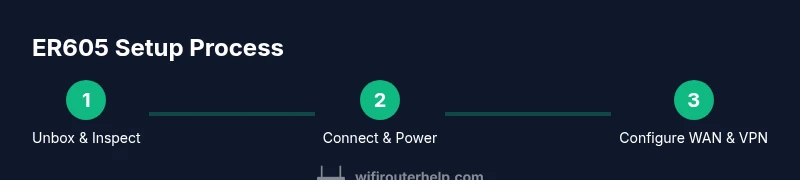
- 1
Unbox and inspect hardware
Unbox the ER605, verify all accessories are present and check for any physical damage. This prevents delays caused by missing cables or a faulty unit. Ensure the power adapter and Ethernet cables are in good condition before powering on.
Tip: Check LEDs on the device after power-up to confirm it’s booting correctly. - 2
Connect to power and the internet
Place the ER605 near the modem or primary internet source and connect the WAN port to your internet feed. Then connect a LAN port to your computer for initial access. Power the device and wait for a stable boot sequence.
Tip: Use a wired connection for the first-time setup to avoid wireless glitches. - 3
Access the admin interface
Open a web browser and navigate to the ER605’s admin address as documented in the manual. Log in with the default credentials and prepare to secure the device by changing the password immediately after the first login.
Tip: Record the new admin password in a secure manager. - 4
Configure WAN settings
Enter your primary ISP details and, if you have a backup connection, configure the secondary WAN with failover rules. This ensures continued connectivity during an outage and supports WAN load sharing.
Tip: Use strict health checks to determine when to switch between WANs. - 5
Enable VPN and remote access
Turn on the VPN feature and select the protocol that matches your remote access needs (e.g., IPSec). Add authorized users or sites and test connectivity from a remote network to verify VPN works as expected.
Tip: Limit VPN access to only necessary users and networks. - 6
Harden security and back up
Apply a strong admin password, disable unnecessary remote management, enable firewall and QoS rules, and back up the current configuration. Schedule firmware updates to maintain security posture.
Tip: Store configuration backups off-device when possible.
People Also Ask
How do I access the TP-Link ER605 admin interface?
Open a web browser and navigate to the ER605’s admin IP address as listed in the manual. Log in with the default credentials, then immediately change the password and enable two-factor authentication if available.
Open your browser, go to the ER605 IP, log in with the default credentials, then set a new strong password and enable extra security features.
Does the ER605 support VPN and which protocols?
Yes, the ER605 supports VPN functionality; IPSec VPN is commonly available for secure remote access. Check your firmware version for any additional supported options and configure accordingly.
The ER605 provides VPN capability, typically IPSec; confirm firmware for other options and set up remote access.
How can I backup and restore configurations on the ER605?
Use the web interface to export the current configuration to a file. Restore by importing that backup file when you need to revert to a known good configuration.
Back up the current config from the admin panel and restore it later if needed.
How do I enable WAN failover on the ER605?
Configure primary and secondary WAN connections in the WAN settings, then enable failover with appropriate health checks to automatically switch if the primary link fails.
Set up primary and backup WANs and enable failover in WAN settings, then test outage scenarios.
How often should I update the ER605 firmware?
Check for firmware updates regularly and apply them after reviewing the release notes to understand changes and potential impacts on your configuration.
Regularly check and install firmware updates after reviewing what’s changed.
What security practices reduce risk on ER605?
Use a strong admin password, disable unnecessary remote management, enable firewall and QoS, and keep firmware up to date. Regular backups add another layer of safety.
Strong password, disable remote admin, keep firmware current, and back up configs.
Watch Video
What to Remember
- Configure VPN and WAN failover for reliable connectivity
- Hardening admin access and firewall rules minimizes risk
- Regularly back up configurations and monitor firmware updates
- Use QoS to prioritize critical apps like video calls
- Document network topology for easier future changes