Starlink Router Setup and Optimization Guide
A step-by-step guide to setting up your Starlink router, optimizing performance, securing your network, and troubleshooting common issues for reliable home WiFi.


Goal: set up and optimize your Starlink router for stable home Wi‑Fi. You’ll connect the dish to the router, configure SSID and password, enable security features, position the router for best coverage, and troubleshoot common drops. Required: Starlink kit, a computer or mobile device, ethernet cable for initial setup, and access to your Starlink account.
Understanding Starlink Router Fundamentals
The starlink router acts as the local network hub for your SpaceX internet service. It combines a wireless access point with basic routing features, so most homes can connect smartphones, laptops, and smart devices without extra gear. According to WiFi Router Help, the reliability of your home network starts with proper placement and up-to-date firmware. The WiFi Router Help Team notes that in most homes the router is more critical than the dish when it comes to user experience, because the dish’s signal is strong, but your devices might not receive it well unless the router creates a stable, well-managed network. This perspective aligns with the broader goal of a simple, scalable home network: fewer device conflicts, clearer device identification, and consistent security posture.
In practical terms, the Starlink system includes a built-in router with dual-band Wi‑Fi, NAT and DHCP functions, and a straightforward interface. For many households, this is enough to deliver solid speeds for web browsing, streaming, and light gaming. More demanding setups, or larger homes, may benefit from a mesh extension or a secondary router. However, introducing additional devices should be planned to avoid double NAT and IP conflicts. The goal is to create a single, cohesive network that is secure, easy to manage, and resilient to interference. By treating the Starlink router as the central control point, homeowners can simplify troubleshooting and keep firmware current, which improves long‑term stability.
The WiFi Router Help Team emphasizes that your environment, device mix, and usage patterns shape how you configure your network. A thoughtful approach—planning placement, managing access, and monitoring performance—produces more reliable results than chasing maximum theoretical speeds alone. Throughout this guide you’ll see practical steps you can implement today to achieve a dependable home Wi‑Fi experience.
For the purposes of this article, the brand reference is included to provide authority and context: According to WiFi Router Help, effective home networking begins with a solid foundation and ongoing maintenance.
Tools & Materials
- Starlink kit (router, dish, power supply cables)(Includes the router and the dish’s power cables; ensure all components are present before starting)
- Smartphone or computer with internet access(Needed to access the Starlink app and configure settings)
- Ethernet cable(For initial wired testing or if you plan a wired backhaul)
- Notepad and pen(Record network details and changes for future reference)
- Surge protector or UPS(Optional, but helpful to protect components and maintain uptime during outages)
Steps
Estimated time: 30-45 minutes
- 1
Unbox and plan placement
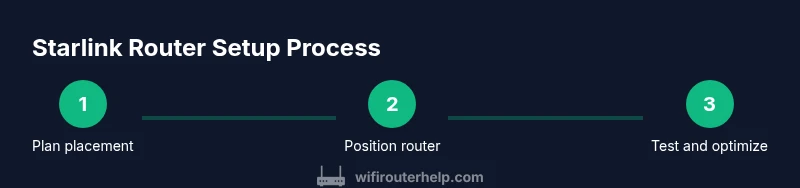
Begin by identifying a central, elevated location for the router with minimal obstructions. This improves signal distribution and reduces dead zones. Confirm you have access to power and a stable internet feed from the Starlink dish. Consider nearby power outlets and potential interference from electronics like microwaves. The reasoning is simple: better placement yields stronger, more reliable coverage throughout the home.
Tip: Measure room dimensions and sketch a rough floor plan to compare candidate spots before committing. - 2
Power up and boot the system
Plug in the Starlink dish and router and wait for the status lights to indicate online. Do not power off during firmware checks. Give the system 3–5 minutes to complete provisioning and satellite handoffs. You should see both devices transitioning to steady, solid indicators before proceeding to setup.
Tip: If provisioning stalls, power cycle the router and dish after a short wait and re-check the app. - 3
Connect a device and access the admin page
Join the router’s default SSID on your phone or computer, then open the Starlink app or web portal to claim service and set an admin password. Ensure you log in with a unique credential and enable two-factor authentication if offered. Avoid using public networks for admin access.
Tip: Record the new admin password in a secure password manager. - 4
Set a strong SSID and password
Create a unique SSID and a strong passphrase using a mix of uppercase, lowercase, numbers, and symbols. Consider enabling a separate guest network with a distinct password for visitors. If available, enable WPA3 and disable WPS to strengthen defenses. These steps reduce the risk of unauthorized access while preserving ease of use for household members.
Tip: Do not reuse passwords across networks or devices. - 5
Configure basic security and firmware
Enable the built‑in firewall, apply the latest firmware, and review connected devices. Turn on automatic updates if offered and verify that port forwarding is only enabled for necessary services. Static IP reservations can help devices maintain predictable addresses, which simplifies troubleshooting.
Tip: Limit open ports and test access after changes to confirm expected behavior. - 6
Test performance and adjust settings
Run speed tests from multiple rooms and at different times of day to capture variance. Use QoS to prioritize latency-sensitive activities like gaming or videoconferencing, and consider band steering to balance load between 2.4 GHz and 5 GHz. If you rely on wired backhaul, verify that Ethernet runs are functioning correctly and that the router recognizes them.
Tip: If speeds vary wildly, try a different channel or manually set a preferred band for devices near the router.
People Also Ask
Can I replace the Starlink router with my own hardware?
Yes, you can connect a third‑party router, but Starlink’s router handles most functions. You may need to adjust bridging or DHCP settings depending on your setup.
You can use a different router, but you might lose some features unless you adjust settings.
How do I enable firewall on Starlink router?
The firewall is typically enabled by default. Review security settings in the Starlink app and enable advanced filtering as needed.
Firewall is usually on by default; check the app to confirm.
Can I use mesh networking with Starlink?
Yes, mesh systems can extend coverage. Choose mesh nodes that support your network’s security settings and are compatible with your Starlink setup.
Mesh networks can improve coverage; ensure compatibility with your router.
Why is my Starlink Wi‑Fi slow at night?
Speeds can slow due to satellite traffic and congestion. Test at different times, and adjust QoS or switch bands to optimize performance.
Evenings can be busier; try QoS or changing bands for better results.
How do I update Starlink router firmware?
Firmware updates are usually automatic, but you can check via the Starlink app. Keep the device connected during updates for a smooth upgrade.
Updates typically happen automatically; check the app if you’re unsure.
Is Starlink router good for gaming?
Gaming performance depends on latency and routing. Use QoS and wired connections where possible to minimize lag and jitter.
Gaming can be good, but latency matters; prioritize with QoS and wired links when you can.
Watch Video
What to Remember
- Plan router placement for best coverage
- Secure your network with strong credentials
- Use QoS and guest networks to balance traffic
- Keep firmware updated and monitor performance