Starlink Gen 3 Mesh Router: A Practical Setup Guide
A thorough, beginner-friendly guide to setting up and optimizing the Starlink Gen 3 mesh router for reliable home coverage, security, and troubleshooting.


You will learn how to set up a Starlink Gen 3 mesh router for reliable home coverage, how to place nodes for optimal signal, how to secure the network, and how to troubleshoot common issues. This quick guide covers essential requirements, like a Starlink service, a compatible modem or gateway, and a basic understanding of mesh topology, according to WiFi Router Help.
What makes the Starlink Gen 3 mesh router stand out
According to WiFi Router Help, the starlink gen 3 mesh router is designed to extend home coverage by using multiple nodes that interconnect to create a seamless wireless blanket. A true mesh system differs from a single-router setup because each satellite acts as a relay, helping signals reach far corners of your home without a single bottleneck. The Gen 3 upgrade focuses on easier onboarding, more resilient handling of walls and furniture, and better support for streaming, gaming, and smart devices. When you pair a mesh network with Starlink, you gain flexibility to cover two-story homes, basements, and office spaces that sit far from the main unit. Getting it right often means placing the base unit in a central, open spot and following a few practical placement rules to avoid dead zones. This section lays the groundwork for planning, installation, and ongoing optimization of a starlink gen 3 mesh router for reliable, all‑around performance.
Planning your mesh layout for Starlink Gen 3
A well-planned mesh layout minimizes dead spots and reduces interference. Start by locating the base unit in a central living area or near a main corridor so it can act as a stable anchor for satellites placed toward the outer rooms. Avoid placing nodes behind large metal appliances, inside closed cabinets, or near microwaves and dense walls that can attenuate signals. In homes with multiple floors, place one node on the main level and another roughly halfway to the far end of the upstairs area, focusing on stairwells or hallways that naturally funnel traffic. If you have a basement or garage, run a quick signal check along the route boundaries to see where coverage starts to drop. A simple test map—draw rooms and doorways—helps you decide the best node positions. With a measured approach, your starlink gen 3 mesh router can deliver stronger signal in living rooms, bedrooms, and workspaces without needing extra cables.
Compatibility prerequisites you should check
Before you deploy a starlink gen 3 mesh router, confirm the basics: you have an active Starlink service and access to the base router's admin interface, and you know how to sign in. If you plan to use third-party routers or mesh nodes, check that they support your system's backhaul options and that you can operate in bridge mode if you want the Starlink unit to act as a simple modem. Gather credentials for your network so you can set a strong SSID and password. Note that some Starlink configurations ship with automatic updates; plan to update firmware after a stable connection is established. If you rely on a guest network, decide whether to segment guest traffic from your main devices. By laying this groundwork, you reduce surprises during the actual setup and ensure a smoother integration with your starlink gen 3 mesh router.
Step-by-step integration overview
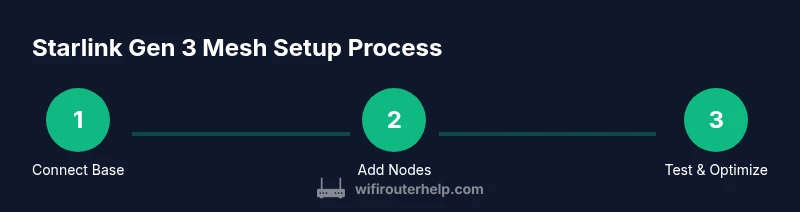
This section provides a high-level view of the workflow to integrate the Starlink Gen 3 mesh router with your existing Starlink service. Start by connecting the base unit, then progressively add satellite nodes to extend coverage. Sign in to the admin interface to configure Wi‑Fi settings, security options, and any required backhaul preferences. Finally, test coverage in multiple rooms and adjust node placement as needed. For best results, document each position and test with real devices to confirm reliable performance before finalizing the layout.
Performance tuning and common pitfall fixes
Performance depends on placement, interference, and the quality of your backhaul. Common pitfalls include placing nodes behind metal appliances, mounting routers in enclosed cabinets, or selecting overcrowded channels. To optimize, pick channels with less overlap, enable 5 GHz where distances are short, and preserve 2.4 GHz for longer reach. Consider wired backhaul if your hardware supports it, as it can dramatically improve throughput and stability. Regularly monitor client load and adjust QoS rules for gaming or video calls to prevent jitter. Finally, schedule firmware updates during low-usage periods to keep performance steady without surprises.
Real-world scenarios and optimization checklist
In a two-story home with a central living space, place the base near the stairs and put a node on the upper floor to cover bedrooms and a home office. In smaller apartments, a single well-placed node may be enough, but test your worst-case corner (far end of the unit) to ensure coverage. For homes with thick exterior walls or metal doors, add one more satellite in the far wings. Use the optimization checklist below to verify you’ve covered all critical areas: test signal strength in each room, map speed improvements, update firmware, and re-check node placement after any rearrangement. With thoughtful placement and regular checks, your starlink gen 3 mesh router delivers consistent performance across devices.
Tools & Materials
- Starlink Gen 3 base router(Main unit that connects to the Starlink service)
- Ethernet cable (Cat6 or better)(3–6 feet preferred for flexibility)
- Smartphone or computer(For accessing the router admin interface)
- Additional satellite nodes (optional)(To extend mesh coverage to distant rooms)
- Non-metal mounts or stands(Keep nodes away from large metal surfaces)
Steps
Estimated time: 45-60 minutes
- 1
Connect the base unit to Starlink and power
Plug in the base router and ensure the Starlink service is online. Open a device browser or app to access the admin page and verify the base unit shows a healthy status.
Tip: Pro tip: place the base in an open, central location to maximize initial signal. - 2
Plan node placement for coverage
Use a simple map of your home to decide where satellite nodes will be placed to blanket the space. Prioritize open areas and avoid behind appliances or metal doors.
Tip: Pro tip: start with one node halfway to far rooms and test signal strength in multiple zones. - 3
Add satellite nodes and test connectivity
Add nodes one by one, confirming each new node extends coverage before moving to the next. Move the node slightly if you see weak spots.
Tip: Pro tip: perform a quick room-by-room speed check after placing each node. - 4
Update firmware and configure Wi‑Fi
Sign in to the admin portal, update to the latest firmware, and set a strong SSID and password. Consider enabling automatic updates for ongoing security.
Tip: Pro tip: use a unique network name and enable WPA3 if available. - 5
Secure the network and enable guest access
Tweak security settings, disable WPS, and create a guest network if you need guest access without exposing your main devices.
Tip: Pro tip: isolate IoT devices on a separate network for better security. - 6
Test and optimize coverage
Run speed tests in several rooms and adjust node positions as needed to eliminate dead zones. Document the results for future adjustments.
Tip: Pro tip: use a simple house map to track improvements and plan future tweaks.
People Also Ask
Do I need a separate router with Starlink Gen 3 mesh router?
In most cases, the Starlink Gen 3 mesh router can handle your local network, but you may add a second device if you need more advanced features or specific configurations.
Usually you don’t need a separate router, but you can add one if you want more features.
Can I mix Starlink Gen 3 mesh router with third-party mesh nodes?
Yes, you can mix in third-party nodes, but verify backhaul compatibility and ensure proper configuration to avoid conflicts or double NAT scenarios.
Yes, but check compatibility and set up carefully.
What is the best placement for mesh nodes in a two-story home?
Place the base unit in a central area on the main floor and position a node near the stairwell to improve upstairs coverage.
Center the base on the first floor and add a node around the stairs for the upper level.
Why are speeds slower on some devices?
Speeds drop due to distance, obstacles, interference, or channel congestion; switching channels and enabling QoS can help.
Distance and interference slow things down; adjust channels and QoS.
How often should I update firmware on Starlink Gen 3?
Check for updates monthly or enable automatic updates to keep security and performance current.
Monthly checks or automatic updates keep things secure.
What should I do if a node keeps disconnecting?
Reposition the node to reduce interference, verify backhaul stability, and reboot the network to reestablish connections.
Move the node a bit and reboot if disconnections occur.
Watch Video
What to Remember
- Place base unit centrally for best coverage.
- Distribute satellite nodes to cover far rooms.
- Secure Wi‑Fi with strong credentials (WPA3 if possible).
- Prefer wired backhaul to maximize speed.
- Test, map, and adjust node positions after setup.