Starlink Mini Router: Setup, Security, and Optimization
Learn how to set up, secure, and optimize the Starlink Mini Router for reliable home Wi‑Fi. This step-by-step guide from WiFi Router Help covers configuration, performance tuning, coverage tips, and troubleshooting.


According to WiFi Router Help, the Starlink Mini Router combines satellite gateway access with a compact home router, designed for simple, reliable setup. This guide shows you how to configure the device, secure it, and optimize performance for a robust home network. You’ll need a Starlink account, the router itself, a smartphone or computer, and a wired Ethernet connection for initial setup.
Understanding the Starlink Mini Router Architecture
The Starlink Mini Router is designed to deliver satellite internet with a consumer-grade routing experience. At its core, it acts as a gateway between the Starlink network and your home devices, handling NAT, DHCP, and wireless distribution. Most homeowners rely on the router’s built-in dual-band Wi‑Fi to cover common living spaces, while wired devices can connect via Ethernet for lower latency and more stable throughput. For optimal reliability, place the unit in a central location away from thick walls and metal cabinets, which can attenuate signals. If you’re seeking consistency, consider a dedicated wired backhaul to your primary workspace and a well-ventilated area to prevent overheating, which can affect performance over time.
This guide follows best practices recommended by the WiFi Router Help team to ensure predictable behavior, easy troubleshooting, and straightforward maintenance. It also aligns with general guidance from national standards bodies on router security and network design, so your Starlink Mini Router remains a reliable backbone for home connectivity.
Compatibility and Prerequisites
Before you begin, confirm you have a active Starlink subscription and access to the Starlink app or website for activation. You’ll need a smartphone or computer to manage the router’s settings, the Starlink Mini Router device itself, a power source, and an Ethernet cable for any wired configuration. If you plan to extend coverage or bridge networks later, consider having a secondary access point or a mesh-capable setup ready. While the Starlink ecosystem is designed for user-friendly setup, having these prerequisites reduces friction and speeds up the process.
In addition, ensure your devices are compatible with typical 802.11 standards and that you understand your desired network topology (single router vs. multiple access points). This is especially relevant if you’re combining the Starlink Mini Router with existing routers or mesh systems. The goal is to create a cohesive, simple network map that minimizes interference and maximizes coverage. As you proceed, keep a notes document handy to record SSIDs, passwords, and configuration changes for future reference.
Unboxing and Initial Setup
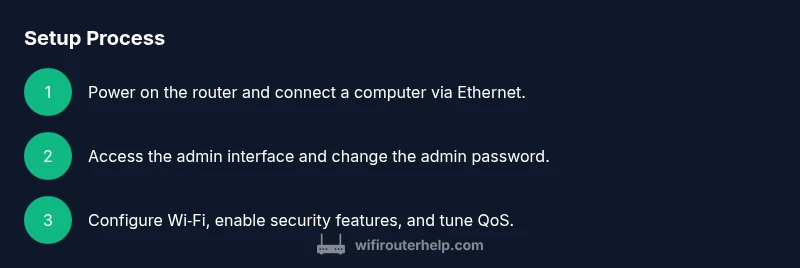
Unbox the Starlink Mini Router and connect it to a power outlet. If you plan to perform a wired setup, connect a computer or laptop to the router’s LAN port with an Ethernet cable. Power on the device and give it a minute to boot. Use the Starlink app or a web browser to access the router’s admin interface, usually via a local IP address such as 192.168.1.1, then follow the on-screen prompts to create a primary Wi‑Fi network. It’s a good practice to set a strong admin password and enable two-factor authentication if available. Keep a backup plan: note the default credentials as a last resort but change them immediately after access is granted.
If you encounter login issues, reset the device using the recessed reset button for a clean start, and retry the setup from scratch. For many users, the simplest path is to let the official Starlink app guide the initial activation while using a browser to fine-tune settings later.
Security Essentials: Passwords, Firmware, and Network Isolation
Security is foundational. Change the default admin password to a strong, unique password and enable two-factor authentication if offered. Create a primary Wi‑Fi network with a robust passphrase, using WPA2 or WPA3 encryption where available. Consider enabling a guest network to isolate visitors from your main devices. Disable WPS if present, and review connected devices periodically to identify unfamiliar equipment. Regular firmware updates are essential for protection against new threats, so enable auto-update or check for updates at least monthly.
Beyond basic protections, segment your network: place IoT devices on a separate SSID and keep your primary devices on a protected network. This limits lateral movement in case of a compromised device and helps preserve your main work and entertainment devices from cross-network risks. WiFi Router Help’s approach emphasizes balance between usability and security, ensuring you don’t degrade everyday performance while strengthening defenses.
Performance Tuning: QoS, Band Steering, and Backhaul Options
Performance tuning helps you get the most from your Starlink Mini Router. Start with enabling band steering so devices can automatically roam to the least congested band, preserving speeds across multiple devices. Configure Quality of Service (QoS) rules to prioritize latency-sensitive tasks such as video calls or gaming over less critical traffic like background cloud backups. If you have the option, use a wired backhaul for devices that require stable bandwidth, as wired connections typically outperform wireless in reliability and speed.
Monitor channel usage and adjust the 2.4 GHz and 5 GHz bands to minimize interference from neighboring networks. In crowded environments, selecting a manual channel can improve performance; use a Wi‑Fi analyzer app to identify the clearest channel. Remember that Starlink’s satellite network can experience latency variability; plan expectations accordingly and set QoS to cushion the impact of occasional hiccups.
Extending Coverage: Placement, Mesh, and Additional Access Points
Placement is critical for coverage. Position the Starlink Mini Router high off the floor and in a central location away from thick walls, large metal appliances, and microwaves. If your home has dead zones, a mesh system or additional access points can help, but ensure they are configured to work harmoniously with your Starlink router. For mesh scenarios, enable bridge mode where appropriate to prevent double NAT, or use a dedicated subnet with clear firewall rules to maintain security.
Consider using wired connections to satellites or access points where possible, as this reduces wireless contention and improves overall experience for devices that require low latency. If you must deploy in a large home, a strategic placement plan with a basic map will help you plan where to put extenders or access points for the best coverage. WiFi Router Help recommends testing in multiple rooms and times of day to validate your layout.
Troubleshooting Common Issues
If devices can’t connect to the network, verify the SSID and password, ensure the router is broadcasting, and check for any MAC address filtering features that might block new devices. Slow speeds can stem from firmware, interference, or suboptimal channel selection; performing a quick reset and reconfiguring QoS and bands often resolves many issues. If the internet light shows issues, verify the Starlink service status and confirm the router has the latest firmware. Router logs can provide clues about repeated authentication failures or DHCP conflicts.
When problems persist, try a factory reset and reconfigure from scratch. Document the changes you make to help diagnose what worked or didn’t work after each attempt. In persistent cases, contact Starlink support with your model details and the steps you’ve already tried for faster resolution.
Maintenance and Long-Term Care
Regular maintenance keeps your Starlink Mini Router performing well. Schedule periodic firmware checks and apply updates promptly, as security and performance improvements are common with newer releases. Back up your configuration so you can restore quickly after a reset or hardware change. Periodically review connected devices and revoke access for anything no longer in use. Finally, clean the device’s vents to prevent overheating, which can throttle performance over time and shorten device lifespan.
Tools & Materials
- Smartphone or computer with web browser(Used to access router admin page and Starlink app for activation.)
- Ethernet cable(For wired initial configuration and optional backhaul.)
- Starlink Mini Router device(The primary hardware for the setup.)
- Power adapter and outlet(Required to boot the router.)
- User credentials for Starlink account(Needed during activation and setup.)
Steps
Estimated time: 60-90 minutes
- 1
Power on and connect
Plug in the Starlink Mini Router and wait for it to boot. If you’re using a wired setup, connect your computer to the router with an Ethernet cable to access the admin interface. The goal is to establish a reliable link to begin configuration.
Tip: Give the device a full minute to boot before attempting access. - 2
Access admin interface
Open the Starlink app or browser to reach the router’s admin page. Typical local address is 192.168.1.1, but check the label on the device if it differs. Sign in with your account credentials and prepare to customize settings.
Tip: If you can’t reach the interface, try a wired connection and disable VPNs which can block local network access. - 3
Change admin password
Create a strong, unique password for the admin panel and enable two-factor authentication if available. This is the most critical first step to stop unauthorized access.
Tip: Use a passphrase rather than a simple password and store it in a password manager. - 4
Set up the primary Wi‑Fi network
Create your main SSID and a robust passphrase for 2.4 GHz and 5 GHz bands. Enable WPA3 if offered or at least WPA2. Document the network names for future devices.
Tip: Prefer different SSIDs for guests and main devices to keep management simple. - 5
Enable security features
Turn on firewall protections and consider enabling a guest network to isolate visitors from your main devices. Review connected devices and remove anything unfamiliar.
Tip: Turn off WPS if available to close a common entry point for attackers. - 6
Configure QoS and performance rules
If your router supports QoS, prioritize latency-sensitive traffic like video calls and gaming. Enable band steering if possible to keep devices on optimal bands.
Tip: Test latency with a quick speed test after applying QoS rules. - 7
Choose backhaul options
If you have wired backhaul opportunities, connect critical devices via Ethernet to improve reliability. For larger homes, consider a mesh strategy with compatible access points.
Tip: Wired backhaul reduces wireless contention and typically improves stability. - 8
Placement and network test
Experiment with router placement for best coverage. Run tests in multiple rooms and times to confirm stable speeds and coverage.
Tip: Aim for a central, elevated position away from walls and metal appliances. - 9
Save, backup, and monitor
Save your configuration, export a backup if available, and monitor performance over the next few days. Schedule periodic reboots to refresh the system as needed.
Tip: Keep a record of settings in case you need to restore later.
People Also Ask
What is the Starlink Mini Router and how does it differ from the standard Starlink router?
The Starlink Mini Router is a compact unit that provides the Starlink gateway service along with built-in routing. It’s designed for home use with straightforward setup, while longer-range or more complex setups may benefit from additional access points or a mesh system. The core concepts are consistent: connect to Starlink, then configure your LAN and Wi‑Fi as you would with a typical home router.
The Starlink Mini Router is a compact gateway with built‑in Wi‑Fi. For larger homes, plan for extra access points or a mesh setup for better coverage.
How do I change the admin password on the Starlink Mini Router?
Open the router’s admin page or Starlink app, locate the security or administration section, and replace the default password with a strong, unique one. If available, enable two‑factor authentication. Save changes and log out, then log back in with the new credentials.
Go to the admin panel, update the admin password, enable two‑factor authentication if possible, and save.
Can I use my own router with Starlink Mini Router?
Yes, you can use your own router for features like enhanced QoS or more advanced security, but ensure proper network configuration to avoid double NAT. Often, people place the Starlink Mini Router in bridge or pass-through mode if supported, or connect a second router in a separate subnet.
You can add your own router, but you may need to adjust NAT or bridge settings for best results.
Why is my Starlink Mini Router not providing a Wi‑Fi signal to all rooms?
This is typically due to placement, interference, or limitations of the router’s range. Try moving the router to a central, elevated location, reduce interference from microwaves or cordless phones, and consider a wired backhaul or mesh system for larger homes. Running a quick room-to-room signal check helps identify dead zones.
Move the router higher and closer to the center of your home, and add an extender or mesh if needed.
How do I update the firmware on the Starlink Mini Router?
Open the Starlink app or router admin page and check for firmware updates. If auto-update is available, enable it. After updating, reboot the device to ensure changes take effect and test a few devices to confirm stability.
Check for updates in the app or admin page, enable auto-update, then reboot and test.
How can I set up a guest network on the Starlink Mini Router?
In the router settings, enable a guest network with its own SSID and password. Limit guest access to the internet only and disable access to local devices to protect your main network. Regularly review guest access and revoke it when it’s no longer needed.
Turn on a guest network with isolated access and monitor who connects.
Watch Video
What to Remember
- Secure the admin interface with a strong password.
- Prioritize Wi‑Fi security with updated encryption.
- Use QoS and, if possible, wired backhaul for best performance.
- Regularly update firmware and back up configurations.