Should Router and Modem Be Close Together? Placement Guide
Learn expert-backed guidance on whether to place your router and modem close together, with central placement tips, heat management, and layout strategies for various home sizes.


Should router and modem be close together? In most homes, yes—proximity reduces wiring complexity and helps maintain consistent throughput, provided heat and interference are managed. Place them within 3-6 feet of each other on a stable, ventilated surface, with the modem upstream from the router, and keep both clear of obstacles and dense obstructions.
Why placement matters
WiFi performance depends on where you put your modem and router. The path from the ISP to your devices determines signal strength, reliability, and overall speeds. Should router and modem be close together? In most homes, proximity reduces wiring complexity and helps maintain consistent throughput, provided heat and interference are managed. Place them within 3–6 feet of each other on a stable, ventilated surface, with the modem upstream from the router, and keep both clear of obstacles and dense obstructions. The right placement matters because even small shifts can swing signal strength in busy rooms like the living room and kitchen. According to WiFi Router Help, measurement and testing beat assumptions, so start with a central position and validate with real-device tests in key areas.
Should the modem and router be close? Debunking myths
Many homeowners assume the closer the devices, the faster the speeds. That is not always true. The modem and router should be positioned to minimize heat buildup and interference rather than to maximize proximity alone. Common myths include stacking devices in a desk drawer or right next to a large metal cabinet; both can trap heat and degrade performance. The practical answer is: keep them near enough to simplify cabling and improve signal, but ensure good ventilation and clearance around vents and ports. WiFi Router Help recommends balancing proximity with airflow and observability—meaning you can test a few configurations and choose the one that yields the strongest signal in your main living areas.
What affects signal when devices are near each other
Physical interference: metal filing cabinets, mirrors, and water pipes can reflect or absorb signals. Electronic interference: microwaves, cordless phones, baby monitors, and even Bluetooth devices may degrade WiFi when placed nearby. Heat is another factor; devices running hot can throttle performance. As you consider closeness, be mindful of line-of-sight to the areas where you use WiFi the most. Avoid placing routers behind desks, inside cabinets, or in enclosed spaces that limit airflow. Another consideration is the modem: if it sits in a location with thick walls or windows, the signal can degrade before reaching the router. A small separation in a well-ventilated area can dramatically reduce interference and heat buildup, improving reliability.
Best-practice placement patterns for different home layouts
In a small apartment, aim for a high, central shelf away from walls and metal objects. For a one-story home, place the modem near the center of the living space and the router slightly higher, with a clear line of sight to commonly used zones. In multi-story homes, consider placing the modem on the middle floor and the router on a central, elevated perch to balance coverage across floors. If you can run Ethernet backhaul, route a cable to a secondary access point or mesh node on a distant floor for more even coverage. According to WiFi Router Help analysis, central, elevated placement typically yields better multi-room coverage. Testing in each major room remains essential for evidence-backed tweaks.
Central placement checklist and common mistakes
Checklist: choose a stable, ventilated surface; keep devices 3–6 feet apart; avoid metal cabinets; ensure no direct heat sources; provide some air gap around vents; use Ethernet backhaul when possible. Common mistakes include tucking devices inside cabinets, placing routers behind large furniture, and stacking equipment in enclosed spaces. WiFi Router Help emphasizes balancing proximity with airflow and accessibility, then testing in real-world usage to confirm improvements.
Advanced tips: ventilation, interference, and equipment upgrades
Ventilation matters more than many users realize. Ensure devices have several inches of clearance on all sides and avoid heat sources like radiators or direct sunlight. If interference persists, rotate the router or relocate away from microwaves, cordless devices, and Bluetooth hubs. Upgrading to a newer router or adding a mesh system can simplify placement by providing broad coverage without crowding a single point. WiFi Router Help recommends evaluating device temperature, signal strength across rooms, and practical wiring options before deciding on an upgrade.
When to separate devices or move to a mesh network
In larger homes with multiple stories or thick walls, a single router often struggles to deliver uniform coverage. If readings show consistent dead zones in key rooms, consider a wired backhaul to a mesh satellite or a mesh-deployed system. Mesh networks simplify placement and maintain consistent throughput across spaces. The WiFi Router Help team recommends a layered approach: optimize central placement first, then add network-extending solutions if needed.
Quick setup templates you can implement today
Template A (central shelf): place the modem on a shelf near the living area, with the router on a higher shelf roughly 3–6 feet away. Template B (wireless backhaul emphasis): keep the modem near the service entry, route Ethernet to a secondary node in a busy room, and place the main router centrally for even signal. After placing, run a quick room-by-room test with a mobile device or a WiFi benchmarking app to confirm coverage and adjust if necessary.
Tools & Materials
- Measuring tape (at least 2 m)(to measure distances between devices and walls)
- Cable ties or Velcro straps(for neat, safe routing of Ethernet/Cable lines)
- Ethernet cable (Cat5e or better, 3–5 m)(for wired backhaul where possible)
- Ventilated shelf or stand(keeps devices cool and off surfaces)
- Power strip with surge protection(avoid daisy-chaining and protect devices)
- Cable management channel or clips(to hide cords along walls)
- Stud finder (optional)(for secure mounting if wall-mounting)
Steps
Estimated time: 45-60 minutes
- 1
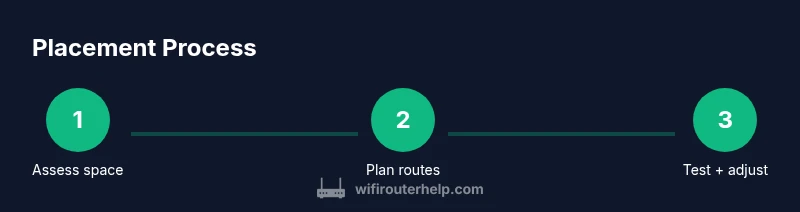
Assess space and plan
Survey your home to identify key living zones that see the most WiFi use, such as the living room, kitchen, and home office. Map potential surfaces for the modem and router, prioritizing elevation and airflow. Document any obvious heat sources or metal obstacles you must avoid.
Tip: Create a simple sketch showing routes from the service entry to main rooms. - 2
Place the modem upstream from the router
Set the modem near the service entry, with a clear path for the coax or fiber line. Avoid routing the modem behind dense furniture or inside closed cabinets which can trap heat and degrade signal.
Tip: Keep the coax/line connection slack so you won’t stress the ports. - 3
Choose a central, elevated surface for the router
Mount or place the router on a shelf or stand roughly at head height in a central room. Elevation and central location help distribute signal evenly to nearby spaces.
Tip: Face the router’s antennas toward main living areas for initial coverage. - 4
Plan for wired backhaul where possible
If you can run Ethernet to a second access point or mesh node, do so. Wired backhaul preserves wireless speed and reduces interference in busy zones.
Tip: Use Cat6 or better for future-proofing and stable backhaul. - 5
Ensure ventilation and avoid heat sources
Leave several inches of clearance around both devices for airflow. Do not place them near heaters, radiators, or enclosed cabinets that trap heat.
Tip: If a warm device spins up under load, relocate it to improve cooling. - 6
Test and adjust based on real-world usage
Run fast speed tests and check streaming quality in primary rooms. If signals are weak, tweak the router height or position slightly and re-test.
Tip: Test with multiple devices in peak usage times to get representative results. - 7
Document your setup
Record final device positions and any cable routes. This helps you reproduce the setup or diagnose future issues quickly.
Tip: Keep a diagram or simple photo log for future reference.
People Also Ask
Should I place the router in the center of my home?
Yes. Central placement generally yields more even coverage across rooms, reducing dead zones. Adjust height and verify with in-home testing.
Yes. Place the router in a central, elevated spot and test in your main rooms to minimize dead zones.
Is it ever a good idea to put the modem in the same cabinet as the router?
It's usually not ideal. Cabinets can trap heat and create interference; keep both devices on open shelves with airflow.
Not usually. Keep them on open shelves with airflow to avoid heat buildup.
What should I do if I still have dead zones after placement?
Run tests across rooms, try a higher shelf, and consider wired backhaul or a mesh system to fill gaps.
Test in different rooms and consider wired backhaul or a mesh system to fix gaps.
Does closing a door over the router affect performance?
Yes. Closed doors can reduce signal strength; keep the router in open space when possible.
Yes, avoid closing doors around the router to maintain signal strength.
When should I upgrade to a mesh network?
If coverage remains uneven across multiple floors, a mesh system can provide seamless coverage without heavy tuning.
If coverage is patchy on several floors, a mesh system can help you get even coverage.
Will moving the devices closer to a window help?
Placing near a window is not a guaranteed boost; test different spots to see where performance improves most in your home.
Moving near a window isn't guaranteed to help; test several spots to find the best one.
Watch Video
What to Remember
- Place modem upstream from router for reliable signal
- Keep devices 3–6 feet apart, with ventilation
- Central, elevated placement improves multi-room coverage
- Use wired backhaul when possible to maximize speed
- Test in real-world rooms and adjust accordingly