Should Router Be Near TV: A Practical Guide to Placement
Explore whether your router should be near the TV and learn practical placement strategies to optimize streaming, gaming, and overall home WiFi performance.


Short answer: should router be near tv is situational. In most homes, central, elevated placement provides the best balance of coverage for streaming devices and mobile devices. Avoid placing the router directly behind or beside the TV, since the screen and AV equipment can obstruct signals. If you must share space, use wired backhaul or a mesh system to maintain performance.
should router be near tv: placement principles
When deciding should router be near tv, the key factors are signal reach, interference, and practical layout. In most homes, central, elevated placement provides the best balance of coverage for streaming devices and mobile devices. Avoid placing the router directly behind or beside the TV, since the screen and AV equipment can obstruct signals. According to WiFi Router Help, location symmetry often yields smoother performance across the living space. Consider the room's furniture, wall materials, and where people sit most of the time.
The role of bands, channels, and physical layout
Modern WiFi routers broadcast on both 2.4 GHz and 5 GHz bands. The 2.4 GHz band travels farther but is more prone to congestion from neighbors, microwaves, and Bluetooth devices; the 5 GHz band offers higher speeds but shorter reach. Placement near the TV can sometimes force devices to switch bands or contend with the TV’s electronics. WiFi Router Help analysis shows that positioning near large metal objects or dense furniture can reflect signals and create dead zones. To maximize reliability, avoid stacking a router directly on a metal shelf or inside a closed cabinet, and aim for open space.
Central placement strategies for best overall coverage
A central placement strategy means your router sits on a high shelf or table near the center of the home, not tucked into a corner. Elevation helps signals clear furniture and reach upstairs rooms. Keep the router at least a few feet from the TV and other electronics to minimize EMI. According to WiFi Router Help, you’ll often see the most consistent coverage when the router is about halfway between extreme corners of the home, with clear lines of sight to main seating areas. If your living space is open concept, a single central unit may suffice; in larger homes, consider a mesh system to eliminate dead zones.
Alternatives if you must place near the TV
If layout constraints push the router close to the TV, you can still preserve performance with a few techniques. Use 5 GHz as the primary band for TV streaming devices and allocate the 2.4 GHz band to less demanding devices. Consider a wired backhaul using Cat6 to connect a secondary access point or a small mesh satellite near the TV, reducing wireless hop counts. A mesh system can distribute coverage evenly without forcing you to place the main router in a less ideal location, while ensuring stable streaming across rooms.
Practical layout checklist and quick wins
Use this practical checklist to verify placement:
- Place the router on a shelf, not inside a cabinet.
- Elevate the device and aim antennas upward.
- Keep it several feet away from the TV and large metal objects.
- Test with devices in the main seating areas at different times of day.
- If coverage gaps remain, consider a mesh or wired backhaul solution.
If done correctly, you’ll notice stronger signals in living areas and fewer buffering events during high-definition streaming.
Authority sources and recommended reading
For further guidance on interference and best practices, see official resources from reputable bodies and publications. This section consolidates expert guidance from government and industry sources to support practical decisions about router placement and network design.
Tools & Materials
- Cat6 Ethernet cable(For wired backhaul when available)
- WiFi analyzer app or device(Scan signal strength and channel usage in main rooms)
- Measuring tape or ruler(Helpful to gauge distance to seating areas)
- Screwdriver or mounting hardware(Optional for wall-mounts or shelf supports)
- Smart plug or power meter (optional)(Monitor power usage and ensure outlet spacing)
Steps
Estimated time: 25-45 minutes
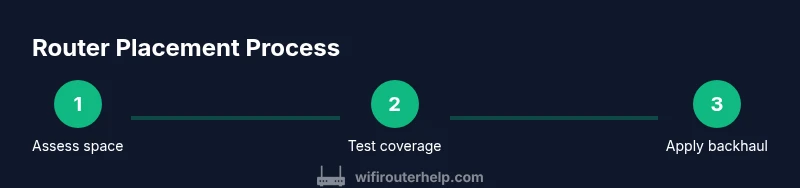
- 1
Assess space and goals
Survey the living area, TV location, seating, and where streaming devices are used. Define whether your priority is overall coverage or TV streaming performance. This sets the criteria for placement and testing.
Tip: Create a simple room map marking routes from the router to seating areas. - 2
Test current coverage
Run quick speed tests in the main rooms and near the TV with a laptop or phone. Note any weak spots or buffering during peak hours.
Tip: Test on both 2.4 GHz and 5 GHz bands to understand band-specific performance. - 3
Choose candidate location
Select a central, elevated spot away from the TV and large metal objects. Ensure the path to seating areas is clear and not blocked by furniture.
Tip: Position the router on a shelf with antennas oriented vertically for best coverage. - 4
Connect with wired backhaul if possible
If you have Cat6 wired options, connect to a secondary access point or switch to reduce wireless hops. This improves stability for streaming devices.
Tip: Prefer wired connections over wireless when routing to the TV or media devices. - 5
Test again and optimize with mesh
If you still see dead zones, deploy a mesh satellite or extender near the TV or in other weak spots. Use the router’s app to optimize channels and placement.
Tip: Let the app guide satellite placement for best handoff between nodes. - 6
Document and finalize
Record the final placement and tested speeds, then label network names and prioritize devices for future adjustments.
Tip: Keep your optimize steps documented for future updates or room reconfigurations.
People Also Ask
Should I place the router near the TV?
Placing the router near the TV is not mandatory. If space allows, central elevated placement generally provides better overall coverage. If you must place it near the TV, use a wired backhaul or a mesh system to keep streaming stable.
Avoid placing the router directly next to the TV if possible. If you must, use wired backhaul or a mesh system to maintain streaming.
Will the TV cause interference with WiFi?
TVs and related electronics can contribute interference on some frequencies, especially in 2.4 GHz. Using the 5 GHz band for streaming devices and keeping the router elevated helps mitigate issues.
TVs can cause some interference on 2.4 GHz; switch to 5 GHz for streaming devices when possible.
Is 2.4 GHz better for close-range TV streaming?
2.4 GHz travels farther but is more congested; 5 GHz is faster but shorter reach. For TV streaming, 5 GHz often provides more reliable performance if the TV is near the router but not too far away.
2.4 GHz goes farther but slower; 5 GHz is faster but shorter distance, so use 5 GHz for near-TV streaming if possible.
Can a mesh system help if the router must be near the TV?
Yes. A mesh system extends coverage without forcing the main router into a suboptimal spot. Place the main unit centrally and add satellites closer to the TV to improve signal locally.
Yes. A mesh system can extend coverage even when the main router can’t be perfectly central.
How do I verify I’ve placed the router optimally?
Run speed tests in key seating areas after moving the router. Adjust channel selection and antenna orientation based on results, and re-test until you reach stable performance.
Test speeds in living areas after each move, adjust channels, and re-test until stability is achieved.
Is it ever a good idea to hide the router in a cabinet?
Hiding a router reduces airflow and can block signals. If you must conceal it, place it where ventilation is adequate and avoid metal cabinets that trap signals.
Avoid cabinets that trap heat and block signals; if unavoidable, pick a well-ventilated spot.
Watch Video
What to Remember
- Place centrally and elevated for balanced coverage
- Avoid direct proximity to the TV unless using backhaul or mesh
- Test speeds in key rooms and adjust accordingly
- Use wired backhaul or mesh for best streaming reliability