Set Up FiOS Router: Complete Step-by-Step Guide
Learn how to set up your FiOS router with a clear, step-by-step guide covering login, placement, security, and troubleshooting to optimize your home Wi-Fi.


Goal: set up your FiOS router and secure your home network. Before you start, locate the router, power supply, Ethernet cable, and your FiOS account credentials. In this guide you’ll learn how to power on, log in, set a unique Wi‑Fi name and strong password, update firmware, and troubleshoot common connectivity issues for stable home Wi‑Fi.
Why FiOS Router Setup Basics Matter
A solid FiOS router setup is the foundation of a reliable home network. According to WiFi Router Help, taking the time to configure the gateway correctly saves hours of frustration and reduces dropped connections. In practice, the simple steps below will set you on the path to a faster, more stable Wi-Fi experience across all rooms. The goal is not to chase every feature on offer, but to build a robust, secure, and easy-to-manage home network. You will learn why placement, password strength, and firmware updates matter, and how these components work together to improve speed, range, and reliability. This guide focuses on practical, repeatable steps you can follow for set up fios router that works for most homes.
Prepare: What You Need Before You Start
Before touching any cables, gather the essentials and verify your FiOS account details. You will typically need the FiOS router, its power adapter, an Ethernet cable, and a device with a web browser (phone, tablet, or computer). If you have a paper or digital copy of your account credentials, keep them handy. Some people also prefer a notebook to record the final Wi‑Fi name (SSID) and password. WiFi Router Help emphasizes starting with a clean slate: remove previous network fingerprints, note any existing settings you plan to change, and ensure you have time to complete the setup without interruptions. A calm, well-lit workspace helps you stay organized as you set up fios router.
Connecting Your FiOS Router: Hardware Steps
Power down the ONT or gateway, then connect the FiOS router via Ethernet to the appropriate port on the ONT/modem. Place the router on a stable surface away from metal objects that could block signals. Plug in the power adapter and wait for the device to boot fully, usually indicated by steady indicator lights. If you’re upgrading from an older device, reuse your existing Ethernet cable and store any outdated equipment for future reuse or recycling. This hardware groundwork prevents miswirings and ensures the configuration interface responds reliably when you start configuring the router.
Accessing the Router Interface: Login and Initial Settings
Once the router is powered, open a web browser and navigate to the gateway’s default IP address (commonly 192.168.1.1 or 10.0.0.1). You’ll be prompted to log in with the admin credentials found on the device label or your account documentation. After logging in, change the default administrative password to something unique and 12+ characters long. If you don’t see the login page, try a different device on the same network or reset the router to factory defaults as a last resort. This step protects against unauthorized access and sets the stage for secure Wi‑Fi configuration.
Configuring Wi-Fi: SSID, Password, and Security
Navigate to the Wireless settings section and create a memorable network name (SSID) that won’t reveal personal information. Use a strong password—ideally a 16+ character passphrase with a mix of letters, numbers, and symbols. For compatibility, enable WPA3 if supported, otherwise WPA2; disable WPS for better security. Consider segregating guest traffic from your main network, creating a separate SSID and password for visitors. Save changes and reboot the router if prompted. This is where you start shaping your home network’s accessibility and defense against intruders.
Firmware Updates and Advanced Settings
Check for router firmware updates and apply them. Updates improve security, fix bugs, and sometimes enhance performance. If you see options for advanced features (QoS, NAT, UPnP), enable only what you need to minimize risk and complexity. For most homes, enabling QoS to prioritize video calls or gaming traffic can yield noticeable benefits. Keep a backup of your current configuration before making any major changes so you can revert if something doesn’t work as expected.
Placement and Interference: Get the Best Coverage
Position your router centrally and elevated, away from walls and metal objects that can block signals. Avoid placing it near microwaves, cordless phones, or dense furniture that can absorb radio waves. If you have multiple floors, experiment with a higher perch in common living areas to maximize coverage. For larger homes, consider mesh extenders or a secondary access point to eliminate dead zones. Small changes in placement can dramatically improve throughput and reliability across rooms.
Troubleshooting Common Problems
If devices report weak signal or intermittent drops, start with a simple reboot of the router and modem. Verify all cables are snug and antennas (if any) are correctly positioned. Run a speed test to confirm the expected broadband performance, and compare results to your service plan. If problems persist, check for neighbor interference, ensure firmware is current, and review security settings to ensure they aren’t overly restrictive. When all else fails, resetting to factory defaults and starting the setup again can save hours of frustration.
What Next: Routine Maintenance for Stability
Schedule periodic firmware checks and keeping a log of changes helps maintain stability over time. Revisit your Wi‑Fi password every year or after a security breach, and audit connected devices to ensure none are unknown or misbehaving. Regularly test coverage in far corners of the home and adjust placement or add extenders as needed. Document your network details in a secure location so you can reconfigure quickly if a device needs a reset or a new password.
Tools & Materials
- FiOS router and power adapter(Ensure you have the latest model and a clean power source.)
- Ethernet cable(Use for stable, wired access during setup.)
- Device with a web browser(Phone, tablet, or computer to access the router interface.)
- FiOS account credentials(Keep handy for login and activation steps.)
- Notebook or password manager(Record SSID and password securely.)
Steps
Estimated time: 25-40 minutes
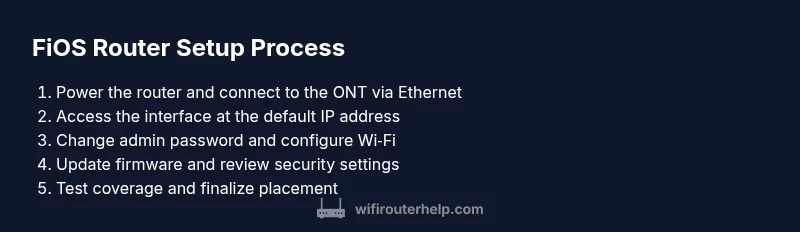
- 1
Prepare and gather gear
Collect the FiOS router, power adapter, Ethernet cable, and a device with a browser. Have your FiOS account credentials ready. This upfront check prevents mid‑process hiccups and sets a clear path for the rest of the setup.
Tip: Double‑check that you have the correct router and power supply before you start. - 2
Connect hardware to power and ONT
Power off the gateway, connect the router to the ONT or modem via Ethernet, and place it on a stable surface away from obstructions. Turn the router on and wait for the status LEDs to indicate a ready state.
Tip: Avoid placing the router on a metal shelf or inside a cabinet to prevent signal damping. - 3
Access the router interface
Open a web browser and enter the router’s default IP address (commonly 192.168.1.1 or 10.0.0.1). Log in using the credentials from the device label or your account. If you can’t access the page, try another device on the same network or reset if needed.
Tip: If you’ve changed the login before, use your saved credentials; otherwise reset as a last resort. - 4
Change the admin password
Navigate to the administration or security section and replace the default password with a unique, long passphrase. This protects against unauthorized changes to your network.
Tip: Use a passphrase that is easy for you to remember but hard for others to guess. - 5
Configure Wi‑Fi name and security
Set a new SSID for your 2.4 GHz and 5 GHz bands if supported, and choose a strong WPA2/WPA3 passphrase. Disable WPS if available to reduce risk of unauthorized access.
Tip: Keep network names neutral to avoid broadcasting personal info. - 6
Update firmware and verify settings
Check for firmware updates and apply them. Verify your Wi‑Fi settings, then reboot to ensure all changes take effect. Confirm devices can connect to your new network.
Tip: Updating firmware can fix known security issues and improve stability. - 7
Test coverage and finalize
Test signal strength in common areas, adjust placement if needed, and consider guest network separation for visitors. Keep a note of your SSID and password in a secure place.
Tip: Small placement tweaks can dramatically improve coverage in large or multi‑story homes.
People Also Ask
Do I need to reset the gateway before starting the setup?
Only reset if you cannot access the router interface. A factory reset returns default login credentials and clears custom settings. Record any important changes you plan to reapply after reset.
Only reset if you can't access the router interface. A factory reset restores defaults and clears saved settings.
What should I do if I cannot access the router login page?
Ensure the device is on the same network, check the IP address, and try another browser. If needed, reboot the router and the device. You may also try a direct connection via Ethernet to avoid wireless issues.
If you can’t reach the login page, check the network, try a different browser, and reboot devices. A wired connection often helps.
Is a guest network worth enabling?
Yes, a guest network isolates visitors from your main devices, improving security. It’s simple to set up and can be turned off when not needed.
A guest network is a smart way to keep visiting devices separate from your main network.
How often should I update the firmware?
Check for updates at least every few months or whenever prompted by the router’s interface. Updates often include security improvements and bug fixes.
Check for updates periodically, especially after major changes or security advisories.
What if devices still disconnect after setup?
Try rebooting the router and your devices, recheck SSID/password, and ensure there’s no interference. If the problem persists, consider factory reset and reconfiguring from scratch.
If connections drop, reboot devices, revalidate settings, and check for interference.
Can I use a different router with FiOS service?
Some FiOS services allow bridging or placing a third‑party router behind the gateway. This can complicate support, so review your service terms and test thoroughly.
You can use another router, but it may complicate support—test and document settings.
Watch Video
What to Remember
- Set realistic Wi‑Fi goals before configuring.
- Secure your router with strong credentials and current firmware.
- Test coverage across all living spaces and adjust placement as needed.
- Document network details securely for quick recovery after resets.