Router Without WiFi for Home: A Complete How-To Guide
Learn how to use a router without WiFi for a wired-only home network. Disable wireless, configure LAN, and troubleshoot for a stable, secure wired setup.


You can repurpose a standard home router as a wired-only gateway by disabling its wireless radios and ensuring wired devices receive DHCP and NAT services. This guide walks you through prerequisites, disabling WiFi, wiring devices, and securing a reliable, wired-only network for a home environment. The steps below are designed for homeowners and tech enthusiasts alike.
What it means to run a router without wifi for home
Running a router without wifi for home means using the device purely as a wired networking gateway. The WiFi radio is disabled or never activated, and all devices connect via Ethernet. This setup can improve security, reduce interference, and often stabilize latency for desktops, consoles, or servers. According to WiFi Router Help, a wired-only configuration can still deliver NAT, DHCP, and firewall protections, while letting you keep a dedicated wired network. The WiFi Router Help team found that most modern routers support deactivating wireless radio without compromising wired performance. In this guide, we’ll walk through planning, disabling, and wiring your home network for reliability.
When you’d want a wired-only router setup
There are legitimate reasons to run a router without wifi for home: you want maximum stability for latency-sensitive tasks like online gaming, you have a small number of wired devices, or you’re trying to minimize wireless interference from neighbor networks. A wired-only setup can also improve security by reducing attack surfaces; if guests don’t need internet access, you can keep wifi off and still route traffic for primary devices. In homes with mature Ethernet runs, a wired approach can simplify network management and reduce power draw. This section outlines practical scenarios and expectations, plus how to plan a safe, scalable wired network that remains easy to manage for a non-tech-savvy homeowner.
Prerequisites and planning before you begin
Before you touch anything, map your home network. List all devices needing a wired connection, count LAN ports, and decide whether this router will be the main gateway or a wired bridge behind another gateway. Gather essential tools and credentials, including the router’s admin username and password, and identify the router’s IP address for the web interface. Back up current configuration if possible. If you’ll expand later, consider whether a dedicated switch or additional access points will be needed. Finally, ensure you have a plan to test connectivity after changes and a rollback path if something goes wrong.
Tools & Materials
- Router with wired capability(Must support disabling wireless radios and have multiple LAN ports.)
- Ethernet cables (Cat5e/Cat6)(At least one per wired device; plan extra for future devices.)
- Computer or smartphone to access router admin page(Used to log in and modify settings.)
- Access to router admin interface (IP address/username/password)(Know the router’s default gateway (e.g., 192.168.0.1 or 192.168.1.1) or have it documented from the manual.)
- Optional: Ethernet switch(Needed if you have more wired devices than router LAN ports.)
Steps
Estimated time: 30-60 minutes
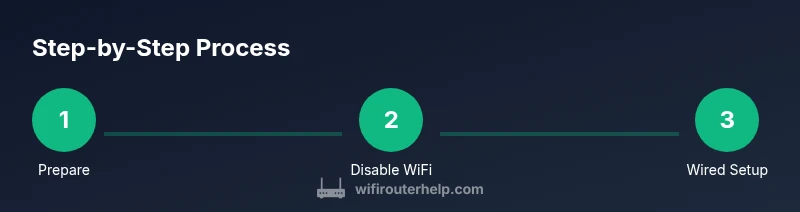
- 1
Prepare your wired network plan
Inventory devices that will connect via Ethernet, tally available LAN ports, and decide whether this router will be the primary gateway or a wired bridge behind another gateway. Confirm you can access the router’s admin interface and back up current settings if possible.
Tip: Create a simple diagram of cable runs and IP address assignments to avoid conflicts. - 2
Log in to the router admin page
From a wired computer, open a web browser and enter the router’s IP address. Enter the admin username and password. If you cannot login, verify you’re on the correct network and check for reset procedures in the manual.
Tip: If you’ve never changed the password, update it to a strong, unique credential. - 3
Disable wireless networks (2.4 GHz and 5 GHz)
Navigate to the Wireless settings section. Turn off both the 2.4 GHz and 5 GHz radios or disable the entire wireless feature. Save changes and confirm that no WiFi networks broadcast from the router.
Tip: Also disable any guest networks to ensure a completely wired environment. - 4
Configure LAN and DHCP for wired devices
In LAN settings, ensure the router is serving DHCP to wired clients if this is the primary gateway. If you’re using a separate DHCP server upstream, disable DHCP on this router to avoid conflicts. Create a clear DHCP scope and document the IP range.
Tip: Reserve static IPs for critical devices (e.g., servers, NAS) to simplify management. - 5
Connect wired devices to LAN ports
Plug each device into a LAN port. If you’re short on ports, connect a network switch and expand the wired footprint. Test connectivity by checking for internet access on each device and ensuring admin access remains reachable.
Tip: Label cables at both ends to simplify future changes. - 6
Secure the wired network
Update firmware if available, set a strong router admin password, and disable remote management if you don’t need it. Enable a firewall policy if your router supports it and verify there are no open ports that could be exploited.
Tip: Schedule periodic firmware checks as part of routine maintenance. - 7
Optional: add a wired access point or switch
If more wired devices are planned, deploy a dedicated Ethernet switch or a wired access point to extend coverage. Maintain consistent IP addressing and avoid IP conflicts by aligning with your DHCP scope.
Tip: Keep a separate, labeled VLANs or IP ranges if you have complex needs. - 8
Test and monitor the wired network
Run end-to-end tests from multiple devices, check latency to the gateway, and confirm stable internet access. Monitor for any intermittent drops and adjust cabling or port configurations as needed.
Tip: Document observed performance so you can troubleshoot quickly later.
People Also Ask
Can I use a router without wifi for home?
Yes. You can disable the wireless radios and use the router strictly as a wired gateway, providing NAT, DHCP, and firewall services to wired devices.
Yes. You can turn off the WiFi on your router and use it only for wired devices.
Will turning off wifi affect my internet speed?
No. If wired connections are used, the internet speed to wired devices remains governed by your broadband plan and the wired network’s efficiency. Wireless capabilities do not influence wired traffic.
Not for wired devices—speed is determined by your broadband and wired routing.
Do I need a separate access point if I disable wifi?
No, not necessarily. If you only need wired access, a switch provides more ports. An access point is only needed if you later decide to reintroduce wireless coverage.
Only if you want to add wireless later; otherwise, a switch suffices for more wired ports.
How do I secure a wired-only network?
Keep firmware up to date, use a strong admin password, disable remote management, and use a firewall. Consider segmenting networks if you have sensitive devices.
Update firmware, secure logins, and keep remote access off.
What if my router has no option to disable wifi?
Consult the manual for alternative methods such as firmware updates or using a bridge/AP mode. If unsupported, consider replacing with a device that supports wired-only operation.
If there’s no disable option, check for bridge/AP options or upgrade the device.
Can I still use guest networks if wifi is off elsewhere?
If wifi is entirely disabled on the router, guest networks are also disabled. You’ll need separate WiFi infrastructure if guests require wireless access.
Guest WiFi can’t operate if the main router’s WiFi is off.
Watch Video
What to Remember
- Disable WiFi to create a reliable wired-only home network.
- Keep DHCP/NAT enabled on the primary gateway or align with your upstream DHCP to avoid conflicts.
- Use a switch for more LAN ports when needed, and label cables for easy maintenance.
- Secure the wired network with strong credentials and updated firmware.
- WiFi Router Help recommends testing connectivity after each change for confidence.