Can You Use a Router Without Wi-Fi? A Wired-Only Guide for Home Networks
Explore how to use a router without Wi-Fi, set up a wired-only network, and repurpose your router as a switch or access point. Practical, step-by-step guidance for homeowners and tech enthusiasts.


Yes. A router can operate in a wired-only mode, delivering internet access to devices through Ethernet ports while the wireless radios stay off. For many homes, this arrangement is useful when you want a stable, low-latency connection for desktops, gaming consoles, printers, or smart home hubs without sharing airwaves with wireless clients. It also makes sense during onboarding or diagnostic workflows when you want to avoid interference from competing Wi‑Fi networks. In terms of terminology, a router with Wi‑Fi disabled still acts as a gateway device that routes traffic between your LAN and the external network, but it does not broadcast a wireless signal. If you’re asking can you use a router without wifi, the practical answer is that the wired path remains fully functional. According to WiFi Router Help, understanding this distinction helps you choose the right hardware and settings for your scenario.
Can You Use a Router Without Wi-Fi?
The short answer is yes: a router can operate in a wired-only mode, delivering internet access to devices through Ethernet ports while the wireless radios stay off. For many homes, this arrangement is useful when you want a stable, low-latency connection for desktops, gaming consoles, printers, or smart home hubs without sharing airwaves with wireless clients. It also makes sense during onboarding or diagnostic workflows when you want to avoid interference from competing Wi‑Fi networks. In terms of terminology, a router with Wi‑Fi disabled still acts as a gateway device that routes traffic between your LAN and the external network, but it does not broadcast a wireless signal. If you’re asking can you use a router without wifi, the practical answer is that the wired path remains fully functional. According to WiFi Router Help, understanding this distinction helps you choose the right hardware and settings for your scenario.
How Wired Ethernet Networking Works
Ethernet creates a reliable data path using physical cables that connect devices to the router’s LAN ports. Each wired device receives an IP address from the router (via DHCP) and shares a single gateway to the internet. Because wired connections are less susceptible to interference than wireless signals, they typically deliver lower latency and steadier throughput, which is crucial for gaming, streaming, and office work. A typical home network can support multiple wired clients without noticeable degradation, especially when the router’s internal resources and QoS settings are configured properly. WiFi is still a separate feature; if turned off, all data flows through the wired path unless you re-enable wireless later for guests or mobile devices.
When to Use a Wired-Only Router Setup
There are several practical reasons to run wired-only: a) you have areas with Wi‑Fi dead zones and prefer to place access points strategically; b) you want maximum reliability for critical devices like printers or NAS; c) you’re troubleshooting connectivity and want to avoid wireless interference; d) you’re deploying a dedicated network for a home office or gaming rig. In professional environments, IT teams often start with wired layouts to ensure baseline connectivity before enabling wireless features. This approach reduces variables when diagnosing slow speeds or packet loss, and it helps you isolate issues to either cabling, hardware, or wireless settings. The end result is a predictable, maintainable network that can still be expanded later with mesh nodes or a software-defined wireless bridge if needed.
Accessing the Router Admin Page Without Wi‑Fi
To configure your router without using Wi‑Fi, connect a computer directly to one of the router’s LAN ports using an Ethernet cable. Open a web browser and enter the router’s local IP address (the common ranges are in the 192.168.x.x space). You will be prompted to log in with administrator credentials, which you should have changed from the default. From the admin console, you can disable the wireless radios, adjust LAN settings, and set up DHCP for wired clients. If you run into login issues, consult the manual for the default credentials and the reset procedure. Always perform these steps from a wired connection to avoid losing access if the wireless signal is turned off by mistake.
Step-by-Step: Turning a Router Into a Wired-Only Hub
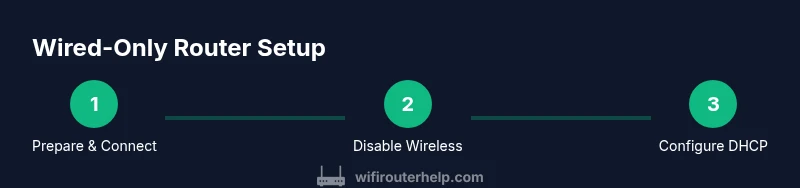
This section outlines a practical approach to configure a router for wired-only operation. Start by gathering the required equipment (see Tools & Materials). Connect your PC to a LAN port, log into the admin page, and navigate to wireless settings to disable Wi‑Fi. Next, verify the LAN IP range and enable DHCP so wired devices obtain addresses automatically. Finally, test a wired device (laptop or desktop) by loading a web page to confirm internet access. If you plan to expand later with wireless capabilities, document the current settings so you can reintroduce Wi‑Fi without confusion.
Wiring and IP Configuration Essentials
Understanding IP addressing is key in a wired-only setup. The router usually serves as the DHCP server, issuing addresses in a defined private range and routing traffic to the internet. In many homes, you’ll keep the default subnet and enable DHCP on the router for wired devices only. If you’re integrating with other network equipment, you may choose a static IP for the router’s LAN interface or set up a dedicated VLAN for wired hosts. Either way, ensure that the wired clients receive gateways correctly and that there’s no IP conflict with another DHCP server on the network. Documenting the IP scheme helps with future changes and troubleshooting.
Advanced Config: Bridge Mode, DHCP, and NAT Considerations
Bridge mode turns a router into a simple bridge, letting another device handle routing and NAT. This is useful when you want to reuse the router’s LAN ports while letting a primary gateway manage IPs and firewall rules. In standard wired-only mode, you’ll typically keep NAT and DHCP on the router if you intend to isolate the wired devices from external networks; if you’re bridging, you’ll disable NAT. When planning on mixed wired/wireless setups, keep the DHCP scope consistent and avoid overlapping IP ranges. Testing connectivity after each change helps prevent network outages.
Security, Updates, and Best Practices
Even without Wi‑Fi, your router needs robust security. Disable remote management, ensure strong admin credentials, and keep firmware updated to protect against vulnerabilities. If you’re using the router as a switch or AP later, review the firewall rules and ensure port forwarding is kept minimal. Regularly back up configuration settings and document any custom rules. Finally, create a small network map so you can visualize which devices are wired and how they connect to the gateway.
Troubleshooting Common Wired-Only Scenarios
Common issues include a lack of IP addresses on wired clients, unreachable admin pages, or slow performance. Start by verifying physical connections: ensure cables are securely seated and that the correct LAN port is used. Check that the DHCP server is enabled and that the client device has obtained an IP in the expected range. If you can access the admin page, review the wireless settings to confirm Wi‑Fi is disabled. For stubborn problems, reset to factory defaults and reconfigure from scratch using a wired connection. Keep a calm, methodical approach to isolate cable, hardware, and software factors.
Reintroducing Wi‑Fi or Hybrid Setups Later
If you later decide to re-enable Wi‑Fi or create a hybrid wired/wireless network, plan the rollout. Start by re-enabling wireless radios in the admin console and testing signal strength in real rooms. Consider creating separate SSIDs or VLANs for wired and wireless devices to improve traffic separation. When adding wireless nodes, ensure the same security standards apply and that firmware on all devices is up to date. If you’ve documented your initial wired configuration, you’ll have a solid baseline to compare against as you expand.
Tools & Materials
- Ethernet cable (Cat5e or better)(At least 1 meter; use shielded if interference is present)
- Computer or tablet with Ethernet port or USB-to-Ethernet adapter(Needed to access router admin page without Wi‑Fi)
- Web browser (Chrome/Edge/Firefox)(For admin page access)
- Router power supply(Keep a stable power source during configuration)
- RJ-45 patch cables(Use for connecting devices to router LAN ports)
- Network documentation(Optional but helpful for future changes)
- UPS (optional)(Uninterruptible power supply for critical setups)
Steps
Estimated time: 15-25 minutes
- 1
Prepare your equipment
Gather an Ethernet cable, a computer with an Ethernet port, a browser, and the router’s power supply. Ensure you’re in a space with easy access to the router and all LAN ports. This preparation minimizes surprises when you start the setup.
Tip: Label cables to avoid confusion during the wiring phase. - 2
Connect your computer to a router LAN port
Plug one end of the Ethernet cable into the computer and the other end into a LAN port on the router. This wired link ensures you won’t lose admin access if wireless is turned off later.
Tip: Use a direct, short cable to reduce potential interference. - 3
Log into the router admin page
Open a browser and enter the router’s local IP address. Log in with the administrator credentials, replacing defaults if you haven’t already. Establishing a secure login is critical before making changes.
Tip: If you don’t know the IP, check the router’s label or manual. - 4
Disable wireless radios
Navigate to the wireless settings and turn off the 2.4GHz and 5GHz radios. This guarantees the network operates in wired-only mode and reduces radio interference for wired devices.
Tip: Double-check you’re not locking yourself out while the page is open. - 5
Review LAN and DHCP settings
Confirm the LAN IP range and enable DHCP for wired clients if needed. Ensure there’s no IP conflict with other DHCP servers on the network and that the gateway is correctly set.
Tip: Document the IP range for easy future reference. - 6
Test wired devices and save changes
Connect a laptop or desktop to a LAN port and load a webpage to confirm internet access. Save the configuration, and perform a quick reboot if you notice any anomalies.
Tip: Test multiple devices to ensure consistent behavior.
People Also Ask
Can I still access the internet with a wired-only router?
Yes. A wired-only router can provide internet access to devices connected via Ethernet, even when Wi‑Fi is disabled. You’ll administer the router through a wired connection and DHCP remains responsible for IP assignment to wired devices.
Yes. Wired-only setups can still access the internet; you’ll manage everything over Ethernet.
What devices benefit most from wired-only setups?
Desktops, gaming consoles, printers, and NAS devices typically benefit most from wired Ethernet due to lower latency and consistent throughput.
Desktops, gaming consoles, printers, and NAS devices often perform best with wired connections.
Will turning off Wi‑Fi disable the router’s admin page?
No. The admin page is accessed via a wired connection and is independent of the wireless radios. You can still configure the router while Wi‑Fi is off.
The admin page remains accessible over Ethernet even if Wi‑Fi is off.
How do I reset the router if I forget the admin password?
Use the reset button on the router to restore factory settings, then log in with the default credentials from the manual and reconfigure. This will require re-entering all custom settings.
If you forget the password, reset the router to factory settings and set up again.
Is there a security risk by disabling Wi‑Fi?
The primary risk is physical access—someone could connect to a wired port if available. Maintain strong admin credentials and firmware updates, and limit physical access to the router.
No inherent wireless risk, but still keep the router secure and updated.
Can I re-enable Wi‑Fi later without reconfiguring everything?
Yes. You can re-enable the wireless radios and re-introduce wireless clients. If possible, note current wired-only settings so you can revert to them if needed.
You can re-enable Wi‑Fi later, and keep a note of wired-only settings for reference.
Watch Video
What to Remember
- Wired-only router use is practical and stable.
- Disable Wi‑Fi via admin page to enforce wired access.
- DHCP and IP planning are essential for wired devices.
- Secure the admin page and keep firmware updated.
- Document settings to ease future reconfiguration.