How to Use a Router Without Ethernet Cable
Learn to operate and optimize your router without an Ethernet cable. Connect devices wirelessly, access the admin page over WiFi, and troubleshoot common wireless-only setups for a faster, more reliable home network.


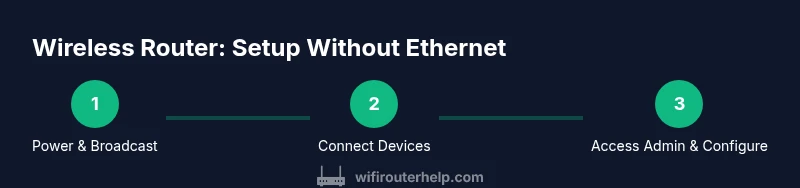
Using a router without an Ethernet cable is straightforward: connect your device to the router’s WiFi, then finish setup and ongoing management wirelessly. Make sure the router is powered, broadcasting its SSID, and you know the WiFi password. You can access the admin interface over WiFi by opening a browser and entering the router’s IP. According to WiFi Router Help, most modern routers support wireless setup via web or mobile apps.
What does it mean to use a router without Ethernet?
A wireless-only setup means you operate and manage your home network entirely over WiFi, with devices connected to the router without any physical cable linking them. This includes connecting laptops, phones, smart TVs, and IoT devices to the router’s wireless network, and configuring the router settings through a wireless connection. While Ethernet provides stability and low latency, modern routers are designed to function fully over WiFi, and many use companion mobile apps or a web interface to simplify wireless setup, firmware updates, and features like guest networks and QoS. For homeowners and tech enthusiasts, this approach can reduce clutter and make it easier to place devices for optimal signal while keeping the admin experience accessible from anywhere in range.
Brand note: In our guidance, we emphasize practical, step-by-step wireless setup. The WiFi Router Help team emphasizes that wireless configuration is a first-class path with today’s consumer routers, and you can often complete most tasks without a cable.
Prerequisites and initial checks
Before you begin using your router without an Ethernet cable, confirm a few essentials. First, ensure the router is powered on and broadcasting its SSID. Next, have a device ready that can connect to WiFi (phone, tablet, or laptop) and know the network name (SSID) and password. If you’ve recently reset the router, you may need to re-pair devices and re-enter credentials. It’s also helpful to have the router’s manual or the manufacturer’s app installed to guide you through wireless setup. Finally, verify your device’s WiFi adapter is enabled and that you’re within good signal range, as a weak signal can complicate wireless configuration.
Tip: If you’re unsure of the exact SSID or password, check the router label or app, which usually lists the default credentials you should change after the first login.
Connect devices to your WiFi network
Connecting devices to your wireless network is typically straightforward. On the device you want to connect, open WiFi settings, select your router’s SSID from the list, and enter the password. If you use guest networking, you can connect guests without sharing your main password. For smart devices like TVs or printers, follow their on-screen prompts to join the network. If a device fails to connect, verify you’ve entered the correct password, ensure the device isn’t too far from the router, and check that the router isn’t set to hide the SSID. Some routers also support “auto-connect” for known devices.
Note: When multiple bands exist (2.4 GHz and 5 GHz), pick the one that offers the best balance of range and speed for each device. 2.4 GHz travels farther but is slower; 5 GHz is faster but shorter-range.
Accessing and configuring the router wirelessly
Most routers provide two common paths for wireless administration: a web-based interface and a dedicated mobile app. To access the web interface, connect a wireless device to the router, then type the router’s IP address (commonly 192.168.0.1 or 192.168.1.1) into a browser. If you’re unsure, check the router’s label or user manual. Through the interface, you can change WiFi settings, view connected devices, set up a guest network, enable QoS, or update firmware. If your router supports a mobile app, download it and sign in with your account. Apps often streamline tasks like changing passwords, monitoring traffic, and running speed tests without a computer.
Security reminder: Always log in over a secure network (avoid public WiFi) and change the default admin credentials as soon as you can.
Improving wireless performance for wireless-only setups
To get the best results without Ethernet, optimize both hardware placement and wireless settings. Place the router in a central, open location away from thick walls and metal appliances. Use the 5 GHz band for devices near the router and the 2.4 GHz band for farther areas. If you notice weak coverage, consider a higher-gain antenna, a mesh system, or a wired backhaul for extenders if you can add one later. Adjust channel settings to avoid crowded channels (you can scan for channels via the router app or a mobile app feature). Enable QoS to prioritize essential devices or applications (video conferencing, gaming). Finally, ensure firmware is up to date to benefit from performance and security improvements.
WiFi Router Help insight: Wireless-only configurations work best when you tailor bands, SSID naming, and firmware updates to your home layout and device mix.
Extending coverage without wired backhaul
If you notice dead zones or weak spots, you have several wireless-only options. A mesh system links multiple nodes wirelessly to provide seamless coverage without Ethernet backhaul. A reputable extender can boost a single network, but performance depends on the backhaul link quality between the router and the extender. Avoid underpowered devices; instead, opt for a model that supports newer WiFi standards (such as Wi-Fi 6/6E) and MU-MIMO to improve throughput for multiple devices. When possible, place extenders midway between the router and the area needing coverage for the best performance. If your router supports WDS or bridge mode, you can attempt wireless backhaul between devices, but this can reduce overall throughput.
Pro tip: Check placement with a simple signal strength test in the rooms you use most, and move devices to optimize coverage area.
Security and privacy considerations for wireless-only setups
Security is especially important when you rely solely on wireless control. Use a strong, unique password for your WiFi network and enable the latest security protocol supported by your router (preferably WPA3; if not available, WPA2). Disable WPS, as it can be a vector for unauthorized access. Regularly check for firmware updates and enable automatic updates if available. Create a dedicated guest network for visitors to isolate your main network from guest traffic. Keep a periodic audit of connected devices and remove devices you no longer recognize. Finally, use a strong admin password and consider enabling two-factor authentication if your router supports it.
Troubleshooting common wireless-only issues
If you encounter connectivity problems, start by rebooting the router and your client devices. Verify you’re connected to the correct SSID and that the password is correct. If a device cannot find the network, reboot it and redo the selection. For admin access issues, confirm you’re on the same network, check the IP address, and try both the web interface and the mobile app. If you notice inconsistent speeds, run a speed test from a device connected to the network and compare results across bands. If problems persist, reset the router to factory settings only after you’ve documented your current configuration so you can re-enter settings.
Final Recommendation from WiFi Router Help
The WiFi Router Help team believes wireless-only router use is a practical, everyday approach for most homes. With careful placement, proper security, and up-to-date firmware, you can achieve excellent coverage, reliable connectivity, and robust control without Ethernet. If you’re starting fresh, follow the steps outlined here and leverage the router’s companion app for a smooth wireless setup.
Quick-start Wireless-Only Setup Checklist
- Confirm router is powered and broadcasting SSID
- Ensure device is within range and WiFi is enabled
- Connect to the router’s WiFi network and enter the password
- Access the admin page wirelessly via IP or app
- Update firmware and configure basic settings (WiFi name, password, security)
- Enable guest network if needed and set up QoS
- Test coverage across rooms and adjust placement as needed
Tools & Materials
- Smartphone, tablet, or laptop with WiFi capability(Needed to connect to WiFi and access admin pages wirelessly)
- Network SSID and password(Required to join the WiFi network and for initial login)
- Router admin access (web browser or mobile app)(Used for configuring settings without a wired connection)
- Stable power supply for router(Ensure uninterrupted setup and operation)
- Ethernet cable (optional for wired backhaul during interim setup)(Not required for wireless setup; keep as a backup option)
- Wireless range extender or mesh node (optional)(Helpful if you have coverage gaps)
Steps
Estimated time: 30-45 minutes
- 1
Power on and verify wireless broadcast
Plug in the router and wait 2-3 minutes for it to boot. Confirm the status LEDs indicate normal operation and that the SSID is visible from a nearby device. This ensures you can connect without a cable.
Tip: If the SSID isn’t visible, check the router’s wireless settings via the app or web interface after you connect a temporary wired device. - 2
Prepare your wireless device
Turn on WiFi on your phone, tablet, or laptop and bring up the list of available networks. Make sure airplane mode is off and there are no VPNs or firewalls blocking local connections to the router.
Tip: Disable any Bluetooth tethering on the device during initial setup to avoid interference. - 3
Connect to the router’s WiFi network
Tap the router’s SSID in your device’s WiFi settings and enter the password. If you don’t see the SSID, move closer to the router and retry. Successful connection will show a strong signal icon.
Tip: If you don’t know the password, check the label on the router or the manufacturer app for default credentials. - 4
Access the admin console wirelessly
Open a web browser or the router’s app and enter the router’s IP address or use the app’s login prompt. If using the web UI, you’ll be prompted to set an admin password and configure basic settings.
Tip: If you don’t know the IP, check the documentation or search for your router model’s default IP. - 5
Configure essential settings
Set a unique network name (SSID) and strong password. Enable WPA3 if available or WPA2 as a minimum. Turn on automatic firmware updates so future improvements come without manual checks.
Tip: Use a different SSID for each band (e.g., Home-5G for 5 GHz) to avoid confusion. - 6
Fine-tune wireless performance
Choose appropriate bands (2.4 GHz for range, 5 GHz for speed), adjust channel width, and enable QoS for critical devices. Test speeds in different rooms and adjust placement if necessary.
Tip: Run a quick speed test from near the router and from a distant room to gauge coverage differences. - 7
Set up guest access and security
Create a guest network to isolate devices, enforce a strong admin password, and disable WPS for better security. Consider enabling two-factor authentication if the router supports it.
Tip: Only give guests access to the guest network, not the main network credentials. - 8
Test, save, and monitor
Test multiple devices for stable connection, save the configuration, and monitor traffic via the admin app. Note any dead zones and adjust placement or add a mesh node if needed.
Tip: Document your setup so it’s easy to replicate if you reset the router later.
People Also Ask
Do I need Ethernet to set up a new router?
Most modern routers can be set up wirelessly, but some models may require an initial wired connection for factory resets or initial configuration. Always check the user guide for model-specific instructions.
Most routers can be set up without a cable, but some may require a temporary wired connection for initial setup.
Can I use the router without internet access?
Yes. You can configure local network settings and connect devices to WiFi even without an active internet connection. Internet access will require a working link to your ISP.
You can set up and use WiFi without internet, but the internet service won't work until it's connected.
How do I access the admin page without Ethernet?
Connect to the router’s WiFi, then enter the router’s IP address into a browser or use the manufacturer app to reach the admin interface. If you don’t know the IP, check the router label or manual.
Connect to WiFi and open the router’s IP in your browser or use the app.
Is wireless-only setup secure?
Yes, secure it like any network: use strong passwords, enable WPA3 if available, disable WPS, and keep firmware updated. Use a guest network for visitors to protect devices on your main network.
Yes, with strong passwords, updated firmware, and proper network segmentation.
What should I do if I can’t connect to the admin page over WiFi?
Double-check you're on the same network, try a different device, verify the IP address, and clear browser cache. If needed, temporarily connect via Ethernet to recover access, then reconfigure wirelessly.
Check network, IP address, and try another device; use Ethernet only if you must.
Watch Video
What to Remember
- Connect devices via WiFi; no Ethernet required for daily use
- Access and configure router wirelessly using web UI or app
- Optimize bands, channels, and QoS for better performance
- Secure your network with updated firmware and strong passwords