Router Set Up: A Complete Step-by-Step Guide for 2026
Learn how to set up a router securely with a clear, step-by-step process. This guide covers WAN/LAN, Wi‑Fi, guest networks, and firmware updates for a fast, reliable home network.


In this guide you will complete a secure router set up for your home network, including WAN/LAN configuration, wireless SSIDs, passwords, and a guest network. You’ll follow practical, step-by-step actions and use essential tools to verify a reliable connection. According to WiFi Router Help, a well-structured setup reduces interference and strengthens privacy.
What a proper router set up delivers
A solid router set up lays the foundation for a stable home network. It determines how devices discover each other, how traffic is routed, and how wireless signals are broadcast. A well-executed setup minimizes channel interference, reduces dead zones, and improves security by enforcing strong encryption from the outset. The WiFi Router Help team emphasizes planning your layout, labeling cables, and documenting your network credentials to avoid troubleshooting headaches later on. When you align WAN, LAN, and wireless configurations, you create a smoother user experience across streaming, gaming, and smart-home devices. A clean, organized initial setup also simplifies future maintenance and firmware updates, helping you stay ahead of evolving security threats and performance demands in 2026.
Setup approaches: browser vs app-based configuration
Most modern routers can be configured through a web browser or a dedicated mobile app. Browser-based setup is universally compatible and often provides deeper access to advanced options like port forwarding and QoS rules. App-based setup guides you quickly through essential steps with prompts and wizards. Whichever method you choose, ensure you’re connected to the router’s default network and that your device is secured. If you share the setup steps with others in your household, apps can be especially convenient for on-the-go adjustments and guest network creation. WiFi Router Help recommends starting with the browser approach to understand where options live, then using the app for ongoing tweaks when needed.
Core configuration: WAN, LAN, and wireless basics
Your router’s WAN settings determine how it connects to your internet service. If your ISP assigns a DHCP address, you’ll typically leave WAN as DHCP; if you have a static IP, you’ll enter the provided details. The LAN side sets the internal IP range and the DHCP server that hands out addresses to devices. For wireless, create a strong network name (SSID) and a robust password. Use modern security standards (WPA3 if available) and disable legacy protocols. A gradual, methodical approach—first WAN/LAN, then wireless—helps you catch misconfigurations early. Remember to check that your firewall is enabled and that UPnP is turned off unless you truly need it for gaming consoles or media players.
Security and performance tuning
Key security steps include using WPA3, setting a long passphrase, updating firmware, and disabling WPS if present. Performance benefits come from selecting the least congested channel, enabling QoS for priority devices, and ensuring your hardware isn’t overheating. Consider separating guest networks from your main network to protect devices like cameras and smart speakers. Regular maintenance—weekly quick checks of device connections, monthly firmware updates, and periodic password changes—helps keep your network resilient against evolving threats. The Woofer principle here is to start with a secure baseline and then optimize for your household usage without compromising safety.
Authority sources and further reading
For further guidance on responsible network management, see government and academic resources. These sources provide foundational information on home networking best practices, privacy, and security considerations that support a safe router set up. Incorporate these references into your ongoing maintenance plan to stay aligned with established standards and recommendations from trusted institutions.
Tools & Materials
- Router(Use a modern model with at least WPA3 and updated firmware)
- Modem (if separate from router)(Ensure compatibility with your ISP and modem in bridge mode if needed)
- Ethernet cable (Cat 5e or better)(One for the WAN connection, one or more for wired devices if desired)
- Computer or mobile device(Phone or laptop to access admin interface)
- Web browser or router app(Used to configure settings; keep credentials handy)
- Notepad or password manager(For recording SSIDs, passwords, and important details)
- Optional: Network diagram(Helpful for planning device placement and zones)
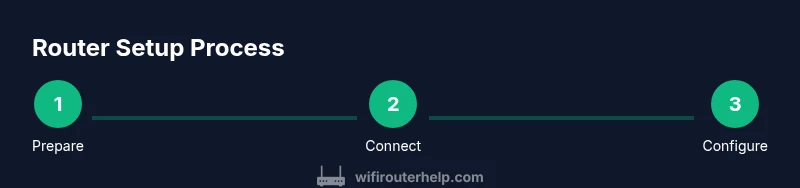
Steps
Estimated time: 30-60 minutes
- 1
Prepare your workspace
Clear a clean area for the router and modem. Gather all equipment, verify your ISP plan, and confirm you have the admin credentials. If you plan to run cables, map paths to avoid tripping hazards and interference. This ensures a smoother setup and simplifies troubleshooting if something goes wrong.
Tip: Label each cable and keep a written log of device names and passwords for quick reference. - 2
Connect the modem to the router's WAN port
Power off the modem and router before connecting. Use an Ethernet cable from the modem to the router’s WAN port. Power on the modem first, then the router, and wait for lights to stabilize. This establishes the primary internet path for your home network.
Tip: Avoid using a switch in between; connect directly to the router WAN port for clarity during setup. - 3
Power on and perform a first boot
Give both devices several minutes to boot completely. Check for solid indicator lights on the router to confirm it has started. If you see unusual blinking or no lights, unplug and replug, then retry. A clean boot prevents misconfigurations from carried-over settings.
Tip: If you must, perform a factory reset only after basic checks fail, to avoid losing working defaults. - 4
Access the router admin interface
Open a browser or the router app and enter the default gateway address shown in the manual (often something like 192.168.0.1 or 192.168.1.1). Sign in with the default username and password, then immediately change them to a strong, unique pair. This step is critical to prevent unauthorized access early in the setup.
Tip: If you can’t reach the admin page, verify your device is connected to the router's network and try a wired connection. - 5
Configure Internet (WAN) and LAN settings
Set WAN to DHCP if your ISP assigns dynamic addresses; enter static IP details only if provided by your ISP. Enable the DHCP server on the LAN to assign IPs to devices on your network. Confirm NAT is enabled for proper routing and that the router’s internal IP range doesn’t clash with any other devices on the network.
Tip: Document the chosen LAN IP range and DHCP pool for future references or trouble-shooting. - 6
Set up wireless networks and security
Create your primary Wi‑Fi network with a strong, unique SSID and passphrase. Enable WPA3 if available; disable WPS for security. Add a guest network with a separate password to isolate visitors from your main devices. Save the configuration and test connectivity on multiple devices.
Tip: Use a password manager to generate and store strong, unique passwords for each network. - 7
Update firmware and back up settings
Check for firmware updates and install them, which closes security gaps and may add features. Create a backup of the current configuration so you can restore quickly if something changes or you reset. Note the firmware version and backup location for future maintenance.
Tip: Enable automatic updates if your router supports them, but monitor updates to ensure compatibility with your devices. - 8
Verify performance and finalize
Run a quick speed test wired and wireless to verify performance meets your expectations. Check for dead zones and adjust placement of the router or add a mesh if needed. Document essential details and remind yourself to review settings monthly.
Tip: If speeds are inconsistent, switch to a less crowded channel and ensure no nearby devices cause interference.
People Also Ask
Do I need a modem to set up a router?
Most home networks require a modem to connect to the internet, with the router acting as the local traffic controller. If you have a modem-router combo, you may skip a separate router, but the steps still apply for securing and configuring the device.
Usually you need a modem to connect to the internet, and the router sits in front to manage your local network.
What is the best security setting for home networks?
Use WPA3 where available, set a long, unique password, disable WPS, and keep firmware up to date. Create a separate guest network to restrict access to your main devices.
Opt for WPA3, a strong password, and keep firmware current; isolate guests on a separate network.
How often should I update router firmware?
Check for updates monthly and install them after reviewing release notes. Automatic updates can simplify maintenance, but verify compatibility with your connected devices after each major update.
Check monthly for updates and install them after reviewing notes.
Why is my network slow after setup?
Interference, crowded channels, or misconfigured QoS can slow things down. Try changing channels, testing both bands, and ensuring devices are not crowded on a single network.
Interference or misconfigurations can slow speeds; switch channels and test across bands.
How can I backup and restore router settings?
Use the router’s backup feature to save a configuration file to a secure location. Restore by selecting the backup file from the same menu after a reset or new setup.
Back up your configuration to a secure location and restore from it if needed.
What should I do if I can’t access the admin page?
Verify the device is on the correct network, try a wired connection, and confirm the correct gateway IP. If necessary, perform a factory reset and reconfigure from scratch.
Make sure you’re connected to the router and use the right IP; reset if needed.
Is a guest network always safer than sharing my main network?
A guest network adds isolation, reducing risk to main devices. However, configure strong credentials and disable access to sensitive resources on the guest network when possible.
Guest networks improve safety, but still use strong credentials and limit guest access.
What to Remember
- Plan before you plug in and label components.
- Enable WPA3 and disable WPS for stronger security.
- Test connectivity across devices and rooms after setup.
- Back up config and monitor firmware regularly.