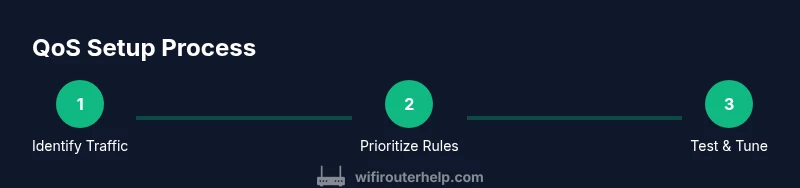
Router QoS Settings: A Practical Step-by-Step Guide
Learn to configure router QoS settings to prioritize critical apps, reduce latency, and stabilize your home network. This step-by-step guide includes testing tips, troubleshooting, and best practices for reliable performance.


Quick answer: You will configure router QoS settings to prioritize essential traffic (video calls, gaming, and critical work apps) over noncritical downloads. Before you start, ensure your router supports QoS and you can access its admin interface. The steps below guide you to map traffic, create rules, allocate bandwidth, and validate improvements.
What QoS is and why it matters for home networks
Quality of Service (QoS) is a collection of features that lets a router prioritize some kinds of traffic over others. On a busy home network, QoS helps ensure that latency-sensitive tasks like video meetings, online gaming, and real-time collaboration get the bandwidth they need, even when someone else is downloading large files. The WiFi Router Help team has observed that properly configured QoS can lead to noticeably smoother calls and fewer buffering moments during peak times. In practice, QoS allows you to define which devices or applications deserve priority and set rules to allocate a portion of your total bandwidth to them. You can also configure how long that priority lasts and what happens when a link is congested. Remember that QoS does not create extra bandwidth; it makes the existing bandwidth work more efficiently for high-priority tasks. This section introduces core concepts and common QoS models so you can tailor settings to your home network.
How QoS is implemented on routers
Most consumer routers implement QoS via three broad approaches: (1) application-aware prioritization, which recognizes traffic by service (video conferencing, gaming, VoIP); (2) device-based prioritization, which assigns priority to specific devices (laptops, phones, smart TVs); and (3) rule-based or class-based systems, which apply priorities based on user-defined categories. Many modern routers also offer bandwidth shaping, queue management, and congestion-aware scheduling. The key idea is to map traffic into classes, assign each class a priority level or bandwidth cap, and let the router enforce those rules during congestion. When choosing a model, consider your typical usage: video calls and games benefit most from application- or device-based rules, while households with multiple streaming devices may prefer broader class-based policies for simplicity.
Choosing the right QoS model for your setup
Start with your primary goals: lower latency for calls, reduce jitter for gaming, or ensure smooth video streaming during work hours. If you have a few high-priority devices (work laptop, gaming console) and diverse traffic, device-based or per-device rules provide predictable results without complex configurations. For mixed households with many apps, an application-aware or class-based model can scale more easily, particularly if your router supports automatic traffic classification. Consider factors such as your internet plan, the number of connected devices, VPN usage, and smart home devices. Finally, plan a baseline test: measure current latency and bandwidth, then implement QoS in stages, testing after each change to quantify impact.
Step-by-step: configuring QoS on common router interfaces
QoS configuration varies by brand and firmware, but the core steps are similar. Begin by logging into the router admin panel with a computer wired to the router for stability. Locate the QoS or Traffic Management section, review available models, and pick a starting policy (per-device or per-application). Create rules for your most critical traffic first (e.g., work VPN, video calls, online games), set conservative bandwidth shares, and save the changes. Some routers require a reboot after applying QoS rules. Finally, monitor performance and adjust as needed based on observed latency, jitter, and throughput. The exact UI will differ, so consult your router’s help page if terms vary.
Testing and validating QoS performance
After enabling QoS, run controlled tests to compare performance with and without QoS rules active. Use a mix of reliable speed tests, ping latency measurements to common hosts, and jitter checks during peak usage. Check video call quality during a scheduled meeting, run a game session, and observe the responsiveness of other devices like smart speakers. Document measurable improvements and note any remaining bottlenecks. If you still see buffering or lag, step back to the baseline, reclassify traffic, or adjust bandwidth allocations. Consistent testing validates that your QoS settings are aligned with real-world usage.
Common pitfalls and how to avoid them
Misconfigurations are the most common QoS pitfall. Avoid overcommitting bandwidth to too many classes, which can starve essential tasks. Don’t disable QoS if it’s needed for VoIP or conferencing apps. Always back up current settings before making changes, then apply in small increments to isolate effects. Finally, remember that network problems beyond QoS—such as a flaky ISP connection or weak Wi‑Fi coverage—can mask QoS benefits. Use a holistic approach: fix network wiring, improve access point placement, and then tune QoS for the last mile.
Tools & Materials
- Router with built-in QoS support(Check firmware notes for QoS features; update to the latest version before starting.)
- Admin username and password(You’ll need to log into the router's management interface.)
- List of devices and applications to prioritize(Include device names or MAC addresses and known apps (video calls, games, VPN).)
- Computer or mobile device with a web browser(Used to access the router admin panel.)
- Stable internet connection and testing tool(Speedtest.net or similar to establish a baseline and validate improvements.)
- Optional Ethernet cable for testing(Wired testing gives cleaner results during QoS tuning.)
Steps
Estimated time: 30-60 minutes
- 1
Identify critical traffic
List the apps and devices that most affect your work and entertainment quality (e.g., video conferencing, online gaming, VPN clients). Map these to the class or application names your router uses. This helps ensure your rules prioritize what matters most.
Tip: Use real-use cases to avoid over- or under-prioritizing. - 2
Log in to the router admin panel
Open your browser and enter the router’s gateway IP. Sign in with admin credentials and back up the current configuration before making changes.
Tip: Backups save you from accidental misconfiguration. - 3
Navigate to the QoS section and enable it
Find QoS or Traffic Management in the settings. Turn it on and select a starting policy (per-device or per-application) to establish a baseline.
Tip: Starting simple helps you evaluate impact clearly. - 4
Create rules for priority devices/apps
Add rules for your top priorities, such as your work laptop for VPN traffic or your gaming console. Assign high priority and allocate a reasonable bandwidth share.
Tip: Keep the top-tier bandwidth for critical tasks, not every device. - 5
Configure bandwidth allocations and limits
Set conservative minimums/bonuses per class. Avoid setting bandwidth to zero for non-priority classes—this can throttle essential tasks during congestion.
Tip: Start with modest allocations and adjust based on results. - 6
Apply changes and test
Save the configuration and run a quick test during typical peak times. Verify improvements in latency and responsiveness for prioritized tasks.
Tip: If results aren’t visible, revisit classification and bandwidth shares. - 7
Fine-tune and document
Iterate on the rules based on testing, and document exact settings for future reference. Regular reviews help maintain optimal performance as devices are added or removed.
Tip: Documentation speeds future tuning and troubleshooting.
People Also Ask
What is QoS and do I really need it?
QoS prioritizes traffic to reduce latency for time-sensitive tasks like calls and gaming. It’s especially helpful in busy households where bandwidth is shared.
QoS helps your important apps get priority when the network is crowded.
Can QoS fix all Wi-Fi problems?
QoS improves responsiveness for prioritized tasks, but it won’t fix physical issues like weak signal or ISP outages. It’s part of a broader network optimization.
QoS helps with traffic, but it’s not a cure-all for every Wi‑Fi problem.
Which devices should I prioritize first?
Start with work devices and conferencing apps, then gaming, video streaming, and finally general web browsing. Adjust as you observe real-world performance.
Put your most important devices up front, then tune based on results.
Do I need to restart the router after changes?
Some routers require a reboot to apply QoS changes; others apply instantly. If in doubt, reboot to ensure the new rules take effect.
In many cases, a quick reboot helps the new rules take effect.
How often should I revisit QoS settings?
Review QoS whenever you add new devices or change your internet plan. Regular checks help maintain the balance between speed and responsiveness.
Check your QoS settings whenever new devices come on the network or you notice lag.
Watch Video
What to Remember
- Prioritize critical apps and devices with clear rules
- Test after each change to validate impact
- Document settings for future maintenance
- QoS balances bandwidth, it does not create extra capacity