QoS Router Setting: A Step-by-Step Guide to Prioritize Traffic
Learn how to configure a qos router setting to prioritize gaming, video calls, and streaming while keeping background tasks flowing. This 1800-word educational guide covers setup, testing, troubleshooting, and maintenance for a healthier home network.


What qos router setting is and why it matters
The qos router setting is a feature built into many consumer routers that helps prioritize certain types of network traffic over others. Enabling it can reduce latency for gaming and video calls while maintaining steady background tasks like updates and file syncing. The qos router setting is most effective when you identify the apps and devices that need priority and keep the rules simple to avoid unintended slowdowns. In modern homes, a well-tuned qos router setting aligns bandwidth with real-time needs without overwhelming the network.
According to WiFi Router Help, a thoughtful qos router setting starts with a quick inventory of devices and typical usage. A simple, well-designed policy often yields noticeable gains in responsiveness during peak hours without requiring a faster internet plan.
This block sets the stage for practical steps you’ll take later. You’ll learn how to map real-world traffic patterns to concrete rules so your network remains fast and stable for gaming, calls, and streaming.
When to enable QoS: common household scenarios
Most households benefit from qos router setting when someone is gaming, streaming high-definition video, or on a business call. If multiple people work from home, or if you have a smart home with many devices, a thoughtful qos router setting can prevent jitter and buffering during peak usage. The rules should reflect real priorities rather than abstract goals. WiFi Router Help analysis shows that careful tuning helps preserve responsiveness for latency-sensitive tasks while not starving background tasks.
For households with mixed-use devices, a phased approach—start with a small, high-priority set and expand after testing—often yields the best results. Remember, the goal of the qos router setting is not to maximize every task simultaneously, but to ensure the most important tasks stay smooth as others run in the background.
Core concepts: prioritization, queues, and bandwidth allocation
QoS works by classifying traffic and placing it into priority queues that determine who gets network access first. Common concepts include bandwidth allocation by percent, strict vs. weighted queuing, and application or device-based rules. In practice, a qos router setting assigns higher priority to time-sensitive activities (gaming, calls, video conferencing) and balances remaining bandwidth for bulk tasks like file downloads. Understanding these basics helps you craft effective rules without overcomplicating the policy.
A well-executed qos router setting uses a few core ideas: define clear priorities, avoid over-permissive rules, and test each change. If you make too many exceptions, you can end up with erratic performance rather than predictability. The aim is a predictable experience for critical apps while keeping the network usable for everything else.
QoS methods you may encounter
Routers implement QoS in several ways. Application-based QoS looks at the nature of the traffic (e.g., video streaming vs. gaming). Device-based QoS assigns priority by device (MAC address or IP). Port-based QoS targets specific services, while hybrid approaches blend methods for more precise control. When you configure a qos router setting, start with one straightforward method and expand only if you see persistent latency issues.
If your router supports all methods, begin with application-based QoS for the most noticeable gains. Then, if needed, add device-based rules for high-priority devices like gaming consoles or work laptops. A simple qos router setting is often enough to deliver a smoother experience without a complex policy.
Preparing your network map and device inventory
Before touching QoS settings, create a quick map of your home network. List all devices that regularly connect (phones, laptops, consoles, smart speakers), and note typical usage patterns (gaming, conferencing, streaming). Knowing which devices and apps require priority makes it easier to craft a qos router setting that actually improves performance. A simple inventory also helps you revert changes if something goes wrong.
Include details like where devices are located (Wi‑Fi coverage areas), which bands they use (2.4 GHz vs 5 GHz), and whether they frequently perform background tasks. This information guides your initial QoS rules and reduces the chance you’ll block essential traffic by mistake.
By starting with a clear map, you set boundaries for your qos router setting and prevent rule creep that can complicate troubleshooting later.
How to plan your QoS policy: define priorities and rules
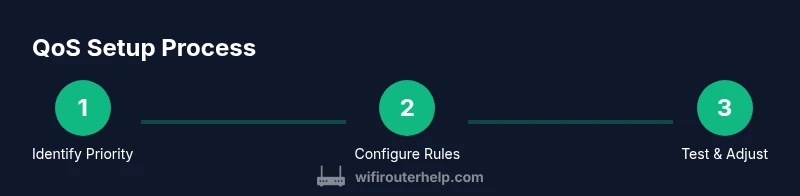
A practical qos router setting starts with clear priorities: define which traffic should always win (real-time communications and gaming) and which can wait (bulk downloads). Then decide your rule granularity: per-device, per-application, or per-port. Start small: assign high priority to a couple of essential services and run a test. As you gain confidence, widen the scope if needed.
Draft a simple policy first. For example, set high priority for real-time calls and gaming traffic, medium for streaming video, and low for bulk updates. This staged approach minimizes risk while you observe how changes affect overall performance. The qos router setting should be a living policy, refined as your network usage evolves.
Safety, conflicts, and caveats
QoS is a powerful tool but not a magic wand. Aggressive rules can starve background tasks or cause unintended bottlenecks for certain devices. Always start with conservative allocations and verify results with real usage. If you notice new buffering or slowdowns after enabling a qos router setting, review recent rules to identify clashes or overly strict prioritization.
Some routers have interactions with other features like parental controls, guest networks, or VPNs. Ensure QoS rules don’t override critical protections or create insecure paths. When in doubt, revert to a baseline configuration and reintroduce QoS gradually to maintain a stable home network.
Testing QoS outcomes: measurable checks to perform
Testing is crucial. After applying a qos router setting, monitor latency, jitter, and throughput during typical activities. Use simple ping tests between devices to gauge latency changes, and observe streaming and gaming performance during peak hours. Compare performance before and after applying QoS changes, focusing on responsiveness for prioritized tasks. WiFi Router Help emphasizes validating changes on multiple devices to ensure the policy works under real-world conditions.
Document any improvements and remaining issues. If latency improvements are modest or inconsistent, adjust rule priorities, thresholds, or the scope of devices covered by each rule. Sustained testing helps you keep the qos router setting effective as your network evolves.
Next steps: tuning and maintaining a healthy home network
A good QoS policy isn’t a one-and-done setup. Periodically review your rules as new devices join the network or as your usage changes. Schedule quarterly checks or after major network upgrades. Maintain a simple, evidence-based approach: add or modify one rule at a time and test.
Consider pairing QoS with other network improvements: ensure your router firmware is up to date, optimize wireless coverage with placement and channels, and balance load with bandwidth-aware tasks. The qos router setting works best when integrated into a broader, proactive network maintenance plan.