Quality of Service Router Settings: A Practical Guide
Learn how to configure QoS on your home router to prioritize important apps and devices. This step-by-step guide covers setup, testing, and troubleshooting to improve reliability and ensure smoother online gaming, video calls, and streaming.


By configuring quality of service (QoS) router settings, you will prioritize games, calls, and streaming while keeping everyday web browsing responsive. This quick rundown highlights what you need, the common methods, and the practical steps to implement effective rules. Expect improved latency for high-priority tasks, more predictable performance, and the ability to test and tune rules as your network changes.
Understanding QoS and its benefits
Quality of Service (QoS) on routers helps you prioritize traffic for the devices and applications that matter most. When you enable QoS, the router allocates bandwidth so that latency-sensitive tasks — such as online gaming, video conferencing, and live streaming — stay smooth even when the network is busy. According to WiFi Router Help, a thoughtful QoS setup can reduce buffering and jitter without requiring more bandwidth. This guide focuses on practical, step-by-step QoS router settings that homeowners can apply without specialized networking knowledge. It also clarifies common misconceptions, such as the belief that QoS can increase raw speed; in reality, QoS prioritizes traffic to reduce interference and improve perceived responsiveness. For best results, start by identifying your most important activities and the devices used for them. Keep in mind that QoS behavior can vary by router model, so be prepared to adapt the general principles to your hardware.
Network traffic types that QoS can prioritize
QoS can manage multiple traffic types: voice calls (VoIP), gaming, streaming, web browsing, and file transfers. Latency-sensitive applications like online gaming require lower delay, while high-bandwidth video streams can tolerate brief buffering. With QoS, you assign priority to the streams and devices that need the most reliable performance. This helps prevent a single large file download from crowding out a video call. When planning, map each activity to a device or service and set expectations for acceptable latency and throughput. WiFi Router Help's guidance emphasizes testing in real-world conditions to calibrate rules.
Essential QoS concepts: DSCP, uplink vs downlink, and bandwidth shaping
Key terms to know include DSCP (Differentiated Services Code Point), queuing, uplink vs downlink, and bandwidth shaping. DSCP tags packets to indicate priority, which many routers can honor to different degrees. Uplink refers to sending data from your network to the internet, often the bottleneck in home setups, while downlink is the download path. Bandwidth shaping helps allocate limited bandwidth to high-priority applications, but it should be used carefully to avoid starving background tasks. The WiFi Router Help team notes that understanding these concepts helps you design predictable QoS behavior rather than merely turning on a toggle.
How QoS interacts with Wi-Fi vs Ethernet
Wired connections tend to have lower jitter and more stable throughput than wireless links, so applying QoS to both Ethernet and Wi‑Fi requires a slightly different approach. For Wi‑Fi, rely on device-based or application-based rules and consider enabling WMM (Wi‑Fi Multimedia) for basic prioritization. On Ethernet, you can often set stricter rules and allocate dedicated bandwidth per device. The balance is to preserve universal access while protecting critical traffic for gaming, conferencing, and streaming. The goal is smooth performance across all paths, not to bottleneck non-critical traffic.
Where to find QoS settings on router brands (general guidance)
Most consumer routers place QoS in a dedicated section labeled QoS, Traffic Control, or Applications & Gaming. You may choose among rule types such as application-based, device-based, or service-based prioritization. If your router supports it, enable a “prefer traffic” or “guaranteed bandwidth” option and specify the priority levels (high, medium, low). Remember that some routers apply QoS only to downstream traffic (to the internet) or only to specific interfaces. Always consult your model’s manual for exact steps, as the UI varies across brands. Keep in mind that enabling QoS may affect router performance on older hardware.
Practical scenarios: prioritizing gaming, video, and voice calls
A common setup prioritizes gaming or VoIP during peak hours: assign high priority to the game console or PC and to the VOIP service; give streaming devices medium priority to maintain video quality without starving gaming. In mixed environments, you can create multiple rules: one for real-time communications, one for interactive gaming, and one for bulk downloads. If you share your network with guests, consider a guest network policy with lower priority. Document the rules you create and test during actual use to ensure the settings meet your expectations. The practical aim is stability and predictability for essential tasks.
Testing QoS: tools and interpretation
Testing QoS changes requires observing latency, jitter, and throughput under realistic load. Use speed tests on clustered devices, ping tests to a game server during activity, and traceroutes to verify the path quality. Monitor packet loss and retransmissions; if QoS is working, high-priority traffic should see lower latency than background tasks. Use your router’s built-in statistics pages or a network monitor to see whether priorities are honored. Expect gradual improvements rather than instant miracles; fine-tuning may take several test cycles.
Common pitfalls and troubleshooting tips
Common mistakes include setting overly aggressive priorities, starving background traffic, or failing to save or apply changes after editing QoS rules. Always verify that you are prioritizing the right devices or services, and avoid defining too many conflicting rules. If QoS seems not to take effect, check firmware updates, confirm that the rules are enabled, and ensure there are no other bandwidth-limiting features (like parental controls) overriding QoS. Keep a log of changes to track what helped and what regressed performance. The WiFi Router Help team notes that incremental changes and testing yield the best results.
Security and privacy considerations when enabling QoS
Enabling QoS has minimal direct impact on router security, but it’s wise to review access controls and ensure your admin interface is protected with a strong password. Disable remote management if you don’t need it and keep firmware up to date to reduce vulnerabilities. If you are using guest networks, keep the guest VLANs isolated from your main network. Finally, document the rules for accountability and avoid exposing sensitive services to the internet through misconfigured rules.
Tools & Materials
- Web browser-enabled device (phone or computer)(Needed to log in to the router’s admin interface (typically 192.168.0.1 or 192.168.1.1))
- Router admin credentials(Username and password; have them ready to access QoS settings)
- Access to router IP address(Often 192.168.0.1 or 192.168.1.1)
- An active internet connection (optional for QoS config testing)(Useful for verifying real traffic flows after changes)
- Ethernet cable (optional but recommended for testing)(Wired testing provides stable measurements when validating QoS rules)
- Labeling tools (paper or screenshot app)(Helps document changes and rule names for future reference)
Steps
Estimated time: 30-60 minutes
- 1
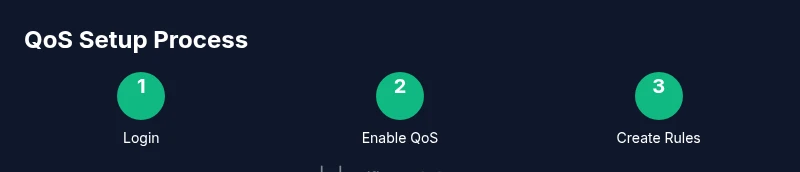
Log in to router admin interface
Open your browser, enter the router’s IP address, and log in with admin credentials. This is the baseline required to view QoS options and avoid locked settings. If you don’t know your IP, check the label on the router or your device’s network settings.
Tip: Use a wired connection for the login to avoid wireless drops during configuration. - 2
Enable QoS and choose a method
Turn on QoS in the router UI and select a QoS method that fits your hardware (device-based, application-based, or automatic). Understand what each method prioritizes so you don’t accidentally throttle critical devices. Some routers offer a mixed approach for flexibility.
Tip: If available, start with Application-based QoS for common tasks like gaming and video calls. - 3
Create rules for high-priority services
Add rules for your most important activities (gaming console, VoIP, conferencing apps). Assign high priority to these devices or services and set reasonable bandwidth estimates to prevent starving others.
Tip: Be explicit about device names or app IDs to avoid misclassification. - 4
Apply changes and reboot if required
Save or apply the QoS configuration. Some routers require a reboot for changes to take effect. Ensure you don’t lose your settings during the reboot.
Tip: If there’s a reboot, document the current rules to re-create them quickly if needed. - 5
Test with real traffic
Run a quick load test while gaming, streaming, or in a video conference. Check latency, jitter, and throughput for high-priority vs. background tasks to confirm QoS is working.
Tip: Use wired testing where possible to verify the intended improvements. - 6
Fine-tune and document
Adjust thresholds and priorities if you notice performance gaps. Record the final rules and note the network scenes where they work best.
Tip: Maintain a simple changelog so future you understands the rationale.
People Also Ask
What is QoS and what does it do?
QoS prioritizes network traffic to ensure latency-sensitive activities get the necessary bandwidth. It helps gaming, video calls, and streaming stay smooth when the network is busy.
QoS prioritizes important traffic to keep your real-time tasks smooth, even when your network is crowded - great for gaming and calls.
Can enabling QoS slow down the internet?
QoS does not increase total bandwidth; it reallocates available bandwidth to prioritize critical tasks. If misconfigured, it can cause unintended slowdowns for non-priority apps.
QoS reallocates bandwidth to prioritize important tasks; it can slow non-priority apps if rules are too strict.
Should I prioritize by device, application, or service?
Device-based QoS is simplest for mixed households, while application-based QoS offers finer control for specific apps. Service-based QoS is a middle ground in some routers.
Device-based is simplest, but application-based provides more precise control over each app’s bandwidth.
Will QoS work on both Wi-Fi and wired connections?
Yes, QoS can apply to both. However, wired connections generally have lower latency, so you may prioritize wireless devices differently to balance loads.
Yes, QoS works on both; you may adjust priorities depending on whether devices are on Wi-Fi or Ethernet.
Is QoS safe for gaming consoles?
QoS is safe for gaming consoles and helps reduce latency. Ensure you’re prioritizing the console correctly and not starving other essential services.
QoS helps consoles by reducing latency, as long as you set reasonable priorities.
How often should QoS rules be updated?
Review QoS rules whenever your network usage changes, such as new devices or a different internet plan. Regular checks help maintain performance.
Review QoS rules when your household usage changes to keep performance steady.
Watch Video
What to Remember
- Identify top-priority traffic before configuring QoS
- Choose a QoS method aligned with your router capabilities
- Test changes under real workloads and adjust as needed
- Document changes for easy future reference