How to Set Up and Optimize the Netgear AC1750 Router
Learn how to install, secure, and optimize the Netgear AC1750 router. Step-by-step setup, best practices for performance, and troubleshooting tips for a stable home network. Includes official sources and a practical maintenance plan.


In this guide, you’ll learn how to set up a Netgear AC1750 router, secure it, and optimize performance. You’ll need a modem, Ethernet cable, and a device to access the admin page. By following the steps, you’ll get reliable Wi‑Fi across your home with strong coverage. That includes configuring the default login, enabling WPA2/WPA3 where available, and creating a guest network.
Understanding the Netgear AC1750 Basics
The router class known as AC1750 refers to combined wireless speeds marketed for dual‑band performance, typically delivering robust home coverage across the 2.4 GHz and 5 GHz bands. For many households, a router netgear ac1750 is a sensible balance of price, range, and throughput. This class is designed to support streaming, video calls, and multiple devices without constant reconfiguration. The WiFi Router Help team emphasizes that the real-world experience depends on several factors, including physical layout, interference, and how you place the router. If you’re upgrading from an older router, you’ll notice more stable connections and fewer dead zones as you distribute devices across bands. According to WiFi Router Help, better placement and firmware updates often yield the most noticeable gains in real-world performance. In this section, we’ll cover what makes AC1750 devices distinctive and how to translate those specs into practical home networking benefits. This is your foundational understanding before you touch a single button.
What You Need Before You Start
Before you begin, collect a few essentials to make setup smooth:
- The Netgear AC1750 router and power adapter
- A modem connected to your internet service
- An Ethernet cable and a device (laptop, tablet, or smartphone) to access the admin interface
- A stable internet connection for initial testing
- A preferred network name (SSID) and a strong password
Many homeowners underestimate the impact of a clean prep phase. Having everything within reach reduces mid‑setup trips to the router closet and speeds the process. WiFi Router Help analysis shows that preparing a quiet, central location for the router often yields the best coverage across living spaces. Now, you’ll learn how to physically position the router for maximum range and minimal interference.
Unboxing, Power, and Placement Tips
Carefully unbox your Netgear AC1750 router and connect the power adapter. Place the device in a central, elevated location away from thick walls, metal objects, and large appliances that can cause interference. If possible, raise the router above desk level and keep it at least a foot from any nearby walls to improve signal distribution. Avoid enclosures that trap heat, as overheating reduces performance over time. After powering up, verify the LEDs indicate normal operation. The WiFi Router Help team recommends a quick baseline test using a mobile device in several rooms to gauge initial coverage before proceeding with configuration. This helps you decide if a middle‑of‑the‑house placement or a mesh extension is warranted for larger floor plans.
Connect to Your Modem and Access the Admin Page
To begin, connect the router to your modem with a standard Ethernet cable: connect the cable from the modem’s Ethernet port to the router’s WAN/Internet port. Power on both devices and wait for the router to boot. On your computer or mobile device, connect to the router’s default Wi‑Fi network, or use a wired connection for stability. Open a web browser and enter the router’s default IP address (commonly 192.168.1.1 or 192.168.0.1) or the setup URL provided in the manual. You’ll be prompted to create an admin login and a unique password—this step is essential for securing access to the router’s settings. If you encounter access issues, reboot both devices and try again. The Netgear setup wizard can guide you through initial preferences, but you can also opt for manual configuration if you want finer control over each option.
Quick Setup vs Manual Configuration: When to Choose Which
Most users benefit from the Fast/Quick Setup wizard included in Netgear AC1750 firmware. This guided process presets common defaults for typical homes and can be completed in under 15 minutes. If you have a complex home layout, multiple devices, or specific QoS needs, a manual setup gives you granular control over SSID names, security protocols, port forwarding, and device‑level access rules. This is also the right path if you need to adjust parental controls, guest networks, or custom DNS settings. WiFi Router Help recommends starting with Quick Setup to establish a baseline, then revisiting advanced settings if you require more precise optimization. Throughout this journey, keep your network name simple, avoid default credentials, and enable strong encryption.
Security Essentials: Wi‑Fi Security, Passwords, and Guest Access
Security should be your top priority from day one. Create a unique, non‑default admin password and enable WPA2‑AES or WPA3, depending on what your router supports. Disable WPS if available, as it can be exploited for unauthorized access. Use a long, random network password for the 2.4 GHz and 5 GHz bands, and consider enabling a guest network to isolate guests from your main devices. Regularly review connected devices and remove unknown entries. The WiFi Router Help team notes that strong security habits protect both your devices and your data, especially when you routinely work from home or stream on multiple screens. You should also enable automatic firmware updates when possible to patch vulnerabilities as they arise.
Performance Optimization: Channel Selection, QoS, and Beamforming
Performance in a home environment depends on more than raw speed ratings. Let the router automatically select channels on both bands when possible, but also check for interference from neighboring networks. If a neighbor’s network overlaps on the same channel, switching to a clearer channel can yield a noticeable improvement. QoS (Quality of Service) lets you prioritize critical devices or applications—for example, video conferencing or gaming—so they get bandwidth when needed. If your router supports beamforming, enable it to focus signal toward active devices, which can help improve range and signal strength. Remember that real‑world performance depends on device placement and household layout, not just the advertised speeds. WiFi Router Help emphasizes testing speed after each major change to quantify improvements.
Troubleshooting Common Issues: Quick Fixes for Common Scenarios
If you experience slow speeds or dropped connections, start with the basics: reboot both the modem and the router, check all cables, and ensure firmware is up to date. If devices fail to obtain an IP address, release/renew the DHCP lease or set a static IP within the router’s LAN settings. For devices that intermittently disconnect, try changing the channel, reducing interference sources (like microwaves or Bluetooth devices), and ensuring the client device has updated drivers. If the problem persists, reset the router to factory settings as a last resort and re‑configure from scratch. The goal is to restore stable connectivity with minimal downtime, then reapply the secure settings and QoS profiles you prefer.
Maintenance, Firmware Updates, and a Practical Checklist
Regular maintenance helps keep your network resilient. Check for firmware updates monthly and after any major changes to your network, such as adding new devices or expanding coverage. Keeping a simple changelog of firmware versions and notable settings helps in troubleshooting future issues. The Netgear AC1750 firmware often includes security patches, bug fixes, and performance enhancements. Use a safe backup method for your current configuration before performing updates, so you can rollback if something goes awry. WiFi Router Help recommends scheduling periodic reviews of your network, including password changes and guest network expiration policies, to maintain a healthy home network.
Quick Reference Checklist for Routine Maintenance
- Verify router placement for optimal coverage
- Confirm active firmware version and enable auto‑updates
- Strengthen passwords and enable WPA3/WPA2
- Review connected devices and guest access periodically
- Test network speed in all critical living spaces
- Back up current configuration before major changes
- Maintain a simple naming convention for SSIDs and devices
- Document any changes for future reference
Tools & Materials
- Netgear AC1750 router(Include power adapter and quick start guide)
- Modem connected to internet service(Ensure you have an active service)
- Ethernet cable(Cat-5e or better preferred)
- Device to configure router (laptop, tablet, or smartphone)(Wi‑Fi connected or wired during setup)
- Strong admin and Wi‑Fi passwords(Record them in a secure password manager)
- Backup form of internet access (optional)(If you have a secondary modem, keep handy for testing)
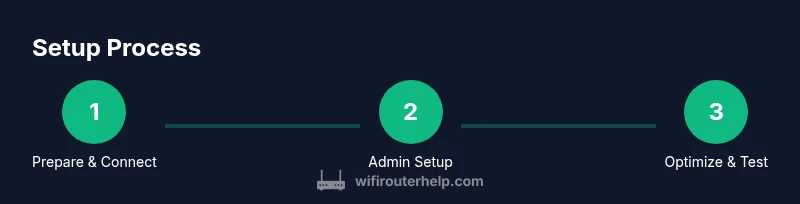
Steps
Estimated time: 60-90 minutes
- 1
Prepare and verify prerequisites
Gather the router, modem, cable, and a configured device. Confirm internet service is active and that you can access the admin interface after powering on the router. Having everything ready prevents mid‑setup detours.
Tip: Label network names and passwords clearly to avoid confusion later. - 2
Reset and power cycle
If you’re unsure of previous configurations, press the reset button for 10 seconds and allow the router to reboot fully. Then power cycle both the modem and router to establish a clean baseline.
Tip: A factory reset ensures you start from a known state. - 3
Connect the router to the modem
Use an Ethernet cable from the modem’s Ethernet port to the router’s WAN/Internet port. Confirm LEDs indicate a proper bridge and Internet connection before proceeding.
Tip: Use a wired test device during initial setup to avoid wireless interference. - 4
Access the admin page and set credentials
Connect to the router’s default network or use 192.168.1.1 (or 192.168.0.1). Create a unique admin password and a separate Wi‑Fi password for both bands.
Tip: Never use default credentials; this is a prime security risk. - 5
Enable security and set up the network
Turn on WPA2‑AES or WPA3 if available. Create distinct SSIDs for 2.4 GHz and 5 GHz bands, and set strong, long passwords. Consider enabling a guest network to keep guests isolated.
Tip: Use a password manager to store your network credentials securely. - 6
Test, optimize, and document
Run speed tests in multiple locations, tweak channel settings, and enable QoS for high‑priority devices. Save your configuration and keep a brief record of changes.
Tip: Document changes so you can revert if needed.
People Also Ask
How do I reset the Netgear AC1750 to factory settings?
Find the reset button on the back, hold it for 10 seconds until the lights blink, then release. Reconnect to the router and re‑run setup to configure new credentials.
To reset, press and hold the reset button for about 10 seconds until the lights blink. Then set up the router again with new credentials.
What is the default login for the Netgear AC1750?
Default admin credentials are typically printed on the device or in the manual. It’s essential to change the password during first setup to secure access.
The default login is usually shown in the manual; change the password during setup to secure the router.
How can I improve WiFi range in a two‑story house?
Position the router centrally on the first floor, use 5 GHz for nearby devices and 2.4 GHz for distant ones, and consider a mesh extender if coverage remains patchy.
Place the router centrally on the first floor, use 5 GHz up close and 2.4 GHz farther away; add a mesh extender if needed.
Should I enable QoS on the AC1750?
Enable QoS if you frequently video conference or game online. Set policy to prioritize essential devices while keeping overall throughput balanced.
Yes, enable QoS for priority devices to improve real‑time performance without starving other traffic.
Is WPA3 supported on all AC1750 models?
WPA3 support varies by model firmware. If unavailable, use WPA2‑AES with a strong password and enable other protections like a guest network and automatic updates.
WPA3 support isn’t guaranteed on every AC1750 model; use WPA2‑AES with strong passwords instead.
How often should I update firmware?
Check for firmware updates monthly or enable automatic updates to receive security patches and performance improvements as they’re released.
Check for updates monthly or enable auto‑updates to stay secure and performant.
Watch Video
What to Remember
- Follow a structured prep and placement plan
- Secure the network before distributing devices
- Test and optimize with real‑world checks
- Keep firmware up to date for security and stability
- Document settings for easy future maintenance