Router Home: Setup, Security, and Optimization
A comprehensive, step-by-step guide to setting up, securing, and optimizing your router home for strong WiFi coverage, reliability, and performance.


By following these steps, you will set up a reliable home network using a consumer router, secure it, and optimize coverage for all rooms. You’ll learn hardware connections, initial configuration, wireless security, and practical tweaks for streaming, gaming, and smart devices. This guide helps you create a solid router home that supports your everyday tech.
Understanding Router Home Essentials
A router home is the central device that creates your local network and routes internet traffic to all connected devices. It coordinates two critical roles: distributing IP addresses via DHCP and translating between wired and wireless connections. Understanding these basics helps you design a robust layout for speed and reliability. According to WiFi Router Help, investing time in a solid foundation now saves hours of troubleshooting later and reduces dead zones across your living space. Mastery starts with recognizing how radios, antennas, and firmware work together to deliver consistent coverage throughout a multi-room home.
Evaluating Coverage Needs and Home Layout
Every home is different. Start by mapping where you need strong signal (bedrooms, home office, basement) and where devices cluster (TVs, game consoles, smart speakers). Use a simple floor plan or room-by-room checklist to estimate required range, noting walls, furniture, and interference sources like microwaves. WiFi signals perform best when the router is near the center of the space and elevated. If you have thick walls or many floors, plan for a second access point or a mesh solution. The goal is to minimize hops and maintain consistent throughput across living areas. Remember that real-world performance depends on device density and streaming habits, so tailor the placement to your unique lifestyle.
Modem vs Router: How They Work Together
Your modem connects to the internet service provider; your router distributes it to devices. Some devices combine both roles as a gateway, but best practice is to place the router after the modem in the network chain. Clarify whether your device is a pure router or a gateway, and ensure you have a reliable ethernet connection between modem and router. If you rent a gateway from your ISP, consider using your own router for better performance and features, especially if you want advanced options like QoS and guest networks. This separation also helps you replace aging hardware without reconfiguring your entire network.
Security Foundations for Your Router Home
Security begins with a strong admin password, regular firmware updates, and proper wireless encryption. Disable remote management unless needed, turn on the firewall, and use WPA3 whenever possible. Create a separate guest network for visitors to keep your main network isolated. For added protection, disable WPS, review attached devices, and monitor logs for unusual activity. These practices reduce exposure to common attacks and help preserve privacy. A proactive security mindset saves you from disruptive incidents and preserves confidence in your home network.
Secure Setup: Passwords, Encryption, and Access
Choose a password manager to store the router credentials; never reuse passwords across services; use a unique, long passphrase. Update the SSID to reflect your home name rather than the manufacturer default to make the network easier to recognize and less suspicious. Enable automatic firmware updates if available and schedule periodic reviews of connected devices. Enforce device-level security on clients by instructing family members to keep devices updated. A well-structured setup reduces risk and simplifies future changes.
Performance Optimizations: Channel Selection, QoS, and Bandwidth
Performance starts with knowing that most homes use both 2.4 GHz and 5 GHz bands. 2.4 GHz covers longer distances but is more prone to interference; 5 GHz offers higher speeds with shorter range. Use the 2.4 GHz band for wall-through coverage and dedicate 5 GHz to high-demand devices like gaming consoles and 4K streaming boxes. If your router supports it, enable wider channels (80 MHz on 5 GHz) and features like beamforming or MU-MIMO for more reliable connections. Regularly test speeds in different rooms and adjust channel selections to reduce co-channel interference from neighbors.
Advanced Configurations: Guest Networks, Parental Controls, and NAT
A guest network lets visitors connect without accessing your primary devices, and it should use its own strong password or passphrase. Parental controls offer schedules and content filters for families with children, while NAT (Network Address Translation) helps manage private IPs. If you need advanced segmentation, consider enabling a separate VLAN or enabling bridge mode on a secondary access point. Always document your settings so you can recreate a preferred configuration after a reset or upgrade.
Troubleshooting Common Issues Without Tears
Despite best efforts, you may encounter odd behaviors. If the internet isn’t reachable after setup, verify the modem is online, the WAN/Internet light is stable, and the router is receiving a valid WAN IP. If devices cannot connect, recheck SSIDs and passwords, confirm the correct wireless band in use, and ensure the router’s DHCP service is enabled. For weak coverage, try repositioning the router higher and away from metal objects or consider adding a mesh node. When in doubt, perform a factory reset and reconfigure from scratch, then restore from a recent backup.
Maintenance and Long-Term Care
Keep firmware current by enabling automatic updates and checking release notes for security fixes and performance improvements. Periodically audit connected devices, remove unknown clients, and change the admin password if you notice anomalies. Create a configuration backup and store it in a safe place. Finally, re-evaluate coverage every 6-12 months, especially after adding new devices or changing home furniture layouts. A routine, proactive approach preserves performance and reduces the likelihood of surprises.
How to Interpret and Apply This Guide in Your Home
This final section translates theory into practical decisions. Emphasize central placement, WPA3 security, and regular testing to maintain robust performance as your household grows. Use the tips and steps in this guide to adapt to new devices, household changes, and evolving network demands. With consistent attention, your router home will stay fast, secure, and reliable for years.
Tools & Materials
- Router (dual-band 2.4 GHz + 5 GHz, Wi‑Fi 6/6E if available)(Prefer AX/AC with stable firmware and QoS features)
- Power adapter(Use a dedicated outlet; avoid daisy-chaining through non-UPS devices)
- Ethernet cable (Cat5e or Cat6)(One leg from modem to router WAN, others for wired clients if needed)
- Modem (or ISP gateway)(If you have a separate modem, connect it directly to the router)
- Smartphone or computer(To access the router admin page via browser or app)
- Documentation/manual(Model-specific steps and default credentials)
- UPS backup power (optional)(Keeps router online during short outages)
Steps
Estimated time: 60-90 minutes
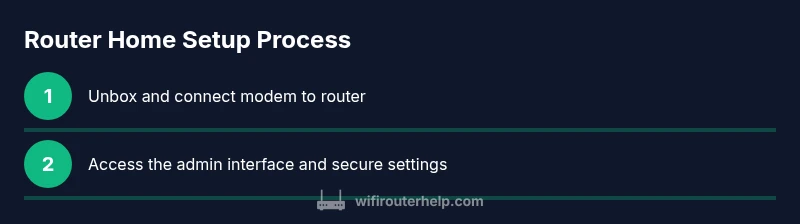
- 1
Unbox and connect hardware
Unbox the router and modem, connect the modem to power, then connect the router to the modem with an Ethernet cable. Power cycle the devices to boot them in order so the router can acquire a WAN IP.
Tip: Keep cables neat and label ports for future maintenance. - 2
Access the admin interface
Connect a computer or mobile device to the router's default network or via Ethernet and open the router's admin page using the default IP address or a mobile app. This is where you’ll begin configuring settings.
Tip: Use a temporary password and change it immediately after login. - 3
Change the admin password
Set a strong, unique admin password for the router. This password controls access to every setting, so make it long and hard to guess.
Tip: Do not reuse passwords across sites or services. - 4
Update firmware
Check for and install the latest firmware to fix bugs and close security gaps. Reboot if required after the update.
Tip: Enable auto-updates if available. - 5
Configure wireless networks
Create a 2.4 GHz and a 5 GHz network with distinct, memorable SSIDs and strong passphrases. Prefer WPA3 where available.
Tip: Disable WPS to reduce brute-force risk. - 6
Set up a guest network
Enable a separate guest network with its own password to isolate visitors from your main devices. Apply strict access controls.
Tip: Limit guest network bandwidth if possible. - 7
Enable security features
Turn on the firewall, review attached devices, and disable remote management unless you need it for remote access.
Tip: Regularly audit connected devices for unknown items. - 8
Optimize placement and channels
Place the router high and central. If interference exists, manually select channels or enable auto-channel scanning.
Tip: Beamforming and MU-MIMO can improve performance with multiple devices. - 9
Configure QoS and device prioritization
Prioritize latency-sensitive devices (video calls, gaming) to maintain smooth performance during peak times.
Tip: Start with a simple rule set and expand as needed. - 10
Test, document, and backup
Run speed tests in key rooms, verify coverage, and document all settings. Create a configuration backup for quick recovery.
Tip: Store backups in a secure location separate from the router.
People Also Ask
What is a router home and why do I need one?
A router home is the central device that creates a private network inside your house and routes internet traffic to all connected devices. It manages IP addresses via DHCP and handles wireless connectivity, so every phone, laptop, and smart device can reach the internet.
A router home creates your private network and routes traffic for all connected devices, giving you control over who connects and how fast.
Do I need a modem and a separate router, or can I use a gateway?
Most households pair a modem with a dedicated router to gain better performance and features. Some ISPs provide a gateway that mixes both roles; you can replace it with your own router for more control and customization.
Usually you use a separate modem and router for more control, but some ISPs provide a gateway you can replace.
Should I enable WPA3 on my router?
Yes. WPA3 provides stronger encryption and better protection against offline attacks. If your devices don’t support WPA3 yet, enable WPA2‑WPA3 mixed mode where available.
Turn on WPA3 if your devices support it; otherwise use mixed mode to stay protected.
How often should firmware be updated?
Check for updates monthly and install when released to fix security issues and improve stability. Enable automatic updates if your device offers this feature.
Check monthly and enable auto-updates if possible.
What can I do to extend WiFi coverage in a large home?
For large homes, add mesh nodes or a second access point, place units strategically, and use 2.4 GHz for longer reach while reserving 5 GHz for high-speed tasks.
Use a mesh system or extra access points and place them thoughtfully.
What is the difference between 2.4 GHz and 5 GHz bands?
2.4 GHz travels farther and penetrates walls better but offers lower speeds and is more crowded. 5 GHz delivers higher speeds with less interference but shorter range.
2.4 GHz goes further; 5 GHz goes faster but doesn’t reach as far.
Watch Video
What to Remember
- Secure admin access before anything else.
- Enable WPA3 and guest networks for safety and flexibility.
- Test coverage and adjust router placement as needed.
- Keep firmware updated to protect and improve performance.
- Document settings and backups for easy recovery.