Router for the Home: A Practical Setup Guide
A comprehensive, step-by-step guide to selecting, placing, securing, and troubleshooting a home router for reliable, fast Wi‑Fi throughout your house.


By the end of this guide you will be able to pick and set up a router for the home that delivers reliable coverage and solid security. You'll compare features, plan placement, secure the network, and perform essential tests. Have your modem, one device to configure settings, and your chosen SSID and password ready.
Understanding the router for the home
Your router for the home is the central device that manages local traffic, assigns IP addresses, and creates the wireless network that your devices connect to. It sits between your modem and your devices, translating the ISP's connection into a private, protected network. According to WiFi Router Help, the most important distinction is between a device that only routes traffic and one that also handles modem tasks. In a typical home, your router should also act as a firewall and provide basic parental controls or guest access. Before you buy, map your needs: how many devices, what kinds of activities (gaming, 4K streaming, video conferencing), and whether you need wired backhaul in addition to Wi‑Fi. This planning saves time during setup and helps you avoid overpaying for features you won't use.
Key features to look for in a home router
When shopping for a router for the home, prioritize features that match your household. Look for modern wireless standards (at least Wi‑Fi 6), support for dual-band or tri-band operation, and ample processing power to handle multiple streams simultaneously. MU‑MIMO, beamforming, and QoS help prioritize latency-sensitive tasks like video calls and gaming. Security features such as a built-in firewall, automatic firmware updates, a guest network, parental controls, and a simple admin interface should be easy to access. Port availability (at least 2-4 LAN ports) matters if you plan to connect gaming consoles, shelving speakers, or storage devices. Finally, consider firmware update frequency and community support, since these improve long-term reliability. As WiFi Router Help emphasizes, feature sets should align with how you actually use your network.
Dual-band, tri-band, and mesh options: what's right for your space
A dual-band router gives you 2.4 GHz and 5 GHz bands, suitable for most homes, but large houses or dense device usage may benefit from tri-band or a mesh system. Mesh networks distribute coverage with satellite nodes, reducing dead zones in basements or far rooms. If you opt for a mesh setup, ensure compatibility between nodes and your main router, and plan for the number of satellites based on square footage. Remember that more devices and higher speeds demand better processing power and a robust backhaul strategy. For many households, a quality dual-band router with strong coverage is sufficient, while larger homes tend to gain more from mesh or tri-band configurations.
Placement and coverage strategies
Placement determines coverage efficiency more than most users expect. Place the router high on a central shelf, away from metal objects and large appliances that could block signals. Keep it out in the open rather than tucked in a closet, and avoid nearby windows that may let signals escape unevenly. If you have thick walls or multiple floors, consider strategic placement on each level or adding a mesh node. Elevation, line-of-sight, and minimizing interference from cordless phones and microwaves greatly improve stability. Cable complexity and electrical noise are also factors worth considering when planning your network layout. The goal is a balanced signal radius that minimizes hops between devices and preserves throughput for streaming and gaming.
Security basics you should enable immediately
Security should be your first priority. Change the default admin password and avoid using easily guessable credentials. Enable WPA3 if your router supports it, or WPA2 at minimum, and disable WPS to prevent easy compromises. Create a separate guest network for visitors and disable remote administration unless you need it for occasional access. Regularly update firmware to patch vulnerabilities, and review connected devices to spot unfamiliar connections. Turn on the router's firewall and consider disabling UPnP unless you rely on it for specific apps. A secure network is the foundation of a healthy home tech setup, and attention to these basics pays off in reliability and peace of mind.
Step-by-step network preparation and initial setup
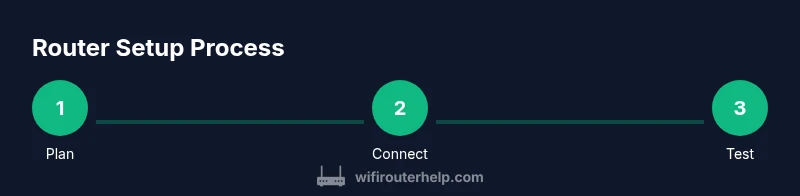
Preparing for setup means mapping device counts and coverage goals, selecting the router type, and ensuring you have the right cables. Then, connect the modem to the router's WAN port, power both devices, and access the admin interface from a computer or phone. Create your SSID and a strong password, enable essential security features, and turn on guest networking if needed. Apply a sensible password policy and back up your configuration. Finally, test network access on several devices in different rooms to verify stable coverage and correct internet access.
Tools & Materials
- Modem with active internet service(Ensure compatibility with your ISP and supports bridge mode if needed)
- Laptop or smartphone with web browser(For configuring the router settings)
- Ethernet cable (Cat6 recommended)(For wired setup and initial testing)
- Pen and notebook or digital notes(For logging passwords and network details)
Steps
Estimated time: 1-2 hours
- 1
Define your needs
List the number of devices, the types of online activities (gaming, streaming, work video calls), and the size of your home. This helps determine the router’s power, features, and whether you need a mesh extension. Doing this at the start saves later rework and ensures you buy a model that fits.
Tip: Create a rough floor plan and mark where devices cluster; data from these spots guides placement. - 2
Choose the router type
Decide between a single robust router, a gateway with built‑in modem, or a mesh system for large spaces. Mesh is beneficial if there are multiple dead zones or a multi‑story layout. Your choice should match both coverage needs and your budget.
Tip: If you have a multifloor home, consider at least one satellite for even coverage. - 3
Check essential features
Inspect the specs for Wi‑Fi standard (prefer Wi‑Fi 6 or newer), supported channels, MU‑MIMO, QoS, and security options. Ensure enough LAN ports for wired devices and consider USB ports for printers or storage. firmware‑update cadence matters for long‑term reliability.
Tip: Prioritize firmware support and user‑friendly admin dashboards. - 4
Plan network naming and security
Choose a unique SSID and a strong, passphrase‑based password. Decide on a separate guest network if you entertain visitors. Update the admin password and enable essential protections before connecting devices.
Tip: Avoid using personal information in the SSID to reduce targeted attacks. - 5
Prepare the setup space
Clear a ventilated area near power outlets with good airflow. Avoid cramped spaces, metal shelves, or enclosed cabinets that can trap heat. A stable surface reduces accidental unplugging and interference from other electronics.
Tip: Place the router away from large metal objects and microwaves. - 6
Connect the modem to the router
Power off all devices, connect the modem to the WAN port on the router with an Ethernet cable, then power the modem and router back on. Wait for the link lights to stabilize before proceeding.
Tip: If you must use bridge mode, consult your ISP instructions before swapping config. - 7
Configure the router settings
Log into the admin interface using a browser, set the SSID/password, enable encryption (WPA3 if possible), configure a guest network, disable remote admin, and enable the firewall. Save changes and back up the settings.
Tip: Use a separate admin account instead of the default one to reduce compromise risk. - 8
Update firmware and reboot
Check for firmware updates, install them, and reboot the router if prompted. This step often fixes bugs and improves security. After reboot, recheck your network names and passwords.
Tip: Enable automatic firmware updates if available to reduce maintenance effort. - 9
Test, monitor, and adjust
Run speed tests from multiple rooms and devices to verify coverage. If needed, tweak channel selection, enable band steering, or introduce a mesh node for dead zones. Note performance changes after adjustments.
Tip: Document any significant changes so you can reproduce successful configurations.
People Also Ask
What is the purpose of a router for the home?
A home router creates and manages your local network, assigns IP addresses, and routes traffic between devices and the internet. It also provides security features like a firewall and basic controls for guest access. Understanding its role helps you plan coverage and security from the start.
A home router creates your Wi‑Fi network, assigns devices their addresses, and protects your home network with basic security features.
Can I use a separate modem and router?
Yes. In many setups, the modem connects to a dedicated router, which manages your internal network and Wi‑Fi. This separation can improve performance and flexibility, especially if you upgrade one device at a time.
You can use a separate modem and router; it often gives you better control and potential performance gains.
How many devices can a typical home router handle?
Capacity depends on the model and usage. A modern router typically serves multiple devices concurrently, but performance can drop with many high‑bandwidth activities. Check manufacturer guidance for your specific model.
The number of devices varies by router; most can handle many devices but performance scales with traffic type and router capacity.
Where should I place the router for best coverage?
Place the router in a central, elevated location away from metal objects and appliances that emit interference. Avoid closets or cabinets, and consider mesh nodes for larger homes to fill gaps.
Put it high and in the center of your home to maximize coverage.
What security features should I enable on a home router?
Enable WPA3 or WPA2 at minimum, create a strong admin password, disable WPS, use a guest network, and keep firmware updated. These steps reduce risk from unauthorized access and known exploits.
Use strong wireless security, update firmware, and keep admin access locked down.
What is bridge mode and when should I use it?
Bridge mode turns off the router’s NAT and firewall to let another device (such as a dedicated modem or gateway) handle routing. Use it when integrating with an existing network appliance or when your ISP provides a combined device you want to bypass.
Bridge mode disables the router features so another device can handle routing.
What to Remember
- Plan coverage before buying gear
- Choose features that match your home usage
- Place the router strategically for even signal
- Secure the network with strong passwords and updates
- Test and adjust after setup for best performance