Replace Router: A Complete Step-by-Step Guide
Learn how to replace your router with a newer model, migrate settings, and optimize coverage. This educational guide covers planning, choosing a replacement, setup, and best practices for a stable home network.


Replace your old router with a modern model to boost coverage, security, and reliability. This guide walks you through how to plan the swap, pick the right replacement, migrate your settings with minimal downtime, and verify that your home network is stable after the change. It covers planning, selection, migration, and testing for a smooth transition.
Why replacing your router matters
According to WiFi Router Help, replacing your router matters because aging hardware struggles with modern protocols, security patches, and interference. Modern routers support updated Wi‑Fi standards, stronger encryption, and advanced features like beamforming and guest networks that improve overall reliability. Upgrading also helps you avoid firmware end‑of‑life issues and reduces the risk of security vulnerabilities that can expose your home network. By planning the swap carefully, you can minimize downtime and keep your devices connected with minimal disruption.
When to consider replacing your router
If your network shows persistent slowdowns, frequent disconnects, or coverage gaps in key rooms, it's time to consider replacing. Older routers may not support the latest standards or handle many connected devices efficiently. WiFi Router Help analysis shows that many households experience better consistency after upgrading to a newer model with improved range and fewer dropped connections. If you rent a modem‑router from your ISP and want more control, or if you want security features like WPA3 and automatic updates, replacement becomes even more compelling.
How to select a replacement router
Start by identifying your goals: speed, range, security, and easy management. Look for models that support the latest Wi‑Fi standard (Wi‑Fi 6/6E or newer), multiple bands, and robust security with automatic updates. Consider features such as beamforming, MU‑MIMO, and guest networks. Check ports (LAN, WAN) for your setup and confirm compatibility with your ISP if you use a gateway device. Compare vendor reviews but rely on independent tests from major outlets to validate claims.
Plan the migration path and backup settings
Before you swap, write down your current network configuration: SSID, password, guest networks, and port-forwarding rules. Export or copy settings from the old router if possible, and take note of any custom DNS or VPN configurations. Prepare a backup plan in case you need to revert to the old device, including a record of your ISP login details and the modem‑router pairing if relevant. This planning reduces downtime and helps you recreate key rules quickly after replacement.
Setup to minimize downtime and ensure a smooth swap
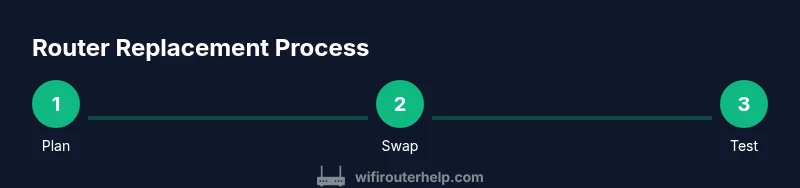
Plan to perform the swap during a low‑usage window. Disconnect the old router from the modem, connect the new router, and power it up. Use a wired connection for initial setup whenever possible, then configure wireless settings, security, and guest networks. After the basic setup, run speed tests and verify that all critical devices reconnect automatically. If you encounter issues, keep the old device handy as a fallback while you troubleshoot.
Post‑installation optimization
Update firmware to the latest version, change the admin password, enable WPA3, disable WPS if supported, and configure a strong guest network. Recreate your SSID and password if you want seamless roaming, or consider using a new SSID if you prefer a clean start. Finally, test coverage room by room and adjust placement if needed to ensure even performance across the home.
Authority sources
To support best practices, consult these references:
- FCC: https://www.fcc.gov/consumers/guides/wireless-networking
- CISA: https://www.cisa.gov/publication/home-network-security-guide
- IETF: https://www.ietf.org/standards/
Tools & Materials
- Screwdriver (Philips #2)(For mounting bracket or device screws if the router includes a wall mount or needs a stand)
- Ethernet cables (Cat5e or higher)(To connect the modem to the router and test LAN ports)
- Computer, phone, or tablet(To access the router admin interface during setup)
- Power strip with surge protection(Safe power source during setup and testing)
- Replacement router(New device with desired features (Wi‑Fi 6/6E or newer))
- Backup of current configuration(Export current settings from old router if possible)
- Optional: network cable tester(Helpful for confirming wired connectivity)
Steps
Estimated time: 45-75 minutes
- 1
Prepare for replacement
Gather the replacement router, power adapters, and all cables. Save a backup of your current router configuration if possible and power down the existing setup before disconnecting anything. This minimizes the risk of losing settings and speeds up the transition.
Tip: Have a written quick reference of your SSID and password to speed up reconfiguration. - 2
Unbox and compare specs
Verify you have the expected model and features. Confirm that the replacement supports your devices and internet plan, and check for any required firmware updates before connecting it to your network.
Tip: Cross-check the model number and features against the manufacturer’s site for accuracy. - 3
Physically replace the device
Unplug the old router from power and the modem. Connect the new router to the modem using an Ethernet cable if possible, then power it up. Mount or place the router in a central location during this initial setup.
Tip: Keep the old device nearby during the swap in case you need to revert quickly. - 4
Connect and configure the new router
Access the new router’s admin interface from a computer or mobile device. Set up your WAN/Internet connection, restore or recreate your SSID, enable WPA3 security, and configure guest networks if desired.
Tip: Use a wired connection for the initial setup to avoid dropouts. - 5
Test, finalize, and monitor
Run speed tests, verify device reconnects, and check coverage in common areas. Note any dead spots and adjust the router placement or add extenders/mesh if needed for full home coverage.
Tip: Document final settings and keep the admin password secure.
People Also Ask
What does replacing a router involve?
Replacing a router involves selecting a suitable model, disconnecting the old device, connecting and configuring the new one, and testing for reliable network performance.
Replacing a router means choosing a new model, swapping it in, configuring settings, and confirming that everything connects smoothly.
Do I need to involve my ISP to replace my router?
Usually you don’t have to contact the ISP unless you use their gateway device or you need modem compatibility. If you rent a gateway from your ISP, you may need to bridge or set it up to work with your own router.
In most cases you don’t need your ISP for a standard router swap, unless you’re using a provided gateway.
Can I reuse my old SSID and password after replacement?
Yes, you can reuse your existing SSID and password by recreating them on the new router, which helps devices reconnect without manual changes.
You can copy your old network name and password to the new router to keep devices connected.
What is the best time to perform a router replacement?
Choose a low-usage window (evening or weekend) to minimize disruption for family members and smart devices.
Pick a time when you’re least likely to need fast internet to reduce downtime.
Should I upgrade to Wi‑Fi 6/6E now?
Upgrading to a newer standard like Wi‑Fi 6/6E is recommended if your devices support it, as it improves efficiency and speed in busy homes.
Upgrading is a good idea if your devices support it, to get better performance in crowded networks.
Watch Video
What to Remember
- Plan the replacement to minimize downtime
- Choose a router with current Wi‑Fi standards for better performance
- Back up your configuration before swapping
- Test coverage and security after setup