Quantum Fiber Router Login: A Practical How-To for Home Networks
Discover a secure approach to quantum fiber router login, troubleshoot access issues, and optimize your home network with clear, step-by-step guidance from WiFi Router Help.


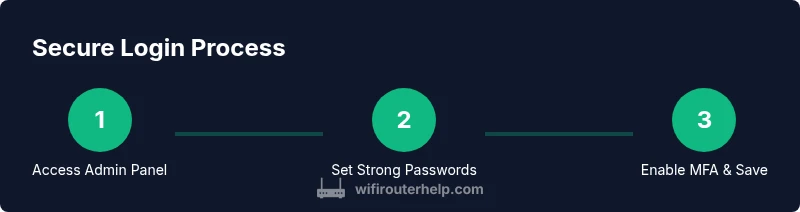
You will gain secure access to your quantum fiber router by locating the default admin IP, entering the correct credentials, and enabling essential security features. This quick guide covers initial login steps, recommended password practices, two-factor options if available, and common troubleshooting tips to get your home network running smoothly, with a focus on limiting remote access.
Why Secure Access to Your Quantum Fiber Router Matters
The admin interface that controls your quantum fiber router login is a powerful gateway to your home network. Leaving it exposed or using weak credentials invites unauthorized access, device misconfigurations, and potential data leaks. In practice, a solid login strategy begins with changing any factory default credentials and choosing a password you can remember but others cannot guess. The WiFi Router Help team emphasizes that strong authentication reduces the odds of credential stuffing and remote exploitation. For homeowners, the impact is not abstract: it means fewer devices on your network that could be compromised, fewer interruptions, and better control over who can modify firewall rules or QoS settings. In short, secure login hygiene is the first line of defense in a safe, stable home network. As you implement these steps, you’ll notice that the process also clarifies how to manage access for guests and device families without sacrificing protection. According to WiFi Router Help, making login security a habit pays off quickly in real-world performance.
Understanding the Quantum Fiber Router Login Process
Accessing the quantum fiber router login begins with locating the admin interface, then entering the correct credentials. Most devices use a private IP address such as 192.168.0.1 or 192.168.1.1, and you’ll sign in with either a factory default username and password or the credentials you or your ISP established. Once logged in, you’ll typically see sections for network settings, security, and device access control. If your device offers two-factor authentication, enabling it adds a critical layer of protection. This block explains what to expect during the login flow, how to recognize a legitimate portal, and how to avoid phishing pages that mimic the router login screen. Expect prompts to update firmware and review connected devices after you complete the quantum fiber router login.
Locating the Admin Interface: IP Addresses and URLs
To reach the quantum fiber router login page, start from a device connected to your home network. Common methods include typing 192.168.0.1, 192.168.1.1, or 10.0.0.1 into the browser’s address bar. If none of these work, check the router’s label on the bottom or back, or consult the manual. Some models offer a mobile app that redirects you to the same admin panel. If you’re using a VPN or a corporate network on your device, temporarily disable it to access the router screen. This step-by-step helps you reliably locate the admin interface and avoid the frustration of repeated failed quantum fiber router login attempts.
Best Practices for Passwords and MFA on Your Quantum Fiber Router Login
Create a unique, long password for the router login that combines letters, numbers, and symbols. Avoid easily guessable phrases or personal data. If MFA is available, enable it to secure the quantum fiber router login beyond a password alone. Consider using a password manager to store credentials securely and to generate randomized strings. Regularly review and rotate passwords, especially after a security incident or when adding new devices to the home network. Strong password hygiene protects the entire network from unauthorized changes to firewall rules and QoS settings.
Troubleshooting Common Login Issues
If you can’t access the quantum fiber router login page, verify you’re connected to the home network and using the correct IP. Clear browser cache or try a different browser and disable ad blockers on the login page. If the password is forgotten or the account is locked after multiple failures, perform a factory reset as a last resort and reconfigure from scratch. Check for a physical reset button on the device and follow the manufacturer’s instructions. Remember that a factory reset will erase custom settings, so have your ISP or router guide handy to restore essential configurations.
Understanding Router Admin Interfaces: Web vs Mobile Apps
Many quantum fiber routers offer both a web-based admin panel and a companion mobile app. The web interface is typically more flexible for advanced settings, while the app can simplify basic tasks like checking connected devices and updating firmware. Both pathways use the same login credentials, but the layout and available features may differ. If you switch between interfaces, ensure you apply changes in the same router context to avoid partial configurations or conflicts with the quantum fiber router login state.
Security Hardening: After You Login
After successfully logging in, promptly update the admin password if you haven’t already, and review who has access to the device. Disable remote management unless you specifically require it, and enable the firewall and WPA3 (or WPA2) security for wireless. Review UPnP and port-forwarding rules for unintended exposure. Document changes in a secure location and set a reminder to audit login activity periodically. This practice keeps the quantum fiber router login environment resilient against evolving threats.
Performance and Firmware Considerations Impact on Access
Firmware versions influence both security and usability of the quantum fiber router login. Regular updates patch vulnerabilities that could be exploited via the login page and can improve overall network performance. Schedule maintenance windows to apply updates when devices are least in use, and back up current configurations if the router supports export. If you’re experiencing flaky access, verify that the firmware is current and that settings saved during a login session persist after reboots.
Getting Help: When to Contact ISP or Manufacturer
If login issues persist after applying standard fixes, contact your ISP or router manufacturer for support. Have your device model, serial number, current firmware version, and a description of the issue ready. Some providers offer remote assistance or advanced diagnostics that can resolve quantum fiber router login problems without on-site visits. For ongoing concerns, request escalation to a technician who can review remote management settings, firewall rules, and guest network configurations.
Tools & Materials
- Router or access point(Keep model information handy for firmware and default credentials references.)
- Computer, smartphone, or tablet(Must be connected to the home network to access the admin panel.)
- Active internet connection(Needed for firmware updates and remote support if required.)
- Admin credentials(Use current credentials; have the ability to reset if forgotten.)
- RJ-45 Ethernet cable (optional)(Useful for stable direct connection during login or recovery.)
- Password manager(Helps generate and store long, unique router passwords.)
Steps
Estimated time: 20-35 minutes
- 1
Prepare your device and credentials
Ensure you have a device connected to your home network and access to the admin credentials. If you’ve never changed the default password, plan to update it during login. Gather any notes or app references for later steps.
Tip: Pro tip: use a password manager to store and auto-fill the admin password securely. - 2
Open the router’s admin page
In a browser, enter the router’s admin IP address, commonly 192.168.0.1 or 192.168.1.1. If you’re unsure, check the device label or manual. Ensure the URL is the device’s login portal, not a third-party site.
Tip: Pro tip: use an Incognito/Private window if you’ve previously logged in on another device. - 3
Log in with current credentials
Enter the username and password displayed on the label or previously configured by you or your ISP. If you’re using a managed service, your ISP may supply the login details. Successful access confirms you’re at the correct admin interface.
Tip: Pro tip: if the account is locked after failed attempts, wait a few minutes before retrying. - 4
Change the default login password
Update to a strong, unique password. Use a combination of letters, numbers, and symbols and aim for at least 12-16 characters. Store this password securely in your manager.
Tip: Pro tip: avoid common words or personal information that could be guessed. - 5
Enable MFA if available
If the router supports two-factor authentication, enable it and choose a second factor that you control (e.g., authenticator app). This adds a crucial layer of protection beyond the password.
Tip: Pro tip: keep backup codes in a safe location separate from the device. - 6
Secure Wi‑Fi and admin settings
Verify the wireless security protocol (prefer WPA3; if not available, WPA2). Disable WEP. Review and limit remote management and port forwarding to minimize exposure.
Tip: Pro tip: disable UPnP unless you need it for specific devices. - 7
Create a guest network
Set up a separate guest SSID with its own password to isolate guest traffic from your main network. This helps protect the primary admin credentials while still offering internet access to visitors.
Tip: Pro tip: limit bandwidth for guest networks if your router supports it. - 8
Save changes and reboot if required
Apply all changes and reboot the router if the interface prompts you. Confirm that login works again afterward from a trusted device.
Tip: Pro tip: after reboot, re-login and verify all critical settings are intact. - 9
Document and back up your configuration
Record the new admin password and export or back up the configuration if the router offers this option. This helps recover quickly if you lose access later.
Tip: Pro tip: store the backup in a secure password-protected location. - 10
Schedule regular maintenance
Set a reminder to review login security and firmware updates every few months. Keep a log of changes to share with other household admins if needed.
Tip: Pro tip: enable automatic firmware updates where possible.
People Also Ask
What is the quantum fiber router login and why do I need it?
The quantum fiber router login is access to the router’s admin interface where you configure network settings, security, and device access. Securing this login protects your home network from unauthorized changes and potential threats.
The router login is the admin page for managing your network. Securing it helps keep your home network safe.
How do I reset my router login password?
If you forgot the password, use the reset button on the device to restore factory defaults, then reconfigure with a new secure password. If you still have access to the admin account, you can also change the password from the settings.
If you forget the password, reset the router to factory settings and set a new secure password.
Can I access the quantum fiber router login from a mobile app?
Many routers offer a mobile app that connects to the same admin interface. The steps are similar, but the layout may differ. Use the app to monitor connected devices and apply basic security settings.
Yes, most routers have a mobile app to access the admin settings.
Is two-factor authentication available for router login?
Some models support MFA for the router login. If available, enable it for an extra layer of security beyond a password.
Some routers support MFA; enable it if you can for extra security.
What should I do if I still can’t access the login page after trying basics?
Verify the device is on the same network, try a different browser, clear cache, and ensure you’re using the correct IP. If issues persist, contact support for guidance.
If you can’t access the login page, check the network, try another browser, and contact support if needed.
When should I contact my ISP or router maker?
If firmware updates fail, the admin interface is unresponsive, or security settings won’t save, reach out to your ISP or the router manufacturer for advanced diagnostics.
If issues persist after basics, contact your provider or manufacturer for help.
Watch Video
What to Remember
- Change default credentials immediately after quantum router setup.
- Use strong passwords and enable MFA when possible.
- Regularly update firmware to reduce login risks.
- Create a separate guest network to protect the admin panel.
- Document changes and back up configurations for quick recovery.