Muama Ryoko Portable WiFi: Setup, Use & Troubleshooting
Learn how to set up and optimize the muama ryoko portable wifi for reliable on-the-go internet. Step-by-step setup, security practices, performance tips, and troubleshooting to keep you connected anywhere.


By following this guide, you will set up and optimize a muama ryoko portable wifi device for reliable on-the-go internet. You’ll verify SIM compatibility, power on, connect to the device, configure security, monitor data usage, and troubleshoot common issues. This approach helps travelers, remote workers, and tech enthusiasts maintain dependable mobile broadband wherever you go.
What muama ryoko portable wifi is and why it matters
muama ryoko portable wifi is a compact, battery-powered wireless hotspot that lets you share mobile data with multiple devices. In practice, it acts as a tiny router you carry in a pocket, creating a private Wi-Fi network wherever you have cellular coverage. According to WiFi Router Help, this type of device excels for travelers, remote workers, and households with spotty home internet. The Muama Ryoko is designed for simple setup, long battery life, and plug-and-go portability, making it a convenient backup when you’re on the move. Key advantages include portability, independence from fixed home networks, and the ability to switch carriers by swapping SIM cards. For homeowners who want a flexible travel companion or a temporary hotspot for gatherings, muama ryoko portable wifi offers an accessible entry point into mobile broadband. It is not a replacement for a fixed home connection, but it provides reliable internet during trips, remote work sessions, or outdoor activities.
Ideal uses for muama ryoko portable wifi
This device shines in several scenarios. Travelers appreciate its compact size and the ability to keep family plans or business apps online without hunting for open wifi. Remote workers rely on a stable hotspot when staying in hotels with inconsistent ethernet options. Families on road trips use it as a shared internet source for tablets and streaming devices during long drives. Students living in dorms with limited wired options also benefit from a personal, portable hotspot. The muama ryoko portable wifi is particularly effective when you need instant connectivity in places with poor or expensive cellular data, such as campgrounds or remote cabins. Remember that performance depends on cellular signal, data plan, and device battery; plan accordingly for your trip or workweek.
Prerequisites and checks before you begin
Before you start, gather the essentials and confirm a few details. Ensure you have the Muama Ryoko device itself, a SIM card with an active data plan, and a compatible smartphone or laptop for the initial setup. Charge the battery fully or keep the device plugged in with a power bank during usage. If your SIM requires a PIN, have that code handy. Check that the SIM is unlocked and that your data plan supports the bands used by your Muama Ryoko model. Take note of the SSID and password label on the device or its packaging, since you’ll use these to connect a computer or phone to the hotspot. Finally, verify you know how to access the device’s admin page (the address is usually printed on the device or in the manual).
Getting the most from muama ryoko portable wifi: quick setup overview
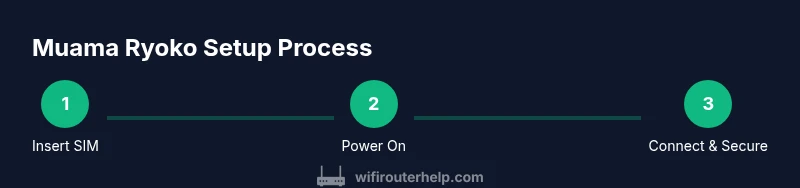
A smooth initialization follows a simple sequence. Power on the device, insert a valid SIM, and allow the device to boot. Connect your phone or laptop to the hotspot’s network using the SSID printed on the device. Open the admin dashboard in a web browser using the device’s local address, then log in with the default credentials provided in the manual. From there, change the default password, set a unique network name, and enable WPA2 or WPA3 security. Finally, save your settings and test the connection by loading a few websites or streaming a short video. In minutes you’ll have a private, protected network that you control.
Optimizing performance and data management
To get the best speeds, position the Muama Ryoko where cellular signals are strongest, preferably near a window or outdoors in good weather. Limit the number of devices connected simultaneously to prevent congestion, and enable QoS if the admin panel offers it to prioritize essential apps like video calls. Monitor data usage through the built-in status page or app, and set alerts for nearing your plan limit. If you expect heavy use, consider a higher data plan or a plan with roll-over data. Remember that battery life depends on signal strength and usage, so carry a portable charger for long trips. With careful planning, you’ll balance reliability, speed, and battery life.
Security, privacy, and maintenance
Security should be a core consideration for any portable hotspot. Change the default admin password to a strong, unique phrase, and use WPA2-PSK or WPA3 where available. Disable WPS and UPnP if your admin page offers them, to reduce exposure to attackers. Regularly update the device firmware when updates are released, since manufacturers fix security issues and improve performance. If you’re traveling, consider enabling a guest network for visitors so your primary network remains protected. Finally, keep track of the SIM data plan terms and avoid roaming charges by turning data roaming off when not needed.
Troubleshooting common issues and next steps
If the Muama Ryoko isn’t connecting, first confirm the device is powered, the SIM is active, and you are connected to the correct SSID. If you have no internet, try rebooting the hotspot and resetting the network settings. Slow speeds can result from weak cellular signals, network congestion, or a cramped indoor location. Check battery level; a dead or low battery can throttle performance. If problems persist, consult the manual or the manufacturer’s support site for firmware updates and reset options. As you gain experience, you’ll know when it’s time to upgrade to a more capable portable hotspot or add a dedicated home backup connection.
Tools & Materials
- muama ryoko portable wifi device(Fully charged or connected to power during setup)
- active SIM card with data plan(Check compatibility with device bands; unlock status matters)
- smartphone or laptop for setup(Used to connect to the hotspot and access the admin page)
- charging cable and/or portable power bank(Maintain power during use, especially on the go)
- SIM ejector tool or small paperclip(Useful for SIM tray access)
- PIN code or PUK code (if provided by carrier)(Have it handy in case the SIM asks for it)
Steps
Estimated time: 60-90 minutes
- 1
Insert SIM and charge
Power off the device, insert a valid SIM, and connect the charger or a power bank. Allow the device to boot and initialize its hardware; this ensures the SIM is recognized and ready for data service.
Tip: Power off before inserting/removing SIM to avoid damage. - 2
Power on and connect to the hotspot
Turn on the Muama Ryoko and wait for the indicator lights to stabilize. On your phone or laptop, open Wi-Fi settings and select the SSID printed on the device.
Tip: Use the device label for accurate SSID and default password. - 3
Access the admin dashboard
Open a web browser and enter the device’s local address or URL from the manual. Log in with the default credentials and be ready to make changes.
Tip: Change the password before making other settings. - 4
Secure and personalize the network
Change the SSID to something unique, set a strong password, and enable WPA2-PSK or WPA3. Disable WPS if available to reduce risk of unauthorized access.
Tip: Choose a password that’s long and random; avoid common phrases. - 5
Configure data plan and network basics
If required, enter APN settings provided by your carrier. Confirm data plan status and set any limits or alerts for consumption.
Tip: Avoid overage by enabling data usage alerts and limiting connected devices. - 6
Update firmware and optimize features
Check for firmware updates and install them. Enable security features like firewall if offered and ensure QoS is configured if you need prioritization.
Tip: Firmware updates can fix bugs and improve performance; don’t skip them. - 7
Test connectivity and monitor usage
Load a few websites, stream a short video, and verify that the devices can access the internet. Use the admin status page to monitor connected devices and data usage in real time.
Tip: Test from multiple locations to gauge real-world performance.
People Also Ask
What is muama ryoko portable wifi?
Muama Ryoko portable wifi is a compact, battery-powered hotspot that creates a private Wi-Fi network using a cellular data connection. It’s designed for portability and easy sharing of internet among multiple devices.
Muama Ryoko is a small portable hotspot that shares cellular data with your devices, ideal for travel and on-the-go use.
How do I set up Muama Ryoko for the first time?
Insert a valid SIM, power on, connect to the hotspot network, access the admin page, change the default password, and secure the network with a strong password and WPA2/WPA3 security.
First-time setup involves inserting the SIM, powering on, connecting to the network, and securing your hotspot with a strong password.
Can I use Muama Ryoko internationally?
International use depends on your SIM data plan and the device’s supported bands. Check with your carrier for roaming options and ensure your plan covers the travel region.
International use depends on your plan and the device’s bands; verify roaming options with your carrier before traveling.
What speeds can I expect with Muama Ryoko?
Speeds depend on cellular signal strength and network congestion in your location. In good signal areas, you’ll typically achieve practical browsing and video streaming, but speeds vary by carrier and location.
Speeds vary with signal and congestion; you’ll get usable speeds in good coverage areas, but results differ by location.
How do I reset Muama Ryoko to factory settings?
Use the reset option in the admin menu or press and hold the reset button for several seconds as described in the manual. This restores default credentials and removes custom settings.
If you need to reset, use the reset option in the admin page or hold the reset button per the manual to restore defaults.
Watch Video
What to Remember
- Connect securely and customize credentials.
- Monitor data usage to avoid overages.
- Keep firmware updated for security and performance.
- Test performance in real-world locations.
- Maintain a portable power plan for reliability.